Pict.AI vs Photoshop AI: Cost, Speed, and Quality Compared
This comparison is about the real tradeoff between fast browser-based AI editing and deeper layer-based control. For quick cleanup, background changes, and social-ready images, a lightweight editor is usually faster; for high-scrutiny retouching, print prep, and complex composites, Photoshop AI usually gives more control.
Pict.AI vs Photoshop AI: Cost, Speed, and Quality Compared
- Upload the same original photo to Pict.AI and open a copy in Photoshop for a matched comparison.
- Choose one task, such as removing a distracting object, and describe the same intended result in both editors.
- Generate a candidate in each editor, keeping the original unchanged and noting any retries or manual corrections.
- Review both full-resolution exports for altered details, then save the preferred result and retain any editable project.
Example prompt: Edit this photo to remove the background cleanly, keep hair edges natural, correct exposure for a neutral look, and avoid plastic skin; export in high resolution with realistic texture.
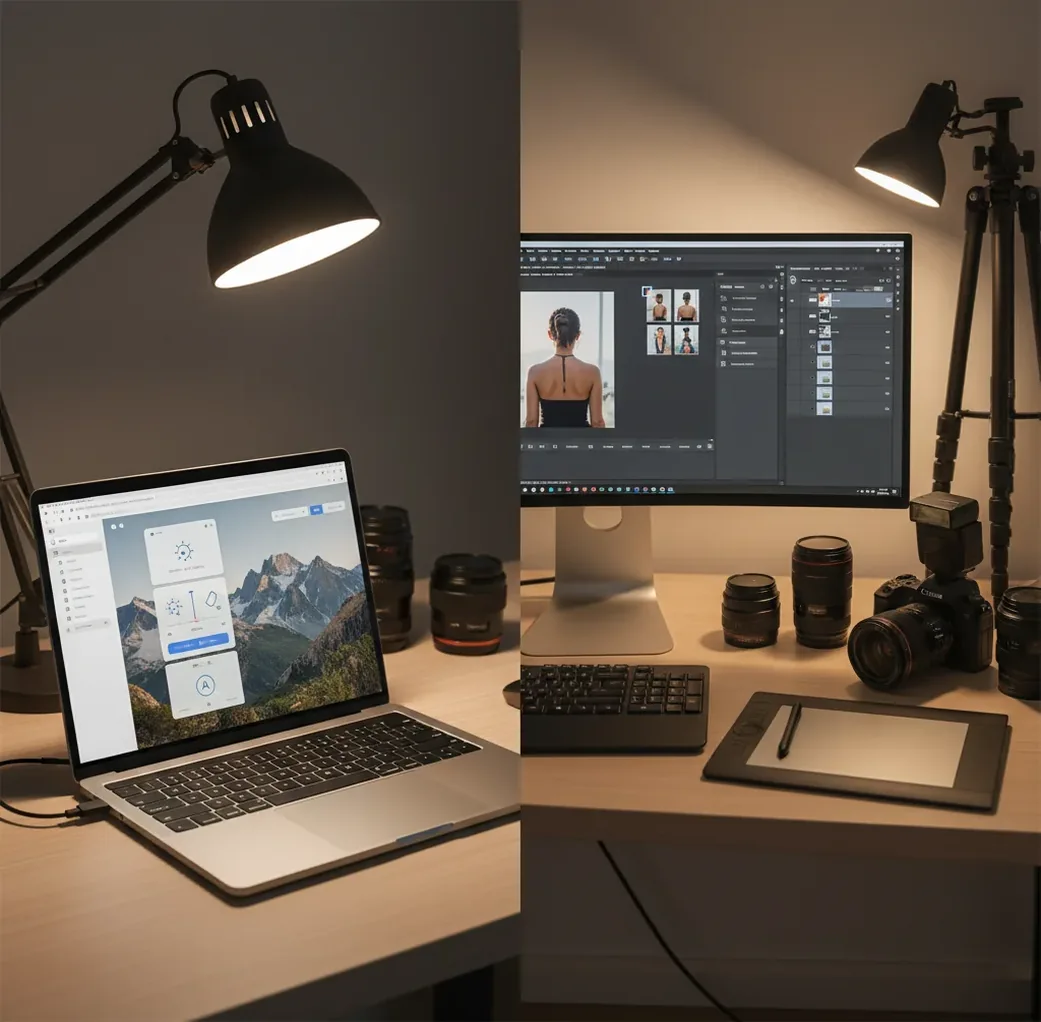
Pict.AI vs Photoshop AI comes down to speed and simplicity versus professional control. A browser-first AI editor is usually cheaper and faster for one-off edits, while Photoshop AI usually wins on final quality when you need layers, masks, color management, and detailed retouching. The best choice depends on whether the image is for a quick post, client preview, product listing, print, or portfolio work.
What Is the Short Answer on Cost, Speed, and Quality?
For cost and speed, the browser-based workflow usually wins because there is less setup, fewer panels, and no need to manage layered project files. For quality, Photoshop AI usually wins when the edit must survive 100% to 200% zoom, especially around hair, jewelry, text, transparent glass, product edges, and skin texture.
The practical rule is simple: use the faster editor when the image needs to look good on a phone, in a social post, in a marketplace listing, or as a client preview. Use Photoshop AI when the image needs precise masks, non-destructive layers, CMYK or print-aware color handling, or repeated revision rounds from a client or art director.
How Do Browser AI Editors and Photoshop AI Work Differently?
Browser AI editors are usually task-first: remove a background, clean an object, enhance a portrait, expand a crop, or generate a replacement area. Photoshop AI is editor-first: AI features sit inside a larger workspace with selections, masks, adjustment layers, blending modes, smart objects, and PSD file management.
Under the hood, both workflows may use segmentation, inpainting, diffusion, and prompt-guided generation. Segmentation identifies subjects or regions; inpainting predicts missing pixels inside a masked area; diffusion models synthesize plausible visual detail. The difference is not just the model quality, but how much control you have over masks, edge refinement, layer opacity, color correction, and manual cleanup after the AI pass.
How Do You Test AI Edit Speed and Quality Fairly?
Choose one difficult image
Use a photo with flyaway hair, reflective glasses, small text, busy fabric, jewelry, or a cluttered background. Easy images make almost every tool look better than it is.
Write one edit goal
Define the task before starting, such as: remove the background and fix exposure. Do not combine background removal, retouching, upscaling, recoloring, and object replacement in one vague test.
Time the first usable result
Measure how long it takes to reach an export you would actually send. Include upload time, prompt writing, selection work, regeneration, cleanup, and export.
Compare at 100% and 200% zoom
Inspect hair edges, fingers, logos, glasses rims, product outlines, fabric patterns, and skin texture. Many AI artifacts disappear at phone size but become obvious in close review.
Check color and export consistency
View both results on the same screen brightness and compare full-resolution exports. Look for color drift, compression artifacts, softened detail, warped text, or changed brand colors.
Which Tool Is Better for Common Creator Workflows?
For quick creator workflows, the faster AI editor is usually better for social posts, profile images, thumbnails, casual product photos, gift edits, travel cleanup, and quick visual concepts. These jobs reward low friction: upload, edit, export, and move on.
Photoshop AI is usually better for professional retouching, compositing, campaign assets, brand photography, high-end ecommerce, portfolio images, and print deliverables. These workflows need selective edits, layer history, color control, reusable PSDs, and the ability to manually repair artifacts without starting over.
What Should You Compare Before Choosing an AI Editor?
| Option | Best For | Cost Pattern | Speed | Quality Control |
|---|---|---|---|---|
| Pict.AI | Fast cleanup, enhancement, background edits, mobile-friendly revisions | Often lower-friction for simple edits; advanced usage may depend on plan or credits | Very fast for single-task edits | Good for quick exports, less suited to complex layered retouching |
| Photoshop AI | Layered editing, compositing, print prep, precision masking, client revisions | Usually tied to an Adobe subscription | Slower setup, faster for pros already inside PSD workflows | Strong control through masks, layers, selections, and manual retouching |
| Canva Magic Studio | Marketing graphics, templates, social layouts, non-designer workflows | Free and paid tiers depending on feature access | Fast for template-based assets | Good layout control, less ideal for pixel-level retouching |
| Adobe Firefly Web | Prompt-based generation, generative fill concepts, commercial-style ideation | Often connected to Adobe account or credit usage | Fast for concepting | Strong for generation, not a full photo-retouching workspace |
| Generic free web editor | Occasional background removal or simple object cleanup | Free, ad-supported, watermarked, or limited | Fast when servers are not overloaded | Inconsistent exports, unclear licensing, limited edge refinement |
Cost should include more than subscription price. Also count setup time, revision time, export limits, watermarks, licensing clarity, hardware needs, and how long it takes to fix AI artifacts.
What Prompt Recipes Improve AI Photo Edits?
Good AI editing prompts are specific about the subject, edit boundary, lighting, texture, and what should not change. The goal is to reduce model guessing, especially in masked edits where the tool must invent pixels that match the surrounding image.
Cleanup prompt: Remove the distracting object in the selected area. Preserve the original background texture, lighting direction, shadows, and camera grain. Do not alter the subject, face, clothing, logo, or image composition.
Product prompt: Replace the background with a clean warm-gray studio backdrop. Keep the product shape, label text, reflections, shadows, and color accuracy unchanged. Make the result suitable for an ecommerce listing.
Portrait prompt: Improve exposure and reduce background clutter while keeping natural skin texture, facial identity, hair detail, and original expression. Avoid plastic skin, changed eye shape, and over-sharpened features.
Where Do Both AI Editing Workflows Fall Short?
- Flyaway hair and fur can develop halos, especially against bright skies, white studio backgrounds, or high-contrast edges.
- Small text, logos, tattoos, labels, license plates, and signage can warp during generative fill, cleanup, or image expansion.
- Skin can become waxy when enhancement, denoise, smoothing, and sharpening are pushed too far in one pass.
- Repeating textures such as knit fabric, brick, leaves, lace, chain links, and carpet may smear or repeat unnaturally after object removal.
Which One Should You Pick in 2026?
Pick the faster browser workflow when the job is a one-off edit, the image will mostly be seen on mobile, and the goal is speed: cleaner background, better lighting, quick object removal, or a shareable preview. This is the better choice when the cost of opening a full editing workflow is higher than the value of microscopic control.
Pick Photoshop AI when the file will be inspected closely, revised multiple times, printed, composited with other assets, or matched to brand standards. If you need layers, masks, exact selections, adjustment stacks, soft-proofing, smart objects, and manual repair tools, the slower setup usually pays for itself in final quality.
Keep comparing: similar AI editor matchups
Five Editing Jobs Where the Deliverable Changes the Choice
The useful question is not which editor produces the most impressive preview. It is what the recipient needs next: a finished JPEG, a faithful product image, or a file someone else can revise. These five examples make that distinction concrete.
- Independent seller: A vintage-watch seller can use a google lens scanner to look for visually similar models before editing; visual matches do not authenticate the watch. For the listing photo, keep scratches, dial lettering, and case proportions intact. Background cleanup must not turn a used item into an apparently pristine one.
- Community manager: A volunteer making matching moderator avatars can use a pfp maker for consistent crops and backgrounds. Check each face inside the platform’s circular crop, not just the square export. A quick editor suits this deliverable unless individual portraits need selective correction.
- Freelance illustrator: An image to image ai generator can turn a rough café sketch into several lighting concepts. Treat these as proposals, not approved artwork. Once the client chooses a direction, Photoshop offers a practical workspace for combining selected elements and preserving editable parts.
- Portrait retoucher: When correcting a jacket bulge, an ai liquify tool may also bend a nearby doorframe. In Photoshop, isolate the adjustment and compare it against the original. Do not use reshaping to change a subject’s body without agreement; clothing cleanup and body alteration are different requests.
- Workshop instructor: A teacher explaining what changed in ai image generation can compare edits of one classroom still life, showing both plausible additions and invented details. Students searching for “download ai image generator app” should check export limits and photo-handling terms before choosing a tool for the exercise. Use a non-sensitive sample image.
Questions About Photoshop AI and Lightweight Editors
Yes, but the export format matters. A full-resolution PNG avoids another round of lossy JPEG compression, though it cannot restore detail already removed during editing. A flattened image also does not carry editable masks or separate generated elements into Photoshop. Keep the original photo and place the exported edit on a separate layer so you can compare or selectively blend them.
Photoshop’s Generative Fill requires an internet connection because generation uses cloud processing. Many conventional Photoshop tasks, including selections, layer masking, and manual retouching, can run locally once the application is installed and licensing requirements are met. For an offline deadline, generate the needed variations beforehand, save the project locally, and leave enough time for manual cleanup without further AI requests.
A browser-first AI editor is usually faster for a single background removal because there is less setup. Photoshop AI becomes more efficient when you already work inside layered files and need precise refinements.
Photoshop AI usually gives better controllable quality for professional work because you can refine masks, use layers, and manually retouch artifacts. Fast web editors can still produce strong results for social, profile, and ecommerce images.
Occasional editors often spend less with lightweight web tools or credit-based workflows than with a full professional subscription. The real cost should include time spent fixing artifacts, export limits, and licensing terms.
It can replace Photoshop for many everyday edits such as cleanup, enhancement, background changes, and quick previews. It usually cannot replace Photoshop for complex compositing, layered retouching, print prep, or strict brand color work.
Use the same difficult image, set one clear edit goal, time the first usable export, and inspect both results at 100% and 200% zoom. Pay special attention to hair, hands, text, logos, reflections, and repeated textures.
Commercial use depends on the tool terms, subscription, source image rights, and generated output policy. Always check licensing terms before using AI-edited images in ads, packaging, client work, or paid campaigns.
Generative models predict pixels based on visual patterns, so small typography and logos can be treated like texture instead of exact information. This can cause warped letters, changed symbols, or inaccurate brand marks.
Use both. A phone screen shows whether the image works for social use, while desktop review at 100% to 200% zoom reveals halos, smearing, warped detail, and edge problems.
Photoshop AI is usually better for repeated client revisions because layered files preserve edit history and allow targeted changes. Fast web editors are better for quick previews before committing to detailed retouching.