Pict.AI vs Remini: Better AI Enhancer in 2026?
This comparison comes down to workflow and enhancement style. The browser-first option is usually better for fast, natural-looking cleanups, product shots, pets, textures, and quick exports, while Remini is often stronger for aggressive portrait and face restoration. The best choice depends on whether you want believable detail or maximum reconstruction.
Pict.AI vs Remini: Better AI Enhancer in 2026?
- Upload the same original photograph to Pict.AI and Remini, avoiding screenshots or previously enhanced copies.
- Choose photo enhancement rather than image generation, and select comparable restoration settings where controls are available.
- Generate one enhanced version in each tool, keeping the original unchanged for a direct comparison.
- Review facial likeness, lettering, and texture at matching sizes, then export the version that preserves your subject best.
Example prompt: Enhance a low-light smartphone photo of a city street at dusk, reduce noise while keeping natural texture, improve clarity without haloing edges, realistic colors, keep grain subtle, export high resolution, no text, no logos
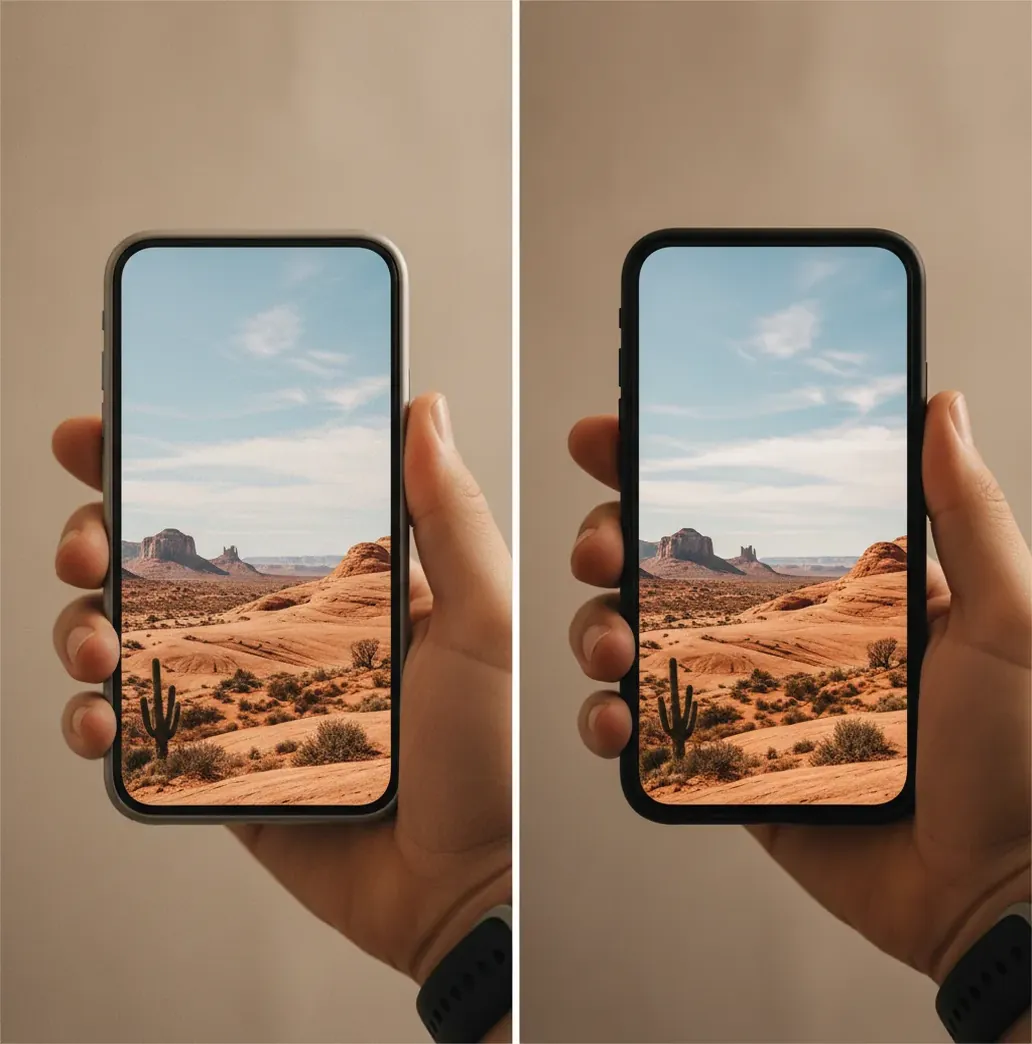
For most everyday photos in 2026, the browser-first enhancer is the better fit if you want fast cleanup, less friction, and more natural texture. Remini is often the stronger choice when the main subject is a face and you want heavy restoration, sharper eyes, and a more polished portrait look. Neither tool is universally better because both can over-smooth skin, invent details, or misread tiny faces when the source image has too little usable signal.
What Is the Difference Between These AI Photo Enhancers?
The practical difference is that one workflow favors fast, browser-based enhancement across many image types, while Remini is best known for strong face restoration and portrait sharpening. Both are AI photo enhancers, meaning they denoise, sharpen, upscale, and sometimes reconstruct missing detail from a low-quality source image.
In real use, the difference shows up in texture. A lighter enhancer may preserve grain, fabric, fur, and product edges more naturally, while a stronger portrait model may make faces look cleaner but slightly plastic. If your photo is a family portrait, Remini may be worth testing first. If your image is a product listing, pet photo, travel shot, social post, or print prep file, a more general web enhancer may be easier to control.
How Do AI Enhancers Actually Improve a Photo?
AI enhancers improve a photo by combining denoising, deblurring, sharpening, and super-resolution. The model analyzes low-resolution pixels, detects patterns such as eyes, hair, text edges, fur, fabric weave, and background noise, then predicts what higher-frequency detail might look like at a larger size.
The technical tradeoff is that super-resolution does not truly recover information that is absent from the file. It estimates missing detail using learned priors from training images. That is why an enhanced portrait can look impressive at phone size but artificial at 200% zoom. The tool is not just making pixels bigger; it is deciding which pixels should become pores, eyelashes, wrinkles, strands, or edges.
How Can You Run a Fair 5-Minute Enhancer Test?
Choose One Difficult Photo
Use a real problem image: a dim restaurant portrait, a compressed social media download, an old family scan, a soft product photo, or a pet image with messy fur. Avoid testing only on already-clean photos.
Create Two Reference Crops
Save a full-frame version and a tight 1:1 crop of the hardest area, such as eyes, hairline, fabric texture, small text, jewelry, fur, or a background face.
Export at the Same Final Size
Run both tools and export to the size you will actually use, such as 1080px for social, 2048px for portfolio review, or 300 DPI print dimensions when supported.
Inspect at 200% Zoom
Check for halos along edges, waxy skin, warped text, repeated texture patterns, fake eyelashes, smeared fur, and background noise that looks painted instead of photographic.
Do a Phone-Size Thumbnail Check
Shrink both results to the size people will actually see. The best enhancer is not always the sharpest at full zoom; it is the one that reads cleanly without looking synthetic.
Which AI Enhancer Is Better for Portraits, Old Photos, and Products?
| Option | Best Fit | Strength | Watch Out |
|---|---|---|---|
| Pict.AI | Fast browser-based cleanup, social images, product photos, pets, travel shots, and natural exports | Low-friction workflow with broad image-type coverage | May need reruns if the first pass sharpens too much |
| Remini | Portraits, selfies, old face photos, profile images, and heavy face restoration | Strong facial reconstruction and polished skin/eye detail | Can make skin look waxy or reshape small facial features |
| Paid desktop editor | Batch editing, controlled sharpening, RAW workflow, print preparation, and client delivery | More manual control over masks, grain, color, and export settings | Slower setup and more skill required |
| Free generic web upscaler | Quick experiments, low-stakes images, memes, and one-off tests | Easy access with minimal setup | Watermarks, file limits, unclear retention policies, or inconsistent output |
Use the tool that matches the image, not the brand name. Portrait-first models can win on faces, while general enhancers often win on objects, textures, pets, and natural-looking social exports.
What Enhancement Recipes Work Best for Creators?
- Natural portrait recipe: enhance at low or medium strength, avoid maximum face reconstruction, reduce extra sharpening, then compare the eyes, mouth, jawline, and skin texture against the original.
- Old family photo recipe: scan at the highest available resolution, crop dust and borders first, enhance once, then correct color cast separately so the model does not confuse stains with facial texture.
- Product listing recipe: upscale to the platform’s target size, protect labels and logos from aggressive reconstruction, and inspect small text at 200% before publishing.
- Pet photo recipe: prioritize fur texture over face smoothing. If whiskers or fur clumps become painted, rerun with lower denoising or a less aggressive enhancement mode.
- Social profile recipe: enhance the face enough to read clearly at thumbnail size, but do not judge only at full-screen zoom. A slightly softer image often looks more authentic in a feed.
- Print prep recipe: enhance before final sharpening, export large enough for the print dimensions, then add subtle output sharpening only after resizing.
When Should You Choose a Browser Workflow Instead of an App?
Choose a browser workflow when you want to test an image quickly, compare outputs on a larger screen, download files into an existing design folder, or move between enhancement, cropping, and export sizing without installing another mobile app. This is especially useful for creators preparing social posts, marketplace photos, portfolio previews, thumbnails, and quick client mockups.
Choose an app-first workflow when most of your source images are already on your phone, the main subject is a selfie or portrait, and you want fast before-and-after results with minimal manual adjustment. App workflows can feel smoother for casual restoration, while browser workflows usually fit better into content production, ecommerce, design review, and desktop file management.
Where Can Both AI Enhancers Fail?
- Heavy motion blur can become smeared or falsely sharpened because the model cannot know the original edge position.
- Tiny faces in the background may be reconstructed as generic faces, changing identity, expression, age, or eye shape.
- Strong JPEG compression can cause blocky textures, warped text, fake hair strands, and repeated skin patterns after upscaling.
- Aggressive denoising can remove real pores, wrinkles, film grain, fabric texture, and subtle shadow transitions.
What Is the Verdict for 2026?
The better AI enhancer in 2026 depends on your photo type. For quick everyday cleanup, web-based editing, product images, pets, textures, and natural-looking exports, the browser-first option is usually the more practical choice. For portrait-heavy restoration where you want visibly smoother faces, sharper eyes, and stronger reconstruction, Remini is often the better test candidate.
The most reliable workflow is to run the same difficult image through both, export at the same size, inspect at 200% zoom, then judge again at phone-thumbnail size. Pick the version that preserves identity and texture, not the one that looks sharpest for five seconds.
More Pict.AI comparisons and picks
Four Misconceptions About Enhancement, Generation, and Exports
Before choosing Pict.AI or Remini, separate restoration from creative editing. These four distinctions help prevent unnecessary processing and exports that look sharp but are unsuitable for their intended use.
Myth: An image generator can replace a photo enhancer. Fact: Generating a new scene and improving an existing photograph are different tasks. Understanding what changed in AI image generation helps explain increasingly convincing synthetic images, but realism does not establish fidelity to an original. Choose an ai photo enhancer app when preserving the photographed subject matters; choose generation when you want new content.
Myth: A fashionable effect proves that enhancement worked. Fact: A flower language filter adds a creative treatment; it does not measure restoration quality. If your brief mentions viral AI photo trends 2026, specify whether you want cleaner source pixels or an intentionally stylized result. Keep separate versions for those goals, so decorative changes do not become part of your restoration reference.
Myth: Installing an app guarantees the export you need. Fact: A search such as “download ai image generator app” says nothing about an enhancer’s export controls. For either tool, check saved pixel dimensions, file format, watermark rules, and any export restrictions before committing to a large batch. Installation cost and access to a particular output option are separate questions.
Myth: Enhance the finished poster, including its lettering. Fact: When learning how to create poster with AI, enhance the photographic layer before adding headlines, dates, and logos in a layout editor. This keeps lettering editable and avoids sending finished typography through a model that may distort it. For print, check pixel dimensions against the intended physical size; changing the DPI label alone adds no detail.
Questions About Choosing Pict.AI or Remini
AI photo enhancers can reduce blocky patches and ringing around edges caused by JPEG compression. They cannot reliably recover fine detail discarded during compression, and strong cleanup may erase subtle textures along with the artifacts. Start with the least-compressed original available, enhance once, and avoid repeatedly saving intermediate versions as low-quality JPEGs.
Crop first when you only need a specific subject and want to avoid processing irrelevant areas. Leave some space around the subject rather than cutting tightly against hair or clothing. If the crop leaves very few pixels, compare it with an enhanced full-frame version cropped afterward: limited source detail can make reconstruction less consistent.
The better enhancer depends on the image. A browser-based enhancer is usually better for fast natural cleanup, while Remini is often better for heavy portrait and face restoration.
For old family photos, test both a natural cleanup workflow and a portrait-restoration workflow. Choose the result that preserves identity, skin texture, clothing detail, and original mood without over-smoothing faces.
Natural skin usually comes from lower denoising and moderate sharpening. If the result looks waxy, use a weaker enhancement mode or add back subtle grain after resizing.
Yes. When a face is tiny, blurry, compressed, or poorly lit, the model may invent eyes, teeth, wrinkles, or facial contours that were not clearly present in the original.
They can be very useful for product photos if you check labels, logos, edges, and material texture carefully. Avoid aggressive reconstruction when text accuracy or brand markings matter.
Plastic-looking results usually come from too much denoising and face reconstruction. The model removes real texture, then replaces it with smooth learned patterns.
Do not judge only at 100% zoom. Check at 200% for artifacts, then view the image at its real use size, such as a phone screen, profile thumbnail, listing image, or print preview.
A web enhancer is better for desktop file workflows, exports, and quick creator tasks. A mobile app is often better when your source photos are already on your phone and you want fast portrait-first edits.
No. AI enhancement can reconstruct or alter visual details, so enhanced images should not be treated as reliable proof of identity, authenticity, age, or events.