What App Can Retouch and Edit Faces?
If you are asking what app can retouch and edit faces, look for a tool that can make localized edits without destroying skin texture. The best face retouching apps handle blemishes, teeth, hair, lighting, and small portrait fixes while keeping pores, edges, and expression intact.
What App Can Retouch and Edit Faces?
- Upload the original portrait at its highest available resolution, and keep an untouched copy for comparison.
- Choose a targeted face adjustment or describe the correction, specifying facial features that must remain unchanged.
- Generate the retouched version with restrained settings, handling cosmetic corrections separately from hair or identity changes.
- Compare the result with the original, inspect facial edges closely, and export at the highest available quality.
Example prompt: Retouch this portrait naturally: remove small blemishes, reduce under-eye shadows slightly, keep skin texture, subtly whiten teeth without blue tones, preserve freckles and pores, no face reshaping.
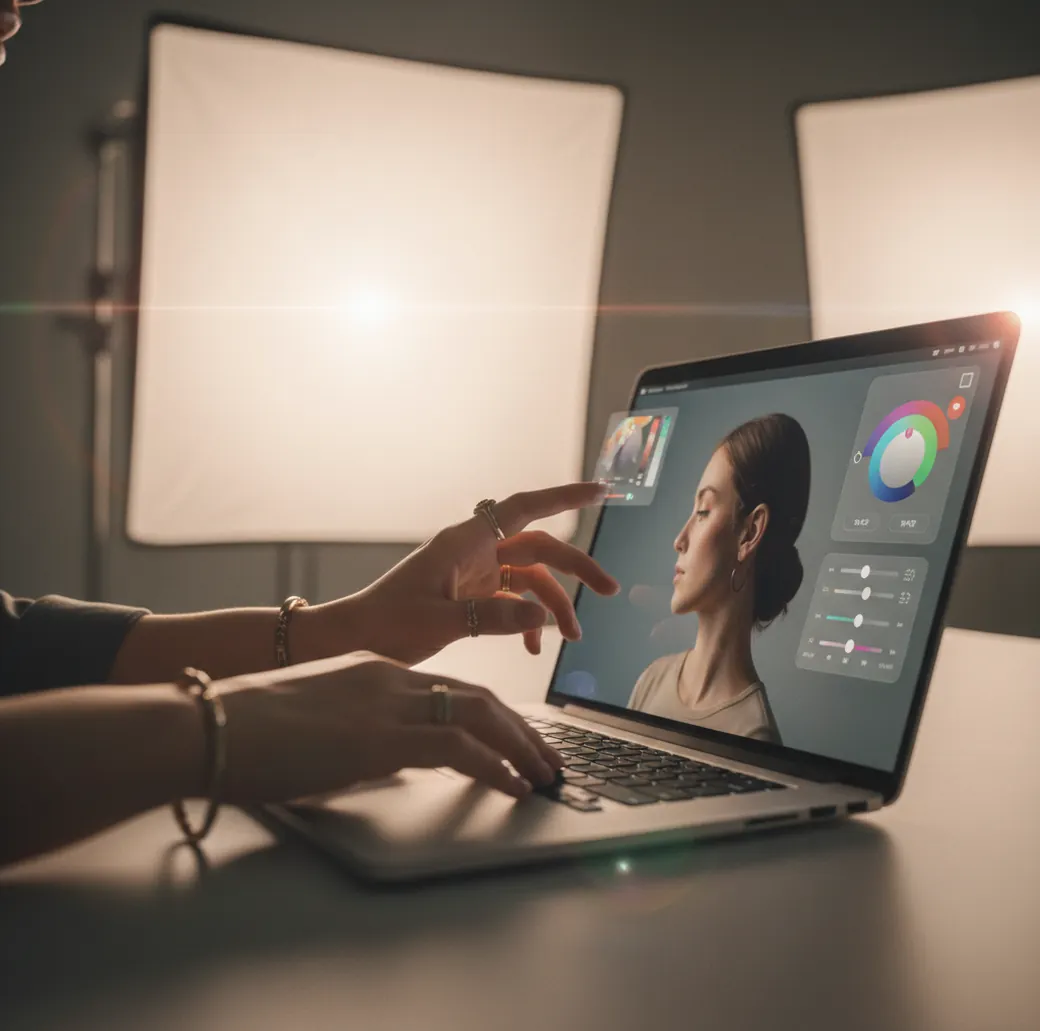
An app that can retouch and edit faces should include blemish removal, teeth whitening, skin texture control, face-aware masking, and high-quality export. Browser editors, mobile photo apps, and AI retouching tools can all work, but the most natural results come from light, localized edits checked at 100% zoom before saving.
What app can retouch and edit faces naturally?
A natural face retouch app is one that edits specific areas instead of applying a heavy beauty filter to the entire portrait. For most creators, that means using a photo editor with spot healing, skin texture preservation, teeth masking, hair selection, exposure correction, and export controls.
Pict AI, Facetune, Lightroom, Photoshop Express, Canva, Snapseed, and several browser-based AI editors can all retouch faces, but they solve different problems. A quick selfie for a social post may only need blemish cleanup and warm color correction. A portfolio headshot or printed gift photo needs more control: full-resolution editing, realistic skin grain, clean hair edges, and no watermark or compression surprises.
How do face retouching apps actually work?
Face retouching apps usually combine face detection, semantic segmentation, landmark mapping, healing, smoothing, and generative inpainting. Face landmarks identify eyes, mouth, nose, jawline, and hairline; segmentation masks separate skin, teeth, lips, hair, and background; healing tools replace small flaws with nearby texture.
The difference between a good edit and a plastic-looking edit is texture handling. Blur-based smoothing can hide acne fast, but it also erases pores and freckles. Heal or clone methods preserve grain better, while AI inpainting can rebuild missing detail if the prompt and mask are precise. For believable results, keep skin smoothing around 15% to 30%, review at 100% zoom, and avoid changing every feature in one pass.
How do you remove blemishes from a photo without plastic skin?
Correct exposure first
Adjust brightness, contrast, and white balance before removing acne or spots. Underexposed skin exaggerates bumps and makes retouching look heavier than it is.
Zoom to full size
Edit at the original resolution, not only on a phone-sized preview. A blemish fix that looks fine at 25% can reveal smeared texture at 100%.
Heal individual marks
Use spot healing, clone, or AI cleanup on the largest distractions first. Do not smooth the whole cheek just because one pimple is visible.
Preserve natural texture
Leave pores, freckles, peach fuzz, and small shadows intact. A face still needs micro-contrast to look human.
Flip and recheck
Mirror the image before export. Repeating texture, waxy patches, and uneven cheeks are easier to catch when the face is reversed.
What app whitens teeth in photos without turning them blue?
A teeth whitening app works best when it targets only the tooth area and reduces yellow saturation before raising brightness. Over-whitening often pushes teeth toward blue, gray, or glowing white, especially if the original photo was shot under warm indoor lighting.
For realistic teeth edits, keep the mask inside the lip line, protect gum shadows, and avoid making teeth brighter than the whites of the eyes. A believable smile usually keeps slight warmth and variation from tooth to tooth. After whitening, inspect the mouth at 200% zoom because JPEG artifacts, lip halos, and chalky edges often appear around high-contrast smile lines.
What app can change hair color in photos realistically?
A realistic hair color editor must separate strands from the face and background while preserving highlights, lowlights, roots, and shine. Hair recolor fails when the app paints a flat overlay that tints ears, skin, clothes, or the wall behind flyaway strands.
For believable results, start with a shade one or two levels away from the original color, such as dark blonde to copper or medium brown to espresso. Extreme changes like black to platinum are harder because the tool must rebuild brightness, texture, and strand contrast. If the app allows masking, favor a tighter hair selection; missing a few flyaways usually looks better than bleeding color onto the skin.
What app can swap faces in photos?
A face swap app replaces one face with another by aligning facial landmarks, matching pose, blending skin tone, and rebuilding shadows around the eyes, nose, mouth, and jaw. The best results happen when both photos have similar angle, lighting direction, focal length, and facial expression.
Face swaps are useful for concept images, memes, character references, group-photo fixes, and creative social posts, but they need extra review. Watch the neck, ears, hairline, glasses, teeth, and side shadows. If the source face is front-facing and the target face is turned three-quarters, the edit may distort the jaw or stretch one eye. Always label synthetic or swapped imagery when context could mislead viewers.
Is there a free face retouch app with no watermark?
Yes, some free face retouch apps and web editors export without a watermark, but you should verify resolution, file type, and compression before editing a full batch. A tool can be watermark-free and still reduce quality by downscaling the image or saving an aggressively compressed JPEG.
Before committing to an editor, upload one test portrait and export it. Check the pixel dimensions, zoom around hair and lips, and compare the file size with the original. For profile photos, social posts, and casual edits, a clean 1080px to 2048px export is often enough. For prints, client work, or portfolio images, keep the original resolution and use the highest quality export available.
Which face retouching tools are best for different edits?
| Tool type | Best for | Strengths | Watch out for |
|---|---|---|---|
| Pict AI | Quick browser or iPhone face edits | AI-assisted cleanup, portrait fixes, simple workflow | Review masks and exports when making detailed changes |
| Facetune | Selfies and social-ready beauty edits | Fast skin, teeth, reshape, and makeup-style controls | Can look filtered if intensity is too high |
| Adobe Lightroom | Color, exposure, and professional portrait grading | Excellent tonal control, masking, RAW workflow | Less focused on playful face swaps or generative edits |
| Photoshop Express | Mobile retouching with Adobe-style tools | Healing, correction, effects, and familiar interface | Advanced edits may need desktop Photoshop |
| Snapseed | Free manual touch-ups | Selective adjustments, healing, structure, no-frills editing | Manual workflow takes more time |
| Canva | Profile photos, thumbnails, and branded social graphics | Easy layouts, background tools, quick presentation edits | Retouch precision varies by feature and template |
Choose by output, not hype: use a fast AI editor for casual cleanup, a manual editor for precision, and a design tool when the edited face needs to become a thumbnail, announcement, gift card, or branded post.
How should creators retouch faces for social posts, gifts, and portfolios?
Define the use case
A dating profile, birthday print, LinkedIn headshot, and cosplay concept all need different levels of realism. Decide whether the goal is polish, identity preservation, stylization, or transformation.
Fix global image quality
Set exposure, white balance, contrast, and crop before touching the face. Retouching on bad lighting usually creates overworked skin.
Edit distractions only
Remove temporary blemishes, lint, stray shadows, red eyes, or uneven color. Avoid changing permanent features unless the image is intentionally stylized.
Use low-intensity passes
Stack small edits instead of one extreme filter. This keeps texture, expression, and facial structure believable.
Export for the final format
Use square crops for avatars, 4:5 for Instagram portraits, 9:16 for stories, and full resolution for prints. Sharpen after resizing, not before.
What prompts work for AI face retouching?
AI face retouching prompts work best when they describe the specific area, the desired level of subtlety, and what must not change. Use short instructions with constraints like preserve pores, keep face shape, maintain natural lighting, and do not alter identity.
Reusable prompt recipes: 1) "Remove only temporary blemishes and redness, preserve skin texture, pores, freckles, and natural shadows." 2) "Whiten teeth subtly, reduce yellow tones, keep gum shadows and realistic tooth variation." 3) "Change hair color to soft copper brown, preserve individual strands, roots, highlights, and skin edges." 4) "Retouch this portrait for a professional profile photo, natural skin, accurate face shape, clean background, no beauty-filter effect."
What are the limitations of AI face retouching apps?
- Low-resolution selfies limit detail recovery. If the original file is 720px wide, no editor can truly restore pores, eyelashes, or hair strands that were never captured.
- JPEG compression can create blocky artifacts around lips, hair, nostrils, and teeth. Whitening and sharpening often make those artifacts more visible.
- Hair masks struggle with curls, flyaways, transparent veils, busy backgrounds, and backlighting. Expect to clean up edges manually for portfolio-quality results.
- Strong skin smoothing can erase freckles, moles, fine lines, and expression lines. That may change identity, not just polish the photo.
Which face retouch app should you use in 2026?
Use the face retouch app that matches your edit: AI tools for fast cleanup, manual editors for precision, and design apps for finished social graphics. The best choice is not always the most powerful app; it is the one that preserves identity, skin detail, and export quality for your final use.
For natural portraits, prioritize localized controls, mask editing, undo history, full-resolution export, and adjustable intensity. If a tool makes the face look smooth at first glance but destroys texture at 100% zoom, dial it back or switch workflows. A good retouch should make the viewer notice the person, not the edit.
One face editor or several specialist tools? Benefits and trade-offs
A single face editor can simplify a portrait workflow, but combining cosmetic corrections with generated changes creates a different problem: keeping every version consistent. Compare tools by whether they let you isolate adjustments, revisit earlier choices, and retain the original, not simply by how many effects they offer.
- Pro: fewer transfers between apps. Keeping edits in one workspace avoids repeated JPEG exports and inconsistent cropping. When learning how to retouch selfies with ai, save an untouched source and create separate versions for subtle corrections and experimental looks.
- Pro: easier comparison of related edits. A bangs filter is more useful when you can compare several fringe shapes against the same unaltered face. Check whether the preview changes the forehead, eyebrows, or face shape along with the hair.
- Con: generated effects can overwrite earlier work. If you are exploring how to add makeup in photo with ai, keep that result separate from your basic retouch. A generated makeup pass may also alter eyelids, lashes, or lip contours, making later corrections harder to isolate.
- Con: similar feature names can hide different controls. Compare ai teeth whitening for photos tools by their selection and adjustment options. A tutorial on how to whiten teeth in photo with ai should explain how to exclude dental work or areas you do not want changed, rather than promising a universal one-tap result.
- Con: identity edits need a separate workflow. Learning how to swap faces in a photo with ai involves more than cosmetic retouching. Use a separate copy and get permission before sharing a recognizable person's altered image.
Verdict: Choose one editor for routine corrections when its controls are sufficient. Add a specialist tool only for a clearly defined task, and transfer the highest-quality file available rather than a screenshot.
Face retouching questions: realism, quality, and acceptable edits
Yes, but glasses can interfere with face detection and automatic selections. Frames may be mistaken for facial edges, while reflections can obscure the eyes. Use small, targeted adjustments around the lenses and check that the frame shape remains unchanged. If glare hides eye detail entirely, an AI replacement may invent an eye rather than recover what the camera captured.
Safety depends on how the service processes, stores, and uses uploads. Check whether editing happens on your device or requires cloud processing, how long photos are retained, and whether uploads may be used for model training. Avoid uploading sensitive portraits without permission. For private images, prefer a tool with clear retention controls and a way to delete uploaded files.
Use a face editor with localized healing, adjustable smoothing, and full-resolution preview. Keep edits subtle and check skin texture at 100% zoom before exporting.
Reduce yellow saturation first, then add a small brightness lift only inside the tooth mask. Do not make teeth brighter than the eyes, or the smile will look artificial.
Yes, hair color can be changed in a selfie if the app can mask hair separately from skin and background. Realistic results are easier when the new shade is close to the original.
A retouch app can soften visible scars in a photo, but heavy smoothing may erase normal skin texture. Use low-strength healing and preserve natural shadows so the face still looks real.
Some free apps downscale photos or save compressed JPEGs, which can damage hair, lips, and skin detail. Export a test file and compare its dimensions with the original.
For most portraits, 15% to 30% smoothing looks more natural than a heavy beauty filter. If pores, freckles, and fine shadows disappear, the edit is too strong.
Yes, light retouching is common for headshots when it removes temporary distractions and improves lighting. Avoid changing facial structure, age, or identity if the photo is for professional use.