How to Swap Faces in a Photo With AI
To swap faces in a photo with AI, use a base image, a source face image, and an editor that can align facial landmarks, match skin tone, and blend edges. The most realistic results come from photos with similar head angle, lighting direction, lens distance, and sharpness.
How to Swap Faces in a Photo With AI
- Upload the base photograph and a clear source portrait, then select the person whose face should change.
- Choose the replacement face and specify that the original expression, hair, clothing, and background should remain.
- Generate the face swap, then compare it with the original to spot unintended changes around nearby people.
- Review the eyes, mouth, and face boundaries, then export an edited copy while keeping the original untouched.
Example prompt: Swap the face from photo B onto the person in photo A, keep the original lighting and skin texture, match color temperature to the neck, preserve hairline edges, realistic pores, no blur, high-resolution portrait look
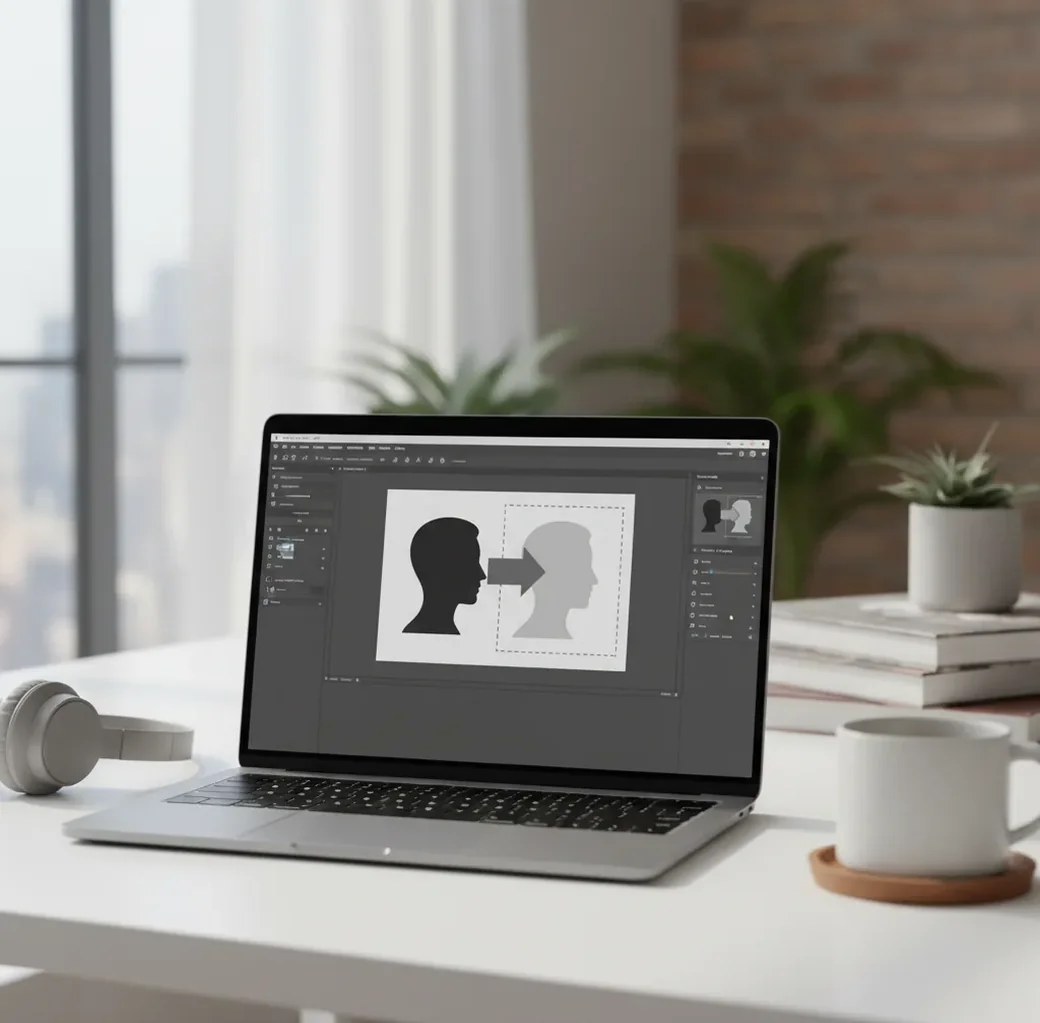
To swap faces in a photo with AI, upload a base photo and a source face photo, align the eyes, nose, and mouth, then blend the face into the original lighting and skin tone. Use high-resolution portraits with similar pose and light direction for the most believable result. Always get consent before editing or sharing someone’s face.
What is an AI face swap in a photo?
An AI face swap is a photo edit where the face area in one image is replaced with a face from another image while preserving the base photo’s pose, hair, body, background, and lighting. The edit is not just a cut-and-paste mask; modern tools use facial landmark detection, identity embeddings, segmentation masks, and generative refinement to rebuild pixels around the eyes, nose, mouth, cheeks, jawline, and hairline. A good face swap should look like the person was originally photographed in that scene, not pasted onto it. It is useful for creative composites, group-photo fixes, costume edits, social posts, gifts, branding mockups, and portrait experiments, but it must be handled with consent and context.
How does AI swap faces realistically?
AI swaps faces realistically by detecting the face in both images, mapping key facial landmarks, aligning the source identity to the target head pose, and generating a blended face region. Landmark models usually track stable points such as eye corners, pupils, nostrils, nose bridge, lip corners, chin, and jaw contour. The system then uses affine or perspective alignment to place the source face into the target geometry.
After alignment, a segmentation mask defines where the swap should appear and where the original image should remain. Generative models or diffusion-based refiners synthesize skin texture, shadows, teeth edges, stubble, pores, and color transitions. The final realism depends less on the button you press and more on whether the two photos share similar angle, focal length, expression, and lighting.
How do you swap faces in a photo with AI?
Choose a sharp base photo
Start with the image that contains the body, background, pose, and final composition. The face area should be visible, well-lit, and not blocked by hands, heavy shadows, glasses glare, or hair across the eyes.
Select a matching source face
Use a source face with a similar head angle, expression, lens distance, and lighting direction. A face that is at least 300-400 pixels wide gives the AI enough detail for eyes, lashes, lips, and skin texture.
Upload both images to an AI editor
Add the base photo first and the source face second. Browser tools, mobile apps, and desktop editors can all work, but choose one that lets you preview alignment and adjust blend strength before export.
Align the facial landmarks
Match the pupils first, then check the nose bridge, mouth line, chin, and head tilt. Small rotation changes often matter more than large beauty or smoothing adjustments.
Blend color, texture, and edges
Soften the mask around cheeks, jaw, ears, and hairline. Match skin temperature and exposure so the face and neck do not look like they belong to different lighting setups.
Inspect and export
Zoom to 150-200% and check the hairline, glasses, teeth, nostrils, jaw, and shadow under the chin. Export at the highest available resolution, then view the result on a second screen before sharing.
What are the best AI face swap tool options?
| Option | Best for | Strength | Watch out for |
|---|---|---|---|
| Pict AI | Fast browser or iPhone face swaps | Simple upload-align-blend workflow for everyday portraits | Still needs clear inputs and consent-based use |
| Adobe Photoshop | Manual composites and professional retouching | Layer masks, color grading, healing tools, and precise local edits | Slower workflow and higher learning curve |
| Mobile face-swap apps | Casual social edits and quick previews | Fast templates and low-friction sharing | May compress images, add watermarks, or limit manual control |
| Open-source face tools | Technical users and local experiments | More control over models, resolution, and storage | Setup can be complex and misuse risks are higher |
| General AI image editors | Creative composites and stylized portraits | Can combine face editing with background, outfit, or lighting changes | Identity consistency may vary between generations |
Choose the tool based on control, privacy, speed, and export quality. For a realistic swap, photo compatibility matters more than tool category.
What photo specs produce the most realistic face swap?
The best AI face swaps come from portraits with similar geometry and clean image data. Use a source face that is at least 300-400 pixels wide, sharply focused on the eyes, and photographed at a similar angle to the base face. Front-facing to front-facing swaps are easiest; profile-to-front swaps usually fail around the jaw, cheek, and ear because the model must invent missing facial structure.
Lighting should also match. If the base image has warm light from the left, a cool flash-lit source face from the front will create obvious seams on the neck and cheeks. Similar focal length matters too: a wide-angle selfie face can look distorted on a telephoto portrait body.
What prompt or edit instructions should you use?
- Realistic portrait swap: “Swap the face from image 2 onto the person in image 1. Preserve the original pose, hairstyle, body, clothing, background, and lighting. Match skin tone, shadows, facial scale, and jawline naturally.”
- Group photo blink fix: “Use the open-eyed face from image 2 to replace the blinking face in image 1. Keep the same head angle, expression, hair, background, and camera grain.”
- Costume or party edit: “Place the source face onto the costume portrait while keeping the playful expression and original scene lighting. Blend the cheeks, forehead, and neck so the edit looks like one photograph.”
- Professional headshot correction: “Swap only the face region and preserve the original suit, posture, background, and studio lighting. Avoid beauty-filter smoothing; keep natural skin texture and realistic eye detail.”
- Artifact repair instruction: “Fix mask edges around the hairline, glasses, jaw, and ears. Remove halos, color seams, and warped teeth while preserving the subject’s identity.”
Where is face swapping useful beyond memes?
Face swapping is useful when it solves a real visual problem, not just when it creates a joke. Creators use it to fix group photos where someone blinked, test a portrait concept before a shoot, create a costume image for an invitation, build consistent team-collage drafts, or mock up a campaign image before hiring talent and production. Families may use it to repair a near-perfect photo, while designers may use it to test how a face reads in a poster, thumbnail, or print layout.
The strongest use cases keep the edit honest: same person, approved identity, clear purpose, and no misleading context. A face swap should improve a visual story without turning someone into an unwilling prop.
When should you avoid or redo an AI face swap?
- Avoid swaps without consent, especially for romantic, political, adult, medical, criminal, or reputationally sensitive contexts.
- Redo the edit if the source face is too small, blurry, filtered, or compressed; low-detail faces often create soft eyes, waxy skin, and fake teeth.
- Avoid large pose mismatches such as profile-to-front or chin-down-to-chin-up because the model has to hallucinate missing structure.
- Watch for glasses, bangs, hats, hands, microphones, veils, and hair strands crossing the face; these often break masks and create halos.
More Pict.AI editing guides you'll probably use next
Control which face changes - and what stays untouched
In a group portrait, the main risk is editing the wrong person or changing more than the intended face. Before generating, identify the target by position and clothing, such as “the person on the left in the blue shirt.” If the editor offers numbered face selections, confirm that the selected thumbnail matches that person.
| Control to check | What it should do |
|---|---|
| Target-face selection | Limit the replacement to one identified person. |
| Protected areas | Keep nearby faces, hands, clothing, and background unchanged. |
| Expression handling | Let you specify whether the target’s smile or neutral expression should remain. |
| Separate output | Save an edited copy without overwriting the original. |
| Before-and-after view | Make unintended changes outside the face easier to spot. |
A “swap face in photo ai” search can return both identity-replacement tools and general portrait generators; look for explicit source-face and target-face controls. A gender swap app serves a different purpose: it typically alters gender-associated facial features rather than transferring a specific person’s identity from another photograph.
For several replacements, work on one person at a time when the tool allows it. Save each accepted version separately so a poor later edit does not erase an earlier result. Avoid repeatedly regenerating the whole photograph, which can introduce changes to people you already approved.
Compare the original and edited copies at the same size. Check untouched people as carefully as the replacement: an altered eye, missing earring, or reshaped hand means the edit spread beyond its intended area. If that happens, narrow the selection or restore those regions from the original in an editor with layers.
Answers to Common Photo Face-Swap Questions
Many face-swap tools try to retain the target photo’s expression while transferring the source person’s identity, but results vary. A broad smile may change tooth shape, lip position, or cheek contours. Choose a source photo with a similar expression, and specify which expression to preserve if instructions are supported. Inspect the mouth and eyes before accepting the result.
Check whether the editor processes photos on your device or uploads them to a server. For uploaded images, review retention periods, deletion controls, training-use settings, and whether results become publicly visible. Remove location metadata before sharing, and avoid uploading sensitive portraits when storage practices are unclear. Deleting a finished image from your device does not necessarily delete server copies.
Yes, some AI photo editors offer free face swap workflows, previews, or limited exports. Check resolution, watermark, privacy, and usage limits before relying on a free tool.
Usually yes. You need a base photo for the body and scene, plus a source photo for the face you want to insert.
Realism comes from matched head angle, eye line, lighting direction, focal length, expression, and skin tone. Clean edge blending around the hairline, jaw, ears, and neck is also critical.
Common causes include blurry source faces, mismatched pose, different lighting, wide-angle selfie distortion, glasses glare, or a mask that cuts too sharply around the jaw and hairline.
Yes, but old photos may need restoration first if the face is scratched, low-resolution, faded, or motion-blurred. Restoring contrast and sharpness before swapping usually improves the result.
Legality depends on consent, location, use case, and whether the image harms, misleads, or exploits someone. For public sharing or commercial use, get clear permission and avoid deceptive contexts.
They can be used for drafts or minor approved corrections, but professional headshots should remain truthful. Avoid creating a headshot that misrepresents appearance, identity, or qualifications.
Use the sharpest source available, ideally with the face at least 300-400 pixels wide. Higher resolution gives the model more detail for eyes, lips, pores, facial hair, and skin texture.
Yes, but glasses make the edit harder because frames, reflections, and transparent lenses complicate the mask. Inspect the rims, eyes, and shadows closely after blending.