How To Remove Blemishes & Acne With AI
You can remove blemishes and acne with AI by brushing over temporary spots, pimples, redness dots, or small marks and letting an inpainting model rebuild that area from nearby skin texture. The most realistic results come from small edits, 150-200% zoom, and repeated light passes instead of global face smoothing.
How To Remove Blemishes & Acne With AI
- Upload the original portrait, keeping an untouched copy available for comparison and any later corrections.
- Choose localized blemish removal and mark individual pimples, leaving freckles, makeup edges, and facial features unselected.
- Generate the correction with instructions to preserve surrounding skin texture, lighting, and the person’s facial structure.
- Review corrected spots beside the original, undo unwanted changes, and export at the intended delivery size.
Example prompt: Retouch this portrait naturally: remove active pimples and small red blemishes, keep pores and fine skin texture, keep freckles and moles unchanged, no face reshaping, realistic lighting, subtle result
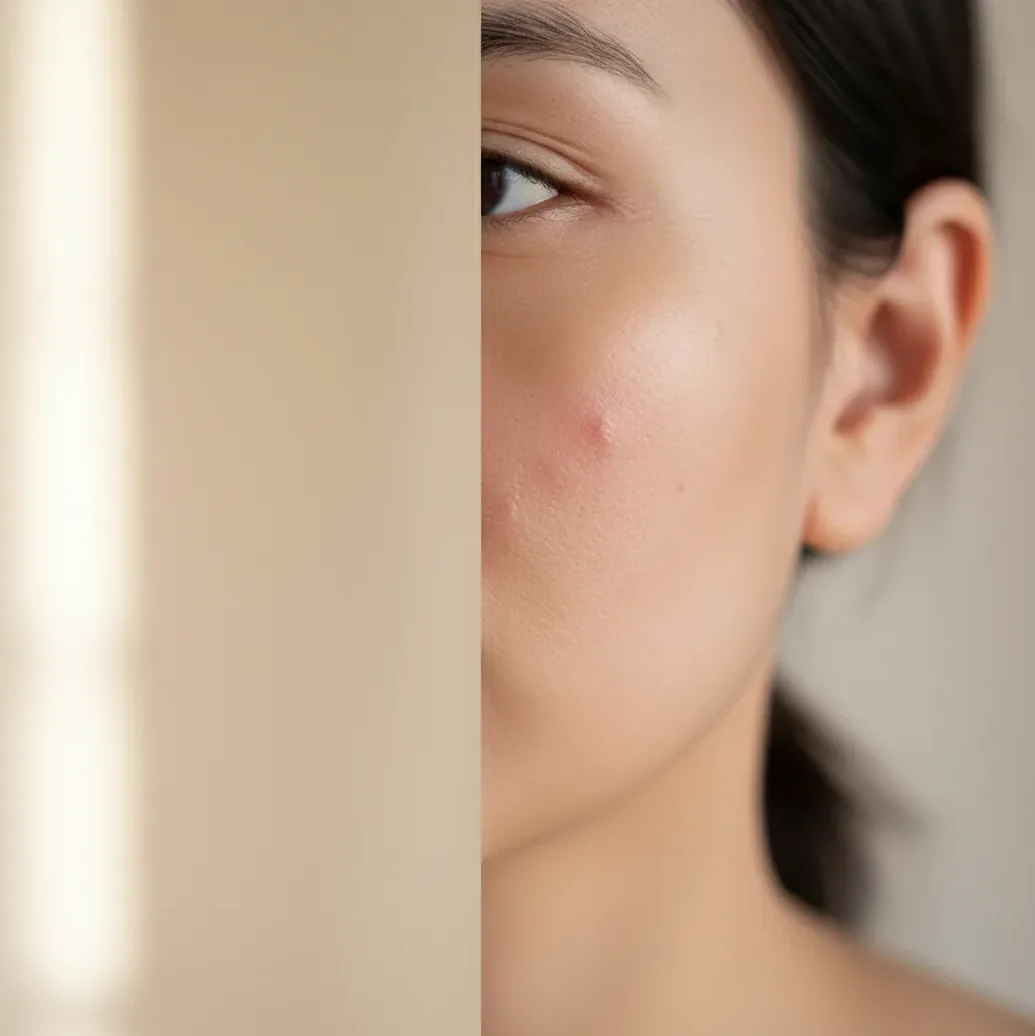
To remove blemishes & acne with AI, use a retouching or magic eraser tool that supports brush-based inpainting. Mark only the pimple, redness dot, or small dark spot, then let the AI replace it with surrounding skin tone and texture. For natural skin, work at 150-200% zoom, keep the brush slightly larger than the blemish, and avoid smoothing the whole face.
What Does AI Acne and Blemish Removal Mean?
AI acne and blemish removal means using machine learning to edit temporary skin imperfections in a photo while preserving the surrounding face structure. The tool usually works through inpainting: you mark a pimple, red dot, healing scab, razor bump, or post-acne mark, and the model predicts replacement pixels based on nearby tone, grain, pores, and lighting.
This is photo retouching, not skincare or diagnosis. It can make a selfie, headshot, dating profile image, social post, print, or portfolio portrait look closer to how you felt that day, but it does not treat acne or prove anything about real skin health.
How Does AI Remove Pimples Without Smoothing the Whole Face?
AI removes pimples most naturally when it uses localized inpainting instead of global skin smoothing. A good blemish edit samples nearby skin texture frequency, color gradients, pore pattern, shadow direction, and edge detail, then reconstructs only the brushed area so the patch blends into the rest of the face.
Many tools combine skin segmentation with generative fill. Segmentation helps separate cheeks, lips, eyebrows, hair, stubble, and background; generative fill rebuilds the selected spot. If the mask is too large, the model has less real context and may invent waxy skin. That is why small brush strokes usually look more human than one heavy swipe across a cheek.
How Do You Remove Blemishes and Acne With AI Step by Step?
Start With a Sharp, Unfiltered Photo
Use the highest-resolution original image you have. Avoid stacking beauty filters before the edit because blurred skin gives the AI less real pore detail to copy.
Zoom to 150-200%
Zoom in far enough to see texture, but not so far that you lose the face context. This range helps you target spots without accidentally painting healthy skin.
Set a Small Retouch Brush
Choose a brush only 10-20% larger than the pimple, red mark, or bump. Small masks give the model more surrounding detail to sample.
Paint Only the Blemish
Brush over the raised spot, redness dot, or dark mark rather than the whole cheek. Release the brush and let the AI rebuild the area before making another pass.
Use a Second Light Pass if Needed
If redness or shadow remains, repeat with a small brush instead of enlarging the mask. Two subtle passes usually preserve texture better than one aggressive erase.
Check at 100% and on Your Phone
Zoom back out, compare before and after, then view the export on a phone screen. Small blur patches, repeated texture, or waxy skin often appear faster on mobile displays.
Which AI Blemish Removal Tools Are Best for Different Edits?
| Tool type | Best for | Control level | Watch out for |
|---|---|---|---|
| Pict AI | Fast browser or iOS spot cleanup for selfies, profile photos, and portraits | Brush-based targeted removal | Large masks can still over-smooth if you paint too much skin |
| Photoshop or Lightroom | Professional portraits, print work, layered retouching, and client files | High manual control with healing, clone, masks, and frequency separation | Slower workflow and steeper learning curve |
| Mobile retouch apps | Quick social posts, dating photos, event images, and camera roll edits | Medium control with tap-to-remove tools and face retouch sliders | Beauty sliders can flatten pores and change facial identity |
| Canva-style magic erasers | Simple object removal and casual skin cleanup in design layouts | Low to medium control | Not always tuned for close-up skin texture |
| Free web inpainting tools | One-off edits when speed matters more than precision | Variable control depending on brush and export settings | May limit resolution, add watermarks, or have unclear storage policies |
Choose based on the photo’s purpose. A casual selfie needs speed and natural texture; a printed headshot needs higher-resolution export, manual review, and more conservative retouching.
What Prompt Recipes Keep Skin Texture Realistic?
- Natural spot removal prompt: “Remove only the visible pimple or red spot inside the brushed area. Preserve surrounding pores, freckles, skin texture, lighting, and face shape.”
- Post-acne mark prompt: “Reduce the contrast of this small dark mark so it blends with nearby skin. Do not blur the cheek or remove natural texture.”
- Headshot prompt: “Clean temporary blemishes while keeping realistic skin, fine lines, pores, and identity features. Avoid beauty filter effects.”
- Makeup texture prompt: “Soften the cakey patch in the selected area, but keep normal skin grain and the original makeup color.”
- Razor bump prompt: “Remove the small raised bump and redness on the jawline. Preserve beard stubble direction and skin texture.”
- Freckle-safe prompt: “Remove only acne spots. Keep freckles, moles, birthmarks, and permanent facial features unchanged.”
Where Do Creators Use AI Blemish Cleanup Most?
Creators use AI blemish cleanup when one temporary skin issue distracts from an otherwise strong image. Common examples include last-minute selfies, LinkedIn headshots, resume photos, dating profiles, creator thumbnails, graduation portraits, event pictures, brand shoots, and printed gifts where a fresh breakout pulls attention away from expression or styling.
The best use case is selective correction, not face replacement. Removing one inflamed pimple before posting is different from erasing every pore. For portfolio, branding, or client work, keep edits consistent across the image set so one photo does not look heavily retouched beside natural ones.
When Does AI Acne Removal Look Wrong?
- Large cystic acne areas can become smooth patches because the model has too little healthy surrounding texture to sample.
- Hard flash, oily highlights, and strong shadows can confuse tone matching, especially on shiny skin.
- Low-resolution screenshots often lack enough pore detail for clean reconstruction.
- Beards, stubble, eyebrows, hairlines, and nostrils can smear if the brush overlaps edges.
How Can You Tell if Edited Skin Still Looks Real?
Edited skin still looks real when texture continues naturally across the retouched area. Check for repeated pore patterns, circular blur halos, sudden color shifts, missing freckles, broken makeup grain, or cheek areas that look softer than the forehead, nose, and chin.
Use a three-view review: inspect at 200% for texture, 100% for overall face balance, and phone-screen size for social posting. If the edit is visible only because the blemish is gone, it is probably successful. If the viewer notices a smooth patch before they notice your expression, undo and retouch with a smaller brush.
File Formats and Export Settings for Blemish Retouching
File handling can undo careful acne cleanup. Repeated JPEG saves introduce compression artifacts around pores and fine hairs, while an oversized export cannot restore detail missing from the original. Use these settings as practical starting points, not minimum requirements for every editor.
| Setting | Practical choice | Why it matters |
|---|---|---|
| Source dimensions | Original camera dimensions; avoid upscaling before editing | Preserves the actual detail available around each spot. |
| Working format | Native project format or PNG when supported | Avoids additional lossy compression between editing sessions. |
| JPEG export quality | High quality, roughly 90-95 on a 100-point scale | A useful starting range; quality scales vary between apps. |
| Color profile | sRGB for general web sharing | Reduces unexpected color shifts across common viewing workflows. |
| Final dimensions | Match the destination’s requirements | Prevents unnecessary resizing after the retouch is finished. |
Keep a separate untouched original and an editable version where supported. Export a delivery copy only after cropping and resizing; inspect that copy for softened eyelashes, blocky cheek gradients, or color changes.
An ai meta data remover addresses embedded information, not visible blemishes. Check whether location tags remain in the exported file before sharing a portrait publicly.
The workflow for how to remove scratches from vintage photos differs from acne cleanup: scratches may cross clothing and backgrounds, requiring restoration beyond a skin-only selection.
Learning how to remove under eye bags with ai involves preserving the lower eyelid and its natural shading. Keep that adjustment separate from acne removal so neither edit changes the other’s boundaries.
Instructions for how to remove watermark from image are relevant only when you own the image or have permission; watermark removal is not part of skin retouching.
A pict.ai vs canva ai comparison should distinguish selective spot correction from broader image generation. If an export fails, contact pict ai with the file format, pixel dimensions, and error message, rather than sending a sensitive portrait unnecessarily.
Common Questions About AI Acne Retouching
Localized retouching can preserve makeup better than whole-face smoothing, but it may still alter blush, foundation texture, or highlighter inside the selected area. Keep selections away from eyeliner and lip edges. If a blemish overlaps a strong makeup detail, manual healing or cloning may offer more predictable control than generative replacement.
Choose one reference portrait for the amount of cleanup, then apply that standard across the set. Retouch each image individually because blemish positions, shadows, and focus change between frames. Compare the finished photos together at the same display size. Batch face-smoothing presets can produce uneven results when lighting or skin detail differs.
Yes. AI can remove visible acne spots from photos by inpainting the selected area with nearby skin tone and texture.
Zoom to 150-200%, use a brush slightly larger than the pimple, paint only the spot, and apply one or two light passes. Avoid brushing the whole cheek.
It can look fake if you use large masks or global smoothing. Small targeted edits preserve pores, freckles, makeup texture, and natural shadows better.
AI can soften small discoloration and shallow marks, but deep pitted scars are harder to remove realistically. Reducing contrast often looks more natural than erasing the area completely.
Yes, but the tool needs enough image detail and even lighting to match undertones and shadows accurately. Review carefully for gray patches, color shifts, or over-brightened edits.
Use a sharp original photo with good lighting and high resolution. Avoid compressed screenshots because they contain fewer skin details for the AI to reconstruct.
Yes, if the retouching stays subtle and preserves identity features. Remove temporary spots, but avoid changing face shape, permanent marks, or overall skin character.
For personal posts, removing a temporary blemish is usually a creative choice. Be more careful with ads, skincare claims, medical content, or before-and-after comparisons.
Use a small brush, make light passes, and stop once the blemish no longer distracts. Do not run a face-wide smoothing filter after spot removal.