What App Changes Photo Backgrounds in 2026?
An app that changes photo backgrounds uses AI segmentation to cut out the subject and replace the scene behind it with a solid color, blur, image, or generated backdrop. Good options include Pict AI, Canva, Adobe Express, PhotoRoom, and Photoshop Express, depending on whether you need speed, templates, product photos, or manual control.
What App Changes Photo Backgrounds in 2026?
- Upload your original photo, keeping the full subject visible and leaving enough space around its edges.
- Choose a replacement image or color, or describe the scene, light direction, and backdrop you want.
- Generate the replacement background, then check that the app has preserved the subject rather than altering it.
- Review hair, gaps, and shadows; correct the cutout if needed, then export at your intended dimensions.
Example prompt: Replace the background with a clean white studio backdrop, soft natural shadow under the subject, realistic lighting, high detail, photo-real look.
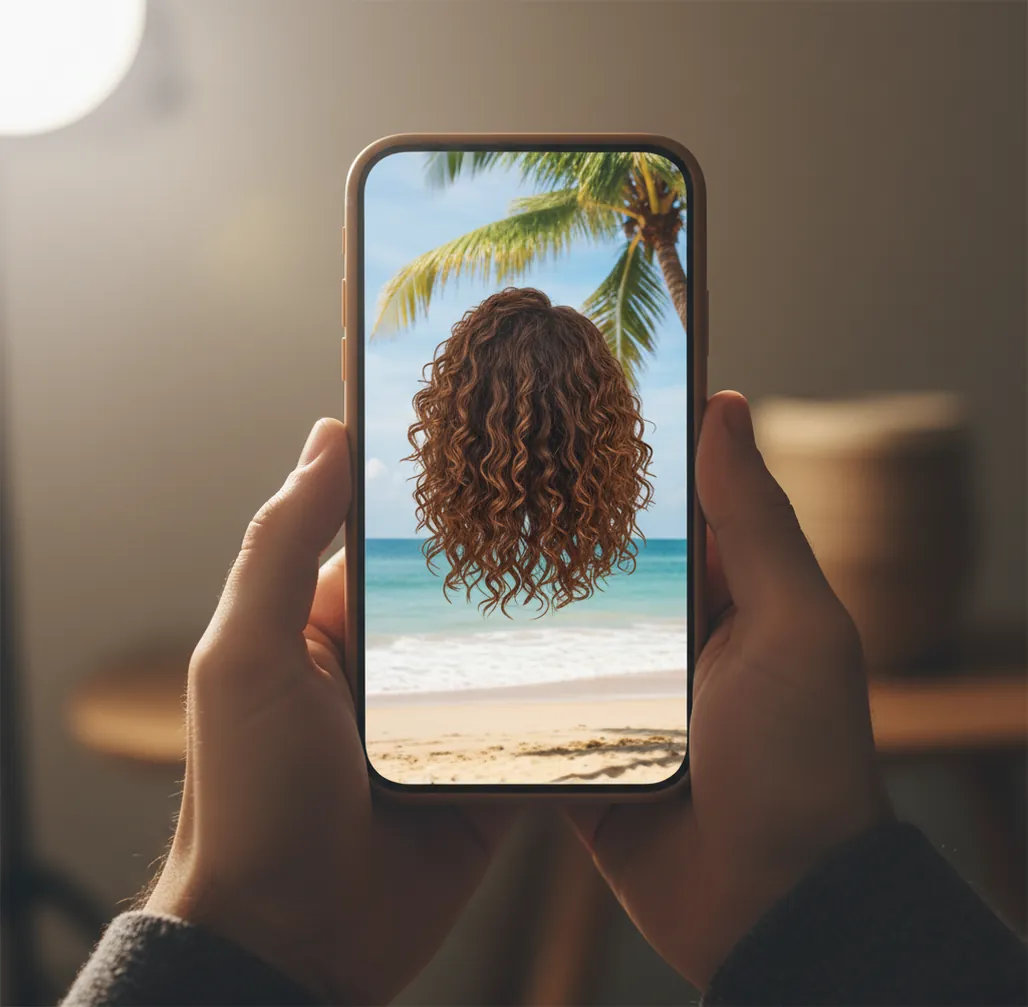
The apps that change photo backgrounds are AI background changer or photo editor apps that remove the original background and composite the subject onto a new layer. For quick phone edits, choose a tool with automatic subject cutout, edge refinement, high-resolution export, and background options such as solid color, blur, uploaded images, or generated scenes.
What App Changes Photo Backgrounds?
A photo background changer app is the type of app that changes photo backgrounds. It detects the main subject, removes or masks the original scene, and lets you replace it with a clean wall, brand color, studio gradient, lifestyle scene, blurred backdrop, or another image.
The best choice depends on your use case. Portrait creators usually need clean hair edges and natural shadows. Product sellers need consistent white or neutral backgrounds. Social creators need fast templates, story ratios, and bold visual styles. Look for automatic background removal, manual restore/erase tools, export size controls, and lighting adjustments.
How Do Photo Background Changer Apps Work?
Photo background changer apps work by using AI segmentation to classify pixels as subject, background, or uncertain edge detail. The app creates a mask around the subject, removes the original background layer, and composites the cutout onto a new color, image, blur, or generated scene.
The hard part is not the middle of the subject; it is the edge. Hair, fur, glasses, veils, jewelry, fingers, bicycle spokes, and motion blur create semi-transparent or low-contrast areas. Better tools let you inspect the mask, restore missing details, erase leftover background pixels, feather edges slightly, and export at a usable resolution for posts, prints, profile photos, or listings.
How Do You Change a Photo Background Without Jagged Edges?
Choose a sharp source photo
Start with a well-lit image where the subject is not motion-blurred. AI cutouts perform better when hair, shoulders, hands, and product edges have clear contrast from the original background.
Run the automatic cutout
Use the background remover or subject cutout tool first. Let the app create the initial segmentation mask before you make any manual corrections.
Inspect the edge at high zoom
Zoom to about 200% and check hairlines, glasses, fingers, earrings, pet fur, and product corners. These are the areas where halos and missing details usually appear.
Refine the mask manually
Use restore to bring back lost subject details and erase to remove leftover background pixels. Keep feathering subtle; too much softness can make the subject look blurry.
Match the new background
Pick a background with similar light direction, color temperature, and camera angle. A warm portrait usually looks more believable on a warm backdrop than on a cold blue scene.
Export at the right size
Save at the highest resolution needed for the final use. Export large for prints or product listings, then resize for social platforms only after the edit is finished.
Which Background Changer App Should You Choose?
| App | Best for | Strengths | Watchouts |
|---|---|---|---|
| Pict AI | Fast mobile background swaps | Quick subject cutouts, replacement backgrounds, and simple edge cleanup for portraits, pets, and product shots | Check export options, privacy settings, and feature availability inside the app |
| Canva | Templates and branded social graphics | Strong layout tools, brand kits, text overlays, and easy resizing for posts and marketing assets | Some background tools, assets, or exports may depend on account type or plan |
| Adobe Express | Polished design edits | Good for clean exports, design templates, and Adobe-style controls without opening a full desktop editor | May require sign-in and some features can vary by plan or asset license |
| PhotoRoom | Marketplace and product photos | Useful for white backgrounds, batch-style product visuals, and ecommerce-ready compositions | Best results still require checking shadows, scale, and product edge accuracy |
| Photoshop Express | More manual editing control | Helpful when you need extra retouching, color correction, and detailed adjustments after the background swap | Can feel slower than one-tap background apps for simple edits |
Choose based on the final output, not only the cutout. A profile photo needs believable hair and skin edges, a product listing needs consistent background color and shadow, and a social post needs templates, text, and fast aspect-ratio changes.
What Background Style Works Best for Different Photos?
The best replacement background is the one that supports the subject without calling attention to the edit. For headshots, use a soft gray, off-white, warm beige, office blur, or subtle gradient. For product photos, use white, light gray, brand color, or a simple lifestyle surface that does not compete with the item.
For social posts, stronger visual choices can work: neon gradients, seasonal scenes, travel backdrops, or editorial textures. For gifts and prints, avoid backgrounds that are too busy around faces. If the subject has soft lighting, avoid harsh midday backgrounds; if the subject was photographed from eye level, avoid a background shot from a very high or low angle.
What Prompt Recipes Help Create Better Replacement Backgrounds?
If your editor supports generated backgrounds, use prompts that describe lighting, camera perspective, surface, depth of field, and mood. Keep the subject unchanged and ask only for the scene behind them. This reduces the chance of warped faces, changed clothing, or strange object blending.
Try these reusable templates: “clean studio background, soft shadow, neutral gray, eye-level camera, realistic lighting”; “minimal ecommerce background, white seamless paper, soft floor shadow, high-key lighting”; “warm lifestyle kitchen background, shallow depth of field, natural window light, subject remains unchanged”; “professional office blur, subtle depth, cool neutral tones, LinkedIn-style portrait.”
Where Are Photo Background Changes Most Useful?
- Profile photos: replace a messy room, street sign, or crowded background with a clean wall, office blur, or neutral studio look.
- Product listings: create consistent white, gray, or branded backgrounds for marketplaces, catalogs, and small-business storefronts.
- Creator content: turn ordinary phone portraits into thumbnails, story posts, launch graphics, moodboards, and campaign visuals.
- Portfolio work: standardize before-and-after beauty shots, hair photos, makeup looks, pet portraits, or service examples.
- Events and gifts: place people into birthday themes, holiday cards, travel-style scenes, or printable keepsakes.
- Branding: keep team portraits consistent by using the same background color, gradient, or visual style across a website.
What Makes a Swapped Background Look Real?
A swapped background looks real when the subject, shadow, color temperature, scale, and camera angle all agree. The most convincing edits usually have a slight contact shadow under the subject, a background that is not sharper than the foreground, and edge detail that preserves hair or product texture without a bright halo.
After replacing the background, compare the subject’s lighting direction with the new scene. If the light hits the face from the left, avoid a background where the strongest light comes from the right. Use small adjustments: warm the background, cool the subject, add a soft blur, reduce contrast, or apply a final color grade over the whole image so it feels like one photograph.
When Do Background Changer Apps Struggle?
- Fine hair, pet fur, feathers, and flyaways can produce halos because the app must estimate semi-transparent edge pixels.
- Motion blur makes masks less accurate because the subject boundary is smeared across several pixels.
- Backlit subjects can confuse segmentation models when bright light blends into hair, shoulders, or clothing.
- Transparent objects such as glasses, glassware, veils, and plastic packaging may be partially erased or filled incorrectly.
Choose a Background Workflow That Fits Your Final File
The right background-editing workflow depends on what you need to deliver, not just which app produces a convincing preview. Before uploading, decide whether you need an editable cutout, a finished scene, or several matching images. Use these five routes to avoid redoing the edit later.
- If you need a reusable cutout, save transparency first. If your search starts with “what app removes photo backgrounds,” prioritize transparent PNG export over replacement scenes. Save the isolated subject separately, then create finished versions from that file. A JPEG cannot retain transparency, so it is unsuitable as your reusable cutout.
- If the original setting matters, blur rather than replace it. Choose a tool that can blur photo backgrounds when a restaurant, workspace, or travel location provides useful context. Keep signs and recognizable landmarks readable where appropriate. Blur can reduce visual distraction, but it should not be treated as reliable redaction for sensitive information.
- If you are building an Instagram Story, design around interface overlays. When learning how to make instagram story backgrounds with ai, create the background on a 9:16 canvas and leave space for your subject, captions, and stickers. Keep essential details away from the top and bottom, where interface elements may cover them.
- If you need a matching set, lock the layout before editing more photos. Choose one canvas size, subject scale, placement, and backdrop color. Save those settings as a template when available. Apply them to a few sample images before processing the full set; automatic centering can make differently shaped products appear inconsistent.
- If the photo contains confidential details, check processing controls first. Determine whether uploads are processed on-device or sent to a server, and check retention and deletion options. Crop out unrelated documents or screens before upload. Keep an untouched original so an unsuccessful replacement does not become your only copy.
Photo Background Editing Questions Answered
A black background can be the image viewer’s way of displaying transparency, rather than part of the saved image. Open the file in an editor and place it over a colored layer to check. If the black area remains opaque, the export may have flattened the image. Export again as a PNG with transparency enabled; JPEG files do not preserve transparent backgrounds.
A background changer can create a plain backdrop, but that does not guarantee a passport photo will be accepted. Requirements vary by issuing authority, and some prohibit digital background alteration or other retouching. Check the official rules before editing. If alteration is prohibited, retake the photograph against an approved background instead. Avoid changing facial features, skin texture, head proportions, or clothing.
Many mobile editors offer free background removal or limited free exports, but features vary by plan. Check whether the free version includes high-resolution downloads, no watermark, and manual edge refinement.
Use an app with automatic subject cutout, choose a new background, refine the edge, and export. For simple portraits, this usually takes a few taps if the original photo is sharp.
Yes. Android photo editors can remove the original background, isolate the subject, and replace the scene with a color, blur, image, or generated background.
Remove the original background, add a white layer behind the subject, then check the edges for gray halos or leftover pixels. This is common for product photos, ID-style images, and clean profile pictures.
A white outline usually comes from leftover pixels in the original background or too much edge feathering. Zoom in and use erase, restore, defringe, or edge-refine tools to clean the mask.
They can work well, but hair and fur are the hardest areas because they contain thin, semi-transparent detail. Use a high-contrast source photo and manually refine the mask around flyaways.
Yes. Background changers are useful for ecommerce images, especially when you need a white, gray, or branded background with consistent framing and soft shadows.
It can reduce quality if the app compresses the export or if you start with a low-resolution image. Export at the highest available size and resize only after the edit is complete.
Yes. Most background changer apps let you upload or select another image as the new backdrop. For realism, match the lighting direction, perspective, and color temperature.