What App Makes AI Headshots? Best Options for 2026
AI headshot apps turn selfies into studio-style portraits for LinkedIn, resumes, team pages, portfolios, and personal branding. In 2026, the best option depends on whether you want a fast mobile edit, a browser-based generator like Pict AI, or a paid batch service trained on multiple selfies.
What App Makes AI Headshots? Best Options for 2026
- Upload recent, unfiltered selfies showing your current appearance, using the number of images your chosen headshot tool requires.
- Choose a studio portrait style or describe neutral lighting, simple clothing, and facial features that must remain unchanged.
- Generate a small headshot batch, then compare each portrait with your source photos for recognizable likeness.
- Review usage permissions and the destination’s requirements, then export your selected portrait in the required format and crop.
Example prompt: Create a realistic studio headshot from my selfie: neutral gray background, soft window light, business casual blazer, natural skin texture, 50mm lens look, shallow depth of field, true-to-life facial features.
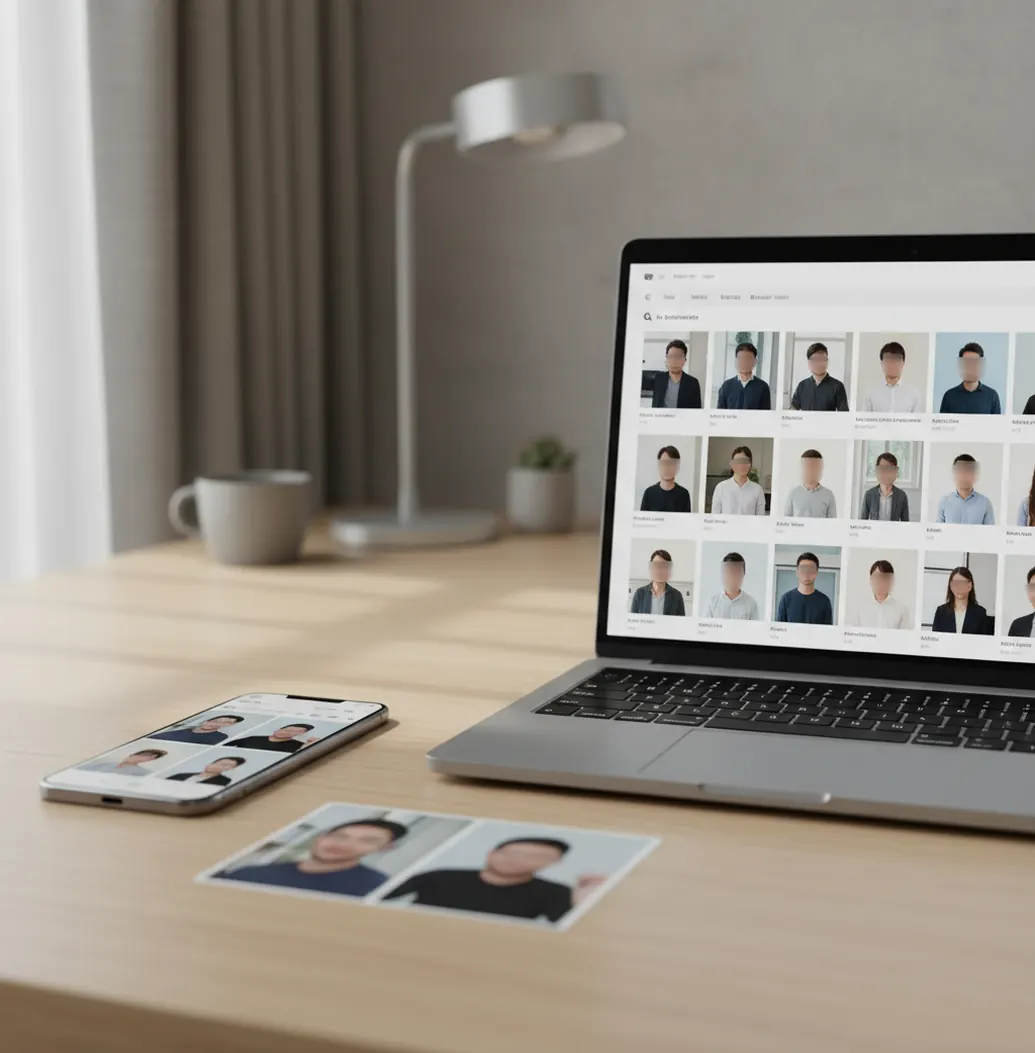
Apps that make AI headshots include browser generators, mobile portrait editors, and paid headshot services that create professional-looking portraits from selfies. For the most natural results, choose a tool that preserves face shape, supports realistic lighting and backgrounds, and exports at least 1024 pixels on the short edge. Free apps are useful for testing styles, while paid tools usually give more consistent batches and higher-resolution downloads.
Is There an App That Makes AI Headshots?
Yes, there are apps that make AI headshots by using your selfies to generate polished portrait images with professional lighting, clothing, and backgrounds. These tools are commonly used for LinkedIn profile photos, resumes, company directories, speaker bios, creator media kits, and portfolio pages.
Most AI headshot apps work in one of two ways: they either train a small custom model from several photos of you, or they transform one uploaded selfie into a more professional portrait style. Multi-photo tools usually produce better identity consistency, while single-photo tools are faster and easier for quick profile updates.
The strongest results keep your jawline, eyes, nose, hair texture, and expression recognizable. If an app makes your skin look plastic, changes your face symmetry too much, or invents clothing details that bend at the collar, the image may look impressive at first glance but unreliable in professional contexts.
How Do AI Headshot Apps Work?
AI headshot apps use generative image models, face embedding, segmentation, inpainting, and style conditioning to rebuild a portrait from your uploaded photos. The system identifies facial landmarks, estimates lighting direction, separates the subject from the background, and generates a new image that matches a selected style such as corporate, editorial, casual, or creative.
In multi-selfie workflows, the app analyzes repeated facial features across 6 to 15 images so it can learn your proportions instead of copying one pose. In single-image workflows, the model relies more heavily on the original photo, which can preserve likeness but may be less flexible with clothing, angle, and background changes.
Good tools also control output constraints: aspect ratio, background blur, skin texture, eye alignment, hair edges, and export size. For LinkedIn and web profiles, a square crop around 1024 x 1024 pixels is usually enough, but higher-resolution files are better for press kits, print badges, and speaker pages.
How Do You Make an AI Headshot From Selfies?
Choose recent, realistic selfies
Use 6 to 12 photos from the last few months. Pick images with your current haircut, facial hair, glasses, and general appearance so the generator does not average old and new versions of your face.
Use clean light and simple angles
Choose selfies taken in window light or soft outdoor shade. Include straight-on and slight three-quarter angles, but avoid extreme overhead shots, harsh flash, sunglasses, group photos, and heavy beauty filters.
Select a professional style
Start with neutral presets such as business casual, studio gray, soft blue, or natural editorial. Plain backgrounds usually look more believable than fake offices, city skylines, or conference rooms with distorted details.
Generate a small test batch
Create a small set before spending all credits. Check whether your face shape, eyes, teeth, glasses, hairline, and neckline remain stable across multiple results.
Crop and export for the destination
Use a square crop for LinkedIn and company profiles, a vertical crop for speaker pages, and a wider crop for portfolio headers. Export at 1024 pixels or larger on the short edge when possible.
Inspect the final image at 200%
Zoom in before posting. Look for warped collars, uneven pupils, melted earrings, strange teeth, plastic skin, broken glasses frames, or background artifacts around hair.
What Are the Best AI Headshot Apps in 2026?
| Tool Type | Best For | Typical Strength | Watch Out For |
|---|---|---|---|
| Pict AI | Browser and iOS users who want to generate and refine headshot-style portraits | Flexible image generation and editing in one workflow | Results still depend heavily on clean selfie inputs and realistic style choices |
| Canva | Creators who want quick profile graphics, resumes, and social layouts | Easy design templates, background tools, and brand-kit workflows | Less specialized for identity-consistent headshot batches |
| Remini | Mobile users who want fast portrait enhancement and polished selfies | Strong phone-first editing and face enhancement | Can over-smooth skin or create a glossy beauty-filter look |
| Fotor | Users testing online AI portrait and profile photo tools | Accessible web interface with multiple visual styles | Free outputs may have limits on resolution, credits, or downloads |
| PhotoAI | Creators who want many stylized portraits from a trained image set | Broad style variety for professional, lifestyle, and creator images | Some outputs may feel more like a photoshoot concept than a strict headshot |
| Aragon AI | Teams and professionals who want polished business headshot batches | Specialized workflow for corporate-style portraits | Paid plans are usually needed for usable, high-resolution exports |
| HeadshotPro | Companies, remote teams, and profile-photo standardization | Consistent business portrait sets across multiple people | Less flexible if you want experimental, artistic, or creator-style images |
| Adobe Express | Users who already edit profile images, backgrounds, and layouts in Adobe tools | Strong design ecosystem and quick image cleanup | AI headshot generation may require more manual editing for a finished result |
The best AI headshot app is not universal. Use a specialized headshot service for consistent corporate batches, a mobile app for fast profile updates, and a browser editor when you want to generate, crop, retouch, and export in one place.
What App Makes AI Headshots for LinkedIn?
For LinkedIn, the best AI headshot app is one that creates a realistic, current, and approachable image rather than the most dramatic portrait. A LinkedIn headshot should look like you on a good workday: clear eyes, natural skin texture, simple clothing, and a background that does not compete with your face.
Use a square crop with your face taking up about 60% of the frame. Light gray, off-white, muted blue, and softly blurred neutral backgrounds are safer than busy offices or fake bookshelves because LinkedIn compresses images and small artifacts become more visible.
Avoid overly formal styles if they do not match your field. A startup founder, therapist, designer, developer, realtor, and consultant may all need different levels of polish. The goal is trust, not perfection: the image should help someone recognize you in a video call, event badge, or interview.
Are Free AI Headshot Generators Worth Using?
Free AI headshot generators are worth using for style exploration, but they are not always the best choice for final professional images. Many free tools limit downloads, add watermarks, reduce resolution, compress skin texture, or require payment after you preview the best results.
A useful free test is simple: upload two clear selfies, choose the plainest professional preset, generate a small batch, download one image, and inspect the file size, pixel dimensions, and face details. If the tool cannot preserve your eyes, hairline, glasses, or mouth in a small test, a larger batch will probably not fix the problem.
Privacy matters more with free tools because your face data is the core input. Before uploading, check whether the app states how long photos are retained, whether uploads are used for model training, and whether you can delete your data.
What Prompt Should You Use for an AI Headshot?
- Corporate LinkedIn: "Create a realistic professional headshot of the same person, natural skin texture, soft studio lighting, neutral gray background, business casual clothing, 85mm portrait look, sharp eyes, subtle smile, no beauty filter, no exaggerated retouching."
- Creative professional: "Create a natural editorial headshot of the same person for a portfolio page, warm window light, relaxed confident expression, simple dark shirt, softly blurred studio background, realistic hair detail, accurate face shape, modern creative branding."
- Founder or speaker bio: "Create a trustworthy speaker headshot of the same person, clean vertical portrait, soft directional light, navy or charcoal jacket, approachable expression, neutral background, realistic skin texture, high-resolution professional event profile photo."
- Remote team page: "Create a consistent company directory headshot of the same person, centered composition, plain light background, even lighting, natural expression, business casual top, realistic proportions, minimal retouching, clean square crop."
- Negative prompt add-on: "Avoid plastic skin, distorted teeth, uneven eyes, warped glasses, fake text, extra earrings, melted hair edges, over-sharpening, heavy makeup changes, unrealistic jawline, and background artifacts."
What Should You Check Before Posting an AI Headshot?
- Face fidelity: your brow, nose, chin, jawline, and cheek proportions should match your real appearance.
- Eyes: pupils should point in the same direction, catchlights should look natural, and eye size should not change between left and right.
- Teeth and smile: avoid images where teeth become too uniform, too white, duplicated, or fused together.
- Hair and glasses: inspect flyaways, curls, frames, lens edges, and reflections because these are common artifact zones.
- Clothing structure: collars, lapels, buttons, necklaces, and shirt seams should follow real geometry.
- Background realism: plain backgrounds beat fake offices with nonsense signs, distorted shelves, or impossible perspective.
- Skin texture: professional does not mean poreless. A usable headshot keeps normal texture, freckles, lines, and tone variation.
- Crop: leave enough space above the head and around the shoulders so the image works as a circle avatar and a square profile image.
What Are the Limitations of AI Headshot Apps?
- Identity drift can happen when the model subtly changes your face shape, eye spacing, age, or jawline across different outputs.
- Glasses, braces, facial hair, curly hair, earrings, and teeth are higher-risk details because they involve small edges and repeated shapes.
- Old or inconsistent input photos can confuse the model, especially if your haircut, weight, beard, glasses, or makeup style changed recently.
- Some apps over-retouch skin, which can make a professional profile photo look less trustworthy or too synthetic.
So, What App Makes AI Headshots You Can Actually Use?
The app that makes usable AI headshots is the one that balances likeness, realism, export quality, and editing control. In 2026, you can choose from free web generators, mobile portrait apps, design platforms, and specialized paid services, but the best result still starts with strong selfies and a restrained style.
If you need a LinkedIn photo today, use a simple professional preset, a neutral background, and a square crop. If you need a team page or client-facing profile, choose a tool that generates multiple variations and lets you reject images with identity drift or visible artifacts.
The most convincing AI headshots do not look like fantasy portraits. They look like a clean photo you could have taken near a window, in a small studio, or at a company headshot day.
Related Pict.AI guides on AI headshots
Before Publishing: Check Permissions, Representation, and the Final File
Knowing how to get professional headshots with AI includes checking whether the finished image is suitable for its destination. Before uploading a portrait to a public profile, run through these checks on the actual exported file, not just the generator’s preview.
- Confirm permission to upload. Use photos you own or have permission to submit. A photographer’s permission to display a portrait does not necessarily cover uploading it to a generative service. For employee portraits, obtain each person’s agreement before processing their images.
- Check the service’s data controls. Review source-photo retention, model-training options, deletion procedures, and commercial-use terms. For AI headshots for business, confirm that these terms also satisfy your organization’s rules for employee data.
- Keep professional claims truthful. For AI headshots for job applications, avoid generated uniforms, badges, branded clothing, or workplace settings that imply qualifications or affiliations you do not have. Follow the application’s photo instructions; some employers do not request a portrait.
- Protect casting accuracy. With AI headshots for actors and models, reject changes to apparent age, body proportions, complexion, or distinguishing features. Check agency and casting requirements before submitting; a flattering portrait is not useful if it misrepresents your current appearance.
- Separate platform rules from workplace rules. Searching “are AI headshots allowed on LinkedIn” does not resolve whether your employer permits generated portraits on its directory. Confirm the destination’s requirements before replacing an approved company photograph.
- Do not confuse headshots with identity photographs. A result advertised as an “AI passport photo maker free” tool still needs to meet the issuing authority’s rules. Do not submit a generated face as a passport photo.
- Inspect the downloadable file. Confirm that the watermark, usage rights, format, and file size meet the destination’s requirements. Remove unnecessary location metadata, and save the original separately so you can revise the edit later.
AI Headshot Questions About Photos, Formats, and Likeness
Commercial use depends on the generator’s terms and your rights to the source photographs. Check whether the selected plan permits company websites, advertising, and promotional materials, and whether attribution is required. Permission from the person pictured is separate from the tool’s license. For employee campaigns or paid advertisements, confirm both before publishing rather than assuming a paid download covers every use.
Retention varies by service. Uploaded selfies, generated portraits, and any personalized model may have different deletion schedules. Check whether uploads can be used for model training, whether that setting can be disabled, and whether deleting an account also deletes its images. If the policy does not clearly explain retention and deletion, avoid uploading sensitive photographs or another person’s face.
Most AI headshot apps work best with 6 to 15 clear selfies. Use recent photos with consistent hair, glasses, facial hair, and lighting for better face fidelity.
LinkedIn does not ban AI-generated profile photos as a category. The image should still represent your real appearance and look appropriate for professional networking.
Plain light gray, off-white, muted blue, and softly blurred neutral backgrounds are usually safest. Busy offices, fake bookshelves, and city scenes create more artifact risk.
Yes. Some tools can change your age, jawline, skin texture, eye shape, or facial symmetry, so you should compare the result against a recent selfie before using it professionally.
They can work with glasses, but frames and reflections are common failure points. Include several input photos wearing the same glasses if they are part of your daily look.
Teeth are small, high-contrast repeated shapes, so image models may merge, duplicate, or over-whiten them. A softer smile or closed-mouth expression often produces cleaner results.
You can, if the final image looks realistic and downloads at a usable resolution. Avoid watermarks, heavy smoothing, distorted clothing, and images that no longer look like you.
A square image of at least 1024 x 1024 pixels is a practical export target. Keep your face centered and large enough to read clearly when cropped into a circular profile photo.
An AI headshot is faster and cheaper for many profile-photo needs, but a real photographer is better for exact likeness, controlled lighting, team consistency, and print-grade branding.