How to Get Professional Headshots With AI in 2026
You can get professional headshots with AI in 2026 by starting with clear, well-lit photos, generating studio-style variations, and choosing the image that still looks like your real face. The best results come from natural lighting, simple clothing, realistic editing, and a final check for face, hair, teeth, and glasses artifacts.
How to Get Professional Headshots With AI in 2026
- Upload a recent, sharp portrait with visible eyes and your current hairstyle, without filters or face coverings.
- Choose a neutral background and describe professional clothing, soft lighting, faithful facial features, and unchanged skin tone.
- Generate several headshot variations, keeping the styling consistent so you can compare how accurately each preserves your likeness.
- Review identity, clothing symbols, and download dimensions; export the most faithful result in the format your destination requires.
Example prompt: Create a realistic corporate headshot from my photo: neutral gray background, soft window light from front-left, natural skin texture, 85mm lens look, subtle smile, sharp eyes, minimal retouching, business casual outfit, true-to-life facial features.
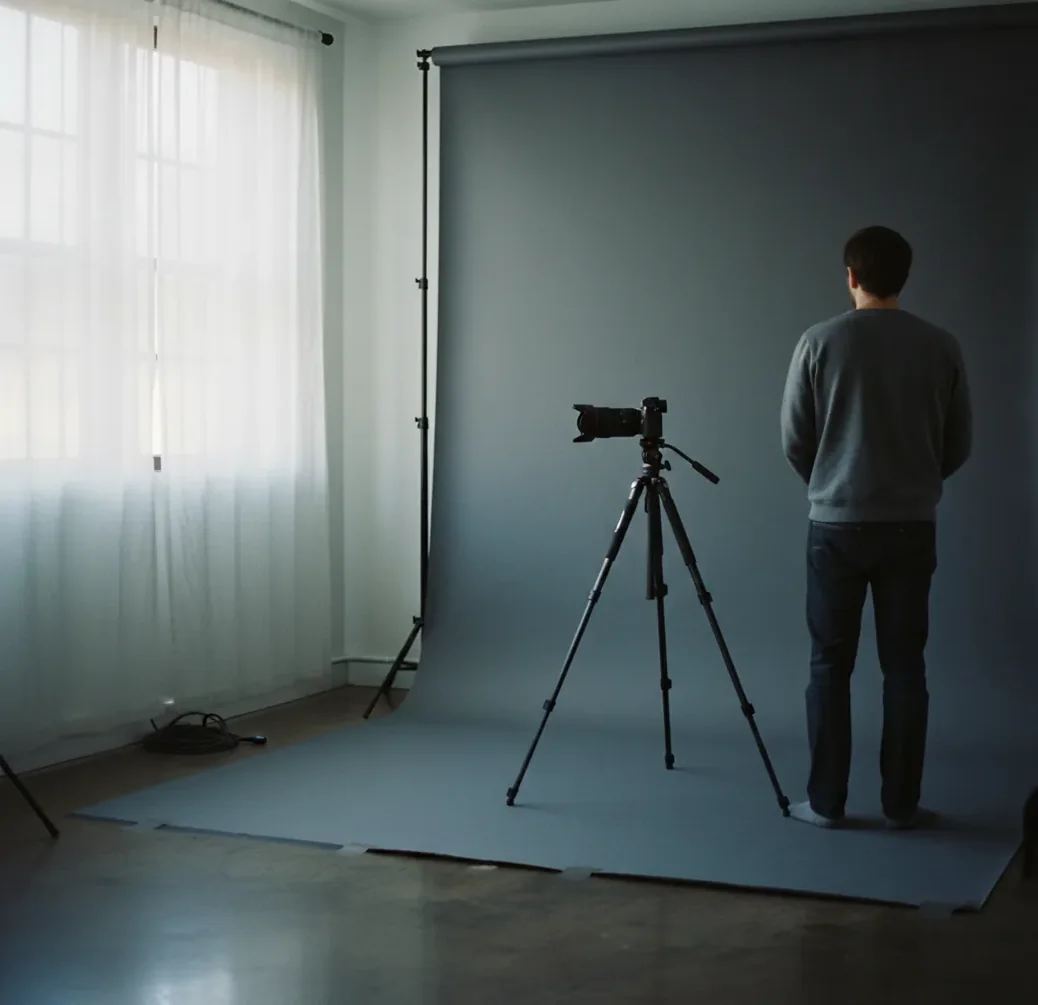
To get professional headshots with AI in 2026, upload 6 to 12 sharp photos with consistent hair, facial hair, and lighting, then generate several studio-style portrait options. Choose the most realistic image, lightly edit the background and exposure, check small details at 100% zoom, and export a high-resolution 1:1 version for LinkedIn, resumes, directories, and bios.
What Are Professional Headshots With AI in 2026?
Professional headshots with AI are portrait images generated or refined by machine learning models to resemble a real studio headshot. They usually start from real photos of your face, then use generative image models, face alignment, background replacement, color correction, and detail enhancement to create a polished profile image.
A good AI headshot should look like you on a well-lit day, not like a synthetic avatar. It should preserve your face shape, skin texture, eye spacing, hairline, expression, and professional identity while improving the setting around you. In 2026, AI headshots are most useful for LinkedIn profiles, company directories, speaker bios, portfolio pages, press kits, resumes, and team pages where a full studio session is not practical.
How Do AI Headshot Generators Work?
AI headshot generators work by analyzing your uploaded images, encoding facial identity features, and producing new portrait variations that match professional photography patterns. Most modern systems use computer vision for face detection, segmentation for separating the subject from the background, and diffusion-style image generation to synthesize realistic lighting, clothing, backdrops, and depth of field.
The technical challenge is identity consistency. A model may capture your general face but slightly change your eyelids, smile, jawline, hair texture, or glasses. That is why source-photo quality matters more than the tool alone. Sharp eyes, even lighting, normal facial expressions, and a clean outline give the model stronger visual information, which usually produces more believable headshots.
How Do You Create an AI Headshot Step by Step?
Choose 6 to 12 clear source photos
Use sharp images where your eyes are visible, your face is not covered, and your current hairstyle and facial hair are consistent. Avoid sunglasses, heavy filters, group photos, extreme angles, and low-resolution screenshots.
Shoot one clean base photo if needed
Stand near a window or soft lamp, face the light, keep the camera around eye level, and use a plain wall or uncluttered room behind you. A modern phone photo in good light is usually enough.
Generate several professional variations
Use an AI headshot tool to create multiple versions with neutral backgrounds, natural expressions, business-casual clothing, and realistic studio lighting. Generate enough options to compare face accuracy instead of accepting the first result.
Inspect the image at 100% zoom
Check eyes, teeth, glasses, earrings, hair edges, collar symmetry, fingers if visible, and skin texture. Reject images that look beautiful at thumbnail size but distorted when enlarged.
Edit lightly for realism
Adjust exposure, contrast, background, crop, and color temperature, but avoid aggressive smoothing or reshaping. The goal is a credible portrait, not a beauty-filtered face.
Export for each profile use
Save a high-resolution master file, then export a 1:1 crop for LinkedIn and directories. For speaker pages or press kits, keep a larger 4:5 or 3:4 version if the platform supports it.
What Photos Should You Upload for the Best AI Headshot?
The best photos for an AI headshot are sharp, recent, evenly lit portraits where your face is visible from multiple natural angles. Include a mix of front-facing and slight three-quarter views, but keep your hairstyle, facial hair, glasses, and general appearance consistent. If your inputs show different hair lengths, different beard styles, or heavy makeup changes, the output may blend those features unpredictably.
Use photos with soft front light, visible eye detail, and normal expressions. Do not upload blurry selfies, night photos, mirror shots, images with strong colored lighting, heavy face filters, hats, sunglasses, or crowded backgrounds. For most people, 6 to 12 good photos outperform 30 mixed-quality images because the model receives cleaner identity signals.
Which AI Headshot Tools Are Best for Different Profile Needs?
| Tool Type | Best For | Strengths | Watch For |
|---|---|---|---|
| Pict AI | Fast browser and mobile headshot generation | Generates headshot-style variations and supports practical edits for backgrounds, crops, and polish | Results still depend on source-photo quality and final human review |
| Dedicated paid headshot generator | Batch headshots for individuals or teams | Usually offers many outfit, backdrop, and lighting presets | May require account setup, waiting time, and paid credits before final export |
| General AI image editor | Fixing backgrounds, exposure, and crop after generation | Good for cleanup, resizing, object removal, and brand consistency | May not preserve identity as well if used for full face generation |
| Design platform with AI photo tools | Social posts, resumes, portfolio layouts, and branded templates | Useful when the headshot needs to sit inside a finished design | Headshot realism may vary because the platform is not always portrait-specialized |
| Manual photo editor | Final retouching and high-trust professional use | Best control over skin texture, color, background, and file quality | Slower and more expensive than automated generation |
Choose based on the job of the image. A LinkedIn crop needs realism and trust; a company directory needs consistency; a speaker bio or press kit needs higher resolution and less aggressive retouching.
What Prompt Should You Use for a Realistic AI Headshot?
- LinkedIn prompt: "Create a realistic professional headshot from this photo. Use soft studio lighting, a neutral gray or warm office background, natural skin texture, accurate facial features, business-casual clothing, and a confident relaxed expression. Keep the image photo-realistic and avoid beauty filter effects."
- Creative portfolio prompt: "Create a polished editorial headshot with natural window light, subtle background blur, modern casual styling, accurate face identity, realistic hair detail, and a warm approachable expression. Keep the portrait suitable for an About page or portfolio."
- Corporate directory prompt: "Create a consistent studio-style headshot with centered framing, neutral background, soft key light, professional clothing, realistic skin texture, and clean shoulders-up crop. Preserve the person’s real facial structure and expression."
- Speaker bio prompt: "Create a high-resolution professional speaker headshot with confident expression, clean lighting, natural contrast, accurate face details, and a simple background suitable for conference pages, podcasts, and press kits."
- Negative prompt add-on: "Avoid plastic skin, altered face shape, extra teeth, warped glasses, artificial eyes, distorted earrings, over-sharpening, cartoon texture, and unrealistic suit fabric."
Where Can You Use AI-Generated Professional Headshots?
AI-generated professional headshots work best in places where a clean, recognizable portrait matters more than the story of the photo shoot. Common uses include LinkedIn profile photos, resume headers for creative roles, company directory pages, internal Slack or Microsoft Teams avatars, founder bios, speaker pages, podcast guest images, freelancer portfolios, press kits, and personal branding websites.
Each use has a slightly different standard. LinkedIn needs trust and recognizability at small size. A company directory needs consistent crop, background, and lighting across many people. A speaker bio needs a larger file that still looks natural when displayed on event pages. A creative portfolio can tolerate more style, but the face still needs to look accurate.
What Size and Format Should an AI Headshot Be?
A practical AI headshot export should include one high-resolution master file and one profile-ready crop. For LinkedIn and most profile platforms, export a square 1:1 image at 1024 x 1024 pixels or higher. If the tool allows it, keep a 2048 x 2048 version for future cropping and a vertical 4:5 or 3:4 version for bios, websites, and media kits.
Use JPEG for most web profiles because it is widely supported and small enough to upload quickly. Use PNG only if you need a transparent background or maximum crispness for a design layout. Avoid exporting only a tiny compressed file; small artifacts around eyes, hair, and fabric become more obvious after platforms recompress the image.
When Do AI Headshots Look Fake or Unprofessional?
- AI headshots look fake when the face is too smooth, the eyes have mismatched catchlights, or the skin has a plastic texture with no pores or natural tonal variation.
- Glasses are a common failure point because frames can bend, lenses can blur the eyes, and reflections may appear physically impossible.
- Teeth, earrings, necklaces, collars, and hair edges often reveal generation artifacts first, especially when the original photo was blurry or strongly backlit.
- Overly perfect suits, generic office backgrounds, and dramatic studio lighting can make a headshot feel less trustworthy for LinkedIn or recruiting contexts.
How Do You Choose the Most Believable AI Headshot?
Choose the AI headshot that looks most like you at normal profile size and still holds up when inspected closely. Realism matters more than glamour. A slightly less polished image with accurate eyes, hair, jawline, and expression will usually perform better than a dramatic portrait that looks generated.
Use a three-pass review. First, view the image as a small circle like a LinkedIn avatar and ask whether it reads clearly. Second, zoom to 100% and inspect eyes, teeth, glasses, hairline, collar, and background edges. Third, compare it with a recent candid photo to confirm the face still matches your current appearance. If you are choosing for work, ask one person who knows you professionally which version feels most credible.
Keep going: prompts, backgrounds, and editing polish
Fix Headshot Failures That Can Misrepresent You
When deciding how to make selfies look professional with ai, separate cosmetic improvements from changes that misrepresent you. A cleaner backdrop is useful; invented credentials, altered proportions, or a noticeably younger face are not. Use these failure cases to decide whether to repair a result or start again.
- The face looks younger or has a different skin tone. Compare the output beside a recent, unfiltered photo under similar lighting. For ai headshots for business, reject changes to age, complexion, or distinguishing features. Request faithful skin tone and no age reduction; if the mismatch persists, use background-only editing on a real photograph.
- The outfit invents a qualification. Generated clothing can introduce medical coats, military insignia, badges, or company logos. With ai headshots for job applications, use plain clothing without symbols that imply an employer, rank, or license. Regenerate the outfit rather than trying to conceal a misleading detail with a tight crop.
- The portrait promises a look you cannot reproduce. For ai headshots for actors and models, changes to body proportions, hair density, or apparent age can create a mismatch at auditions. Follow submission rules and prefer current photographs when casting depends on an accurate physical likeness.
- The downloaded file is not usable. If your search starts with “what app makes ai headshots,” check export restrictions before uploading. Watermarks, limited resolution, or inaccessible originals can leave an otherwise acceptable portrait unsuitable for a press kit. Confirm the actual download dimensions, not just the preview size.
The question “can ai replace a professional photographer” becomes practical when repeated generations still miss your likeness. A photographer can adjust lighting, pose, and expression during the session. If those are the unresolved problems, a short portrait session may be more productive than further generation.
AI Headshot Questions Before You Generate
Retention depends on the service. Before uploading, check whether it stores source photos, generated portraits, or a face-specific model, and whether those materials are used for training. Deleting a project may not immediately remove backups. Look for a stated retention period and deletion process, and avoid uploading colleagues’ photos without their permission.
Casting headshots should accurately show your current appearance, including age range, hair, and distinguishing features. Generated portraits can alter those details even when the result looks convincing. Follow the casting agency’s submission requirements; a current photograph is the safer choice when accurate likeness matters. Limited background or exposure adjustments are less likely to misrepresent you than generating a new face or body.
Yes, AI can create professional headshots from selfies if the selfies are sharp, recent, and evenly lit. Avoid filtered, blurry, or extreme-angle selfies because they reduce face accuracy.
A practical range is 6 to 12 good photos. Fewer high-quality images are usually better than many inconsistent or low-resolution images.
AI headshots are acceptable for LinkedIn when they look realistic and match your current appearance. Avoid images that over-smooth skin, change your face shape, or look like a stock-photo model.
Wear simple clothing that matches your industry, such as a blazer, button-down shirt, knit top, or clean solid-color layer. Avoid busy patterns, tiny stripes, logos, and reflective accessories.
Use high-quality source photos, keep natural skin texture, choose neutral lighting, and inspect eyes, teeth, hair, and glasses at 100% zoom. Light editing usually looks more believable than heavy retouching.
You can use an AI headshot on a resume when a photo is expected in your region or industry. In markets where resume photos are discouraged, use the headshot on LinkedIn or a portfolio instead.
Neutral gray, off-white, soft office, or subtle studio backgrounds work best for most professional uses. Creative fields can use warmer or more editorial backgrounds as long as the face remains clear.
Yes, AI headshots can work well for teams when everyone uses similar lighting, crop, background, and styling rules. Consistency matters more than making every image look like a high-fashion portrait.
Commercial use depends on the tool’s terms, your rights to the input photos, and your workplace policies. Review usage rights before using an AI headshot in ads, press materials, or official company assets.