What App Turns Photos Into Sketches? 2026 Guide
A photo-to-sketch app turns a real picture into pencil shading, ink lines, or clean line art by detecting edges and simplifying tones. Good options in 2026 include Pict AI, Prisma, PicsArt, Clip2Comic, and Adobe Photoshop Express, depending on whether you want speed, artistic styles, or deeper edit control.
Prisma, Picsart, Clip2Comic, and Pict.AI are options for turning photos into sketches, but they suit different finishes. Choose a pencil effect for shaded portraits, an ink treatment for bold illustrations, or an editor with selective controls when details need correction. Before committing to an app, check whether its export format and resolution fit your intended use.
What App Turns Photos Into Sketches? 2026 Guide
- Upload your original photo, then crop it to the composition you want in the finished sketch.
- Choose pencil or ink styling, or describe the desired marks while specifying details that must remain unchanged.
- Generate the sketch, then compare facial features, object shapes, and important markings with the source photo.
- Adjust distracting contours where controls allow, then export a copy in the format your project requires.
Example prompt: Convert this photo into a clean pencil sketch with light paper grain, natural facial shading, and thin lines; avoid heavy outlines and keep the background simple.
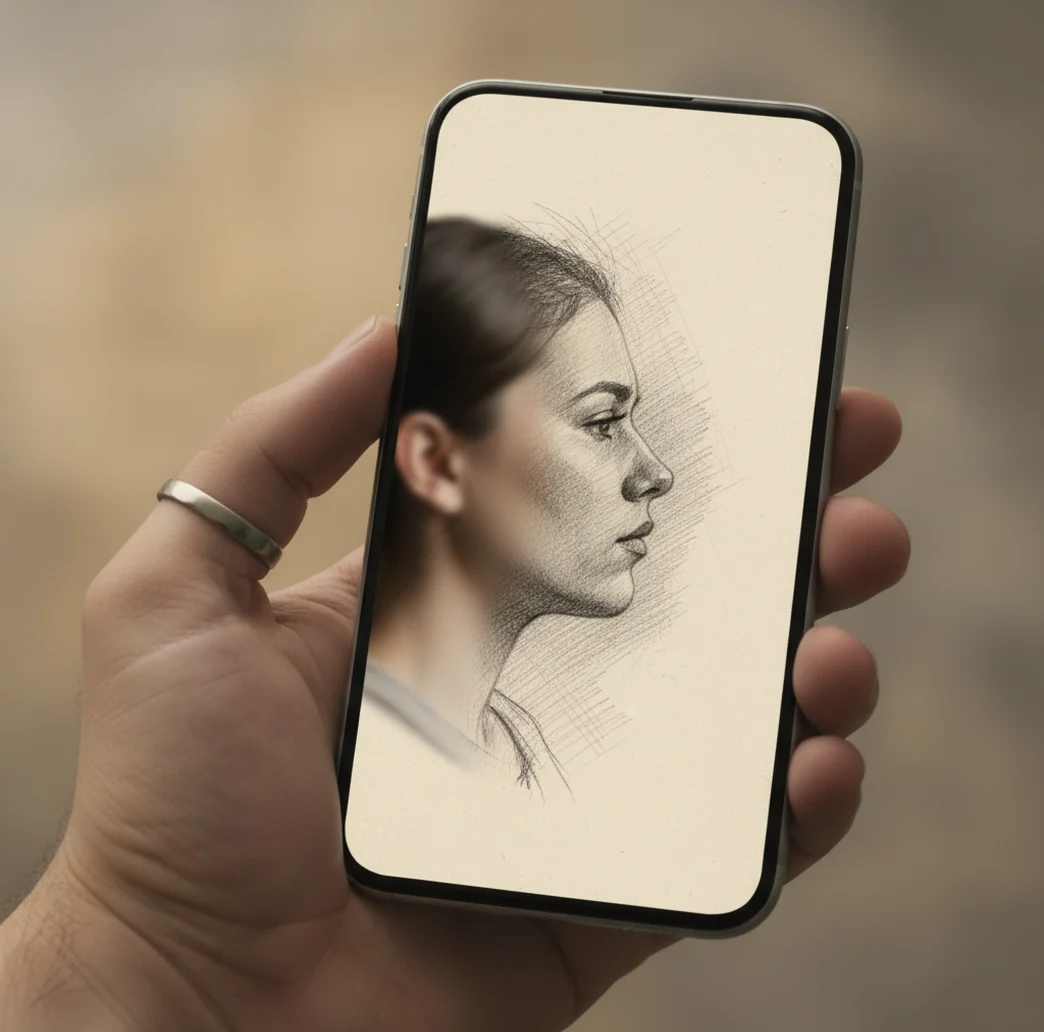
The app that turns photos into sketches is a photo-to-sketch editor, usually available on iPhone and Android. These apps convert a portrait, pet photo, product shot, or landscape into pencil, ink, or line art by tracing important edges, reducing color, rebuilding shading, and adding paper-like texture. For the best result, use a sharp photo with clean lighting, then check eyes, hair, teeth, and background edges at 100% and 200% zoom before exporting.
What app turns photos into sketches in 2026?
A photo-to-sketch app turns photos into sketches by converting the original image into pencil, charcoal, ink, or line-art styling. The best choice depends on your goal: quick social post, printable pet portrait, profile picture, sticker design, concept-art draft, or brand illustration. Look for apps with adjustable line strength, tone control, high-resolution export, and separate pencil versus ink looks.
If you want a fast mobile workflow, choose a dedicated sketch converter. If you want heavier editing, choose a full photo editor with sketch effects. The strongest results usually come from clear portraits, pets, products, and simple backgrounds because the app has fewer competing edges to trace.
How does a photo-to-sketch app work?
A photo-to-sketch app works by combining edge detection, tonal simplification, contrast mapping, and texture synthesis. First, the app finds sharp brightness changes, such as eyelids, hairlines, glasses, clothing seams, and object borders. Then it reduces color information into grayscale or limited tones so the image behaves more like graphite, ink, or charcoal.
Basic filters often use simple gradient detection, which can make hair look crunchy and backgrounds look noisy. More advanced AI sketch effects use computer vision models, sometimes convolutional neural networks, to separate meaningful contours from random texture. The final style pass adds paper grain, pencil strokes, soft shading, or clean vector-like outlines.
How do you turn a photo into a pencil sketch?
Choose a sharp, well-lit photo
Start with a focused image where the subject is easy to separate from the background. Window light, soft outdoor shade, and plain walls usually create cleaner sketch conversions than low-light scenes or busy rooms.
Select a pencil or line-art style
Use pencil sketch for soft shading, portraits, pets, and emotional keepsakes. Use line art or ink when you need stickers, logos, labels, tattoo references, coloring pages, or a cleaner graphic look.
Lower the line strength first
Heavy outlines can make cheeks, noses, teeth, and glasses look harsh. Start with lower line intensity, then increase it until hair, eyebrows, and facial contours look intentional rather than over-traced.
Adjust contrast and shading
A believable sketch keeps smooth gradients in skin, fur, fabric, and shadows. Increase contrast only enough to define form; too much contrast turns a pencil drawing into a black-and-white poster.
Inspect the result at 100% and 200%
Zoom into eyes, eyelashes, hair strands, fingers, jewelry, teeth, and any text. These areas reveal whether the app preserved real detail or generated noisy scribbles.
Export at the right size
Use high-resolution export for prints, gifts, profile images, portfolio pieces, or product mockups. For social posts, export in the platform’s aspect ratio, such as 1:1, 4:5, 9:16, or 16:9.
Which photo-to-sketch app is best for your use case?
| App | Best for | Strengths | Watchouts |
|---|---|---|---|
| Pict AI | Fast mobile pencil sketches and line art | Simple controls, quick exports, portrait and pet-friendly sketch looks | Check terms for commercial use and inspect fine details before printing |
| Prisma | Artistic sketch-like filters and painterly looks | Large style library, strong visual variety, good for social posts | Some styles may feel more like art filters than realistic pencil drawings |
| PicsArt | All-in-one editing with sketch effects | Combines filters, background tools, text, stickers, and layout controls | The interface can feel tool-heavy if you only need one sketch conversion |
| Clip2Comic | Cartoon, comic, and ink-style conversions | Strong graphic outlines and illustration effects for portraits and pets | Less ideal when you want subtle graphite shading |
| Adobe Photoshop Express | Photo editors who want sketch effects plus correction tools | Useful crop, exposure, contrast, cleanup, and export controls | Sketch effects may require more manual adjustment than dedicated tools |
Choose by output, not just app popularity. Pencil sketch needs tonal control, line art needs clean outlines, and printable art needs high-resolution export with minimal artifacts.
What settings make a sketch look realistic?
Realistic sketch results usually come from moderate line strength, preserved midtones, controlled contrast, and subtle paper texture. Avoid pushing every slider to maximum. A good pencil effect should keep the volume of the face, fur, clothing, or object, not just trace every edge in black.
Use this compact recipe for portraits: line strength 35-55%, contrast 45-65%, texture 10-25%, background detail low, export high resolution. For pets, keep fur texture but reduce background edges. For product sketches, use stronger outlines and cleaner shadows so the object remains readable in thumbnails, mockups, and portfolio layouts.
What photos work best for pencil sketch effects?
- Use portraits with visible eyes, clear facial structure, and soft shadows; eyes are the first place weak sketch filters fail.
- Pick pet photos with good fur separation and catchlights in the eyes, especially for gift prints and memorial artwork.
- Use product shots on simple backgrounds when creating illustrated listings, packaging drafts, or branding mockups.
- Crop tightly if the background contains leaves, crowds, bookshelves, blinds, fences, or patterned fabric.
- Avoid blurry, low-light, or over-compressed screenshots because sketch filters often mistake noise for detail.
- Prefer photos with one main subject; multiple faces, crossed hands, and complex jewelry create competing outlines.
Where can you use a sketch made from a photo?
Sketch versions of photos work well when you want an image to feel personal without looking like a normal camera shot. Creators use them for profile pictures, pet portraits, wedding keepsakes, graduation gifts, podcast covers, album artwork, memorial prints, family cards, sticker sheets, and before-and-after social posts.
They also help with practical visual planning. A product photo can become a packaging concept, a room photo can become a mood-board sketch, and a portrait can become a reference for an illustrator or tattoo artist. For commercial use, always confirm the app’s export license and make sure you own or have permission to edit the original photo.
What are the limits of apps that turn photos into sketches?
- Busy backgrounds can become scribble-like because the algorithm traces too many edges at once.
- Hair, eyelashes, teeth, glasses, fingers, and jewelry often show artifacts before the rest of the image does.
- Small text, logos, tattoos, and patterns may become unreadable after edge detection and tonal reduction.
- Low-light photos amplify grain, and many sketch filters interpret that grain as pencil texture.
How can you prompt an AI sketch style?
When an app includes prompt-based editing, describe the medium, line quality, shading, background, and output purpose. A useful structure is: “Turn this photo into a [medium] sketch with [line quality], [shading style], [background treatment], suitable for [use case].” This gives the model visual direction without forcing it to invent a new identity or change the subject.
Try these reusable prompts: “Turn this portrait into a soft graphite pencil sketch with natural facial shading, light paper grain, and a clean white background.” “Convert this pet photo into detailed ink line art with gentle fur texture and minimal background clutter.” “Make this product photo look like a clean technical pencil sketch with crisp edges, soft shadows, and no extra objects.”
Sketch workflows for teachers, designers, and family archivists
A sketch conversion is most useful when it solves a specific presentation problem. Decide what the finished image must communicate before choosing an effect: an identifiable person, a building’s shape, or a diagram that someone can annotate.
- Teachers preparing worksheets: Convert a photograph of a bicycle into a simplified drawing for students to label. Keep the chain, pedals, and wheel rims distinct, and remove distracting scenery before conversion. An image remove object tool can clear a bin beside the bicycle, but check that it has not reconstructed any spokes incorrectly.
- Architects explaining a renovation: Turn a street-level photograph into an understated sketch, then add proposed changes on a separate layer. If you merge photos to show two viewpoints, keep them as clearly separated panels rather than blending incompatible perspectives. Label the drawing as a concept, not a measured architectural plan.
- Family archivists making a reunion booklet: Use a restrained sketch treatment to give portraits from different decades a consistent appearance. Preserve distinguishing features instead of standardizing everyone’s face. Skip ai teeth whitening for photos before conversion when the aim is a faithful family record; brightened teeth can become conspicuous white patches after tonal reduction.
- Community organizers designing an event flyer: Sketch a recognizable local building and place event details around it. An app to remove people from photos can help clear incidental passersby before styling, provided the edit is appropriate for the image’s purpose. Assemble the finished illustration and editable typography in an ai poster generator or layout editor; do not rely on the sketch conversion to preserve small lettering.
Six sketch-editing terms that affect your saved image
Style names describe the appearance, but these technical terms explain what you can actually edit or export. They are particularly useful when an app promises a drawing suitable for further design work.
- Raster image
- A picture made of pixels, including typical JPEG and PNG exports. A raster sketch loses sharpness when enlarged beyond its useful resolution, even if its outlines look clean on a phone.
- Vector paths
- Editable curves that can scale without pixelation. A filter labeled “vector style” may still save a raster file; genuine paths require a vector-capable export and editing workflow.
- Mask
- A selection that restricts an adjustment to part of the image. Masks let you soften background marks while retaining stronger lines around the subject.
- Posterization
- The reduction of gradual tones into distinct bands. It can create bold graphic shading, but abrupt bands across cheeks or foreheads may look unnatural.
- Halftone
- Dots or similar repeated marks that simulate shades. This suits comic or print-inspired illustrations more than soft graphite portraits; resizing can make the pattern uneven.
- Negative space
- The unmarked area around and within a subject. Leaving generous blank space can make a sketch easier to read and provide room for captions or handwritten notes.
Choose between a sketch filter, AI restyling, and manual tracing
The important distinction is how much the process can change the original image. For a recognizable keepsake, stylistic freedom may be welcome. For a diagram or an illustration documenting a particular object, preserving its exact shape matters more.
| Approach | Useful example | Main advantage | Trade-off |
|---|---|---|---|
| Conventional sketch filter | A consistent set of staff portraits | Usually retains the source composition and allows the same settings across images. | Can emphasize wrinkles, shadows, and compression marks indiscriminately; consistency does not guarantee flattering results. |
| Generative AI restyling | A loose illustrated portrait for a personal invitation | Can reinterpret marks and shading rather than merely outlining existing pixels. | May change facial proportions, accessories, or object details; repeated generations can differ. |
| Layer-based photo editing | A building sketch with a quieter sky and stronger window outlines | Separates background treatment, contours, and shading for selective adjustment. | Requires more setup and editing skill; flattened exports lose that layer flexibility. |
| Manual or assisted vector tracing | A simple object illustration that needs editable curves | Offers deliberate control over which contours remain and how paths are shaped. | Detailed portraits take time, and automatic tracing often creates excessive nodes that need cleanup. |
Keep a copy of the untouched source and compare the result against it, especially when the illustration communicates factual details. Before uploading a private portrait to a separate cleanup service such as magic eraser.io, check its retention and deletion controls. Using another service adds another place where the original image may be stored.
Photo-to-sketch formats, accuracy, and usage questions
Some conventional sketch filters can process images on your device, while generative sketch features often require an internet connection. Offline availability depends on the specific feature, not just the app. Try the conversion in airplane mode before relying on it while traveling. An offline effect also does not necessarily mean the app never syncs photos when connectivity returns.
Most photo-to-sketch effects produce pixel-based images rather than editable SVG paths. A clean outline or “vector” style does not prove the export is vector artwork. Check the available file formats and whether individual curves remain editable. If you need SVG, use a vector-tracing workflow afterward and simplify the paths; detailed shading rarely converts into tidy, easily edited shapes.
A photo-to-sketch app turns photos into pencil, ink, charcoal, or line-art images. Good apps offer line control, shading adjustment, texture options, and high-resolution export.
Yes. iPhone users can use photo-editing apps with sketch filters, AI art tools, or built-in markup workflows, though dedicated sketch apps usually produce more realistic pencil and line-art effects.
Yes. Many Android photo editors include pencil sketch, ink, cartoon, or line-art effects, and the best results come from sharp photos with simple backgrounds.
A pencil sketch keeps shading, grain, and soft tonal transitions, while line art focuses on clean outlines with little or no shading. Pencil works better for portraits and pets; line art works better for stickers, logos, and coloring pages.
Sketch filters get messy when the source photo has low light, motion blur, busy backgrounds, or fine repeating patterns. Crop tighter, reduce line strength, and simplify the background before exporting.
It can create a convincing hand-drawn look for social posts, gifts, and small prints, but it is still an algorithmic conversion. Real hand drawing usually has more intentional line variation and artistic interpretation.
Yes, if the app exports enough resolution for your print size. Check the image at full size first, because jagged lines, noisy backgrounds, and distorted eyes become more visible in print.
Only if you own the image, have permission, use licensed material, or have a valid legal basis. Stylizing a copyrighted photo does not automatically make it free to repost or sell.