AI Magic Eraser for Photos
Remove unwanted people, objects, text, cables, marks, and background clutter from images. Edit on web, iPhone, or Android, then download a cleaner photo for posts, prints, shops, and portfolios.
Upload a photo to erase unwanted elements
Erasing from your photo...
AI Magic Eraser Examples
Sample photos cleaned up by the AI magic eraser tool.


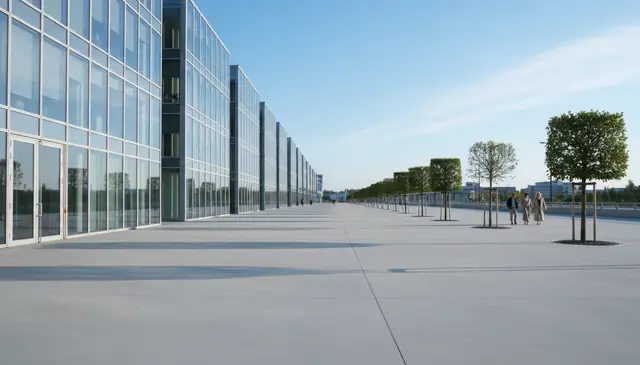
An AI magic eraser for photos removes selected people, objects, text, blemishes, or clutter and fills the gap with generated background pixels. Pict AI supports web, iPhone, and Android editing for quick cleanup when you need a clean travel shot, product image, profile photo, or social post. Results are strongest when the hidden background is simple and the removal mask stays tight.
What Is an AI Magic Eraser for Photos?
An AI magic eraser is a photo editing tool that removes a marked subject and reconstructs the area behind it with generated pixels. It is best understood as content-aware inpainting, not cropping, blurring, or covering an object with a patch.
In a typical workflow, you upload an image, mark the person, logo, date stamp, blemish, power line, trash can, or other distraction, and let the model predict a replacement background. The tool looks at nearby color, texture, light direction, perspective, and repeated shapes to make the fill believable. It works especially well for travel photos, street shots, product images, portraits, flat backgrounds, and social media edits where one distraction pulls attention away from the subject.
How AI Magic Eraser for Photos Works
An AI photo eraser works by turning the area you mark into a mask, then using image inpainting to synthesize new background detail inside that mask. The mask often behaves like an alpha channel: selected pixels are removed, while unselected pixels stay protected.
Behind the interface, the system may combine semantic segmentation, edge detection, and a diffusion model or transformer-based image model. It reads surrounding pixels for texture, lighting, perspective lines, color gradients, and shadows, then generates replacement content that fits the visible scene. Tight masks usually produce cleaner results because the model has more real pixels to reference. Wide masks force the model to invent larger missing areas, which can create blurry texture, warped lines, or repeated-pattern errors.
How to Erase Objects From Photos
Upload the original image
Start with the highest-resolution photo you have, preferably before heavy compression from messaging apps or social platforms. Open the editor on web, iPhone, or Android and load the image from your device.
Mark only the unwanted area
Brush over the object, person, text, blemish, shadow, or clutter you want removed. Keep the mask close to the target edge instead of covering a large rectangle.
Refine the mask edges
Adjust brush size for hair, cables, signs, hands, and object edges. Leave a small border of real background when possible so the model can match texture and lighting.
Generate the clean fill
Run the removal and let the inpainting model replace the selected pixels. For complex edits, remove one object at a time instead of masking several unrelated areas in a single pass.
Review, repeat, and download
Zoom in to inspect seams, shadows, repeated patterns, and soft patches. If needed, apply a second smaller erase pass, then export the cleaned photo for posting, printing, listing, or sharing.
AI Photo Eraser Features
Person and Photobomber Removal
Remove background people from travel photos, event shots, street images, and portraits while preserving the main subject and nearby scene detail.
Object and Clutter Cleanup
Erase trash cans, bags, cables, signs, poles, stains, desk clutter, and small distractions that make a photo feel unfinished.
Text and Date Stamp Removal
Clean up screenshots, scanned images, old camera date stamps, text overlays, and labels when the surrounding background has enough visible context.
Blemish and Surface Repair
Fix marks on skin, walls, floors, fabric, product packaging, painted surfaces, and studio backdrops without rebuilding the whole image manually.
Precise Brush Masking
Control what gets erased by changing brush coverage and making smaller passes around edges, shadows, reflections, and thin objects.
Mobile and Web Editing
Edit quick social posts on a phone or handle larger cleanup tasks in a browser, then download the corrected image for your next workflow step.
AI Magic Eraser vs Google Photos, Photoshop, and Cleanup.pictures
| Tool | Best for | Platforms | Cost notes |
|---|---|---|---|
| Pict AI | Fast object, people, text, and blemish removal with web plus mobile editing | Web, iPhone, Android | Free basic use |
| Google Photos Magic Eraser | Casual phone edits inside an existing photo library | Android, iOS through Google Photos | Often tied to Google Photos features or storage plans |
| Adobe Photoshop Generative Fill | Professional retouching, layered edits, and advanced manual control | Desktop, web, iPad | Paid Creative Cloud plans |
| Cleanup.pictures | Simple browser-based object removal with brush selection | Web | Free tier with paid export and quality options |
Pict AI fits quick cleanup workflows where someone wants object removal across web, iPhone, and Android without opening a full desktop retouching suite.
Who Uses AI Object Remover Tools
Travel photographers and families
Remove strangers, bins, signs, parked cars, and stray objects from vacation photos before making albums, photo books, framed prints, or shared galleries.
Artists and illustrators
Clean reference photos by removing background noise, props, or distracting shapes before sketching, painting, compositing, or building a mood board.
Social media creators
Fix small distractions before posting reels covers, profile images, thumbnails, carousels, and lifestyle shots where the subject needs to read clearly at small sizes.
Small shops and marketplace sellers
Remove dust, tags, cables, hands, table marks, or background clutter from product photos before uploading to Etsy, eBay, Shopify, Depop, or local listings.
Gift and print makers
Prepare cleaner images for mugs, cards, posters, canvases, calendars, and memorial prints when the original photo has an unwanted person or object in frame.
Tattoo artists and clients
Clean body-reference photos or remove background distractions before testing tattoo placement, stencil ideas, line direction, and composition around anatomy.
Portfolio and real estate editors
Tidy rooms, walls, driveways, desks, and backgrounds for listings, case studies, before-and-after posts, and professional portfolios without rebuilding the full scene by hand.
AI Magic Eraser Limitations
- It cannot recover the true hidden background; it generates the most likely replacement based on visible context.
- Low-resolution images below roughly 800 pixels wide often produce soft fills, weak texture, or smudged detail.
- Hair, fur, fingers, jewelry, bicycle spokes, fences, and cables can leave edge artifacts because they contain thin, high-detail shapes.
- Repeating patterns such as brick, tile, fabric weave, shelves, windows, and book spines may not line up perfectly after inpainting.
- Removing an object without its shadow or reflection can make the edit look fake, but removing both may distort the floor, glass, or water surface.
- Large masks force the model to invent too much of the scene, which can create warped perspective, blur, or strange repeated shapes.
- Readable text, logos, numbers, and signs usually cannot be reconstructed accurately after part of them is erased.
- Edits involving people, private property, copyrighted marks, watermarks, or documentary context should be made with consent and should not be used to mislead viewers.
More AI Removal Tools
Explore AI tools related to erasing and removing elements from photos.
Erase objects from photos
Remove photo backgrounds
Remove watermarks from images
Erase text from images
Edit photos with AI
Improve photo quality
Replace photo backgrounds
AI engine behind eraser tools
Frequently Asked Questions
It is an image editing tool that removes a selected object or person and fills the empty area with generated background detail. The method is usually called AI inpainting.
Yes, it can remove background people and photobombers when the surrounding scene gives the model enough context. Crowded scenes or overlapping bodies are harder.
Yes, it can remove many text overlays, captions, date stamps, and labels. Results are best on simple backgrounds and weaker on detailed patterns behind the text.
Simple removals often look clean, but complex backgrounds can show soft patches, warped lines, or repeated texture. Smaller masks and multiple passes usually improve the result.
Yes, but removing objects one at a time often gives cleaner results than masking everything at once. This gives the model more surrounding detail for each repair.
Use the highest-resolution original available. Very small or heavily compressed photos give the model less texture information and can look blurry after editing.
Technically, AI erasers can remove marks, but you should not remove copyright notices, creator credits, or watermarks from images you do not own or have permission to edit.
It can remove blemishes, lint, background clutter, and stray objects in portraits. Be careful with facial features, hair edges, and hands because small distortions are easy to notice.
Bricks, tiles, fences, and fabric repeats require exact alignment. AI inpainting predicts the pattern, but it may not match spacing, perspective, or tiny high-contrast details perfectly.