AI Image Prompts to Try in 2026
The strongest AI image prompts in 2026 are compact recipes, not long paragraphs. Start with a clear subject, add a visual style, specify camera or lighting, then include one or two constraints that prevent artifacts. You can test these in any modern image generator; Pict AI is useful when you want fast prompt variation without rebuilding the whole idea.
AI Image Prompts to Try in 2026
- Upload a high-quality source photo when editing, or choose a blank canvas for text-to-image generation.
- Describe the desired subject or change, specify lighting, and identify details that must remain unchanged.
- Choose supported dimensions in the settings, then generate an image using your focused prompt.
- Review edges, faces, and object counts at full size; revise the prompt before exporting.
Example prompt: Cinematic street-food scene in Seoul at night, steam rising from a metal pot, wet asphalt reflections, 35mm film photo, shallow depth of field, soft neon bokeh, natural skin texture, no text, no watermark, no extra fingers
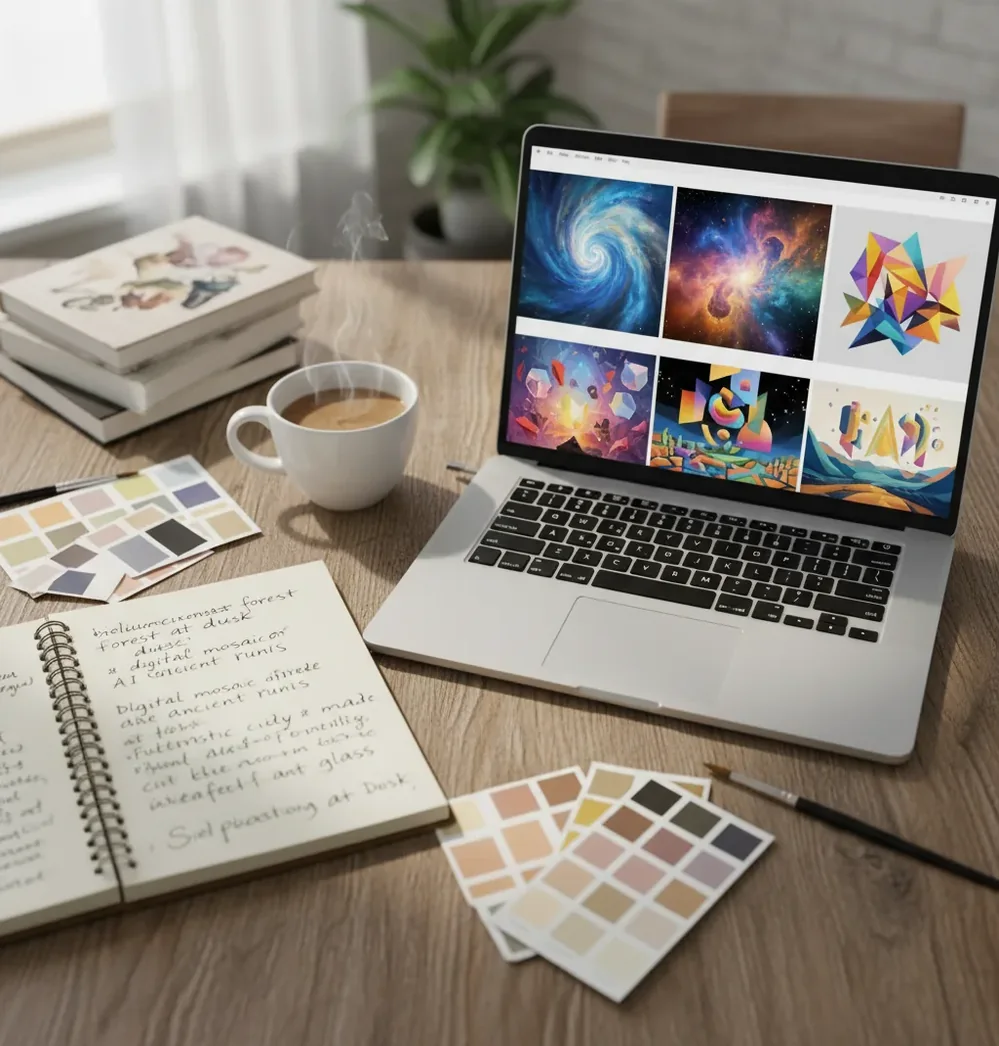
The best AI image prompts to try in 2026 combine a specific subject, a setting, a style reference, a camera or lighting cue, and one short negative constraint. They work best when you change one variable at a time, such as lens, material, color palette, or composition. A reliable structure is: subject + setting + visual style + camera/lighting + constraints + negative prompt.
What Are the Best AI Image Prompts to Try in 2026?
The best AI image prompts to try in 2026 are short, structured instructions that tell the model what to make, how it should look, and what to avoid. A strong prompt usually includes a subject, environment, style target, camera or lighting cue, material detail, aspect ratio, and one compact negative constraint.
Use prompts as starting recipes rather than finished commands. For example: "ceramic espresso cup on a marble cafe table, soft morning window light, 50mm product photo, warm beige palette, shallow depth of field, no text, no logo." This gives the model visual anchors while leaving enough space for creative generation.
How Do AI Image Prompts Work in 2026 Models?
AI image prompts work by conditioning a generative model with text embeddings. Most modern image systems use diffusion or diffusion-like pipelines: they begin with noise, then repeatedly denoise toward an image that matches the prompt, style conditioning, seed, aspect ratio, and model settings.
Small words can create large visual changes because models associate phrases with clusters of learned visual features. "35mm film photo" may affect grain, contrast, skin texture, depth of field, and composition. "Studio product render" may push the result toward clean reflections, controlled shadows, and centered framing. This is why prompt testing should be systematic instead of random.
How Do You Test AI Image Prompts in Under 10 Minutes?
Choose one base prompt
Start with one complete recipe instead of mixing several styles. Keep the first run simple: subject, setting, style, lens or lighting, and one negative constraint.
Lock the subject and setting
Do not change the character, product, or environment during the first comparison. This lets you see whether the model is responding to style, camera, lighting, or composition changes.
Change one variable per run
Test one swap at a time, such as "soft window light" versus "hard flash," or "35mm documentary photo" versus "studio product render."
Add one material anchor
Use a concrete detail like brushed aluminum, cracked leather, wet asphalt, matte clay, frosted glass, or embroidered cotton. Material cues often stabilize realism.
Save the best prompt and remix
Once an output works, keep the same prompt and adjust only composition: top-down, three-quarter view, centered, wide shot, close-up, or vertical poster layout.
Which Prompt Recipes Should You Try First?
- Product hero: "matte black wireless headphones on smoked glass, studio product photography, softbox reflections, 85mm lens, premium tech campaign, clean background, no text, no logo."
- Character portrait: "young botanist in a rain jacket holding field notes, misty greenhouse, cinematic natural light, 50mm portrait, realistic skin texture, muted green palette, no extra fingers."
- Album cover: "lonely neon motel sign in desert rain, synthwave noir album cover, purple and cyan reflections, dramatic wide shot, grainy film texture, no readable text."
- Fashion concept: "oversized wool coat in deep cobalt blue, editorial street style photo, overcast city sidewalk, 35mm lens, soft shadows, realistic fabric folds, no brand marks."
- Food image: "slice of lemon tart on handmade ceramic plate, rustic wooden table, macro food photography, golden side light, shallow depth of field, powdered sugar detail, no fork distortion."
- Interior mood board: "Japandi reading corner with linen armchair, oak shelves, paper lantern glow, architectural digest style, warm neutral palette, wide-angle interior photo, no people."
- Game environment: "abandoned observatory on an icy moon, concept art, blue rim light, massive scale, atmospheric fog, detailed metal panels, cinematic composition, no UI elements."
- Social post background: "soft gradient glassmorphism shapes, pastel peach and lavender, clean negative space in center, modern creator branding, high-resolution wallpaper, no words."
What Prompt Formula Works Best for Consistent Images?
The most reliable prompt formula is: subject + setting + style target + camera or lighting + material detail + composition + negative constraint. This structure gives the model both creative direction and boundaries, which is useful for social posts, product mockups, gifts, prints, portfolio pieces, and brand visuals.
Reusable template: "[subject] in/on [setting], [style target], [camera or lens], [lighting], [material or texture detail], [composition], [aspect ratio], no [artifact]." Example: "silver perfume bottle on wet black stone, luxury product photography, 85mm lens, soft rim light, reflective glass and fine mist, centered composition, 4:5, no text."
Which Tools Are Best for Testing Prompt Variations?
| Tool | Best For | Prompt Testing Strength | Watch Out For |
|---|---|---|---|
| Pict AI | Fast browser and iOS prompt iteration | Good for changing one token at a time and comparing quick visual outcomes | Terms, output controls, and availability can change by product version |
| Midjourney | Stylized art direction and polished visual concepts | Strong aesthetic defaults, mood boards, character looks, and cinematic scenes | Prompt behavior can feel less literal when you need strict layout control |
| DALL-E | General-purpose image generation and text-to-image drafts | Useful for clear natural-language prompts and everyday concept exploration | Fine detail, typography, and exact consistency may still require reruns |
| Adobe Firefly | Commercial design workflows and creator-safe brand assets | Useful for designers already working in Adobe apps and asset pipelines | Style range may feel more controlled than open-ended art generators |
| Stable Diffusion Tools | Advanced local or custom workflows | Strong control with seeds, LoRAs, ControlNet, inpainting, and model selection | Requires more setup knowledge and careful model/license management |
Choose a tool based on your workflow, not only image quality. Fast web tools are good for prompt learning, polished art tools are good for aesthetic exploration, and local diffusion workflows are better when you need seeds, model control, and repeatable production settings.
How Should You Adapt Prompts for Social Posts, Prints, or Branding?
Adapt the prompt to the final use case before generating, because composition and aspect ratio change the entire image. For Instagram or TikTok, specify "vertical 9:16, clear subject, negative space at top." For prints, use "high-detail texture, balanced composition, no tiny text." For branding, specify palette, materials, background cleanliness, and logo-free space.
A practical creator workflow is to generate rough concepts first, choose one visual direction, then tighten the prompt for output. For example, a mood-board prompt can be loose and atmospheric, while a product hero prompt should be strict about surface, light direction, lens, background, and forbidden elements.
Why Do Small Prompt Changes Create Different Images?
Small prompt changes create different images because each word shifts the model's probability map during generation. A phrase like "editorial fashion photo" can influence pose, clothing, skin retouching, lighting, and background. A phrase like "macro lens" can change scale, blur, texture, and framing.
Order and emphasis can also matter. If the prompt starts with "red leather chair," the chair may dominate the image. If it starts with "minimalist hotel lobby," the environment may dominate instead. For controlled testing, keep the same seed if your tool supports it, change one token, and compare the visual delta.
What Are the Limits of AI Image Prompts in 2026?
- Text inside images is still unreliable. Even when typography improves, small labels, posters, book covers, and product packaging can produce misspellings or warped letters.
- Hands, jewelry, cables, utensils, and small mechanical parts can deform when the scene is crowded or the camera angle is extreme.
- Consistent characters across multiple images usually require more than a prompt. Seeds, reference images, character sheets, fine-tuning, or identity controls may be needed.
- Overloaded prompts can cancel themselves out. Mixing "minimalist," "baroque," "cyberpunk," and "documentary realism" in one line often creates muddy visual logic.
How Do You Choose the Right Prompt From a List?
Match the output format
Pick a prompt designed for the final medium: square social post, 9:16 story, product hero, print, thumbnail, wallpaper, or concept art.
Choose the strongest visual anchor
Select the recipe with the clearest object, material, era, or location. Specific anchors usually outperform vague mood words.
Simplify the style stack
Use one primary style direction, such as documentary photo, product render, editorial fashion, anime still, oil painting, or cinematic concept art.
Add constraints for the failure you expect
Use "no text" for posters, "no extra fingers" for portraits, "clean background" for products, or "no logo" for brand-safe visuals.
Run three close variations
Create three versions with only one changed variable. Compare them by composition, artifact rate, lighting, and usefulness for the final project.
More 2026 image-making reads on Pict.AI
Output Settings That a Prompt Cannot Control Reliably
Learning how to write AI image prompts includes separating visual instructions from output settings. “Square composition” can guide framing, but it does not guarantee a square file. Set dimensions, quality, and file type in the generator or export controls when available.
| Setting | Practical target | What to check |
|---|---|---|
| Square image | 1080 × 1080 pixels for a common social-post deliverable | Generate at the closest supported size; crop afterward if necessary. |
| Vertical image | 1080 × 1920 pixels for a 9:16 canvas | Keep faces and essential objects away from areas covered by interface overlays. |
| Print resolution | 2400 × 3000 pixels for an 8 × 10-inch print at 300 pixels per inch | Inspect the final image after upscaling; added pixels do not guarantee recovered detail. |
| File format | JPEG for compact photographic files; PNG when lossless output or transparency matters | PNG supports transparency, but the image must actually contain an alpha channel. |
| Edit strength | Start with a conservative setting, if offered | Higher strength can change identity, pose, and background beyond the requested edit. |
Understanding how to edit photos using text prompts also means preserving the source image’s useful detail. Upload the highest-quality original available, avoid screenshots, and describe what should stay unchanged alongside the requested change. A portrait edit might specify: “Replace the gray wall with pale blue; preserve the face, hair, clothing, and lighting.”
For anyone asking “is there an app that edits photos with text prompts,” check whether the tool accepts an existing image and offers local selection or masking. Text-to-image generation alone is not the same capability. Before saving, verify actual pixel dimensions and inspect edges at full size; preview thumbnails can conceal halos, blurred textures, and unintended replacements.
AI Image Prompt Questions Beyond the Basics
A generator may overlook details when instructions compete, the scene contains too many objects, or a requested relationship is difficult to represent. Remove optional details and state the essential requirement explicitly, such as “exactly two cups, both on the table.” If that still fails, generate a simpler scene and add the missing element through a selected-area edit. Repeating the same instruction does not guarantee compliance.
Yes, but expect differences in framing, style, and detail. Generators interpret descriptive language differently, and model-specific syntax may not transfer at all. Keep the subject, action, setting, and lighting in plain language, then configure aspect ratio and other controls separately. Remove unsupported parameters before submitting. For a useful comparison, judge the same concrete requirements across outputs rather than expecting identical images.
Good prompts in 2026 use a clear subject, visual style, camera or lighting cue, material detail, and one short negative constraint. They should be easy to test in variations.
Use subject + setting + style target + camera or lighting + material detail + composition + negative prompt. This structure is specific without becoming overloaded.
Most reliable prompts are one or two concise lines. Long paragraph prompts often make the model prioritize the wrong nouns or ignore later details.
Yes, negative prompts help reduce common artifacts such as unwanted text, watermarks, extra fingers, clutter, and distorted objects. Keep them short and directly related to the image.
Use camera, lens, lighting, and material cues such as 50mm lens, soft window light, natural skin texture, wet asphalt, brushed metal, or shallow depth of field.
Repeat the same core identity details, outfit, age range, hair, facial features, and color palette. For stronger consistency, use seeds, reference images, or character control tools when available.
Image models connect words to learned visual patterns, so one phrase can shift lighting, composition, texture, pose, and style. This is why controlled one-variable testing works better than random rewriting.
Use 1:1 for profile and feed posts, 4:5 for social portraits, 9:16 for stories and shorts, 16:9 for thumbnails or banners, and 3:4 or 4:3 for prints and portfolio images.
Sometimes, but text remains inconsistent across many generators. For professional results, generate the image without text and add typography later in a design editor.