How Do AI Upscalers Actually Work? 2026
AI upscalers enlarge an image by predicting the missing pixels that would make a low-resolution photo look natural at a higher resolution. They can make old phone photos, cropped portraits, AI art, product shots, and print files look sharper, but the new detail is reconstructed rather than recovered truth.
How Do AI Upscalers Actually Work? 2026
- Upload the original photo rather than a screenshot, then check its starting width and height in pixels.
- Choose a 2x enlargement and a photo-appropriate model; disable strong face restoration for an initial comparison.
- Generate the enlarged image, keeping the original available so you can compare matching areas side by side.
- Review skin, lettering, and smooth backgrounds at full size, then export and verify the saved pixel dimensions.
Example prompt: Create a side-by-side demo image: left is a 640x640 low-res photo crop with mild JPEG artifacts, right is a clean 4x upscaled version with natural texture and no halos, neutral lighting, realistic skin and fabric detail, no text, 16:9 composition.
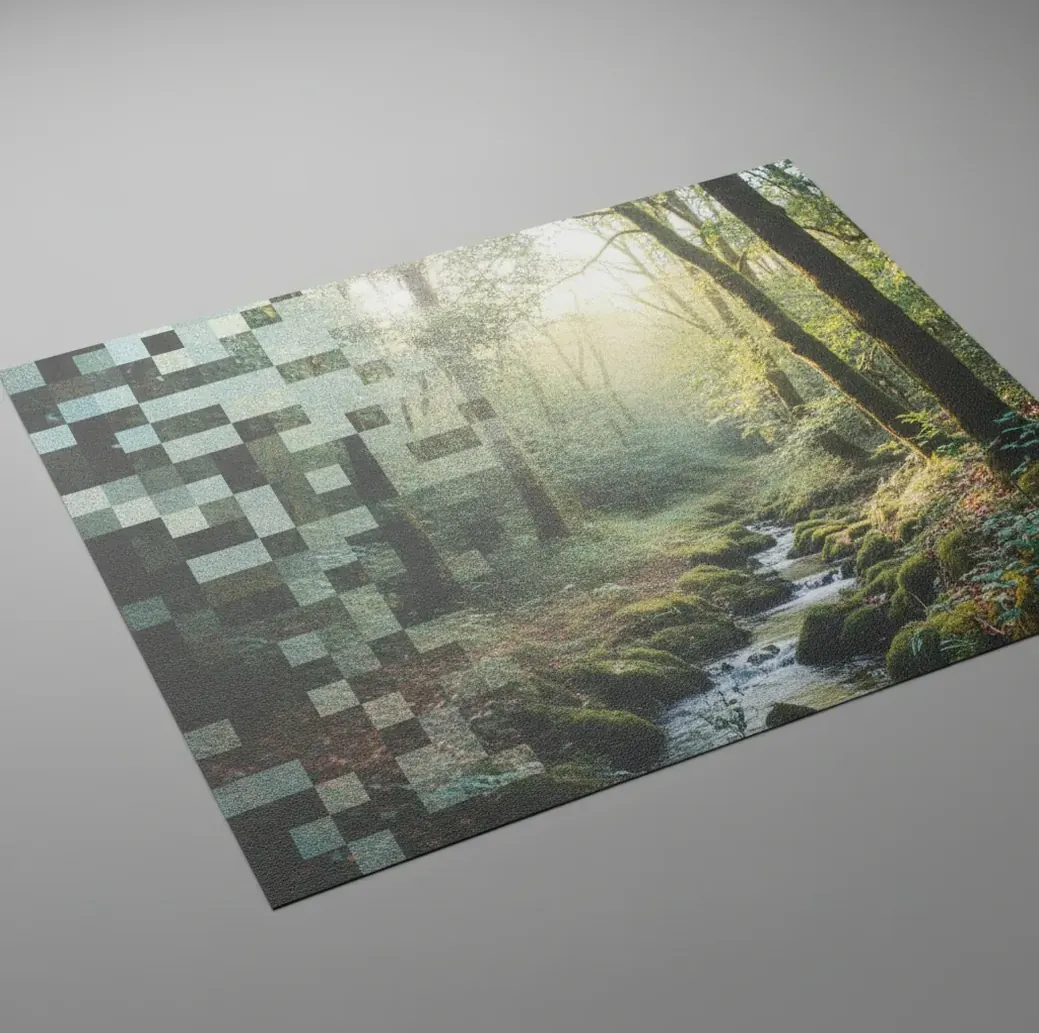
AI upscalers work by using super-resolution models trained on pairs of low-resolution and high-resolution images. The model analyzes edges, textures, noise, faces, text, and repeating patterns, then predicts plausible new pixels for a larger output. This can improve perceived sharpness, but it can also invent detail, so an upscale should not be treated as forensic evidence.
How Do AI Upscalers Actually Work in Simple Terms?
AI upscalers work by turning image enlargement into a prediction problem. Instead of stretching pixels with basic interpolation, a trained super-resolution model estimates what high-frequency detail could exist between the original pixels. It looks for visual cues like edge direction, skin texture, hair strands, fabric weave, compression blocks, and noise patterns, then outputs a larger image that appears sharper.
The important word is plausible. An upscaler is not opening hidden data inside the file or recovering pixels that were secretly there. It is creating a new version that is statistically likely based on training data. That makes it useful for social posts, prints, thumbnails, portfolios, marketplace photos, and restored family images, but risky for legal, medical, identity, or investigative claims.
What Is the Difference Between AI Upscaling and Normal Resizing?
Normal resizing uses mathematical interpolation, while AI upscaling uses a learned image model. Bicubic, bilinear, and Lanczos resizing estimate new pixels by averaging nearby pixels and preserving smooth transitions. These methods are predictable and fast, but they cannot intelligently rebuild eyelashes, product labels, brick texture, or fine line art.
AI super-resolution models use learned features. A convolutional neural network, transformer-based model, GAN, or diffusion-assisted system can recognize image structures and synthesize detail that fits the scene. That is why AI enlargement often looks sharper than standard resizing at 2x or 4x. The tradeoff is that the model may create convincing but incorrect texture, especially in tiny text, faces, logos, jewelry, fences, and patterned clothing.
How Does an AI Upscaler Predict Missing Detail?
An AI upscaler predicts missing detail by mapping a low-resolution input to a high-resolution output learned from training examples. During training, high-quality images are downsampled and degraded with blur, JPEG compression, noise, or sharpening artifacts. The model learns how the damaged version relates to the cleaner original, then applies that relationship to new uploads.
Many systems use feature extraction layers to detect edges, corners, gradients, and repeating textures. Upsampling layers such as pixel shuffle, transposed convolution, or multi-stage reconstruction increase resolution while preserving structure. Loss functions shape the look: pixel loss favors accuracy, perceptual loss favors visual realism, and adversarial training can make textures look crisp. The final result is a blend of geometry preservation and believable synthesis.
How Do You Upscale a Photo Without Crunchy Edges?
Start with the cleanest file
Use the original photo, scan, or export instead of a screenshot or compressed message-app copy. A 3 MB original usually upscales better than a 250 KB screenshot because gradients, edges, and texture have not already been crushed.
Fix exposure before enlargement
Correct heavy shadows, clipped highlights, and color casts first. Upscaling after basic tonal cleanup gives the model clearer edge and texture signals to work with.
Choose 2x before 4x
Use 2x for already-decent photos, portraits, product images, and web graphics. Use 4x only for tiny files, heavy crops, AI art posters, or images that need a large print size.
Inspect at 200 percent zoom
Check hairlines, eyelashes, text, jewelry, fences, window blinds, logos, and background edges. These areas reveal halos, melted lines, warped letters, and invented texture quickly.
Export with enough quality
Use PNG for graphics, screenshots, text-heavy images, and high-detail art. Use high-quality JPEG for photos when file size matters, but avoid aggressive compression after the upscale.
When Should You Use 2x vs 4x Upscaling?
Use 2x upscaling when the source image is already usable and you mainly need more pixel dimensions for a sharper post, cleaner crop, or modest print. A 1600 px image enlarged to 3200 px often looks natural because the model does not need to invent too much missing structure.
Use 4x upscaling when the image is genuinely small, heavily cropped, or intended for a larger canvas such as a poster, wall print, or portfolio spread. The risk rises because the model must synthesize more information. Faces can become waxy, tiny text can change letters, and patterned backgrounds can develop halos. A practical workflow is to test 2x first, then compare 4x only if the 2x file still lacks usable size.
What Images Benefit Most From AI Super-Resolution?
- Old phone photos that need enough resolution for a small print or framed gift.
- Cropped portraits where the subject is strong but the file is too small for posting or printing.
- AI-generated art that looks good at preview size but needs more pixels for posters, wallpapers, or merch mockups.
- Product photos that are slightly soft but still have readable edges and clean lighting.
- Scanned family photos with mild blur, faded contrast, or soft paper texture.
- Marketplace images that must meet minimum pixel dimensions without looking stretched.
- Social media graphics, thumbnails, and portfolio images that need sharper edges after layout cropping.
- Compressed images from chat apps, as long as the original structure has not been destroyed by heavy artifacts.
Which AI Upscaler Should You Choose?
| Option | Best For | Strengths | Watch Outs |
|---|---|---|---|
| Pict AI | Fast browser and mobile upscaling for photos, AI art, and social images | Simple 2x and 4x workflow, preview-friendly, useful for quick creator exports | Cloud processing means users should review privacy and content-rights needs |
| Photoshop Super Resolution | Photographers already using Adobe Camera Raw or Lightroom workflows | Strong raw-photo integration, professional editing controls, predictable exports | Requires paid software and can be slower for casual one-off images |
| Topaz Gigapixel | Large print preparation, batch upscaling, and high-control desktop workflows | Multiple models, strong face and detail controls, good for serious print work | Paid desktop app with heavier hardware demands |
| Free web upscalers | Occasional low-stakes enlargements and quick tests | Easy access, no editing knowledge required, good for comparisons | May add watermarks, limit resolution, compress output, or have unclear retention policies |
| Open-source models | Technical users who want local control and model experimentation | Can run privately, customizable, useful for research and repeatable pipelines | Setup, GPU requirements, and model selection can be difficult for nontechnical users |
Choose based on the image's purpose, not only sharpness. A gift print, ecommerce photo, art poster, and legal document all have different tolerance for invented detail.
What Prompt Recipes Help With AI Upscaling Workflows?
Prompt recipes are useful when upscaling sits inside a larger AI image workflow. If you generate art first, use prompts that create clean structure before enlargement: "high-resolution editorial portrait, natural skin texture, sharp eyes, soft background separation, no text, no watermark, no extra fingers." Clean generations upscale better because the model has fewer broken shapes to amplify.
For restoration planning, use this reusable checklist: "Describe the image type, target use, final size, risk areas, and acceptable realism level." Example: "Old 2012 phone portrait, target 8x10 print, preserve natural skin, avoid plastic smoothing, check hairline and glasses." For product images, use: "Clean edges, accurate logo shape, no invented text, neutral background, preserve material texture." These notes help you choose conservative settings and inspect the right parts of the final export.
What Can AI Upscalers Not Recover?
- True identity from a face that is too small, blurred, or motion-smeared in the source file.
- Accurate tiny text, license plates, serial numbers, or logos when the original letters are unreadable.
- Detail hidden by clipped highlights or crushed black shadows with no remaining image signal.
- Original texture destroyed by severe JPEG blocking, screenshots, or repeated social media compression.
How Should You Decide Whether to Upscale or Re-Edit the Original?
Upscale when the composition is already right and the main problem is pixel size. This is common for old photos, cropped portraits, AI art, social posts, thumbnails, small product shots, and print gifts where the file looks good at normal viewing size but lacks dimensions.
Re-edit the original when the problem is exposure, focus, color, lens distortion, or compression damage. Upscaling a bad edit usually makes the bad edit bigger: noisy shadows become gritty, oversharpened outlines become halos, and low-quality JPEG blocks become more visible. The best sequence is edit first, reduce noise lightly if needed, upscale second, inspect at 200 percent, then export with appropriate compression.
Related reads for the curious image nerd
Match the Upscaling Fix to the Symptom
Two outputs with identical pixel dimensions can look very different. Before switching tools or enlarging again, identify whether the problem comes from reconstruction settings, processing boundaries, or export handling. Use these five branches to choose a targeted fix.
- If skin becomes unnaturally smooth, reduce restoration strength. When investigating why ai upscaler makes skin look plastic, check whether face enhancement or denoising is enabled. Those controls can replace subtle tonal variation with a simplified surface. Compare versions with restoration disabled and at a low setting; judge cheeks and forehead, not just eyes.
- If a prompted upscaler changes the scene, narrow the instruction. Learning how to write ai image prompts helps with generative enlargement, but not every upscaler accepts text. Where prompts are supported, describe preservation rather than additions: keep the original composition, lighting, clothing, and facial expression. Avoid requests for extra ornament or cinematic styling.
- If you see a faint grid, inspect tile boundaries. Large images may be processed in overlapping tiles to fit available memory. Poor blending can leave seams across skies or walls. Increase tile overlap if that control exists, or try a different processing mode. Additional sharpening will not fix mismatched tile edges.
- If colors shift, check color management before changing the model. Compare the input and output in the same color-managed viewer. A missing or changed color profile can alter appearance independently of reconstructed detail. For ordinary web delivery, export a converted sRGB copy rather than simply assigning an sRGB profile.
- If the file still has the same dimensions, verify the export. A higher PPI value alone does not add pixels. Check width and height in pixels, confirm the intended scale was applied, and make sure you saved the generated result rather than the original or a preview.
AI Upscaling Questions About Detail and Quality
Processing time depends on input dimensions, enlargement factor, model complexity, and available hardware. A 4x enlargement produces sixteen times as many output pixels, not four times. Face restoration and additional refinement passes can add work. Cloud tools may also have upload time and queues, while local tools can slow down when memory limits require tiled processing.
Some AI upscalers preserve transparency, while others flatten the image against a background or process only its color channels. Check whether the tool supports an alpha channel and exports PNG or another transparency-capable format. Inspect cutout edges against both light and dark backgrounds: enlargement can introduce colored fringes even when the transparent area remains intact.
AI upscalers use super-resolution models to predict plausible high-resolution pixels from a lower-resolution image. They make images look sharper, but they reconstruct detail rather than recover hidden original pixels.
AI upscaling often looks better for photos, portraits, textures, and art because it can synthesize sharper detail. Bicubic resizing is more predictable and safer when you do not want any invented detail.
Yes, AI upscaling can add plausible detail that was not present in the source. That is useful for visual quality but unsafe for proving identity, text, authenticity, or evidence.
2x is usually safest for normal photos because it improves size with fewer artifacts. 4x is better for tiny images or heavy crops, but it increases the risk of halos, warped texture, and incorrect details.
They can improve mild softness, but they cannot truly recover detail lost to heavy blur or motion smear. If the structure is missing, the model must guess.
Halos happen when the model or sharpening step overemphasizes high-contrast edges. They are common around hair, jawlines, text, jewelry, tree branches, and window frames.
They can be very useful for prints when the source image is clean and the final size is realistic. Always check the export at print size or 200 percent zoom before ordering.
No reliable upscaler can guarantee accurate unreadable text. It may create letter-like shapes that look convincing but are wrong.
Yes, AI art often upscales well because it usually has clean shapes and controlled texture. Inspect hands, faces, typography, fine line art, and repeating patterns before printing or posting.