How to Add Makeup in a Photo With AI Naturally
You can add makeup to a photo with AI by uploading a clear portrait, targeting areas like lips, cheeks, eyelids, and skin, then keeping the effect strength low enough to preserve texture. The most natural results come from soft color changes, clean facial-region masks, and a final zoom check around the lip line and inner eye corners.
How to Add Makeup in a Photo With AI Naturally
- Upload a portrait with visible lips and eyes, keeping an untouched copy for comparison.
- Choose cosmetic shades or describe the lipstick, blush, and eyeliner you want without changing facial features.
- Generate the makeup edit, then compare lip color, cheek placement, and eye definition with the original.
- Review the saved result for unwanted facial changes, then export at the resolution your editor supports.
Example prompt: Edit this portrait with subtle soft-glam makeup: natural rosy lipstick, light peach blush high on cheeks, gentle eyeliner definition, keep pores and skin texture, no face reshaping, realistic lighting, clean edges around lips and lashes.
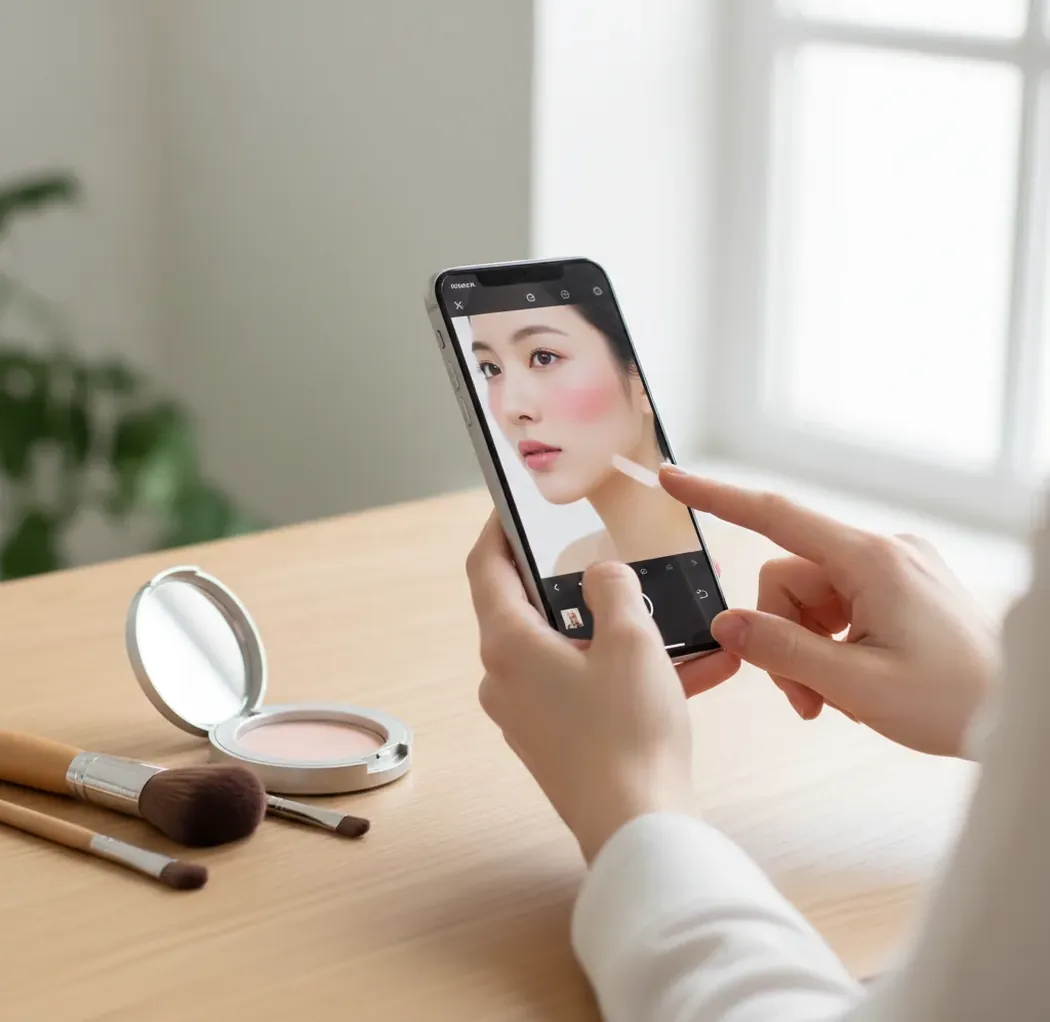
To add makeup in a photo with AI naturally, use a clear portrait, apply subtle lipstick or blush first, and increase intensity in small steps instead of using a full-face beauty filter. Check the edit at 100% and 200% zoom to make sure lip edges, lash lines, pores, and cheek texture still look real.
What Does It Mean to Add Makeup in a Photo With AI Naturally?
Adding makeup in a photo with AI naturally means using portrait-aware editing to place cosmetic effects on specific facial regions without repainting the whole face. A good edit changes color, contrast, and definition on the lips, cheeks, eyelids, lashes, or under-eye area while keeping real skin texture visible.
This is different from a heavy beauty filter. A filter often smooths the entire face and raises contrast globally, which can erase pores, flatten highlights, and make the face look plastic. Natural AI makeup is better for washed-out selfies, professional headshots, social posts, dating profiles, gift prints, and portfolio images where the goal is polish rather than a new identity.
How Does AI Apply Lipstick, Blush, and Eyeliner to a Face?
AI makeup tools usually start with face detection, facial landmarks, and semantic segmentation. The model identifies regions such as upper lip, lower lip, eyelids, cheeks, brows, under-eyes, nose bridge, and jawline, then creates soft masks so color changes stay inside the right area.
For realism, the edit should preserve luminance, texture, and edge variation. Lipstick should follow the natural lip gradient instead of becoming one flat color. Blush should blend with cheek highlights and shadows. Eyeliner should track the lash line without crawling into the waterline or inner corner. Some editors also use diffusion-based refinement to smooth mask transitions, reduce banding, and make the makeup respond more naturally to the photo’s lighting.
How Do You Add Natural Makeup to One Portrait Photo?
Upload a sharp portrait
Choose a front-facing or slight three-quarter photo with visible eyes, lips, cheeks, and forehead. Avoid heavy motion blur, strong glare, face-covering hair, and very low-resolution crops.
Crop for accurate face detection
Keep the full face in frame from forehead to chin. A clean crop helps the model lock onto facial landmarks before applying lip, cheek, and eye masks.
Start with lip color
Pick a shade close to the natural lip tone, then raise intensity slowly. Nude, rose, berry, and soft red shades usually look more believable than fully saturated lipstick.
Add blush lightly
Place blush high and wide on the cheeks, not too low under the cheekbone. Keep the color above the nostril line for a lifted, natural soft-glam effect.
Refine eyeliner and lashes
Use low strength for eyeliner, especially near the inner corners. Zoom to 200% and check whether the lash line is clean, symmetrical, and not jagged.
Export and inspect
Open the saved image at 100% zoom before posting or printing. Look for lipstick bleed, uneven blush, over-smoothed skin, and makeup that does not match the photo’s white balance.
Which AI Makeup Tool Should You Use?
| Option | Best for | Strengths | Watch out for |
|---|---|---|---|
| Pict AI | Fast browser or iOS portrait touchups | Targets common makeup areas such as lips, cheeks, eyelids, and skin with quick before-and-after iteration | Like any AI editor, results depend on lighting, resolution, and unobstructed facial features |
| Paid desktop editor | High-control retouching for campaigns, portfolios, and print work | Manual masking, layer control, color grading, and precise skin retouching | Slower workflow and usually requires editing skill or a subscription |
| Mobile beauty app | Casual selfies, social stories, and quick look testing | Fast presets, face retouching controls, and phone-native exports | Preset makeup can become too smooth or too symmetrical if strength is high |
| Free web editor | One-off experiments and low-stakes images | Easy access and quick uploads | May add watermarks, limit resolution, or have unclear file-retention policies |
Choose based on the image’s purpose. A casual social post can use a fast AI workflow, while commercial beauty work, large prints, or brand campaigns often need manual retouching and color-managed review.
What Makeup Edits Look Most Realistic in Photos?
- Soft lipstick correction works well when lips look pale from bright window light. Keep the shade near the original lip color and preserve the darker inner-lip gradient.
- Light blush is convincing when it follows the cheek’s natural highlight and shadow. Peach, rose, and muted berry tones usually photograph better than neon pink.
- Subtle lash definition works better than thick graphic liner on low-resolution selfies. The eye area is small, so tiny mask errors become obvious quickly.
- Under-eye brightening can improve tired portraits, but it should not remove all shadow. A completely flat under-eye area looks edited because real faces have depth.
- Mild skin smoothing is safest on cheeks and under-eyes. Leave some texture on the nose, forehead, and chin so the portrait does not become waxy.
- Makeup matching across a photo set is useful for headshots, creator branding, and event galleries. Apply the same color family, not necessarily the exact same intensity, because lighting changes from image to image.
What Prompt Recipes Create Natural Makeup Looks?
- Soft glam: "Add natural soft-glam makeup with rose-nude lipstick, light peach blush, subtle brown eyeliner, defined lashes, and realistic skin texture. Keep pores and facial identity unchanged."
- Clean professional headshot: "Enhance this portrait with minimal makeup: even lip tone, soft cheek color, reduced under-eye darkness, and natural skin texture. Avoid heavy smoothing or dramatic contour."
- Fresh daylight selfie: "Add a light everyday makeup look with tinted lip balm, gentle blush on the upper cheeks, soft lash definition, and no visible filter effect."
- Event photo polish: "Apply elegant evening makeup with muted berry lipstick, balanced blush, softly defined eyes, and preserved lighting. Do not change face shape or skin tone."
- No-makeup makeup: "Make the face look rested and polished with very subtle lip color, mild under-eye brightening, minimal cheek warmth, and realistic pores. The result should look unedited."
How Do You Check Whether an AI Makeup Edit Looks Fake?
The fastest realism test is to inspect the face at both 100% and 200% zoom. At 100%, the makeup should read as balanced within the full photo. At 200%, the boundaries should still look soft around the cupid’s bow, lower lip, nostrils, lash line, and inner eye corners.
Watch for four giveaways: lipstick bleeding onto surrounding skin, blush sitting too low like a bruise, eyeliner becoming jagged or asymmetrical, and full-face smoothing that removes pores. Also compare the makeup color against the image’s white balance. Warm peach makeup can look wrong on a cool blue bathroom selfie, even when the mask edges are technically clean.
When Should You Not Use AI Makeup Editing?
- Do not use AI makeup edits for passports, visas, driver’s licenses, school IDs, security badges, or any document that requires an unaltered likeness.
- Avoid heavy edits on photos with sunglasses, glasses glare, masks, hands over the face, hair covering the eyes, or strong shadows across the mouth.
- Be careful with group photos because the same makeup settings may not map evenly across different faces, skin tones, face angles, and lighting zones.
- Low-resolution images can make lipstick and eyeliner edges appear blocky after export. If the source is under about 1000 pixels on the long side, keep effects very subtle.
Which Edit Should Come Before AI Makeup?
Makeup is not always the first adjustment a portrait needs. Color correction, hairstyle changes, and other retouching can affect how cosmetic shades appear or where they belong. Choose the branch that matches your planned edits, then save a separate version before moving to the next stage.
- If the portrait has a strong color cast, correct it first. A yellow room light or blue window reflection can make a neutral lipstick look orange or purple. Adjust white balance before choosing makeup shades; otherwise, correcting the lighting afterward may change the look you selected.
- If you want whiter teeth, separate that adjustment from lipstick. Apply ai teeth whitening conservatively, then judge the lip color again. Brightening teeth changes the contrast around the mouth, so a lipstick shade that looked balanced beforehand may suddenly appear darker or more saturated.
- If you plan to change the fringe, settle the hairstyle first. A bangs filter can alter which parts of the forehead, brows, and eyelids remain visible. Add eye makeup after choosing the hair result so you do not spend time refining areas that the new fringe covers.
- If the portrait also needs body edits, keep a makeup-only version. An ai muscle generator serves a different purpose from cosmetic retouching. Save those changes separately rather than combining every request in one generation; this makes it easier to identify which operation changed facial details or overall lighting.
- If you are preparing a framed post or print, finish the portrait before formatting. When you add border to image, do it after makeup and the final crop. Borders change the displayed scale of the face, so assess the finished composition at its intended viewing size before exporting.
AI Makeup Effects, Accuracy, and Photo Compatibility
AI makeup previews can help compare broad color families and placement, but they cannot reliably predict a specific product’s finish, coverage, or wear. Camera processing, screen settings, lighting, and your underlying lip or skin color all affect the preview. Use the image to shortlist shades, then check physical swatches for an actual purchase.
Yes, but a black-and-white result shows makeup through brightness and contrast rather than hue. Lipstick may darken the lips, while eyeliner defines the eyes; blush can be difficult to distinguish from existing shadows. If you have a color original, apply makeup there first, then convert it to black and white and adjust the tonal balance.
Yes, AI can add natural-looking makeup when the portrait is sharp, well lit, and unobstructed. The key is to use low-intensity lip, blush, and eye edits while preserving skin texture.
Start with a shade close to the original lip color, apply it lightly, and check the cupid’s bow and mouth corners at 200% zoom. Natural lipstick should keep some highlight and gradient instead of becoming one flat color.
Place blush high on the cheeks and keep the opacity low. If the blush sits below the nostril line or ignores the face’s natural shadows, it can look like discoloration rather than makeup.
AI can add eyeliner to a selfie if the eyes are clear and not covered by glare, hair, or blur. Use subtle brown or soft black liner first, then inspect the lash line for jagged edges.
No. A beauty filter often changes the whole face at once, while AI makeup editing can target specific areas such as lips, eyelids, cheeks, and under-eyes.
Avoid full-face smoothing and apply edits only where needed. Leave natural pores and fine texture on the nose, forehead, and chin so the portrait still looks photographic.
It can work, but side profiles are less reliable because the model has fewer visible landmarks. Simple lip tint and light cheek color usually look better than detailed eyeliner on angled faces.
Yes, subtle AI makeup can help polish professional headshots by evening lip tone, adding cheek warmth, and reducing tiredness. For corporate directories or official use, follow the organization’s photo-editing rules.
Patchiness usually comes from low resolution, uneven lighting, strong shadows, or facial features being partly hidden. Use a clearer source photo and reduce effect strength before exporting.