How to Add Shadows to Product Photos With AI
To add shadows to product photos with AI, use an editor that isolates the product, builds a cutout mask, and generates a contact shadow that matches the surface and light direction. The goal is not a dramatic effect; it is to make a flat product image feel physically grounded for listings, social posts, ads, gifts, prints, or catalog pages.
How to Add Shadows to Product Photos With AI
- Upload your product photo, then isolate the item while preserving its base, edges, and packaging details.
- Choose a shadow style or describe the surface and light direction to match the existing highlights.
- Generate the shadow beneath the product, keeping its contact area attached to the visible base.
- Review for altered labels, doubled shadows, and clipped edges, then export at your required listing dimensions.
Example prompt: Create a realistic soft contact shadow under this product, light coming from upper left, shadow slightly behind and to the right, subtle opacity, clean white background, ecommerce-ready.
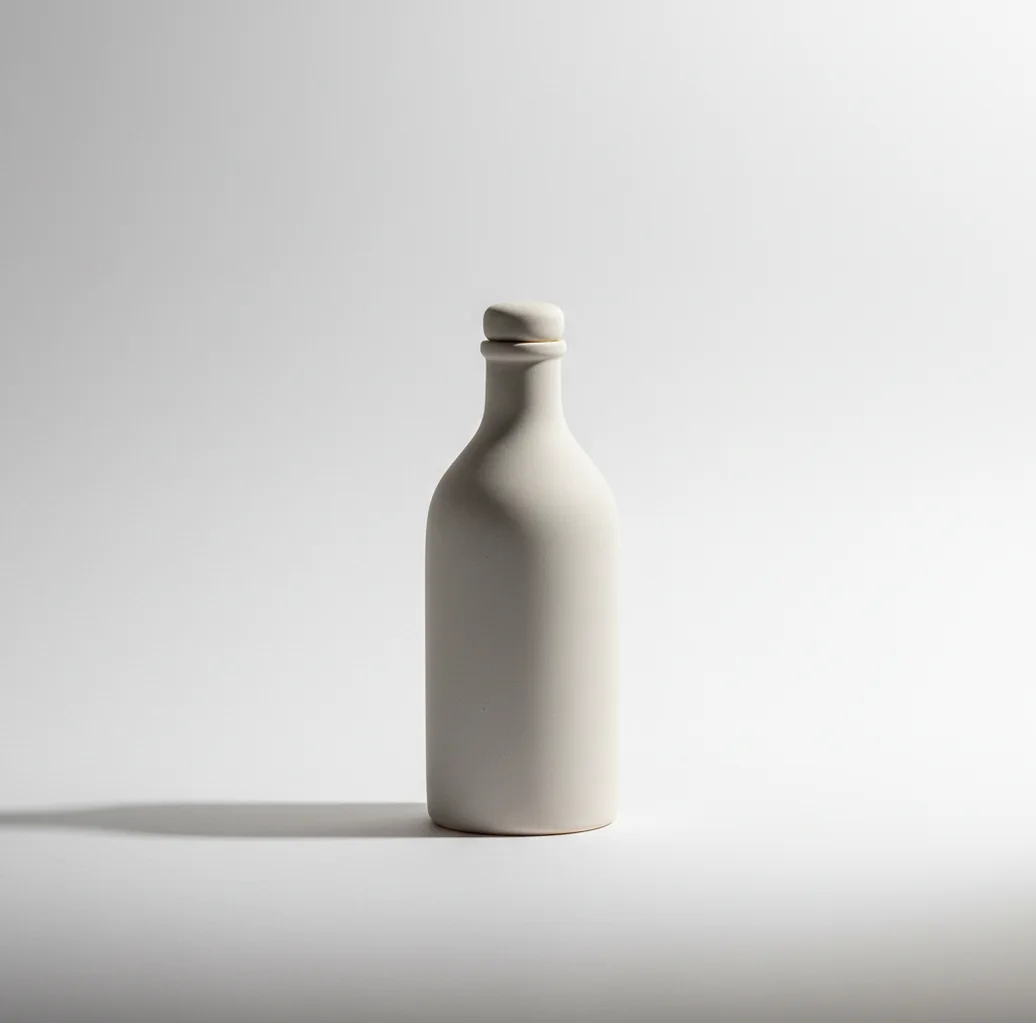
To add shadows to product photos with AI, upload a clean product image, remove or simplify the background, then generate a contact shadow that matches the product base, light direction, blur, and opacity. A believable AI shadow is darkest directly under the product and fades softly outward, so the item looks placed on a surface instead of floating.
What Does It Mean to Add Shadows to Product Photos With AI?
Adding shadows to product photos with AI means using software to detect the product, separate it from the background, and generate a realistic shadow underneath or behind it. For ecommerce images, the most important part is the contact shadow: the tight, slightly darker shadow where the product visually touches the surface.
A good AI product shadow usually has two layers: a dense contact area near the base and a softer falloff that fades away from the object. This helps bottles, shoes, boxes, jars, jewelry, cosmetics, and handmade goods look like they were photographed on a sweep or tabletop instead of pasted onto a white background. The edit should support visual clarity, not change the perceived size, condition, or shape of the item.
How Does AI Create Realistic Product Shadows?
AI shadow tools usually start with segmentation, where the model predicts a mask around the product. This mask, often called an alpha matte, defines the object edge, transparent pixels, and soft edge details such as glass rims, labels, handles, fabric texture, or packaging corners.
After the cutout is created, the editor estimates the object footprint and projects a shadow onto an implied surface plane. The final result is shaped with opacity, blur radius, direction, distance, and blending modes such as Multiply. The most convincing shadows follow the product silhouette but are not equally dark everywhere; they are tighter under contact points and softer where light would naturally scatter.
How Do You Add a Shadow to a Product Photo on Your Phone?
Start with a clean source photo
Use even window light or soft artificial light. Avoid harsh flash, strong color casts, and busy backgrounds because AI shadow quality depends heavily on the original product edge.
Remove or simplify the background
Create a clean cutout before adding the shadow. If the mask has halos, jagged edges, or missing parts, fix those first because the shadow will inherit the same shape problems.
Choose one light direction
Pick a single direction such as top-left or top-right. Match it to the existing highlights on the product, especially on glossy packaging, metal, glass, or plastic.
Build the contact shadow first
Make the darkest part of the shadow sit directly under the base, sole, box edge, bottle bottom, or visible contact point. This is what prevents the floating sticker look.
Soften the outer falloff
Increase blur and lower opacity as the shadow moves away from the product. White ecommerce backgrounds usually need lighter shadows than wood, stone, or colored paper.
Zoom in and export at listing size
Inspect the base at 200% for halos, double lines, or mismatched direction. Export in the required marketplace or store dimensions and keep the original photo as a reference.
Which AI Shadow Tools Are Best for Product Photos?
| Tool | Best For | Shadow Control | Mobile Support | Notes |
|---|---|---|---|---|
| Pict AI | Fast cutout-to-shadow product edits | Contact shadow, softness, and placement controls | iOS and Android | Useful for simple mobile workflows when you need a grounded catalog image quickly. |
| Canva | Template-based product posts and simple shop graphics | Basic shadow effects and layout controls | iOS, Android, and web | Good for social posts, banners, and branded layouts; check template and asset licensing. |
| Adobe Photoshop Express | Manual tuning and more precise visual correction | More hands-on adjustment depending on workflow | iOS and Android | Better when you need detailed edits, but it can take longer than one-tap shadow tools. |
| PhotoRoom | Marketplace-style product cutouts and backgrounds | AI background and shadow options | iOS, Android, and web | Strong for batch-style product visuals and clean ecommerce compositions. |
Choose based on the job: use a fast mobile editor for quick listings, a template tool for branded social content, and a more manual editor when highlights, reflections, or transparent materials need careful matching.
What Shadow Settings Make a Product Look Grounded?
A product looks grounded when the contact shadow is darker and tighter than the outer shadow. Start with low-to-medium opacity, then adjust blur until the shadow feels attached to the product rather than drawn underneath it. On a pure white ecommerce background, subtle shadows often work best: enough to define the base, but not so much that the product looks heavy or artificially staged.
Match the shadow to the surface. Paper and white sweeps need soft, pale falloff; wood and stone can hold darker shadows; fabric needs diffuse, low-contrast shadows because texture scatters light. Also match the product material: glossy cosmetics, watches, and glass jars often need weaker shadows than matte boxes, shoes, ceramics, or handmade goods.
What Prompt Recipes Help Create Better AI Product Shadows?
Use prompt recipes when your editor supports text-guided background or shadow generation. Keep the prompt specific about surface, light direction, softness, and ecommerce intent. Avoid asking for dramatic studio lighting unless the product already has matching highlights.
Clean ecommerce prompt: "Place the product on a clean white studio surface with a soft contact shadow directly under the base, light from upper left, subtle falloff, realistic product photography, no distortion." Social ad prompt: "Ground the product on a warm neutral paper surface, soft shadow to the lower right, gentle natural light, minimal background, premium catalog style." Handmade goods prompt: "Keep the product shape unchanged, add a soft tabletop contact shadow, natural window light, realistic scale, matte surface, no extra props."
Where Do AI Product Shadows Help Most?
- Marketplace listings: AI shadows help products look less like flat cutouts after the background has been removed.
- Shopify and ecommerce grids: consistent contact shadows make product cards feel cleaner and more uniform.
- Social posts and ads: a grounded object stands out better than a floating sticker-style product image.
- Handmade goods: subtle shadows can make ceramics, candles, prints, jewelry, and fabric items feel more tangible.
- Portfolio and branding images: controlled shadows create a more polished product system across multiple images.
- Gift mockups and print previews: shadows help cards, posters, mugs, and packaging appear physically placed in the scene.
- Rescue edits: AI can improve flat photos shot under overhead LEDs when reshooting is not practical.
When Do AI Shadows Look Wrong?
- AI shadows look wrong when the product cutout is inaccurate. A jagged mask, white halo, or missing edge detail will usually create an unnatural shadow shape.
- Transparent products such as glass bottles, acrylic boxes, and clear packaging can produce muddy shadows because the model may not understand refraction or internal transparency.
- Glossy objects can show mismatched highlights. If the highlight suggests light from the left but the AI shadow falls left, the photo feels physically impossible.
- Very dark shadows on white backgrounds can make the product look pasted in or heavier than it is.
What Should You Check Before Exporting Product Photos?
Check the base contact
Look at the exact point where the product touches the surface. If there is no dark contact area, the object will look like it is hovering.
Compare shadow direction to highlights
The shadow should fall away from the main light source. Use bottle reflections, shoe highlights, label shine, or box edges as direction clues.
Inspect edges at high zoom
Zoom to 200% or more and look for halos, double outlines, clipped corners, or shadow artifacts around handles, straps, lids, and transparent areas.
Match the export background
A shadow that looks right on gray may be too strong on pure white. Preview the image on the actual store, marketplace, or ad background if possible.
Keep an unedited original
Save the source image for accuracy checks, customer questions, returns, and future re-edits. This is especially important for ecommerce trust.
Related Pict.AI guides for cleaner product shots
Choose a Shadow Workflow That Preserves Your Product
Choose the editing approach by deciding what must remain unchanged: the product pixels, the original surface, or the layout across a catalog. Generating an entire scene gives the editor more freedom than adding a separate shadow layer, but it also creates more opportunities to alter labels, proportions, and small details.
| Approach | Best use | Honest trade-off |
|---|---|---|
| Retain the photographed shadow | A clean tabletop shot with usable lighting | Preserves the real relationship between object and surface, but separating a faint shadow from the background can require careful masking. |
| Generate only the shadow | An approved product cutout that must stay unchanged | Limits the edit to the grounding effect when the tool supports protected regions or separate layers; automatic placement may still misread an irregular base. |
| Generate a new background and shadow together | Lifestyle scenes with a new surface or setting | Can coordinate the setting and lighting, but may redraw packaging text or invent reflections. Compare the product against the original. |
| Apply a reusable shadow preset | Catalog items photographed at similar angles | Offers consistent styling, but one preset rarely fits both a tall bottle and a flat shoe without adjustment. |
If the source has a hard cast shadow that conflicts with the new scene, learning how to remove shadows from product photos with AI helps you avoid stacking two incompatible lighting patterns. Keep a copy with the original shadow intact; removal can also erase texture near the base.
Finish the product-and-shadow composite before adding layout decoration. If you need to add border to photo online, place the border around the finished canvas rather than the product cutout. Leave enough margin that the shadow is not clipped by the frame.
Questions About Adding AI Product Shadows
Treat the products as a group sharing one surface and light source. Each item needs a shadow at its own contact points, while overlapping cast shadows should follow the same direction. Separate cutouts offer more placement control, but an editor may miss shadows cast by one product onto another. Check gaps between items for implausible dark patches.
Resizing changes how fine shadow details appear. A narrow contact shadow can disappear in a small thumbnail, while a broad, dark shadow may become visually dominant. Keep a full-resolution master and assess an exported copy at its actual display size. If the shadow is editable, adjust its softness and density for that output rather than repeatedly resizing an already compressed image.
Yes. AI can add a realistic product shadow when the object has a clean cutout, a clear base, and a shadow direction that matches the existing light.
A subtle contact shadow is usually best for ecommerce because it grounds the product without distracting from shape, color, and detail. Pure white backgrounds typically need soft, low-opacity shadows.
The contact shadow is probably too weak, too far from the base, or too blurred near the touch point. Darken the area directly under the product and keep the outer shadow softer.
The shadow should fall away from the main light source. If the highlights are on the upper left of the product, the shadow usually falls toward the lower right.
Yes. In many workflows, removing the background first improves shadow quality because the AI can use the clean product mask to estimate the object footprint.
They can work, but clear glass, acrylic, and reflective packaging often need manual adjustment. Transparency and reflections make shadow edges harder for AI to predict accurately.
Usually yes if the edit does not misrepresent the product. Always follow the marketplace image policy and avoid edits that change size, condition, damage, color, or included accessories.
Export at the size required by your store or marketplace, commonly at least 1000 pixels on the longest side for zoom. Use JPG for standard listings and PNG when transparency is required.
The shadow should be dark enough to show contact with the surface but light enough to stay secondary to the product. If the viewer notices the shadow before the item, it is probably too strong.