How to Animate Your Photo With AI in 2026
To animate your photo with AI in 2026, upload a still image, describe a small motion such as a blink or hair sway, then generate a short video clip. The best results come from sharp portraits, restrained prompts, and 2-4 second loops that preserve the original face, lighting, and mood.
How to Animate Your Photo With AI in 2026
- Upload a clear still photo with enough space around the subject for your intended movement.
- Describe one small action, such as drifting clouds, and choose a motion mask if available.
- Generate a short clip with restrained motion, avoiding camera moves that reveal areas outside the photograph.
- Review text, overlapping objects, and frame edges throughout playback; correct problem areas before exporting the video.
Example prompt: Subtle portrait animation: gentle blink every 2 seconds, slight head tilt, soft breathing motion, keep identity and lighting consistent, keep mouth closed, no background movement, natural realism
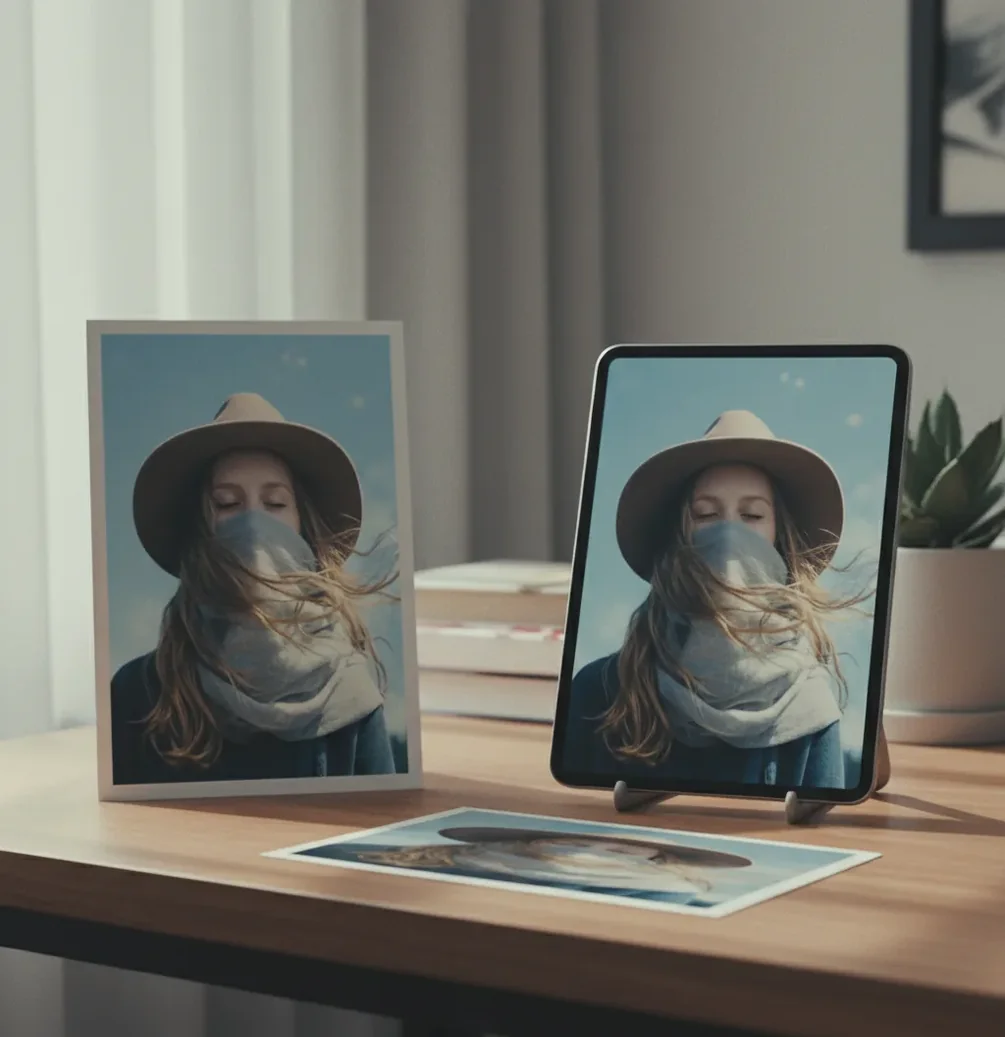
To animate your photo with AI in 2026, use a photo-to-video or image-to-video tool, upload a clear still image, and prompt for subtle motion like blinking, breathing, hair movement, or soft camera drift. Keep the clip short, generate several variations, and choose the version with the most stable face and background. AI photo animation is a creative effect, not proof that the person or scene actually moved.
What Does It Mean to Animate Your Photo With AI?
Animating a photo with AI means generating a short video from one still image by predicting new frames that appear to move naturally. Instead of manually keyframing every pixel, the model infers plausible motion for faces, hair, clothing, light, depth, and background elements.
In 2026, this is usually called image-to-video, photo-to-motion, or AI photo animation. Creators use it for living portraits, looping profile clips, memorial edits, album visuals, pet portraits, product posts, and gift videos. The safest creative direction is subtle: a blink, tiny head tilt, gentle breathing, slow parallax, or moving light will usually look more believable than a wide smile or dramatic turn.
How Does AI Turn One Still Photo Into Motion?
AI photo animation works by synthesizing extra frames between and beyond the original image. Modern systems often use diffusion or transformer-based video generation in latent space, where the model predicts how the image could evolve over time while following your text prompt and the visual structure of the source photo.
The model is not uncovering real hidden motion from the image. It is inventing plausible motion based on learned video patterns, face geometry, depth estimation, optical-flow-like consistency, and prompt conditioning. Identity preservation depends on constraints such as image guidance strength, face consistency, seed variation, and how much movement you request. Smaller movements keep the generated frames closer to the original pixels.
How Do You Animate a Photo With AI Step by Step?
Choose a clean source image
Start with a sharp photo where the eyes, face edges, hair, and main subject are visible. Avoid heavy blur, extreme shadows, low-resolution screenshots, and aggressive beauty filters.
Crop around the subject
Frame the face, product, pet, or object so the model spends detail on the area that matters. Portraits often work best in 4:5, 1:1, or 9:16 depending on where you plan to post.
Upload to an image-to-video tool
Use a generator such as Pict AI, Runway, Luma, Kling, or another image-to-video editor. Pick a short duration first, usually 2-4 seconds.
Write one restrained motion prompt
Ask for one or two small movements, such as "subtle blink, gentle breathing, soft hair movement, keep face identity unchanged." Avoid stacking many actions in one prompt.
Generate several variations
Create 3-6 versions and compare face stability, eye direction, teeth, hands, jewelry, and background wobble. Choose the most natural clip, not the most dramatic one.
Export and trim the loop
Export as MP4 or MOV, then trim the start and end so the motion loops smoothly. For social posts, 1080 x 1920 at 24-30 fps is a practical default.
What Are the Best Tools for AI Photo Animation in 2026?
| Tool | Best For | Useful Controls | Watch-outs |
|---|---|---|---|
| Pict AI | Fast portrait loops, image-to-image styling, and creator-friendly still-to-motion tests | Motion prompts, image guidance, variation generation, browser and iOS workflows | Subtle clips work better than large facial expressions or big head turns |
| Runway | Cinematic image-to-video shots, ad concepts, and controlled visual experiments | Camera motion, generation settings, editing workspace, timeline-friendly exports | More settings can mean a steeper learning curve for quick portrait loops |
| Luma Dream Machine | Atmospheric motion, parallax, scene animation, and stylized video drafts | Prompt-driven motion, camera feel, and strong scene interpretation | Identity consistency can vary when the prompt pushes too much movement |
| Kling AI | High-motion image-to-video tests, character scenes, and expressive generations | Prompt strength, duration options, and detailed motion descriptions | Hands, teeth, and complex accessories may need multiple regenerations |
| CapCut or Canva AI tools | Social edits, templates, captions, and quick platform-ready clips | Aspect ratios, overlays, music, text, and easy export presets | Less technical control over identity preservation and model behavior |
Choose based on the job: portrait realism needs restraint and identity stability, while social edits may need templates, text, music, and fast export more than deep motion control.
What Prompt Recipes Create Natural Photo Motion?
The most reliable prompts describe small physical motion, stable identity, and what should not change. Use direct language instead of cinematic overload. A good formula is: subject + tiny motion + camera or light behavior + identity constraint + negative constraint.
Portrait recipe: "Animate this portrait with a subtle blink, gentle breathing, slight hair movement, natural skin texture, same face, same eye color, same lighting, no smile change, no teeth, no face morphing."
Product recipe: "Animate this product still with slow parallax, soft studio light movement, crisp edges, fixed logo, stable packaging text, no warping, no extra objects."
Pet recipe: "Animate this pet photo with a small ear twitch, soft breathing, tiny head movement, same fur pattern, same eyes, no open mouth, no body distortion."
How Can You Keep the Face or Subject Recognizable?
To keep the subject recognizable, reduce motion before you increase quality settings. Face drift usually happens when the model has to invent too much geometry, especially with smiles, teeth, side turns, hands near the face, glasses, earrings, or hair crossing the eyes.
Use a sharp close-up, neutral expression, and prompt constraints like "same face," "keep mouth closed," "fixed eye direction," and "preserve facial proportions." If the tool offers image strength, guidance, seed, or reference controls, start with stronger image adherence and shorter duration. Regenerate in batches and compare frames at the midpoint, where identity changes often show up first.
How Do You Export Animated Photos for Social Posts, Gifts, and Branding?
Export animated photos as short MP4 files for the widest compatibility across Instagram, TikTok, YouTube Shorts, LinkedIn, websites, and messaging apps. A 2-4 second loop at 24-30 fps usually feels smoother than a longer clip that slowly degrades.
For vertical social posts, use 1080 x 1920. For profile loops and avatars, use 1:1 or 4:5. For gifts, pair the clip with a still print, QR code, or digital frame playlist. For branding, preserve logo edges, product labels, and brand colors by asking for parallax or light motion instead of object deformation.
What Limits Should You Watch Before Animating a Photo?
- AI animation creates synthetic frames; it does not reconstruct what really happened before or after the photo was taken.
- Large smiles, laughter, speaking, and strong head turns can change identity because the model must invent hidden facial structure.
- Hands, teeth, earrings, glasses, logos, and text are common failure points because they require precise frame-to-frame consistency.
- Old scans can work, but scratches, paper texture, compression, and low resolution may cause flicker or facial wobble.
Related Pict.AI reads to level up your portraits
Fix Warped Text, Duplicated Objects, and Flickering Lines
Some photo-animation failures need an editing fix rather than another prompt. Check whether the problem comes from an area that should stay still, a surface the photograph never showed, or a loop that reverses the action. These five cases call for different repairs.
- Labels and signs change between frames. Generated motion can scramble lettering even when the surrounding object looks convincing. Keep the camera locked and exclude the label from motion if masking is available. Otherwise, place the original label over the finished clip in a video editor and track it to the object. If readable packaging is essential, leave the whole product static.
- An object doubles as it passes behind something. A waving branch or moving arm can produce extra edges where it crosses another object. Choose movement that avoids the overlap, or reduce its range. To animate picture elements independently, separate foreground and background layers in an editor that supports masks; check the cutout edges before generating motion.
- A camera move invents content outside the photograph. Pulling back can reveal invented walls, clothing, or furniture. Switch to a slight push-in that stays within the original frame. If you need a wider composition, extend and inspect the still image before animation rather than asking one generation to solve both tasks.
- Illustration outlines shimmer. If you want to animate drawing details such as drifting clouds, keep ink outlines and paper texture stationary wherever possible. Isolate the moving area with a mask. Avoid realistic lighting prompts that encourage the model to reinterpret flat artwork as a three-dimensional scene.
- A loop makes smoke fall or water flow backward. A forward-and-reverse loop hides some endpoint jumps but reverses directional motion. Use a straight playback loop instead, then crossfade matching frames. If the transition creates visible ghosting, use the clip without looping.
Questions About Turning Still Photos Into Video
AI can animate group photos, but keeping several faces stable is harder than preserving one portrait. Small faces, overlapping bodies, and different gaze directions increase the chance of distorted features. Start with camera motion rather than individual expressions. If the tool supports motion masks, animate one person or background area at a time, then inspect every face throughout the clip.
Not necessarily. Some image-to-video tools generate audio alongside motion, while others produce silent clips. Check the audio settings before generating and listen to the exported file rather than relying on the preview. For predictable results, add music or ambient sound afterward. Speech requires a separate voice and lip-sync workflow unless the tool explicitly supports both.
Upload a clear still image to an image-to-video tool, describe a small motion, generate a few variations, and export the best one as a short MP4. Subtle prompts usually look more realistic than dramatic expressions.
Yes, AI can animate old or scanned photos, especially portraits with clear faces. Clean the scan, remove major scratches if possible, and use gentle motion to reduce flicker.
A strong portrait prompt is: "subtle blink, gentle breathing, slight hair movement, same face, same lighting, keep mouth closed, no face morphing." This keeps the model focused on natural micro-motion.
The face changes because the model is generating new pixels and may alter identity while trying to satisfy the motion prompt. Use less motion, shorter duration, stronger image guidance, and more variations.
Most AI photo animations look best at 2-4 seconds. Longer clips increase the chance of face drift, background wobble, and inconsistent details.
Yes, blinking is one of the most common AI photo animation effects. For best results, ask for a subtle blink and avoid adding a smile, head turn, or speech in the same prompt.
It depends on consent, copyright, publicity rights, and how the animation is used. Avoid impersonation, misleading edits, or commercial use of a person's likeness without permission.
MP4 is the safest format for social platforms, websites, and messaging apps. Use MOV if you need higher-quality editing before final compression.
Yes, product photos can be animated with parallax, light movement, mist, reflections, or background motion. Keep packaging text, logos, and product edges stable to avoid brand-quality issues.