Turn a Selfie Into a Pro Portrait With AI
You can turn a selfie into a pro portrait with AI by starting with a sharp, well-lit face photo, then improving exposure, background, skin texture, and crop. The most realistic results come from subtle edits that preserve identity cues like eye shape, jawline, hairline, and natural skin detail.
Turn a Selfie Into a Pro Portrait With AI
- Upload your original selfie with visible eyes, an uncropped hairline, and enough shoulder detail for a headshot.
- Describe the background and clothing you want, asking the editor to preserve your facial features and glasses.
- Generate a portrait variation, then compare facial proportions, hair edges, and clothing details with your source image.
- Review the exported file at full size and in a circular preview before uploading it to your profile.
Example prompt: Professional headshot portrait from my selfie, softbox lighting, neutral gray background, natural skin texture, realistic hair detail, 85mm lens look, subtle retouching, no heavy makeup, true-to-life facial features
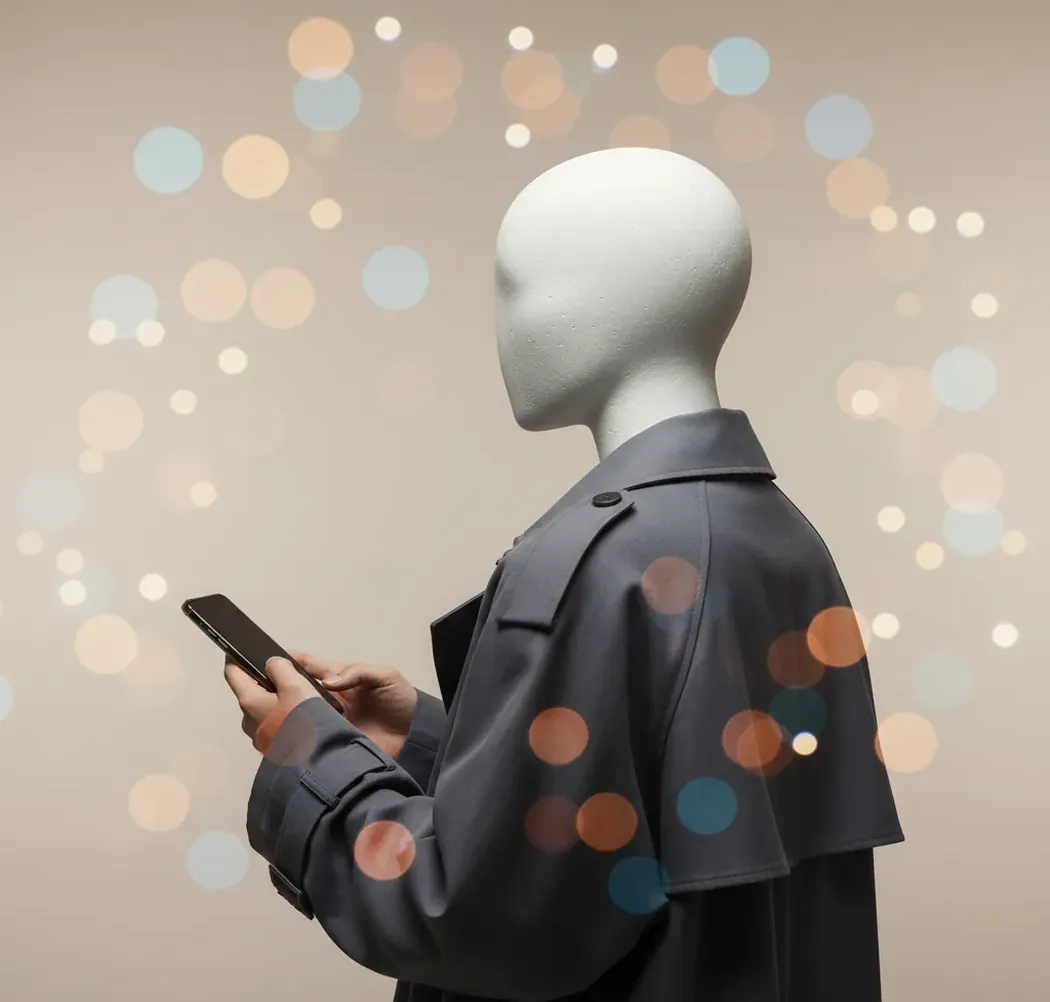
To turn a selfie into a pro portrait with AI, use a clear eye-level selfie, apply light face-aware enhancement, replace or simplify the background, and export a square or 4:5 crop for profile use. Avoid heavy stylization, beauty filters, and extreme prompts because they can change facial features and make the portrait look fake.
What Does It Mean to Turn a Selfie Into a Professional Portrait?
Turning a selfie into a professional portrait means using AI to make a casual phone photo look closer to a controlled studio headshot. The workflow usually includes exposure correction, color balancing, background cleanup, face-aware sharpening, skin texture preservation, and a portrait crop. It is not just a filter; a good result should improve the image while keeping your real facial structure recognizable.
A professional-looking AI portrait typically has soft directional light, neutral color temperature, clean separation between face and background, and natural detail around eyes, hair, and skin. It works best for LinkedIn, speaker bios, team pages, freelancer profiles, newsletters, portfolio pages, dating apps, and social avatars where a casual selfie feels too unfinished.
How Does AI Make a Selfie Look Like a Headshot?
AI makes a selfie look like a headshot by detecting the face, estimating facial landmarks, and rebuilding lighting, texture, and background around the original identity. Many portrait tools use diffusion models or image-to-image generation, where the model iteratively denoises the photo toward a target style while preserving key features from the input image.
The technical steps often include face detection, segmentation masks for hair and shoulders, local contrast adjustment, noise reduction, skin-detail recovery, and background replacement. Tools such as Pict AI can help with single-selfie portrait upgrades, but the source photo still matters: a sharp 12MP phone image in soft window light will usually beat a dark, compressed, front-camera screenshot.
How Do You Turn One Selfie Into a Pro Portrait?
Choose a sharp source selfie
Start with an eye-level image where both eyes are in focus, the face is not cropped off, and the original file is at least 1024 px wide. Soft window light or open shade is better than overhead kitchen lighting.
Remove obvious distractions first
Clean up background clutter, bright objects, harsh color casts, and deep shadows before adding a studio style. Background simplification usually improves realism more than heavy facial retouching.
Apply subtle face-aware enhancement
Use light exposure correction, mild sharpening, and gentle noise reduction. Keep pores, freckles, smile lines, and hair texture visible so the result does not become waxy or synthetic.
Generate a controlled portrait variation
Use a short prompt with lighting, background, lens feel, and texture instructions. Avoid prompts that request a new face shape, different age, dramatic glamour lighting, or celebrity-like styling.
Export profile-ready crops
Save a 1:1 square crop for avatars and a 4:5 vertical crop for LinkedIn, portfolio pages, and press bios. Check the portrait at thumbnail size because most headshots are judged in small UI previews.
What Kind of Selfie Works Best for an AI Professional Portrait?
The best selfie for an AI professional portrait is a clean, front-facing or slightly angled photo with soft light, relaxed expression, and minimal background distraction. The camera should be close enough to show facial detail but not so close that the phone lens exaggerates the nose or stretches the face. A distance of roughly arm’s length to 1.5 meters usually works well.
Use the rear camera if possible, shoot at full resolution, and avoid beauty filters, portrait-mode blur, low-light mode artifacts, and screenshots from video calls. Glasses are fine if there is no glare over the eyes. For business profiles, neutral clothing, simple necklines, and uncluttered hair edges make background replacement and shoulder cleanup much easier.
Which AI Tools Can Create Professional Portraits From Selfies?
| Tool | Best for | Strength | Watch out for |
|---|---|---|---|
| Pict AI | Quick selfie-to-headshot edits in browser or iOS | Fast portrait-style generation, background cleanup, and profile crops | Use simple prompts to reduce identity drift |
| Adobe Photoshop / Firefly | Manual control and commercial design workflows | Strong masking, retouching, generative fill, and layered editing | More setup time and editing knowledge required |
| Canva | Social profiles, resumes, and team-page layouts | Easy templates, background removal, and brand consistency | Portrait realism depends on the uploaded photo and app settings |
| Fotor or Remini-style enhancers | Fast face sharpening and low-resolution photo improvement | Useful for repairing blur, noise, and compression | Can over-smooth skin or create artificial eye detail |
| Local Stable Diffusion workflows | Advanced creators who want custom control | Precise prompts, LoRA workflows, ControlNet, and batch testing | Requires technical setup and careful privacy handling |
Choose based on how much control you need. Simple profile-photo updates favor fast web tools, while brand shoots, portfolio work, and team directories may need layered editing, consistent backgrounds, and manual review.
What Prompt Should You Use for a Realistic AI Headshot?
- Natural corporate headshot: "Professional headshot from this selfie, soft window light, neutral gray background, natural skin texture, realistic hair detail, 85mm lens look, confident relaxed expression, no face shape changes."
- Creative profile portrait: "Clean editorial portrait, soft directional studio light, warm neutral background, natural skin texture, sharp eyes, subtle catchlights, modern creative professional style, realistic proportions."
- Team directory photo: "Business profile portrait, even lighting, simple light background, consistent shoulder crop, natural facial features, minimal retouching, realistic clothing texture, no glamour styling."
- Speaker bio image: "Professional speaker portrait, clean background, softbox lighting, crisp facial detail, friendly expression, natural skin, polished but realistic, vertical 4:5 crop."
- What to avoid: Do not write prompts like "make me look younger," "perfect face," "movie star," or "change my jawline." These often cause identity drift, plastic skin, and uncanny symmetry.
Where Can You Use an AI Portrait Made From a Selfie?
An AI portrait made from a selfie is useful anywhere you need a polished but approachable profile image. Common use cases include LinkedIn headshots, company team pages, Slack or Notion avatars, speaker bios, author pages, online course profiles, freelancer marketplaces, press kits, portfolio intros, dating profiles, and social posts announcing a new role or project.
Match the portrait style to the context. A venture-backed founder page may need a clean studio background and suit-level polish, while a designer portfolio can use warmer light and a more expressive crop. For printed badges, resumes, or small press images, export in sRGB and keep the face large enough to remain readable at thumbnail size.
Why Do Some AI Portraits From Selfies Look Fake?
- Low resolution causes invented detail. If the original selfie is blurry, compressed, or under 1024 px wide, AI may create waxy skin, painted hair, or mismatched eyelashes.
- Harsh overhead light is difficult to repair. Deep under-eye shadows and bright forehead highlights often remain visible or become over-smoothed.
- Glasses glare can confuse eye reconstruction. Reflections over the pupils may produce uneven eyes, strange catchlights, or warped frames.
- Heavy prompts change identity. Requests for glamour lighting, younger age, slimmer face, or dramatic styling can alter the nose, jawline, smile, and cheek structure.
How Do You Review an AI Headshot Before Posting It?
Compare it with the original
Check whether the eyes, nose, mouth, jawline, hairline, and face width still look like you. Small lighting improvements are fine; structural changes are a warning sign.
Zoom in to 100%
Inspect eyes, teeth, glasses, earrings, hair edges, fingers, collars, and background borders. These areas reveal most AI artifacts.
View it as a tiny avatar
Shrink the image to profile-photo size. If the eyes disappear, the background distracts, or the crop feels too far away, export a tighter version.
Ask one person who knows you
A quick realism check from a colleague or friend can catch identity drift that you may miss after staring at multiple versions.
Export Settings That Keep Your AI Headshot Clear
When you turn photo into professional headshot files for different websites, export settings matter as much as the preview. A portrait can look clean in the editor but develop jagged hair edges, muddy jacket detail, or a color shift after saving. Keep one full-resolution master, then make smaller delivery copies rather than repeatedly saving the same compressed file.
| Setting | Practical choice | Why it matters |
|---|---|---|
| Master resolution | Keep the largest genuine output available; avoid unnecessary upscaling | Extra pixels from enlargement do not verify or recover missing facial detail. |
| Web delivery dimensions | Prepare a copy around 1,200 pixels on the long edge, unless the destination specifies otherwise | This is a practical starting point for profile and biography images, not a universal upload requirement. |
| File format | JPEG for a finished portrait; PNG when transparency is required | JPEG keeps photographic files compact. PNG preserves transparency but often produces larger files. |
| JPEG quality | Start near 85-95 if the editor offers a 0-100 slider | Inspect eyelashes and hair edges afterward; quality scales vary between editors. |
| Color space | sRGB for web delivery, where selectable | It is the safest common choice for consistent browser and app display. |
| File-size limit | Follow the destination’s current upload limit | Reduce JPEG quality gradually before shrinking an already small image. |
If you want to turn selfie into linkedin photo assets, preview the saved file inside a circular mask before uploading. Keep the head centered with breathing room above the hair, and check that the circle does not cut through the chin. Reopen the exported image, not just the editor preview, to catch compression damage and unintended color changes.
Questions About AI Headshots From Selfies
Yes, but glasses need careful review because AI may redraw the frames, distort the lenses, or invent reflections. Use a source photo with your eyes visible and ask the editor to preserve the original glasses. Compare the bridge, frame corners, and both temples with the source. If glare hides an eye, taking another photo is more reliable than asking AI to reconstruct it.
AI can replace a casual top with a shirt, blouse, or jacket, but the generated clothing may contain uneven lapels, misplaced buttons, or an unnatural neckline. Request a simple garment with a clear color and minimal pattern. Check where the collar meets your neck and hair. For employer portraits, follow the organization’s dress guidance rather than assuming every headshot needs a suit.
Yes, AI can create a professional-looking headshot from one selfie if the photo is sharp, well-lit, and not heavily filtered. The result is usually best when edits stay subtle and preserve your real facial features.
The best selfie is eye-level, in focus, evenly lit, and taken at full resolution with a simple background. Soft window light or open shade works better than harsh sun or dark indoor lighting.
AI can change your face if the prompt is too stylized or the source photo is blurry. To keep your identity, avoid beauty-filter language and ask for natural skin texture, realistic proportions, and no face shape changes.
Yes, an AI portrait can work for LinkedIn if it looks realistic, professional, and recognizable. Use a clean background, natural expression, and a crop where your face is easy to see.
For profile use, export at least 1024 x 1024 px for a square avatar or a 4:5 vertical crop around 1600 x 2000 px. Use sRGB color for web uploads.
Use a high-quality source selfie, keep the prompt simple, preserve skin texture, and avoid extreme retouching. Always inspect eyes, teeth, hair edges, and glasses at full size before posting.
AI can improve some darkness, noise, and mild blur, but it cannot reliably recover detail that was never captured. A new selfie in better light will usually produce a more believable portrait.
It depends on the tool’s privacy policy, storage practices, and processing method. Do not upload IDs, confidential documents, workplace secrets, or sensitive personal images to any cloud-based editor.
Neutral gray, off-white, soft beige, muted blue, and simple studio gradients work well. Avoid busy rooms, high-contrast patterns, and backgrounds that compete with your face.