How to Cartoon Yourself With AI
To cartoon yourself with AI, upload a clear selfie, choose a visual style, and use an image-to-image generator to redraw your face as an illustration. The cleanest results come from soft lighting, a simple background, and prompts that specify line art, cel shading, anime, sticker, or 3D cartoon style.
How to Cartoon Yourself With AI
- Upload a sharp selfie with your entire hairstyle visible and enough space for a square crop.
- Choose one cartoon style, then describe its outlines, shading, background, and facial features to preserve.
- Generate several cartoon variations using the same source photo, changing only one prompt detail between attempts.
- Review facial likeness and edge quality, then export your chosen portrait at the largest useful resolution.
Example prompt: Cartoon portrait from my selfie: clean black ink outlines, flat colors, gentle cel shading, keep facial proportions and hairstyle, plain soft background, no text, no logos
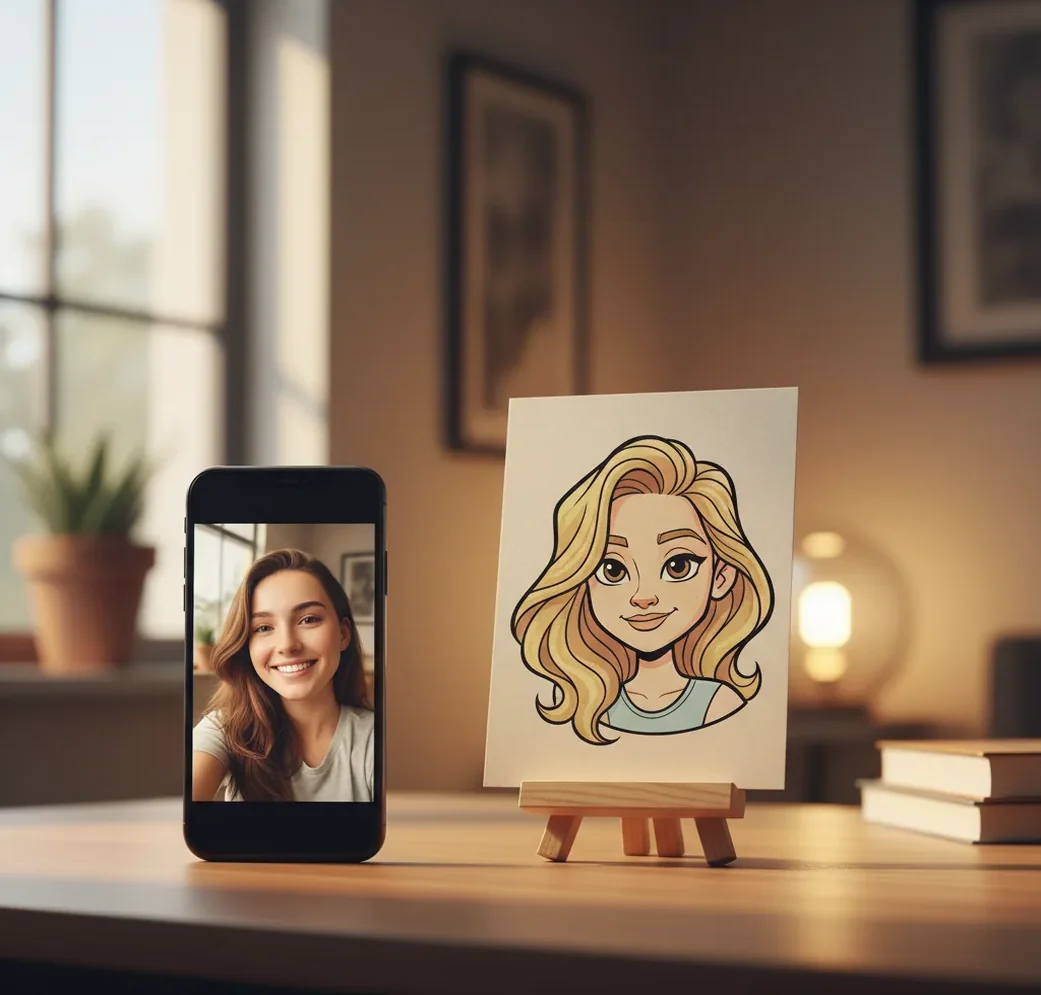
To cartoon yourself with AI, start with a sharp head-and-shoulders selfie, upload it to an image-to-image AI tool, and prompt the style you want, such as clean line art, cel shading, anime, or 3D cartoon. Generate several versions, then choose the one that preserves your face shape, eyes, hairstyle, and expression best. Avoid harsh shadows, busy backgrounds, and heavy beauty filters because they can reduce likeness.
What Does It Mean to Cartoon Yourself With AI?
Cartooning yourself with AI means transforming a real portrait into a stylized illustration while keeping enough facial structure for the image to still look like you. Instead of applying a simple overlay filter, modern image-to-image systems reinterpret your selfie using learned visual patterns: outlines, simplified colors, exaggerated features, flat shading, or character-style rendering.
The result can look like a social avatar, comic portrait, anime character, 3D mascot, sticker, or editorial illustration. The key is controlling both the input photo and the prompt. A clean selfie gives the model clear facial geometry, while the prompt tells it how much to simplify skin texture, hair detail, shadows, and background elements.
How Does AI Keep Your Face While Changing the Style?
AI keeps your face recognizable by using image-to-image generation, where the original selfie acts as a structural guide and the prompt controls the new visual style. Diffusion-based models work by encoding the image, adding controlled noise, and denoising it toward the requested look while preserving important cues like face shape, eye spacing, nose bridge, jawline, hairstyle, and pose.
This is why a boring input photo often creates a better cartoon portrait. Strong side lighting, reflections in glasses, facial hair shadows, or cluttered backgrounds can be interpreted as intentional linework. If a cheek shadow becomes a thick comic stroke or hair turns into a helmet shape, the model is usually over-reading contrast and texture from the source photo.
How Do You Cartoon Yourself With AI Step by Step?
Choose a clean selfie
Use a sharp head-and-shoulders photo with soft front-facing light. Your face should fill about 40% to 60% of the frame so the model has enough detail to preserve likeness.
Simplify the background
Use a plain wall, soft blur, or clean crop. Busy rooms, patterned curtains, text, logos, and strong objects behind your head often become strange cartoon shapes.
Pick one cartoon direction
Decide whether you want clean line art, cel-shaded cartoon, anime portrait, 3D toon, sticker art, or comic-book style. Mixing too many styles usually makes the output less consistent.
Write a controlled prompt
Describe the style, line weight, color palette, and likeness constraints. For example: 'clean cartoon portrait, black ink outlines, flat colors, soft cel shading, keep hairstyle and face shape, natural expression, simple background.'
Generate 3 to 6 variations
Compare the results at thumbnail size first. A good avatar should still read clearly when small, especially for TikTok, Instagram, Discord, Slack, YouTube, or gaming profiles.
Refine the weak areas
If the face drifts, add constraints such as 'keep eye shape,' 'keep chin shape,' 'do not change hair length,' or 'lighter lines around the cheeks.' Regenerate until the style and likeness balance correctly.
Which AI Cartoon Tools Can Turn a Selfie Into an Avatar?
| Tool | Best For | Style Control | Friction Level | Watch-Outs |
|---|---|---|---|---|
| Pict AI | Browser and iPhone cartoon portrait generation with prompt control | Good control over line art, cel shading, and avatar styles | Low to medium | Check export and usage terms before commercial campaigns |
| Canva | Quick social graphics, profile layouts, and branded templates | Moderate; strong for design placement after generation | Low | AI style control may be less granular than specialist generators |
| Fotor | Fast cartoon filters and portrait effects | Moderate; good for simple one-click transformations | Low | Some outputs may look filter-like rather than custom illustrated |
| Picsart | Mobile-first avatar editing, stickers, and social content | Moderate; strong for edits, overlays, and remixing | Low | Free exports may include limits depending on plan and region |
| Midjourney | Highly stylized character art and polished illustration looks | High text-prompt control; image reference support varies by workflow | Medium to high | Requires more prompt iteration and may not preserve likeness perfectly |
Choose a tool based on the final use case. For a profile image, speed and likeness matter most; for a portfolio illustration or brand mascot, style control, resolution, and licensing terms become more important.
What Prompt Should You Use to Cartoon Yourself?
- Clean avatar prompt: 'Turn this selfie into a clean cartoon avatar, black ink outlines, flat colors, soft shadows, simple background, keep face shape, keep hairstyle, natural expression, high-resolution portrait.'
- Anime-style prompt: 'Convert this portrait into an anime-inspired character, expressive eyes, smooth skin shading, detailed hair strands, soft pastel background, keep facial proportions and recognizable hairstyle.'
- 3D toon prompt: 'Create a 3D cartoon version of this person, rounded features, soft studio lighting, smooth materials, friendly expression, simplified clothing, clean background, preserve likeness.'
- Sticker prompt: 'Make this selfie into a bold sticker-style cartoon, thick white border, clean vector-like outlines, bright colors, transparent or plain background, readable at small size.'
- Comic portrait prompt: 'Transform this photo into a modern comic-book portrait, confident expression, clean halftone texture, crisp outlines, balanced shadows, preserve eyes, nose, mouth, and jawline.'
- Likeness repair add-on: 'Do not change hair length, eye shape, face angle, glasses, or jawline. Keep the same expression and avoid extra accessories.'
Where Can You Use an AI Cartoon Portrait?
An AI cartoon portrait is useful anywhere you want personality without using a raw photo. Common uses include profile pictures, Discord or Slack avatars, YouTube thumbnails, Twitch panels, gaming icons, personal websites, portfolio about pages, contact cards, and creator media kits.
The style should match the destination. A bold sticker avatar works well for messaging apps because it stays readable at small sizes. A soft cel-shaded portrait feels friendly for social profiles. A polished 3D cartoon can work for personal branding, while a comic or anime version may be better for fan content, gifts, posters, or themed prints.
How Can You Make the Cartoon Still Look Like You?
To keep a cartoon selfie recognizable, protect the features people use to identify you: hairstyle, face shape, eye spacing, glasses, facial hair, smile shape, and general posture. The prompt should not only describe the art style; it should also tell the model what not to change.
Use phrases like 'preserve likeness,' 'keep the same hairstyle,' 'keep natural eye shape,' and 'do not add accessories.' If your first result looks generic, reduce style intensity and regenerate. Cartooning works best when the model simplifies your photo rather than inventing a new character loosely inspired by it.
What Are the Limits of AI Cartoon Selfies?
- Glasses can warp, duplicate, or lose symmetry, especially when lenses have reflections or strong glare.
- Harsh shadows can become fake ink strokes, changing the apparent expression or face shape.
- Small faces in wide photos often produce generic eyes, simplified noses, or inconsistent mouths.
- Heavy beauty filters can remove the facial texture and geometry needed to preserve likeness.
File settings for sharp, reusable cartoon portraits
An ai cartoon generator can produce an appealing preview that looks soft after saving or cropping. Check the downloaded file’s dimensions rather than judging only the on-screen image. The settings below are practical targets, not requirements shared by every tool.
| Setting | Suggested choice | Why it matters |
|---|---|---|
| Source resolution | A sharp original around 1,024 pixels or more on the shorter side | Gives the tool clearer edges around glasses, earrings, and hair; enlarging a blurry source does not restore detail. |
| Portrait canvas | 1:1 square, with room around the head | Leaves space for circular profile crops without cutting off the hairstyle. |
| Export dimensions | At least 1,024 × 1,024 pixels when available | Provides cropping room for common screen uses; larger dimensions alone do not guarantee better likeness. |
| Opaque image format | PNG for crisp outlines; high-quality JPEG for smaller files | Heavy JPEG compression can create halos around dark lines. |
| Transparent background | PNG with actual transparency | A white background or painted checkerboard is not a transparent layer. |
| Color space | sRGB for web sharing, if selectable | Helps reduce color shifts across browsers and common display workflows. |
| Duration | Not applicable to a still portrait | Animation requires a separate workflow; a static export has no playback length. |
If you are learning how to make AI photos of yourself for several accounts, keep an untouched master export and make separate crops from it. Repeatedly saving a JPEG can introduce compression artifacts.
When you generate AI version of yourself variants, change one setting at a time and keep the canvas dimensions fixed. Treat a bald filter as a separate appearance experiment, rather than adding it while comparing cartoon rendering styles.
AI cartoon portrait questions answered
Generate the portrait first, then use a background-removal tool if the cartoon generator does not support transparency. Export as PNG and check that the background is genuinely transparent, not white or a painted checkerboard. Inspect hair, glasses, and shoulders for missing edges or leftover halos. JPEG cannot retain transparency, so converting the finished PNG to JPEG will add a solid background.
Reuse the same tool, model, style preset, prompt, and output dimensions. Choose photos with similar lighting and camera angles, and use a previous cartoon as a style reference if the tool supports it. A fixed seed may help with repeatability, but it does not guarantee consistent identity across different inputs. Compare line weight, shading, and facial proportions before treating the portraits as a matching set.
Use a sharp selfie with soft lighting, upload it to an image-to-image generator, and prompt a specific style such as clean line art or cel shading. Generate multiple versions and choose the one that best preserves your facial features.
Yes, many AI image tools offer free trials, limited daily generations, or basic web tools. Free options may have lower resolution, queues, watermarks, or stricter export limits.
A front-facing or slightly angled head-and-shoulders selfie with even light and a simple background works best. Avoid harsh shadows, motion blur, sunglasses, and busy rooms.
Add likeness constraints to the prompt, such as 'keep face shape,' 'keep hairstyle,' 'preserve eye shape,' and 'do not change glasses.' If the output looks generic, lower the style intensity or try a cleaner source photo.
The most common causes are harsh lighting, low resolution, cluttered backgrounds, reflections, or prompts that ask for too many styles at once. The model may also exaggerate shadows and textures into cartoon lines.
Yes, image-to-image AI tools can convert a selfie into an anime-style portrait. Results are better when the face is large in frame and the prompt asks to preserve facial proportions and hairstyle.
Yes, if the export resolution is high enough and the tool’s terms allow your intended use. For prints, aim for a clean background, strong edges, and enough pixel resolution for the final size.
Safety depends on the tool’s privacy policy, retention settings, and account controls. Review how the service stores, processes, and deletes uploaded images before using sensitive photos.