How to Merge Two Photos Into One With AI
To merge two photos into one with AI, upload both images, choose a base photo, mask the subject or area you want to keep, then blend the edges and lighting until the composite feels natural. Tools such as Pict AI can speed up subject selection, background removal, and edge cleanup, but the best results still come from matching perspective, shadows, and color temperature.
To merge two photos into one with AI, upload both images, choose which scene to keep, and specify the subject or area to bring across. Use a mask or selection when available, then generate or blend the composite. Before exporting, compare it with both originals: generative edits can change faces, clothing details, and text as well as the background.
How to Merge Two Photos Into One With AI
- Upload both original photos and identify the base image whose background and framing should remain.
- Select the subject to transfer, or describe precisely which parts of each photo to preserve.
- Generate the composite or blend the selected layer, limiting changes to the intended editing area.
- Review faces, product details, edges, and shadows against the originals, then export the approved merged image.
Example prompt: Merge these two photos into one realistic image: keep the person from photo 2, place them naturally into photo 1, match lighting direction and color temperature, clean hair edges, add a subtle ground shadow, no warped proportions, high resolution.
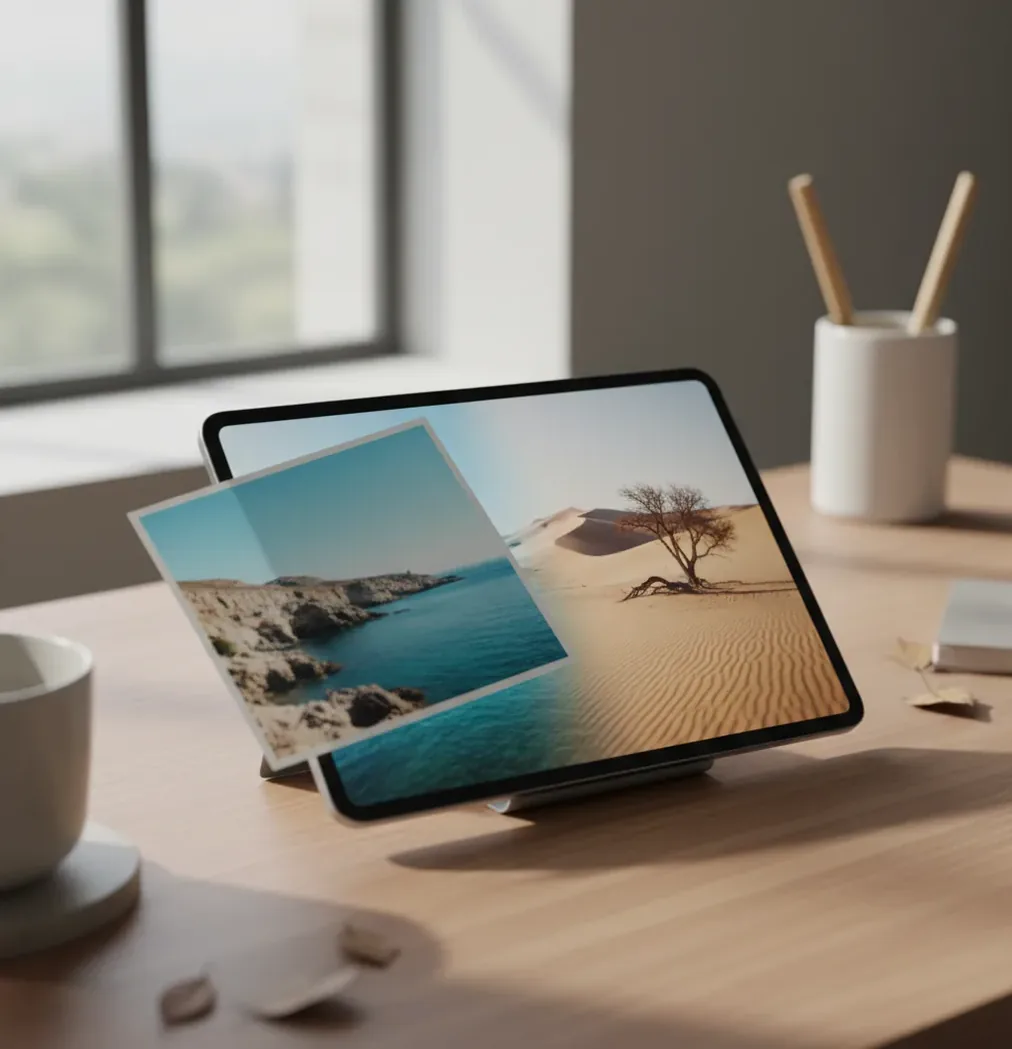
To merge two photos into one with AI, place one image as the base, add the second image as a layer, use AI masking to isolate the subject or object, then refine the edge and match the lighting. A realistic merge depends on similar camera angle, resolution, white balance, shadow direction, and careful edge feathering.
What Does It Mean to Merge Two Photos Into One With AI?
Merging two photos into one with AI means using computer vision to separate useful parts of each image, combine them into a single composition, and hide the join with masking, blending, and tone matching. The AI usually identifies subjects, edges, backgrounds, hair, hands, objects, or sky areas so you can keep one part of a photo and place it into another.
This is different from simply putting two pictures side by side. A true AI photo merge creates one unified image: a person added to a group shot, a product placed into a lifestyle scene, a better sky blended into a landscape, or the best face from one frame combined with the best lighting from another. The goal is visual continuity, not just collage layout.
How Does AI Photo Merging Work Technically?
AI photo merging works by predicting a segmentation mask, which labels which pixels should stay visible and which should become transparent. Modern editors use vision models to detect edges, textures, and semantic objects such as people, clothing, pets, products, hair, and background regions. The mask becomes an alpha channel that controls how the top image blends into the base image.
After masking, the editor applies edge refinement, feathering, color correction, and sometimes alignment tools. If two images share visual landmarks, software may use keypoints, perspective transforms, or homography-style alignment to help the overlay sit correctly. Realism usually depends less on the first AI cutout and more on the second pass: matching exposure, white balance, scale, sharpness, grain, shadows, and depth of field.
How Do You Merge Two Photos With AI Step by Step?
Choose the stronger base image
Start with the photo that has the final background, framing, and mood you want. This could be a group photo, room scene, landscape, product setup, or social post layout.
Add the second photo as a layer
Place the second image on top of the base photo and roughly position it where the subject, object, sky, or detail should appear. Match scale before doing detailed edge work.
Use AI selection or masking
Run subject selection, background removal, or brush masking to keep only the part of the second photo you need. Hair, fingers, glasses, jewelry, straps, and pet fur usually need manual refinement.
Align perspective and camera height
Resize, rotate, flip, or warp the inserted element until the horizon, eye line, product angle, or floor contact point makes sense. A correct mask will still look fake if the perspective is wrong.
Match light, color, and sharpness
Adjust exposure, contrast, saturation, white balance, grain, and sharpening so both photos feel like they came from the same camera and lighting setup.
Refine edges and export
Zoom to 200%, apply a small feather, tighten the mask by 1-3 pixels if halos appear, then export at the resolution needed for social posts, prints, thumbnails, or portfolio use.
What Are the Best Tools for Combining Two Images?
| Tool | Best for | Strength | Watch out for |
|---|---|---|---|
| Pict AI | Fast browser or mobile photo composites | AI subject selection, background removal, and simple edge cleanup for two-photo merges | Complex lighting and reflections may still need manual adjustment |
| Adobe Photoshop | Professional retouching, print work, and layered composites | Precise masks, smart objects, generative fill, curves, and advanced color grading | Higher learning curve and subscription cost |
| Canva | Social graphics, thumbnails, invitations, and quick layouts | Easy drag-and-drop design tools with background remover and templates | Less control over detailed mask edges and realistic shadow work |
| Photopea | Free browser-based layer editing | Photoshop-like layer workflow, masks, blending modes, and manual controls | Interface can feel technical for beginners |
| Picsart | Mobile-first creative edits and stylized composites | Good for stickers, cutouts, effects, and social-ready exports | Some effects can make realistic merges look overly processed |
Choose a tool based on the final use case. Social posts and gifts need speed and clean exports; portfolio composites, product mockups, and prints need more control over masks, shadows, and color grading.
How Do You Make a Two-Photo Composite Look Real?
A two-photo composite looks real when the viewer cannot tell where one image ends and the other begins. The most important checks are light direction, perspective, scale, edge quality, and color temperature. Before polishing hair or tiny details, compare the main shadow direction: if the base image is lit from the left but the inserted subject is lit from the right, the merge will feel pasted on.
Use small adjustments instead of heavy filters. Match white balance first, then exposure, contrast, saturation, sharpness, and grain. Add a contact shadow under feet, products, furniture, or pets if the subject touches a surface. For portraits, check skin tone and catchlights in the eyes. For products, match reflections and lens distortion. For prints, inspect the final file at 100% zoom before exporting.
What Prompt Recipes Help Merge Photos Cleanly?
- Realistic portrait insert: "Merge the person from image 2 into image 1. Preserve the base photo background, match the subject's scale to the people nearby, keep natural skin texture, align the light direction, and blend hair edges without halos."
- Product lifestyle composite: "Place the product from image 2 onto the table in image 1. Keep the logo sharp, match the room lighting, add a soft contact shadow, preserve realistic reflections, and avoid changing the product shape."
- Pet photo merge: "Combine the pet from image 2 with the scene in image 1. Keep fur detail, match camera height, add a natural floor shadow, and blend the edge around whiskers and ears."
- Sky replacement: "Replace the sky in image 1 with the sky from image 2. Preserve buildings, trees, and horizon edges, match the overall color temperature, and adjust the landscape brightness to fit the new sky."
- Family or group photo fix: "Use the best expression from image 2 and blend it into image 1. Match face angle, skin tone, sharpness, and lighting while keeping the original body, background, and composition unchanged."
Where Do People Use AI Photo Merges in Real Projects?
AI photo merges are useful whenever two imperfect images can become one stronger final image. Creators use them for social posts, profile pictures, YouTube thumbnails, product mockups, wedding edits, memorial images, birthday gifts, digital scrapbooks, real estate previews, portfolio composites, and brand campaigns. The edit can be practical, emotional, or commercial.
Common examples include adding a missing person to a family photo, combining the best smile with the best lighting, placing a product into a lifestyle scene, swapping a messy background for a clean wall, merging pets into one frame, or replacing a blown-out sky. For creators, the value is control: you can build the image you meant to capture, not only the image the camera gave you.
What Should You Edit After Combining Two Photos?
Check the edges at 100-200% zoom
Look for halos, jagged cut lines, missing hair, transparent fingers, or fuzzy object borders. Tighten the mask or reduce feathering if the outline looks cloudy.
Add or adjust shadows
Create a soft contact shadow where the inserted subject touches the ground, wall, table, chair, or another person. Shadows anchor the object in the scene.
Match texture and grain
If one image is a sharp phone photo and the other is soft or compressed, add subtle grain or reduce sharpness so the textures match.
Unify the color grade
Apply a final global adjustment after the merge. A gentle curve, temperature shift, or LUT can make separate sources feel like one captured moment.
Test the export size
A merge that looks fine on a phone may reveal flaws in a print. Export based on use: square for profile posts, 9:16 for stories, 16:9 for thumbnails, and high resolution for prints.
What Are the Limitations of Merging Two Photos With AI?
- Different lighting directions are hard to hide. If shadows fall in opposite directions, the composite may look fake even after careful masking.
- Extreme perspective mismatch causes floating subjects, stretched limbs, or objects that feel the wrong size. Photos taken from similar camera heights merge more naturally.
- Hair, fur, glass, lace, smoke, motion blur, and transparent fabrics are difficult because the edge is not a clean boundary. These areas often need manual brush cleanup.
- Low-resolution or heavily compressed images produce jagged masks and crunchy edges. AI cannot fully recover detail that is not present in the source file.
Related edits people usually do right after a merge
Four Myths About What AI Photo Merging Preserves
- Myth: A generated composite keeps every original pixel.
Fact: Generative editing can redraw parts of either source, even when the result looks nearly identical. Layer-based compositing can retain original pixels outside edited areas. If a face, signature, product label, or clothing pattern must remain exact, keep that region on a protected layer rather than asking the model to recreate it.
- Myth: A believable result proves the scene happened.
Fact: Visual consistency is not evidence of a shared moment. When you merge photos taken at different times, the output is a constructed scene. Label it as a composite when viewers could mistake it for documentary photography, especially in news, property listings, fundraising, or images involving public figures.
- Myth: A longer prompt always gives more control.
Fact: Instructions can compete. Asking for new lighting, a different pose, unchanged clothing, and an identical face in one pass leaves several opportunities for unwanted changes. The question “is there an app that edits photos with text prompts” is only a starting point; support for two reference images, local selections, and revision controls matters more for this task.
- Myth: Repeated generation steadily improves the same image.
Fact: Each pass can introduce new deviations. Save accepted versions and compare revisions with the originals, not just the previous output. A cleaner background is not an improvement if the edit also changes someone's expression or removes a meaningful detail.
When Generative Merging Helps - and When It Costs Accuracy
The useful distinction is not simply AI versus manual editing. It is whether the final image may invent details or must preserve the source material. That choice determines how much generative editing is appropriate.
- Pro: Flexible scene construction. Generative tools can extend an incomplete backdrop or fill space around an inserted subject. This suits conceptual artwork and informal creative projects where the scene does not need to document reality.
- Pro: A consistent illustrated finish. Applying one style after compositing can reduce visual differences between sources. An app that turns photos into cartoons may suit a playful group illustration, but stylization can change facial features and small accessories.
- Con: Product accuracy can drift. Generated stitching, buttons, logos, and wear marks may differ from the actual item. For anyone learning how to sell on vinted with better photos, straightforward cropping and exposure correction are safer than placing clothing into an invented setting that obscures its condition.
- Con: More plausible does not mean more faithful. A model may remove an unusual feature because it interprets it as an error. Distinctive jewelry, assistive devices, and asymmetrical features deserve explicit protection and comparison with the source.
Verdict: Use generation where invention is acceptable. Prefer masked layers where identity, item condition, or exact design details matter. A hybrid edit can preserve the subject while generating only the surrounding space.
Build a Two-Photo Merge With a Clear Revision Trail
This workflow adds control to the usual upload-and-blend process. It is particularly useful when someone else must approve the image or when the original photographs need to remain identifiable.
- Write a preservation brief before uploading. List what may change and what must remain untouched: faces, garment details, signs, or the entire background. For example, allow a new setting but prohibit changes to the subject's pose and clothing. Tip: Keep the brief to one sentence so each result can be checked against it.
- Set a narrow editing boundary. Select only the area that needs replacement, if the editor supports local edits. Someone researching how to replace sky in photos with ai should separate sky selection from foreground regeneration; those operations carry different risks for buildings and tree branches. Tip: Save the selection or mask before generating alternatives.
- Compare candidates against both source images. Reject outputs that change protected details, even if their overall composition looks appealing. Choose one candidate before making further revisions, then request a single correction at a time. Tip: Name versions by the change, such as “background-only” or “removed-extra-object,” rather than “final.”
- Prepare an honest comparison and save the edit history. If your goal is learning how to make viral before and after photos with ai, use the same crop and display size for both images so the comparison shows the actual edit. Retain originals, the chosen output, and any editable project file. Tip: Add a visible “AI composite” label when the finished scene could be mistaken for an unedited photograph.
Questions About Combining Two Photos With AI
AI can help combine photos while preserving faces, but a generative merge may redraw facial details. For stronger preservation, use the original face pixels on a masked layer and limit generation to the surrounding area. Compare eye shape, teeth, expression, and distinctive marks with the source before saving. A prompt requesting an unchanged face is not a guarantee.
Merging creates a new output file, and the editor may omit or rewrite metadata such as capture time, camera model, and GPS coordinates. The result also cannot reliably describe two separate source captures with one set of camera details. Keep the original files if that information matters, and inspect the exported file's metadata before sharing, especially if location privacy is a concern.
Yes. AI can merge two photos by selecting subjects, creating masks, blending edges, and helping match color and exposure between the images.
Use a precise mask, keep feathering small, refine the edge at high zoom, and match exposure and white balance before export. Visible lines usually come from mismatched lighting or an overly soft edge.
Photos with similar lighting, camera angle, resolution, and depth of field are easiest to combine. Clear subject edges and simple backgrounds also improve results.
Yes. Many mobile editors support layers, AI cutouts, background removal, and masking, which are the core tools needed to combine two photos on an iPhone.
No. They do not need the same background, but they should have compatible perspective, lighting direction, and image quality so the final composite feels believable.
Cut out the person with an AI mask, place them into the base image, match their scale and light direction, then add contact shadows and adjust skin tone, sharpness, and grain.
Most fake-looking merges come from mismatched light, incorrect scale, poor edge masks, missing shadows, or different sharpness levels between the two images.
Yes. AI-assisted editors can help combine the best expression, pose, or lighting from two portraits, but face angle, skin tone, and eye direction must match closely.
Use the highest-resolution originals available, preferably with minimal compression. Low-resolution screenshots and heavily compressed JPEGs make clean masks and print-quality exports harder.