How to Change Clothes in a Photo With AI
To change clothes in a photo with AI, upload a clear image, select the clothing area, and describe the new outfit you want. The best results come from precise masking, simple garment prompts, and source photos with visible shoulders, sleeves, waistlines, and natural lighting.
How to Change Clothes in a Photo With AI
- Upload a clear photo with visible clothing boundaries, then select only the garment you want to replace.
- Describe the replacement garment's color, fabric, fit, and neckline while keeping the person's pose and identity unchanged.
- Generate a few outfit variations, keeping the same selection so you can compare garment details consistently.
- Review seams, hands, shadows, and face preservation at full size, then export at your destination's required dimensions.
Example prompt: Replace the shirt with a tailored white linen button-down, subtle fabric texture, natural wrinkles, keep face, hair, hands, background, and lighting unchanged
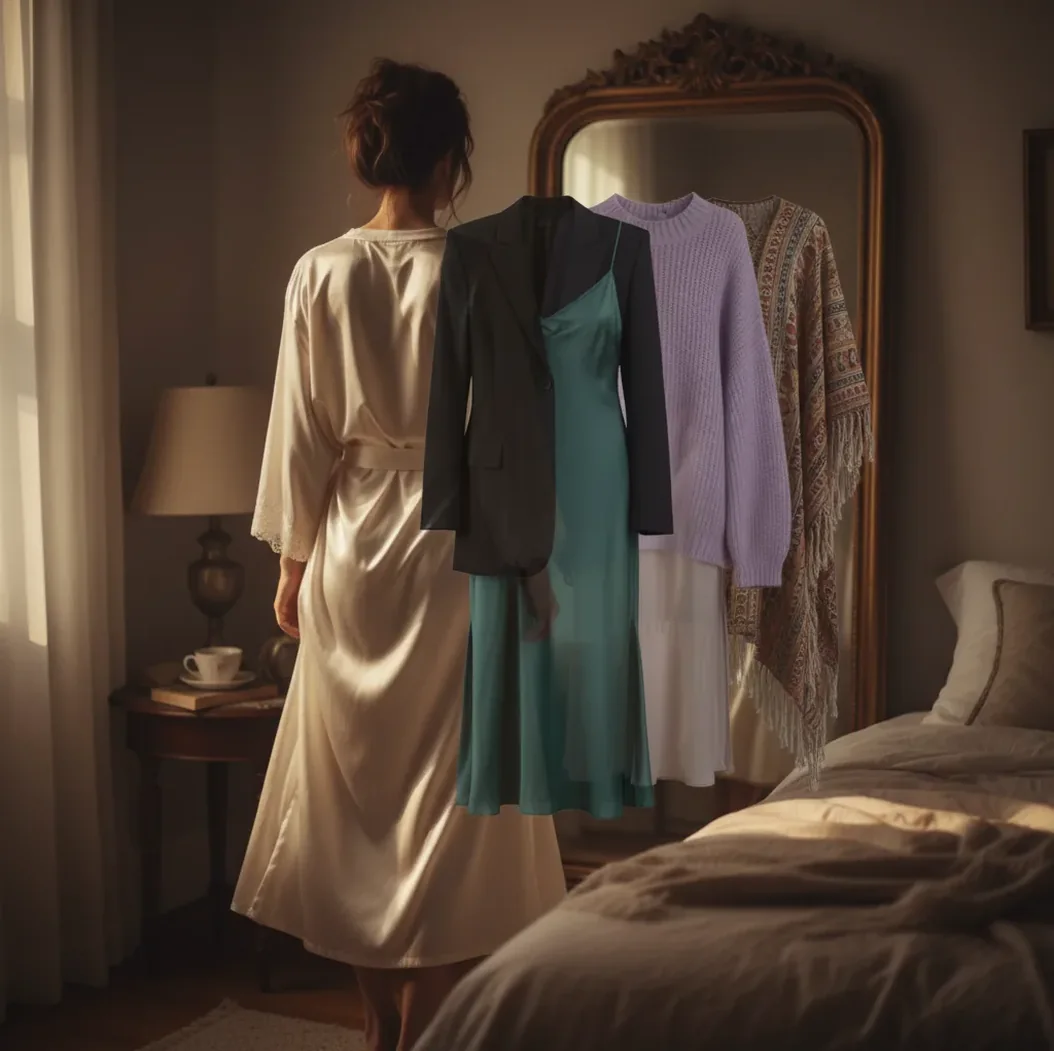
To change clothes in a photo with AI, use an AI clothes changer or generative editor to mask the garment area, then prompt the replacement outfit by naming the clothing type, color, fabric, fit, and style details. The AI regenerates only the selected clothing pixels while using the original pose, lighting, shadows, and body shape as context. For realistic results, keep the face, hair, hands, and background unmasked and generate several variations before choosing the cleanest one.
What Does It Mean to Change Clothes in a Photo With AI?
Changing clothes in a photo with AI means replacing visible garments in an existing image while keeping the same person, pose, face, hair, body position, and background. Instead of manually cutting out fabric in a photo editor, a generative image model redraws the selected clothing region based on a text prompt and the surrounding visual context.
This workflow is useful for outfit previews, headshots, fashion mockups, marketplace listings, social posts, gift images, branding photos, and portfolio experiments. It works best when the clothing area is clearly visible, the image is sharp, and the prompt describes concrete visual attributes such as “tailored navy blazer,” “white linen shirt,” or “black satin evening dress.”
How Does AI Outfit Replacement Work?
AI outfit replacement works by combining masking, image inpainting, and prompt-conditioned generation. The mask tells the model which pixels can change, while the unmasked parts of the photo act as constraints for identity, pose, lighting direction, camera angle, shadows, and body proportions.
Most modern tools use diffusion-style image generation or a similar generative model. The model predicts new garment pixels that match the prompt while blending them into the original image. That is why a good result depends on both input quality and prompt specificity: the AI must infer fabric folds, seam placement, sleeve length, collar shape, occluded edges, and how the new outfit should react to light.
How Do You Change a Shirt, Jacket, or Dress Step by Step?
Choose a clear source photo
Use a waist-up or full-body image with good focus, natural lighting, and visible clothing boundaries. Avoid heavy filters, motion blur, harsh shadows, or poses where hands cover most of the garment.
Upload the image to an AI clothes editor
Open a browser-based or mobile AI outfit changer and import the photo. Tools such as Pict AI, Photoshop Generative Fill, Canva, and other inpainting editors can handle garment replacement when they support localized image editing.
Mask only the clothing you want to replace
Select the shirt, jacket, pants, skirt, or dress area without covering the face, hair, hands, jewelry, or background. Leave a small edge buffer around necklines, wrists, and waistbands so the AI has room to blend fabric naturally.
Write a specific outfit prompt
Name the garment type, color, material, fit, and one design detail. For example: “tailored charcoal wool blazer, slim fit, soft shoulder, single button, realistic fabric folds.”
Generate several variations
Create 2 to 4 outputs and compare collars, cuffs, seams, hands, buttons, waistlines, and shadows. Pick the most believable version rather than the most dramatic one.
Refine the mask and prompt if needed
If the neckline melts, sleeves warp, or fabric looks flat, adjust the mask and simplify the prompt. Regenerating only the garment area usually preserves the rest of the photo better than starting over.
What Prompt Should You Use to Swap Clothes Realistically?
- Basic template: “Replace the [current garment] with a [color] [fabric] [garment type], [fit], [style detail], realistic folds, natural shadows, keep face, hair, hands, pose, and background unchanged.”
- Headshot template: “Professional [color] blazer over a clean [shirt color] shirt, tailored fit, subtle lapels, realistic office headshot lighting, keep facial features and background unchanged.”
- Fashion mockup template: “Oversized [fabric] hoodie in [color], ribbed cuffs, soft fabric texture, natural wrinkles around elbows and waist, realistic streetwear look.”
- Dress template: “Elegant [color] [fabric] midi dress, fitted bodice, natural drape, soft highlights, clean neckline, realistic studio portrait style.”
- Product listing template: “Plain [color] cotton T-shirt, regular fit, no logos, smooth but realistic fabric texture, consistent lighting, keep model pose unchanged.”
- Negative guidance: “Avoid extra logos, distorted hands, changed face, altered body shape, unrealistic shine, plastic fabric, blurry neckline, or melted buttons.”
Which AI Clothes Changer Tools Are Best for Outfit Swaps?
| Tool | Best for | Control level | Typical tradeoff |
|---|---|---|---|
| Pict AI | Fast browser or iOS outfit swaps from a photo and prompt | Medium: prompt-based editing with localized garment changes | Best results still depend on clean masks and simple clothing prompts |
| Adobe Photoshop Generative Fill | Advanced retouching, layered edits, and professional photo finishing | High: strong masking, layers, selection tools, and manual cleanup | Requires more editing knowledge and a paid Creative Cloud workflow |
| Canva AI image editing | Quick social posts, thumbnails, simple branding images, and templates | Medium: easy interface with less precision than pro editing tools | May be less flexible for detailed garment seams or complex masks |
| Free web inpainting tools | Testing simple shirt or color changes without setup | Low to medium: varies by tool, queue speed, and export quality | Free plans may include watermarks, resolution limits, or unclear usage terms |
| Open-source local workflows | Experimenters who want model choice, privacy, and deep control | High: masks, ControlNet-style conditioning, checkpoints, and parameters | Steeper setup, GPU requirements, and more trial-and-error |
Choose based on control needs, not only speed. Casual creators usually need fast prompting and clean exports; professional editors often need layers, high-resolution output, and manual retouching options.
How Do You Keep the Face, Pose, and Background Unchanged?
To keep the face, pose, and background unchanged, only mask the garment area and explicitly tell the AI what must stay fixed. The model can only preserve details reliably when those details remain outside the editable region, so avoid brushing over cheeks, hair, fingers, necklaces, watches, bags, or background edges.
Use a keep instruction such as: “keep the same face, hair, body pose, hands, background, camera angle, and lighting.” If the tool supports strength or creativity settings, use a moderate value rather than maximum transformation. High creativity can invent new folds and style details, but it also increases the risk of changed body shape, shifted shoulders, or inconsistent shadows.
Where Can You Use AI Outfit Swaps?
AI outfit swaps are useful anywhere a different wardrobe changes the message of the image without requiring a reshoot. Creators use them to turn one strong portrait into multiple versions for LinkedIn, dating profiles, thumbnails, pitch decks, invitations, holiday cards, and personal branding.
Fashion and ecommerce teams use the workflow for early concept mockups, colorway previews, styling tests, and lifestyle image drafts. It can also help visualize uniforms, event dress codes, cosplay ideas, graduation outfits, or gift prints. The key is to treat AI clothing replacement as visual planning or creative editing, not as proof that someone actually wore a specific outfit.
When Do AI Outfit Changes Look Fake?
- AI outfit changes look fake when the original image lacks usable garment boundaries. Blurry sleeves, dark shadows, cropped shoulders, or hidden waistlines make it harder for the model to understand body shape.
- Hands over clothing often cause warped cuffs, missing fingers, melted fabric edges, or sleeves that blend into skin. Mask carefully around fingers and regenerate if hand anatomy changes.
- Busy prints such as tight plaid, pinstripes, sequins, lace, and repeated logos may drift across seams because the model prioritizes overall realism over exact pattern continuity.
- Hair, straps, necklaces, scarves, and bag handles can confuse the clothing boundary. If they overlap the garment, the AI may absorb them into the new fabric unless they are excluded from the mask.
How Do You Fix Bad Edges, Warped Buttons, or Flat Fabric?
Tighten or soften the mask
If skin or hair changes, your mask is too broad. If the old garment shows through at the collar or cuffs, expand the mask slightly by a few pixels and regenerate.
Simplify the garment prompt
Overloaded prompts can create conflicting fabric signals. Replace “luxury futuristic shiny formal casual jacket” with a clearer phrase like “matte black leather jacket, fitted, silver zipper.”
Add fabric and fit words
Flat clothing usually needs material cues. Use terms such as cotton, wool, linen, denim, satin, knit, structured, oversized, tailored, fitted, ribbed, matte, or lightly wrinkled.
Regenerate in small regions
If only the sleeve, neckline, or waist is wrong, edit that area instead of replacing the whole outfit again. Local fixes preserve the best parts of the previous generation.
Avoid exact logos or complex patterns
For clean results, use solid colors or broad patterns first. Exact branded logos, tartan alignment, embroidery, and tiny repeated graphics usually require manual retouching after generation.
Keep editing: prompts, backgrounds, and full photo polish
File Settings and Export Checks for AI Outfit Edits
Keep an untouched original before editing. The best ai clothes changer app for your workflow should support selective edits and export enough detail for your intended use; a convincing thumbnail can still conceal damaged stitching or smeared fabric at full size.
| Setting | Practical starting point | Why it matters |
|---|---|---|
| Input resolution | Use the original camera file; aim for at least 2,000 pixels on the longest edge when available. | Gives the editor more visible garment detail. Upload limits vary by tool. |
| Input format | JPEG or PNG; convert HEIC only if unsupported. | Avoids compatibility problems without relying on a compressed screenshot. |
| Output dimensions | Check actual pixel dimensions before exporting. | Some editors return a smaller image than the upload. |
| Export format | High-quality JPEG for photographs; PNG when transparency is needed and supported. | Matches the file to its destination without unnecessary file size. |
| Aspect ratio | Match the destination's required crop. | Prevents sleeves, hems, or shoes from being cut off later. |
| Processing time | Allow time for multiple generations; there is no universal duration. | Speed depends on the service, image size, and queue. |
After you remove and replace clothes, compare the original and export at 100% zoom. Inspect patterned fabric and small fasteners, then check the final crop at its actual display size. If you also adjust a contrast image setting, do it after the swap so darker fabric does not lose its texture.
For resale listings, how to take good photos of clothes to sell online starts with photographing the actual item. Choosing the best backgrounds for selling clothes online cannot compensate for generated details that misrepresent its condition, cut, or material.
If your next task is learning how to change hairstyle in photo with ai, save a separate outfit-only version first. Keeping those edits separate makes unintended changes easier to identify and undo.
AI Clothing Replacement: Common Questions
Not reliably. Generative edits can misspell lettering, distort logos, or invent details, especially on small or folded areas. If an exact design matters, preserve that part of the original image or add an authorized graphic afterward with a conventional editor. Check the exported file at full size before using it in product imagery.
Yes, if the editor supports a precise selection around that person's clothing. Overlapping arms, shared shadows, and people standing close together make the edit harder. Work on one person at a time and compare each result with the original. If another person's clothing or body changes, narrow the selection and regenerate rather than editing the whole group.
Yes. AI can replace clothing in a photo by masking the garment area and generating a new outfit that matches the original pose, lighting, and body shape.
Mask only the shirt area, leave the jacket, hands, neck, and background unselected, then prompt the replacement shirt with color, fabric, and fit details.
Yes, some AI image editors offer free outfit changes with limits such as watermarks, lower resolution, slower generation, or fewer daily edits.
No. A waist-up photo works well for shirts, jackets, blazers, and dresses as long as the shoulders, neckline, sleeves, and waist area are visible.
Yes, but you should keep the face outside the mask and include a keep instruction such as “keep the same face, hair, pose, and background unchanged.”
Fake-looking results usually come from poor lighting, vague prompts, messy masks, hands covering fabric, complex patterns, or source images with blurry garment edges.
Yes. Mask the torso clothing and prompt a realistic suit or blazer while preserving the face, neck, hair, lighting, and background.
It depends on the tool license, image rights, model consent, and whether the edit could mislead viewers. Always check usage terms and avoid deceptive identity or credential edits.