How to Write AI Image Prompts That Actually Work
A strong AI image prompt describes one clear subject, one visual style, specific lighting, camera or composition cues, and a short list of things to avoid. The best prompts are not long; they are specific, non-contradictory, and easy to revise one variable at a time.
How to Write AI Image Prompts That Actually Work
- Upload a reference image if supported, or start with a blank canvas for text-only image generation.
- Describe the intended asset, subject placement, and details to preserve; choose the available aspect ratio.
- Generate a small batch, keeping the same brief so you can compare layout and subject accuracy.
- Review identity, cropping, and unwanted elements; revise the prompt as needed, then export at the available resolution.
Example prompt: Photorealistic street food portrait: a paper boat of tacos on a metal counter, cilantro and lime, steam visible, night market bokeh, single warm tungsten bulb, 50mm lens, shallow depth of field, realistic textures, no text, no watermark
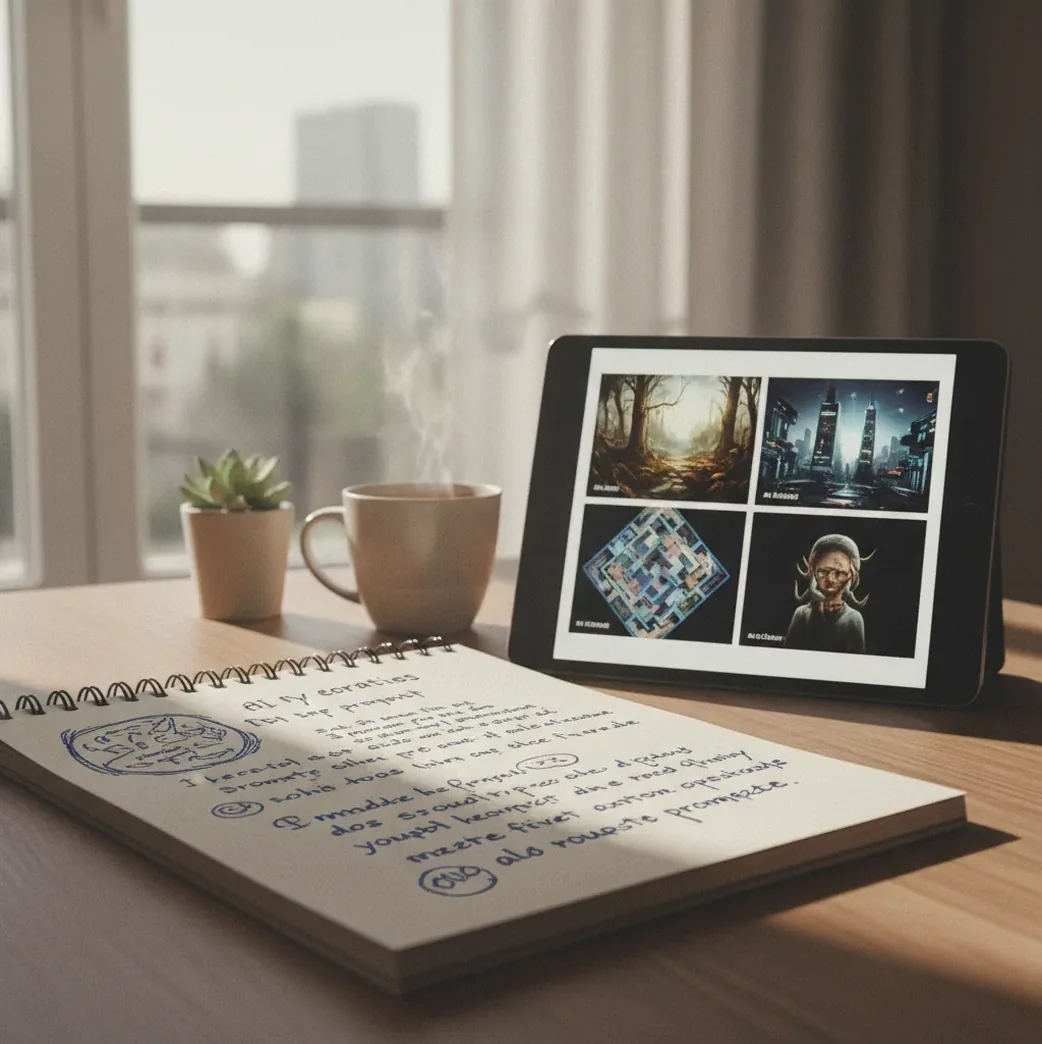
To write AI image prompts that actually work, start with a concrete subject and action, then add the setting, visual style, lighting, camera angle, color palette, and a short negative prompt. Keep the prompt focused on one scene, avoid conflicting style words, and change only one variable per test so you can see what improved the image.
What Makes an AI Image Prompt Actually Work?
An AI image prompt works when it gives the model concrete visual instructions instead of vague mood words. A reliable prompt usually includes a subject, action, setting, medium, style, lighting, composition, color palette, and exclusions. For example, “portrait of a ceramic fox figurine on a walnut desk, soft window light, 50mm lens, shallow depth of field” is easier for a model to follow than “cute magical fox aesthetic.”
The goal is not to describe everything in your imagination. The goal is to prioritize the details that most affect the final pixels: who or what is in the image, where it is, how it is lit, what it is made of, and what visual language it should resemble. Specific nouns, materials, and lighting cues usually beat abstract adjectives.
How Do AI Image Generators Read Prompts?
Most modern text-to-image systems convert your prompt into text embeddings, then use a diffusion model or similar generative process to create an image from noise. The model does not understand the sentence like a human art director. It associates tokens such as “rim light,” “brushed steel,” “macro lens,” or “wet asphalt” with visual patterns learned during training.
This is why concrete language is so important. “A red raincoat on a child walking through a foggy forest” gives the model stronger spatial and material anchors than “lonely fairytale feeling.” Vague words can help with tone, but they should come after the subject, scene, and lighting are clear.
How Do You Write an AI Image Prompt Step by Step?
Start With One Clear Subject
Write the main subject as a noun phrase: “a glass perfume bottle,” “an elderly sailor,” or “a black cat sitting on a neon diner counter.” Add only one main action so the composition does not split focus.
Add the Setting and Context
Place the subject somewhere specific, such as “inside a sunlit greenhouse,” “on a rainy Tokyo crosswalk,” or “against a seamless beige studio backdrop.” The setting controls background detail and mood.
Choose a Medium and Style
Use two to four style anchors, not a giant list. Good anchors include “editorial product photo,” “ink wash illustration,” “1970s sci-fi book cover,” “claymation still,” or “minimal vector poster.”
Specify Lighting and Camera
Add technical visual cues such as “softbox lighting,” “golden hour backlight,” “35mm lens,” “top-down view,” “macro shot,” “shallow depth of field,” or “symmetrical composition.”
Add Color and Negative Prompts
Finish with a palette and exclusions. For example: “muted teal and cream palette, negative: watermark, text, extra fingers, blurry, distorted face.” Keep negatives short and focused on common artifacts.
Generate, Compare, and Change One Variable
Run two to four versions, then revise only one element: lighting, lens, style, background, or aspect ratio. This creates a tight feedback loop and prevents random guessing.
What Is the Best AI Image Prompt Template?
The best reusable AI image prompt template is: subject + action + setting + medium/style + lighting + camera/composition + color palette + negative prompt. This format works because it follows how image models tend to prioritize visible concepts: object identity first, then environment, then aesthetic and rendering details.
Template: “A [subject] [action] in/on/at [setting], [medium or style], [lighting], [camera or composition], [color palette], high detail, negative: [artifacts to avoid].”
Example: “A ceramic espresso cup with steam rising on a marble cafe table, editorial product photo, soft morning window light, 50mm lens, shallow depth of field, warm beige and sage palette, negative: text, watermark, warped handle, extra objects.”
What Are Good AI Image Prompt Examples You Can Reuse?
- Portrait prompt: “A confident violinist in a black velvet jacket standing backstage, cinematic portrait photography, warm rim light, 85mm lens, shallow depth of field, deep burgundy and gold tones, negative: blurry face, extra fingers, text, watermark.”
- Product prompt: “A matte white skincare jar on wet stone beside eucalyptus leaves, luxury product photography, soft diffused studio light, macro lens, centered composition, pale green and ivory palette, negative: label text, distorted lid, clutter, watermark.”
- Social post prompt: “A cozy desk setup with a laptop, coffee, and handwritten notes near a rainy window, lifestyle photography, overcast daylight, 35mm lens, soft shadows, muted blue and brown palette, negative: messy cables, unreadable text, watermark.”
- Poster prompt: “A lone astronaut walking across a pink desert under two moons, retro-futurist travel poster, clean geometric shapes, dramatic sunset gradient, vertical composition, coral, violet, and cream palette, negative: realistic photo, text, logo, clutter.”
- Gift print prompt: “A watercolor illustration of a golden retriever wearing a red scarf in a snowy village square, soft paper texture, gentle winter light, centered composition, warm red and cream palette, negative: harsh outlines, distorted paws, text.”
Which Tools Are Best for Testing AI Image Prompts?
| Tool Type | Best For | Strengths | Watch Outs |
|---|---|---|---|
| Pict AI | Fast prompt testing in a browser or iOS workflow | Quick generation, visual iteration, useful for comparing prompt variants and editing small issues | Check current terms before using outputs commercially or uploading sensitive images |
| Midjourney | Stylized art direction, concept art, posters, mood boards | Strong default aesthetics, community prompt discovery, expressive style control | Less traditional editing control than layer-based tools; interface may not fit every workflow |
| DALL·E | Clean prompt following, simple creative drafts, conversational editing | Good for accessible ideation and natural-language revisions | Fine detail, typography, and exact consistency can still vary |
| Adobe Firefly | Brand-safe design workflows and integration with creative software | Useful for designers already working in Adobe apps; strong commercial workflow positioning | Best results often depend on combining generation with manual design edits |
| Stable Diffusion Interfaces | Advanced control, custom models, local or semi-local workflows | Supports ControlNet, LoRAs, seed control, model choice, and detailed parameter tuning | Requires more setup knowledge; quality depends heavily on model and settings |
Choose the tool based on the workflow, not just image quality. Beginners usually need fast iteration and clear previews; advanced creators may need seeds, reference images, ControlNet, custom models, or commercial licensing clarity.
How Do You Keep AI Image Prompts Consistent?
To keep AI image prompts consistent, create a base prompt and change only the scene-specific variables. For character work, keep age range, hair, clothing, body type, accessories, and two or three unique identifiers identical across prompts. For product or brand visuals, keep material, color palette, lighting direction, lens, background, and aspect ratio stable.
A useful format is: “Base identity + fixed style + fixed lighting + variable scene.” For example, keep “young woman with silver bob haircut, yellow raincoat, round glasses, cinematic 35mm street photography, teal-orange night lighting” and only change “waiting at a tram stop,” “walking past a noodle shop,” or “standing under a glass awning.” Consistency comes from reducing unnecessary changes.
What Should You Avoid When Writing AI Image Prompts?
- Avoid stacking incompatible styles such as “photorealistic watercolor anime oil painting 3D render.” Pick one primary medium and one secondary influence.
- Avoid vague emotional-only prompts like “make it powerful and beautiful.” Translate emotion into visible choices: low angle, storm clouds, backlight, red silk, empty space, or sharp shadows.
- Avoid overloading the prompt with ten subjects. Most models handle one primary subject and one secondary object better than a crowded inventory list.
- Avoid contradictory lighting such as “bright noon sun, candlelit, neon glow, soft studio flash” unless you want an unstable hybrid result.
- Avoid changing five things per generation. If you revise subject, camera, style, background, and palette at once, you cannot tell what fixed or broke the image.
- Avoid relying on negative prompts to control everything. Negatives are best for blocking artifacts like watermark, text, blur, extra limbs, distorted hands, and duplicate faces.
What Can Even a Great AI Image Prompt Not Guarantee?
- A strong prompt cannot always guarantee anatomically perfect hands, teeth, eyes, jewelry, or small repeating patterns. These details are still common failure points in generated images.
- Readable text is unreliable in many image models. Short words may work sometimes, but paragraphs, logos, labels, and exact typography often need manual editing afterward.
- Exact character consistency across many images usually requires more than text. Seeds, reference images, character adapters, LoRAs, or image-to-image workflows may be needed.
- Prompt wording can behave differently across models because each system has different training data, token weighting, safety filters, and style defaults.
Next steps after generation: cleanup, restore, and edit
Task-specific prompts: useful constraints and practical trade-offs
A prompt becomes more useful when it describes the finished asset, not just the scene. Before collecting ai image prompts to try, decide where the image will appear and what must remain editable. A thumbnail, profile portrait, and print illustration need different framing, detail, and empty space.
Pros: a clear destination makes decisions easier.
- For a brief such as “how to make youtube thumbnails with ai,” request one dominant subject, strong separation from the background, and empty space on a specified side. Add the headline afterward so its size and spelling stay under your control.
- When exploring how to create an ai avatar from your selfie, a reference image can guide appearance if the tool supports it. Describe which traits should remain recognizable and which can change, such as clothing or illustration style. A free ai image generator can help compare layouts before committing to a finished asset. Check whether its export resolution and usage terms suit the intended destination.
Cons: instructions cannot replace identity checks or production settings.
- For anyone learning how to create cv photo with ai, plausible lighting is not enough. Review whether the result preserves facial features and looks like a current, recognizable professional portrait rather than a different person.
- The question “how do ai upscalers actually work” matters when planning larger exports: upscaling can estimate detail, but it cannot verify that invented texture matches the original subject. Requesting “8K” in the prompt does not set the file dimensions.
Verdict: Use task-specific prompts to control layout and presentation. Set actual dimensions in the generator, preserve identifying details through careful review, and finish text or precise graphic elements in an editor.
AI image prompt questions, answered
Give each subject a distinct description and an explicit position: “a woman in a yellow coat on the left; a man in a blue jacket on the right.” Describe their interaction separately. Models can still swap colors, merge objects, or omit people. For complex scenes, generate the basic arrangement first, then use localized edits if available.
A prompt can suggest horizontal or vertical composition, but the generator’s aspect-ratio setting usually controls the actual canvas. Choose that setting before generating, then describe framing that suits it, such as a wide landscape with the subject on the right. If the tool offers only fixed sizes, allow extra room for cropping without cutting off important details.
A practical AI image prompt is usually 20 to 60 words. Shorter prompts can be too vague, while very long prompts often introduce contradictions or dilute the main subject.
Put the main subject and action first, followed by the setting. Style, lighting, camera, and color cues should come after the core scene is clear.
Yes, negative prompts help most with common artifacts such as watermark, text, blur, extra fingers, distorted faces, and duplicate limbs. They are less reliable for forcing exact poses or identities.
Use photography language such as focal length, lens type, depth of field, light source, exposure, material texture, and camera angle. “85mm portrait, softbox key light, realistic skin texture” is stronger than “make it real.”
Add specific materials, era, location, camera position, and lighting. Replace broad words like “cool” with visible details like “chrome chair, green fluorescent light, low-angle editorial fashion photo.”
Reuse a fixed character description with stable traits such as hair, clothing, age range, accessories, and silhouette. Change only the scene, pose, or lighting between prompts.
Both can work, but comma-separated phrases are easier to scan and revise. The key is clarity: subject, setting, style, lighting, camera, palette, and negatives.
AI image generation is probabilistic, so the model samples different visual possibilities unless seed control is fixed. Different tools and model versions can also interpret the same words differently.
Not reliably. Many models struggle with exact typography, brand marks, and long readable text, so logos and text layouts are usually better added in a design editor after generation.