How to Change Hair Color in a Photo With AI
You can change hair color in a photo with AI by uploading a clear portrait, selecting only the hair, applying a new shade, and refining the hairline before export. The most realistic results preserve luminance, meaning highlights, shadows, roots, and strand texture stay visible instead of turning into a flat color overlay.
How to Change Hair Color in a Photo With AI
- Upload a clear portrait with visible hair, then select the hair area without including skin or eyebrows.
- Choose a target shade or describe it, specifying whether to retain darker roots and existing highlights.
- Generate the hair recolor, keeping the original portrait available for a direct before-and-after comparison.
- Review the hairline, strand detail, and unchanged facial features, then export the version that looks most believable.
Example prompt: Recolor the hair to soft copper auburn, keep natural shine and darker roots, avoid changing skin tone, preserve fine flyaway strands, realistic salon dye look, high detail
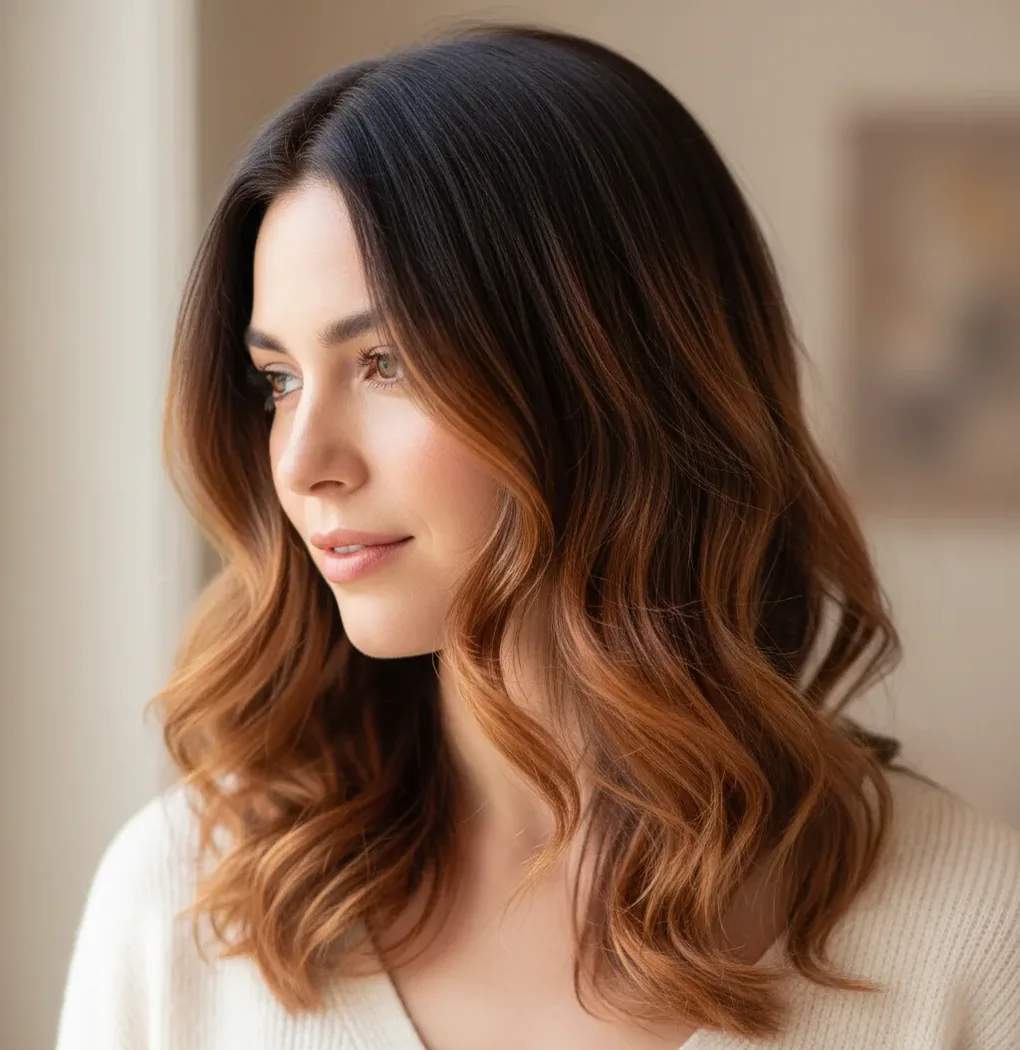
To change hair color in a photo with AI, use an editor that can isolate the hair region, apply a new hue, and preserve the original light-and-shadow detail. Start with a sharp portrait, mask only the hair, choose a shade, reduce intensity until the color matches the lighting, and check the hairline at high zoom before saving.
What Does It Mean to Change Hair Color in a Photo With AI?
Changing hair color in a photo with AI means using a model-assisted editor to identify the hair area and recolor it while keeping the original texture, shine, and shadows. Instead of painting a solid layer over the head, a good AI workflow separates hair from skin, background, eyebrows, clothing, and accessories, then shifts hue and chroma while preserving luminance.
This is useful for salon previews, social posts, cosplay looks, branding shoots, dating profiles, character references, and before-and-after concepts. The edit is only convincing if the color respects the original photo: warm window light should create a warmer dye result, cool bathroom lighting should stay cooler, and roots or part lines should not look airbrushed.
How Does AI Recolor Hair Without Losing Texture?
AI hair recoloring usually starts with semantic segmentation, where a vision model predicts which pixels belong to hair. That mask is then used to apply a controlled color transform to the hair region while leaving nearby skin and background untouched. Edge-aware blending helps handle wispy strands, curls, flyaways, and soft hairline transitions.
The key technical idea is luminance preservation. Natural hair contains darker roots, midtone body color, specular shine, and shadowed strands. If the tool only changes hue while keeping brightness contrast intact, copper, auburn, black, blonde, gray, pink, or blue shades can still look like real hair. If it overwrites brightness, the result looks like plastic dye or a social filter.
How Do You Change Hair Color in a Photo With AI?
Choose a sharp portrait
Use a photo where the hairline, part, ears, and flyaways are visible. Avoid heavy motion blur, low-light noise, extreme compression, or photos where hair blends into a dark background.
Select only the hair
Use an AI mask, brush tool, or object selection feature to isolate hair. Keep skin, eyebrows, eyelashes, facial hair, hats, jewelry, and clothing outside the selection unless you intentionally want them changed.
Apply the target shade lightly
Start with a lower intensity than you think you need. Natural hair color has tonal variation, so a 40-70% strength setting often looks more believable than a fully saturated color change.
Match the lighting temperature
Adjust warmth and brightness so the new color fits the scene. Copper and honey blonde usually need warm highlights, while ash brown, silver, and blue-black need cooler shadows.
Refine roots and hairline edges
Zoom to 150-200% and inspect the forehead, temples, part line, ears, neck, and flyaways. Pull the mask back where color leaks onto skin, and soften only the edge where strands naturally fade.
Export for the final use
Save at the highest resolution available for prints, portfolio images, or salon references. For stories, thumbnails, and social posts, check the image again after resizing because halos can become more obvious.
What Are the Best AI Tools for Changing Hair Color in Photos?
| Tool | Best for | Control level | Main watch-out |
|---|---|---|---|
| Pict AI | Fast browser or iOS hair color previews | Simple shade, intensity, and edge refinement controls | Review privacy, export, and usage settings for your workflow |
| Adobe Photoshop | Professional retouching, campaigns, and print work | Very high control with masks, adjustment layers, and blending modes | Requires more manual skill and usually takes longer |
| Canva | Quick social graphics and lightweight portrait edits | Moderate control depending on available AI edit features | Less precise for difficult hairlines and flyaway detail |
| Facetune | Mobile selfies, creator posts, and beauty edits | Moderate control with mobile-first retouching tools | Can look filtered if smoothing or color strength is pushed too far |
| Fotor or similar web editors | Simple online edits without a full design suite | Basic to moderate control depending on the tool | Free tiers may limit resolution, exports, or watermark-free output |
Choose based on output need: use a fast AI recolor tool for previews, a layered editor for commercial retouching, and a mobile beauty editor for casual selfies. For print or portfolio images, mask precision and export resolution matter more than speed.
Which Hair Color Changes Look Most Natural in AI Photo Edits?
The most natural AI hair color changes stay within the brightness range of the original photo. Brown to copper, blonde to honey, black to espresso, brunette to auburn, and gray blending usually work well because the tool does not need to invent too much missing light detail. Subtle toning also works well for reducing brassiness or cooling down yellow highlights.
The hardest changes are black to platinum blonde, dark brown to pastel, and any vivid fantasy color on underexposed hair. Those edits require both color change and brightness reconstruction, so the model may flatten texture or exaggerate shine. For believable results, step through intermediate shades: black to dark brown, dark brown to caramel, caramel to blonde, then fine-tune warmth.
What Prompts Help AI Change Hair Color Realistically?
- Natural salon preview: "Change only the hair color to soft copper auburn. Preserve the original hair texture, roots, highlights, shadows, skin tone, eyebrows, and background lighting."
- Brunette tone shift: "Make the hair a cool espresso brown with subtle dimension. Keep the part line natural and avoid coloring the forehead, ears, or neck."
- Blonde preview: "Convert the hair to warm honey blonde while keeping darker roots and realistic strand detail. Do not bleach the skin or remove natural shine."
- Gray blending: "Add natural silver-gray blending through the hair, with darker lowlights and visible texture. Keep the face, eyebrows, and clothing unchanged."
- Fantasy color: "Change the hair to muted rose pink with realistic shadows and highlights. Keep the color semi-natural, not neon, and preserve flyaway strands."
- Color correction: "Reduce orange brassiness in the hair and shift it toward neutral beige brown. Keep the original lighting and avoid over-smoothing the hair."
How Do You Make AI Hair Color Look Real for Posts, Prints, or Salon Previews?
For social posts, the edit must read correctly at small size and survive platform compression. Keep saturation slightly lower than expected, because Instagram, TikTok thumbnails, and messaging apps can exaggerate warm reds and neon tones. Check the crop after export so the hairline is not the visual focus unless you want it to be.
For salon previews, realism matters more than drama. Export two or three nearby shades, such as soft copper, deep auburn, and warm chestnut, using the same photo and lighting. For prints or portfolio work, inspect the image at 100% and 200%, then check the scalp, part, ears, neck, and flyaways before sending it to a printer or client.
How Do You Fix Hairline Halos, Scalp Tint, and Dye Bleed?
Hairline halos happen when the mask extends a few pixels beyond the hair and recolors skin, background, or scalp. The fastest fix is to zoom in, subtract the affected edge from the mask, and reduce color intensity near the forehead, temples, ears, and neck. A small feather can help, but too much feathering creates a soft glow around the head.
Scalp tint usually appears along the part line when the editor treats visible skin as hair. Keep the scalp its original color unless the real hair would naturally cast a slight shadow. Dye bleed on flyaways is harder: preserve the main strands, but do not chase every single hair if it creates colored noise against the background.
When Does AI Hair Recoloring Fail?
- Blurry or low-resolution hair edges can create halos because the model cannot separate strands from skin or background cleanly.
- Very dark hair changed to platinum, pastel, or silver may look flat because the original photo contains limited highlight detail to preserve.
- Strong backlight can clip bright strands, making blonde, gray, or vivid colors look patchy near the edge of the head.
- Busy backgrounds such as trees, patterned wallpaper, fur collars, or textured fabric can confuse hair segmentation around flyaways.
Hair Color Previews for Salon Visits, Casting, and Content Planning
Salon clients comparing dye options: Use a hair color changer to create three versions of the same portrait: chestnut, copper, and beige blonde. Label each image with the intended shade rather than a dye formula. Bring the originals and edits to your appointment so the stylist can discuss maintenance, bleaching requirements, and what your current hair can realistically achieve.
Actors and cosplay creators: A performer considering a red-haired character can compare auburn and vivid scarlet before buying a wig. If the character also needs a fringe, make a separate version with a bangs filter. Keeping cut and color experiments separate makes it easier to identify which change actually suits the costume.
Portrait photographers preparing client options: Create a hair-only proof before proposing other cosmetic retouching. An eye color filter or AI teeth whitening for photos can alter how viewers judge the overall portrait, so keep those adjustments out of the initial comparison. For example, show a client two brunette shades with identical eyes, teeth, and skin.
Creators planning a campaign: A lavender hair preview can help coordinate wardrobe and set design for a product launch. If you need to change background color to explore a yellow or navy backdrop, save those as separate mockups. A complementary backdrop can make the same hair shade appear more intense without changing the hair edit itself.
Students assembling a mood board: Keep one unedited reference beside every proposed shade. If you search for “change image contrast free” to improve a dim portrait, apply the same correction to all comparison images. Otherwise, a brighter blonde mockup may win simply because its exposure differs from the brown version, not because the shade is a better fit.
Questions About AI Hair Color Previews
An AI preview can illustrate a target shade, but it cannot predict a dye result reliably. Real outcomes depend on your starting color, previous dye, porosity, bleaching history, and the formula used. A blonde preview on dark hair does not establish that one salon session will achieve it. Use the image as a consultation reference, not a guaranteed result.
Displays differ in brightness, color calibration, and saturation. Night modes and adaptive display settings can also make an ash shade look warmer or a copper shade look duller. Compare the original and edited photo on the same screen with those settings disabled. For salon discussions, bring several reference images rather than relying on one exact on-screen color.
Yes, some online and mobile AI photo editors offer free hair color changes, though export resolution, watermarks, or advanced controls may vary by tool.
Use a sharp, well-lit photo and increase brightness gradually while preserving texture. A staged edit from black to brown to caramel to blonde usually looks more realistic than one extreme jump.
Yes, but curls, coils, and textured hair need accurate masking around edges and internal shadows. High contrast between hair and background improves strand definition.
Zoom in and refine the mask around the forehead, temples, ears, and neck. Lower the color intensity at the edge instead of using a hard painted boundary.
Good AI recolor tools preserve luminance, so highlights and shadows remain visible after the hue changes. If the result looks flat, reduce saturation before increasing brightness.
Yes, use a partial mask for bangs, roots, ends, money pieces, or streaks. The result looks best when the selected area follows real hair sections and lighting direction.
Use a high-resolution portrait with sharp hair edges, even lighting, and clear separation between hair and background. Avoid motion blur, heavy filters, and very dark shadows.
Yes, many AI photo editors work in mobile browsers or iOS apps. For better precision, pinch-zoom into the hairline and review the mask before exporting.
For private experimentation, it is usually low risk, but public posting or professional use should require clear consent. Hair edits can affect identity, appearance, and personal presentation.