How to Denoise Grainy or Noisy Photos With AI
AI denoising reduces random speckles, color blotches, and high-ISO grain while trying to preserve real edges, skin texture, hair, fabric, and text. Pict AI can clean low-light photos in a browser or on iOS, but the best result comes from using the original file, checking details at 100% zoom, and avoiding over-smoothing.
How to Denoise Grainy or Noisy Photos With AI
- Upload the original noisy photo, preserving its full resolution rather than using a screenshot or compressed copy.
- Choose denoising or describe the cleanup: reduce shadow speckles while preserving skin texture, hair, and lettering.
- Generate a cleaned version with moderate noise reduction, avoiding requests to erase every trace of texture.
- Review faces, fine patterns, and shadows at full size; reduce smoothing if needed, then export the cleaned photo.
Example prompt: Denoise this low-light photo, reduce color speckle in shadows, keep hair and fabric texture, natural skin, slight sharpening, no plastic smoothing.
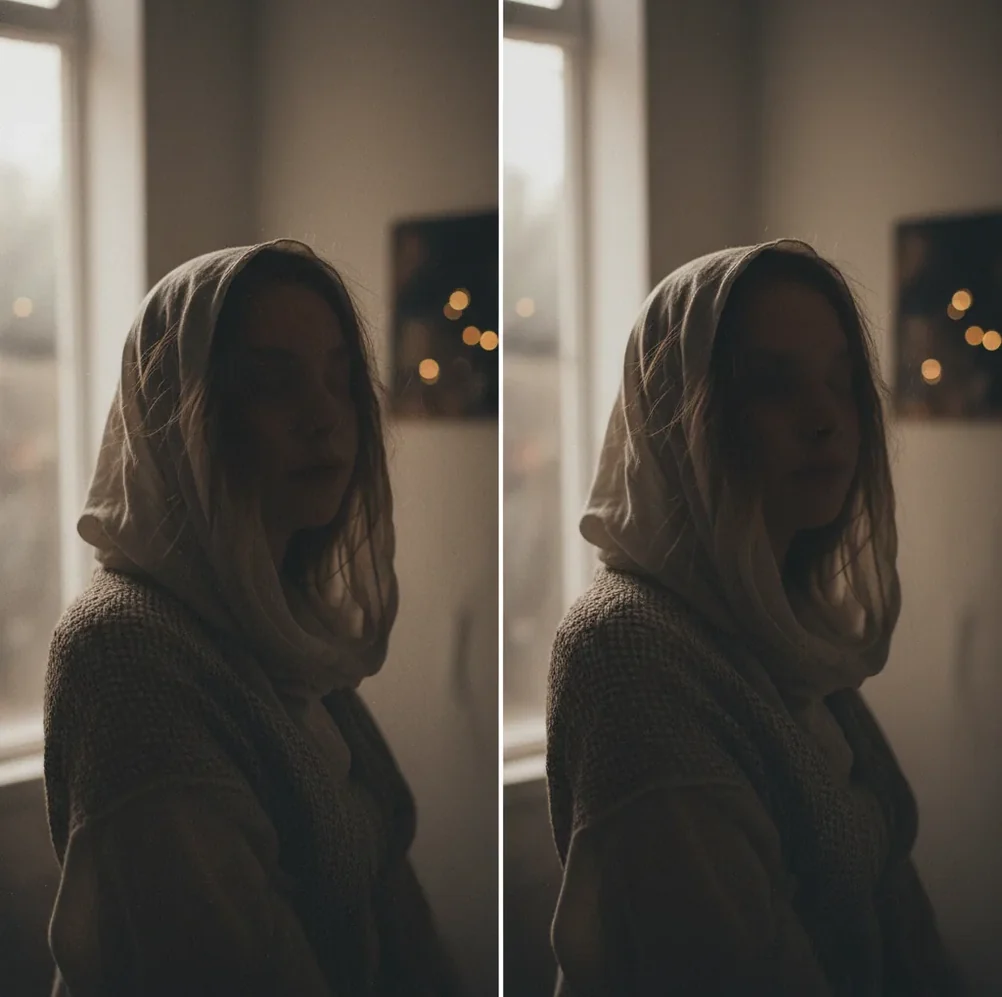
To denoise grainy or noisy photos with AI, upload the highest-quality original image, apply moderate noise reduction, then inspect hair, skin, shadows, and text at 100% zoom before exporting. AI denoising works best on ISO grain, shadow speckle, and color noise, but it cannot fully recover detail lost to motion blur, heavy JPEG compression, or extreme underexposure.
What Does AI Photo Denoising Mean?
AI photo denoising means using a machine-learning model to reduce digital noise while keeping the photo’s real structure readable. In editing terms, noise is the random luminance speckle, color blotching, and shadow grain that appears in high-ISO, low-light, underexposed, or small-sensor images.
The goal is not to remove every visible texture. A believable denoise keeps eyelashes, pores, hair strands, fabric weave, signage, and edge contrast intact while reducing the distracting random pattern. The safest way to judge the edit is at 100% zoom, because 25% zoom can hide artifacts and 200% zoom can make normal pixel texture look worse than it will appear in a post, print, or portfolio image.
How Does AI Separate Noise From Real Detail?
AI denoising tools usually rely on convolutional neural networks, transformer-based image models, or diffusion-style restoration models trained on clean and noisy image pairs. The model learns statistical patterns: random speckle behaves differently from edges, gradients, repeated texture, skin transitions, and object boundaries.
The hard part is high-frequency detail. Hair, grass, knit fabric, pores, stars, and tiny text can look similar to noise because they are small, contrasty patterns. A good workflow is to reduce noise first, then add mild sharpening or clarity only where needed. This keeps the file looking like a cleaner capture instead of a blur filter or painted skin effect.
How Do You Denoise a Grainy Photo Without Waxy Skin?
Start With the Best Source File
Use the original camera file, phone photo, or highest-resolution export you have. Avoid screenshots, chat-app downloads, and reposted social images because they often contain JPEG blocks, halos, and baked-in sharpening that denoising cannot cleanly separate from real detail.
Apply Moderate Noise Reduction First
Begin with a medium denoise or enhancement setting rather than the strongest option. Strong settings can flatten cheeks, remove pore texture, smear hairlines, and make fabric look like plastic.
Inspect Detail at 100% Zoom
Check the areas most likely to break: eyelashes, eyebrows, hair edges, skin texture, small text, jewelry, fabric weave, leaves, and shadow corners. Use 200% zoom only to spot obvious artifacts, not to judge the whole image.
Reduce Smoothing Before Adding Sharpness
If the photo looks waxy, lower the denoise strength before increasing sharpening. Sharpening a heavily smoothed image often creates crunchy halos instead of natural detail.
Export and Compare Side by Side
Compare the cleaned version with the original at normal viewing size and at 100% zoom. For social posts, judge how it looks on a phone screen; for prints, check important faces and edges before ordering.
Which Photos Benefit Most From AI Noise Reduction?
AI noise reduction helps most when the photo contains recoverable detail hidden under random grain. Night street photos, indoor birthday shots, concert images, restaurant portraits, underexposed phone photos, product images with noisy backgrounds, and blue-hour travel shots are strong candidates.
It is especially useful for emotional or practical images that are worth saving: a dim wedding reception photo, a pet picture taken indoors, a marketplace product shot, a personal-brand portrait, or a family image meant for a small print. The edit should make the image feel cleaner, not mathematically perfect. Some natural texture helps the photo stay believable.
Which AI Denoising Tools Should You Compare?
| Tool Type | Best For | Strengths | Watch For |
|---|---|---|---|
| Pict AI | Fast browser or iOS cleanup for grainy phone photos, portraits, and low-light images | Quick previews, simple workflow, useful for creators who want clean exports without a full editing suite | Still requires checking fine detail after processing |
| Desktop photo editors | RAW files, batch editing, professional print workflows, and controlled sharpening | More sliders, local masking, color management, and non-destructive workflows | Higher learning curve and often paid licensing |
| Mobile editing apps | Quick social posts, selfies, travel photos, and small-screen edits | Convenient on phones and good for casual cleanup | Can over-smooth skin if beauty filters and denoise are stacked |
| Free web denoise tools | One-off tests, low-stakes images, and quick previews | Easy access and no installation | May add watermarks, compress exports, limit resolution, or have unclear retention policies |
Choose the tool based on the source file and final use. A social post can tolerate lighter cleanup than a portfolio image or print, where texture, edges, and export resolution matter more.
What Settings and Recipes Work for Common Noisy Photos?
- Low-light portrait recipe: apply medium denoise, protect facial texture, inspect eyelashes and hairline at 100%, then add very light sharpening only to eyes, lips, and clothing edges.
- Noisy sky recipe: reduce color noise first, keep luminance noise reduction moderate, avoid strong sharpening in flat sky gradients, and check for banding before export.
- Concert photo recipe: denoise shadows, preserve stage-light color, avoid forcing skin tones neutral, and sharpen only the subject silhouette or face.
- Product photo recipe: clean the background more aggressively than the product, preserve label text and material texture, then export at the resolution required by the marketplace or store.
- Old phone photo recipe: use the original file if possible, apply moderate cleanup, reduce color blotches, and accept some remaining grain so faces do not become rubbery.
- Text-style instruction for AI editors: “Reduce random luminance noise and color speckle while preserving natural skin texture, hair strands, fabric weave, text edges, and realistic sharpness. Do not over-smooth faces.”
How Should You Denoise Photos for Social Posts, Prints, and Portfolios?
The right denoise level depends on where the image will live. For Instagram, TikTok covers, dating profiles, and casual social posts, prioritize a clean look at phone-screen size. A little softness is acceptable if the face, subject, and mood read clearly.
For prints, portfolios, product listings, and branding images, preserve more texture and inspect at 100% before exporting. Prints can reveal mushy hair, smeared fabric, and noisy shadows differently than screens. If the image is important, create two versions: a cleaner social export and a more conservative high-resolution export for print or professional use.
What Are the Limits of AI Denoising?
- Motion blur is not noise. AI denoising can reduce speckle around a blurred subject, but it cannot fully restore a face, license plate, or hand that was smeared by camera movement.
- Extreme underexposure may contain too little real signal. If the shadows were lifted several stops, the model may invent smooth areas or remove texture because the original detail is missing.
- Heavy JPEG compression can leave block artifacts, banding, mosquito noise, and edge halos that do not behave like normal ISO grain.
- Tiny text, receipts, IDs, medical images, and legal documents should not be trusted after AI cleanup because the model may soften, alter, or hallucinate small characters.
What Is the Best Practical Denoise Workflow?
The best practical workflow is: denoise first, inspect detail, adjust smoothing, then sharpen lightly. This order prevents you from sharpening noise before cleanup and helps the final image stay crisp without becoming crunchy.
For most creator edits, keep the result believable rather than spotless. Clean the shadows, reduce color speckle, preserve the subject’s texture, and export for the final destination. A memory, product image, or portrait usually looks stronger when it feels like a clean photograph, not an over-processed reconstruction.
Keep editing: sharpness, merges, and color after noise cleanup
What Should Change - and Stay Unchanged - After Denoising?
A useful before-and-after comparison checks whether the edit removes distractions without changing the evidence in the picture. For a request such as “fix noisy grainy photo,” judge success by smoother empty areas and unchanged subject features, not by whether every pixel looks clean. Compare versions with the same brightness and crop; a darker preview can conceal noise without actually reducing it.
| Before | Reasonable result after AI denoising | What AI handles poorly |
|---|---|---|
| Colored flecks on a neutral wall | More consistent color with fewer isolated specks | Recovering accurate color where the original has almost no signal |
| Speckled sky with a smooth brightness transition | Less grain while retaining the gradual transition | Removing existing bands; smoothing may make them more noticeable |
| Noise around distant lettering | A cleaner background around readable characters | Reconstructing unreadable letters reliably |
| Grain mixed with repeating brick or mesh patterns | Reduced random speckle with the pattern still intact | Preserving every tiny repetition at strong settings |
| Noise combined with doubled moving edges | Cleaner surfaces, but doubled outlines may remain | Correcting movement through noise reduction alone |
If you are deciding what app fixes blurry photos, first separate softness from noise: a doubled outline suggests movement, while scattered specks across a flat surface suggest noise. A cleaner background is not proof that a blurred subject has become sharper.
Learning how to restore faded family photos with AI also requires separating defects. Denoising addresses speckle, not faded dyes, scratches, or missing paper. Save a version after each repair so you can identify which operation altered a face or damaged a small feature. With scanned prints, retain fine grain when it belongs to the original photograph rather than treating all texture as a flaw.
Photo Denoising Questions Answered
Yes, if the editor supports masks or selective adjustments. Apply stronger noise reduction to plain walls, skies, or out-of-focus areas while protecting faces and detailed subjects. Check the boundary around hair and clothing: an abrupt change in texture can make the subject look pasted onto the background. Some automatic denoisers do not offer regional controls.
It can reduce JPEG file size because smoother areas are easier to compress than random noise. The result also depends on export quality, dimensions, metadata, and file format. A denoised image exported at higher quality may still be larger than the original. Keep export settings identical when comparing sizes, and do not treat a smaller file as evidence of better image quality.
Yes, AI can reduce grain, shadow speckle, and color noise in many photos. It works best when the original image still contains real detail underneath the noise.
Phone photos usually become grainy because the camera raises ISO in low light, uses a small sensor, or brightens underexposed shadows. Compression from messaging apps can make the noise look worse.
Denoise before sharpening in most workflows. If you sharpen first, you may make the noise more visible and harder for the AI model to remove cleanly.
It can if the setting is too strong. Use moderate noise reduction, check skin at 100% zoom, and keep some natural pore and texture detail.
Yes, AI denoising is useful for night photos with shadow speckle, high-ISO grain, and color blotches. It cannot fully recover detail lost to motion blur or severe underexposure.
Use 100% zoom to judge real detail and artifacts. A quick 200% check can help spot problems, but it should not be the main way you decide whether the photo looks good.
Yes, RAW files often give better results because they preserve more tonal and detail information than compressed JPEGs. Many professional workflows denoise RAW files before final sharpening and color grading.
Not reliably. Denoising reduces random noise, while blur comes from motion, missed focus, or lens softness; those problems may need deblurring or sharpening, and even then recovery is limited.