How to Digitize and Enhance Old Printed Photos With AI
To digitize and enhance old printed photos with AI, first capture the print cleanly with a flatbed scanner or glare-free phone photo, then use restoration software to reduce dust, scratches, fading, blur, and color cast. The capture step matters most: AI can improve a good scan dramatically, but it cannot recover details that were hidden by glare, low resolution, or motion blur.
How to Digitize and Enhance Old Printed Photos With AI
- Upload a full-resolution scan or evenly lit photograph of the print, keeping an untouched archival copy.
- Choose gentle restoration or describe specific damage, asking to preserve facial features, film grain, and handwritten details.
- Generate a restored version, starting with restrained scratch removal and color correction rather than aggressive face enhancement.
- Compare faces and inscriptions with the original, then export a separate full-size file for sharing or printing.
Example prompt: Restore an old printed photo scan: remove dust and fine scratches, correct yellowed paper color, recover facial detail gently, keep natural film grain, realistic skin texture, neutral lighting, no over-sharpening
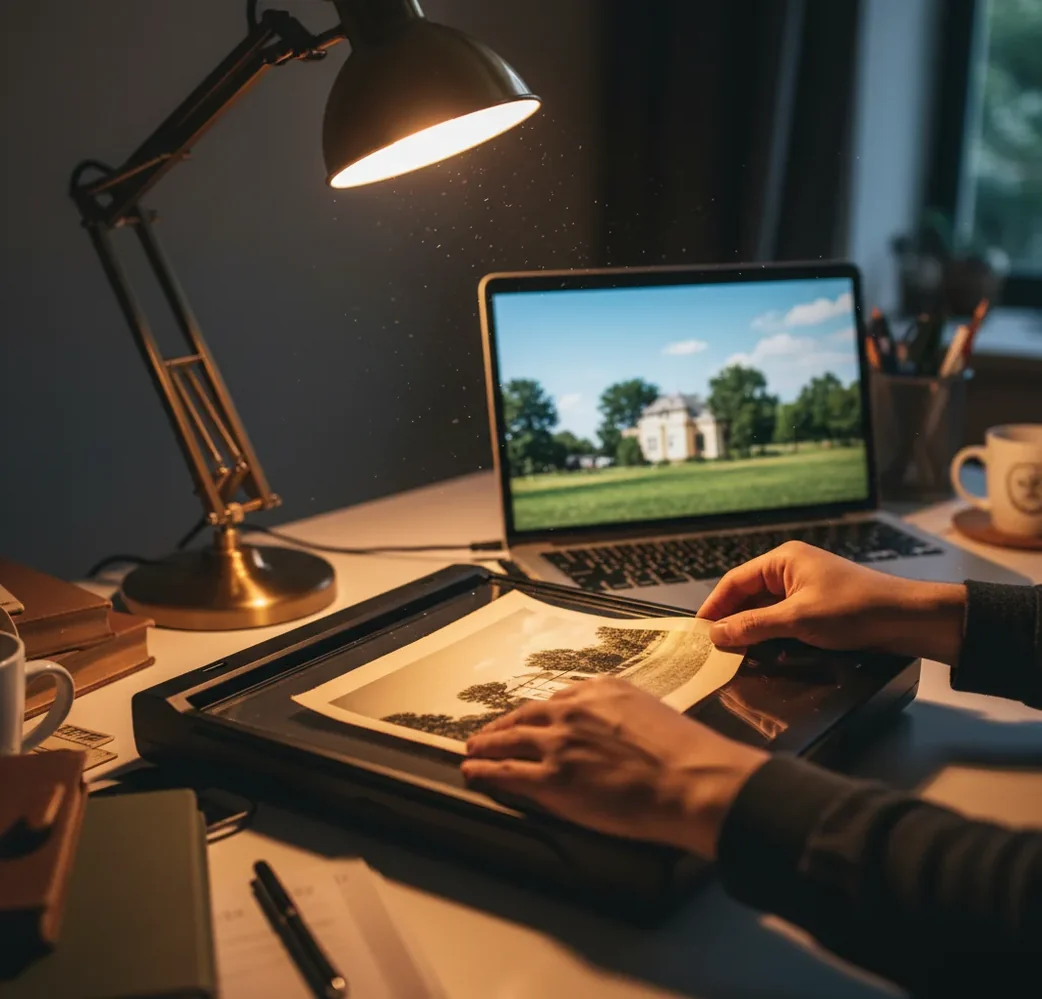
To digitize and enhance old printed photos with AI, scan the print at 300 dpi for sharing or 600 dpi for repair and reprinting, then run an AI restoration pass for scratches, dust, fading, and mild blur. Save the untouched scan first, export a restored copy separately, and avoid over-sharpening so faces, paper texture, and fabric still look natural.
What does it mean to digitize and enhance old printed photos with AI?
Digitizing old printed photos means converting a physical photo print into a digital image file using a flatbed scanner, document scanner, or phone camera. Enhancing means improving that file after capture with edits such as white balance correction, scratch removal, dust cleanup, deblurring, contrast repair, and color restoration.
AI photo restoration is best understood as assisted repair, not magic reconstruction. The software analyzes patterns such as paper grain, crease lines, faded dyes, and soft edges, then predicts cleaner pixels where damage interrupts the image. For family archives, genealogy folders, memorial slideshows, social posts, gifts, prints, and portfolio projects, the goal is usually a believable restored photo that still looks like the original moment.
How does AI restore scratches, fading, and blur in scanned prints?
AI restoration tools use computer vision to separate photo content from print damage. A model may detect high-contrast scratch lines, dust specks, scanner noise, yellowed paper tone, compression artifacts, and soft focus, then use learned image priors to rebuild plausible texture around faces, clothing, backgrounds, and edges.
Technically, restoration can combine denoising, super-resolution, deblurring, colorization, inpainting, face enhancement, and tone mapping. The best results come from high-quality input because the model has more real information to preserve. A 600 dpi scan of a 4 x 6 inch print gives AI more usable facial detail than a dim phone snapshot, especially if you plan to crop, reprint, or enlarge the restored image.
How do you scan old printed photos before using AI?
Clean the glass and print gently
Use a blower or soft brush for loose dust, then clean the scanner glass with a microfiber cloth. Avoid liquids on old prints unless you know the paper and emulsion can tolerate it.
Scan at the right resolution
Use 300 dpi for archiving and sharing small prints. Use 600 dpi when faces are small, damage needs repair, or you may reprint larger than the original. For tiny wallet photos, 600-1200 dpi can help.
Turn off aggressive auto correction
If your scanner software offers strong sharpening, beauty filters, or automatic color enhancement, keep them low or disabled. It is better to give AI a neutral file than a crunchy, overprocessed scan.
Save a master file
Export the untouched scan as TIFF or high-quality PNG when possible. If you use JPEG, choose the highest quality setting to avoid blocky compression around faces and edges.
Restore a copy, not the original
Upload or edit a duplicate file for AI restoration. Keep the master scan unchanged so you can compare results, retry with different settings, or make a more accurate archival version later.
Can you use a phone instead of a scanner for old photos?
Yes, a phone can digitize old printed photos if you control glare, angle, focus, and lighting. A modern phone camera is often good enough for social posts, family group chats, school projects, and quick memorial displays, but it must be held perfectly parallel to the print to avoid warped faces and stretched corners.
For glossy prints, shoot in bright indirect light rather than under a ceiling lamp. Place the photo on a flat matte surface, turn off flash, clean the lens, tap to focus on the face, and capture at the phone’s highest resolution. If reflections remain, try moving the print near a window and rotating it slightly until the glare leaves important areas such as eyes, mouths, and text.
What is the best workflow to enhance a digitized print with AI?
Choose the cleanest capture
Compare your scans or phone shots at 100% zoom. Pick the file with the least glare, the sharpest eyes, and the most even exposure, even if the color looks faded.
Correct rotation and crop first
Straighten the print edges, crop out scanner borders, and remove empty background before restoration. This helps the AI focus on the photo rather than the table, glass edge, or album page.
Run a light restoration pass
Use AI to reduce dust, scratches, yellowing, haze, and mild blur. Start with moderate strength; old prints should not look like plastic studio portraits unless that is the creative goal.
Check faces, hands, and text
Zoom into eyes, teeth, fingers, jewelry, uniforms, handwriting, and background signs. These are common places where AI may invent or simplify detail.
Export for the final use
Use JPEG in sRGB for messaging, email, and social platforms. Use PNG or TIFF for further editing and print preparation, especially if the image will become a framed gift, canvas, or archive copy.
Which tools can digitize and restore old printed photos?
| Tool or method | Best for | Strengths | Watchouts |
|---|---|---|---|
| Flatbed scanner plus editor | Highest-quality family archiving and reprints | Even lighting, flat capture, predictable 300-1200 dpi files | Slower for large albums and may need manual color correction |
| Phone scanning app | Fast album capture and casual sharing | Portable, quick cropping, useful edge detection | Glare, lens distortion, and uneven focus can reduce restoration quality |
| AI restoration web app | Scratch, dust, fade, and blur cleanup | Fast repair workflow with minimal manual editing | Cloud processing may not suit sensitive images |
| Desktop photo editor | Manual control and professional print work | Precise masking, curves, healing, color channels, and non-destructive layers | Steeper learning curve and slower for batch family projects |
| Pict AI | Browser or iOS restoration of scanned prints and phone captures | Useful for quick cleanup, color improvement, and share-ready exports | Review privacy terms and inspect important faces before printing |
No single tool is best for every photo. Use a scanner when capture quality matters, a phone when speed matters, AI restoration when damage cleanup matters, and a manual editor when accuracy or print production matters.
What AI settings make old photo restorations look natural?
Natural restoration usually comes from moderate enhancement, not maximum strength. Reduce scratches and haze first, then adjust color, contrast, and sharpness in small steps. If skin pores disappear, hair turns into painted strands, or fabric weave becomes smeared, the restoration strength is too high.
For old family prints, preserve some grain and tonal softness because those cues make the image feel emotionally authentic. A 1970s wedding print, a faded school portrait, or a curled baby photo should not always look like a modern DSLR file. Aim for clean eyes, readable faces, balanced color, and a print-ready file while keeping the original era visible.
What prompt recipes help describe old photo restoration goals?
- Archive-safe restoration: “Restore this scanned family photo while preserving the original era, facial identity, natural skin texture, paper grain, and clothing detail. Reduce dust, scratches, yellowing, and haze without making the image look modern or artificial.”
- Memorial print cleanup: “Create a respectful restored version for an 8 x 10 inch memorial print. Prioritize clear eyes, natural skin tone, gentle contrast, and clean background texture. Do not change facial features, age, hairstyle, clothing, or expression.”
- Social sharing version: “Enhance this old printed photo for Instagram and family messaging. Improve brightness, color, and sharpness, remove visible dust and scratches, and keep a warm vintage feel.”
- Genealogy archive version: “Restore legibility and detail while keeping historical accuracy. Preserve handwriting, uniforms, signs, badges, dates, and background objects. Avoid inventing missing symbols or text.”
- Creative gift version: “Clean and enhance this old print for a framed gift. Keep the emotional tone soft and nostalgic, correct fading, reduce creases, and make the image suitable for high-quality printing.”
Where does enhancing digitized photo prints help most?
AI-enhanced print digitization is most useful when the photo has emotional value but moderate technical damage. Common examples include yellowed wedding prints, dusty school portraits, folded wallet photos, faded vacation snapshots, baby photos with soft focus, and album pages with light scratches or fingerprints.
The restored files can be used for family archive drives, genealogy profiles, obituary programs, reunion slideshows, birthday gifts, canvas prints, photo books, and brand storytelling when historical images are part of a creator’s identity. A clean digital version also protects fragile originals from repeated handling, mailing, and rescanning.
When can AI not fully fix an old printed photo?
- AI cannot recover real detail that was never captured. A 150 dpi scan of a tiny face will not contain enough pixels for accurate eyes, eyelashes, or text.
- Glare on glossy prints can permanently hide information. If a white reflection covers a face, the model can only guess what belongs there.
- Severe motion blur, original camera blur, or out-of-focus printing can only be improved slightly. Deblurring works best when edges are softened, not erased.
- Heavy chemical fading may require manual color channel work after AI restoration, especially with magenta, cyan, or green dye shifts.
Pixel dimensions and archival details to check before exporting
Pixel dimensions determine how large a restored scan can print; changing its resolution label alone adds no detail. If you are searching for what app fixes blurry photos, check whether the tool exports full-size files rather than only preview images. For how to revive a blurry old portrait with ai, judge the eyes, mouth, and hairline against the untouched scan before choosing an enlargement.
| Setting or detail | Practical target | Why it matters |
|---|---|---|
| 4 × 6-inch print | 1200 × 1800 pixels at 300 pixels per inch | A useful output target for a small reprint without unnecessary enlargement. |
| 8 × 10-inch print | 2400 × 3000 pixels at 300 pixels per inch | Requires a 4:5 crop; check that faces and handwritten borders remain intact. |
| Color depth | 16 bits per channel for an editing master, if supported | Preserves more tonal steps during substantial color and exposure adjustments; it does not recover missing detail. |
| Sharing color space | sRGB with an embedded profile | Helps compatible viewers interpret colors consistently; individual screens still vary. |
| Archive coverage | Entire front, plus a separate image of the back | Keeps dates, studio stamps, and inscriptions alongside the restored picture. |
When considering how to enhance a disposable camera photo with ai, distinguish visible grain from damage: smoothing both can erase texture. Learning how to restore old photos with ai also means deciding which marks belong to the photograph's history.
The question is there an app that restores old photos should lead to checks for adjustable repair strength and original-size exports. A pict.ai vs youcam enhance comparison should examine those controls, export limits, and whether facial repair can be reduced, not just the appearance of a small preview.
Questions about scanning and restoring printed photos
Divide the image's pixel width and height by your intended print resolution to estimate its dimensions in inches. A 2400 × 3000-pixel image supports an 8 × 10-inch print at 300 pixels per inch. AI enlargement can produce more pixels, but not necessarily more authentic detail. Inspect faces at the intended print size and order a small proof before paying for a large print.
Keep a complete archival capture before removing anything. Handwritten dates, names, and studio stamps can help identify people, places, and the photograph's origin. Make a separate presentation copy if you want a clean border or background. Avoid applying automatic scratch removal over inscriptions, since it may mistake letters for damage. Photograph the reverse separately and save it with a matching filename.
A flatbed scanner is best for quality because it keeps the print flat and evenly lit. Scan at 300 dpi for sharing or 600 dpi for repair, cropping, and reprinting.
Yes, AI can reduce scratches, dust, fading, haze, noise, and mild blur in digitized prints. It works best when the scan or phone capture is sharp, evenly lit, and high resolution.
Use 300 dpi for basic sharing and digital albums. Use 600 dpi if the photo is small, damaged, cropped around faces, or intended for a new print.
TIFF is best for archival masters, PNG is useful for lossless editing, and high-quality JPEG is fine for sharing. Always keep an untouched master file before running restoration.
Turn off flash, avoid overhead lights, and use soft indirect light near a window. Keep the phone parallel to the print and move the photo until reflections are away from faces and important details.
AI can colorize black-and-white photos, but the colors are educated guesses unless you provide references. For historical or genealogy work, keep a black-and-white version as the accurate master.
AI can reduce many crease lines by filling them with surrounding texture. Deep folds that cross eyes, mouths, text, or patterned clothing may still need manual retouching.
They usually look fake because sharpening, face enhancement, denoising, or smoothing was pushed too far. Lower the strength and preserve some grain, wrinkles, and paper texture for a natural result.
Check the tool’s privacy policy, storage rules, and deletion options before uploading. Avoid cloud tools for sensitive images unless you are comfortable with how the service processes and stores files.