How to Restore Faded Family Photos With AI
To restore faded family photos with AI, start with the cleanest scan or phone capture you can make, then use restoration tools to rebuild contrast, reduce yellowing, and recover natural-looking color. The best results come from a scan-first workflow, light correction, and exporting both an untouched archive file and a restored copy.
How to Restore Faded Family Photos With AI
- Upload a duplicate scan of the faded family print, keeping the original file untouched.
- Choose restoration or describe faded colors and yellowing, requesting unchanged faces, clothing details, and background lettering.
- Generate a restored version with restrained enhancement; avoid combining aggressive face reconstruction and heavy noise reduction.
- Review faces and fine details beside the scan, then export an accepted copy with a distinct filename.
Example prompt: Restore this faded family photo scan: remove yellowing, recover contrast, keep natural skin tones, reduce dust specks, preserve film grain, avoid over-sharpening, realistic colors, archival look.
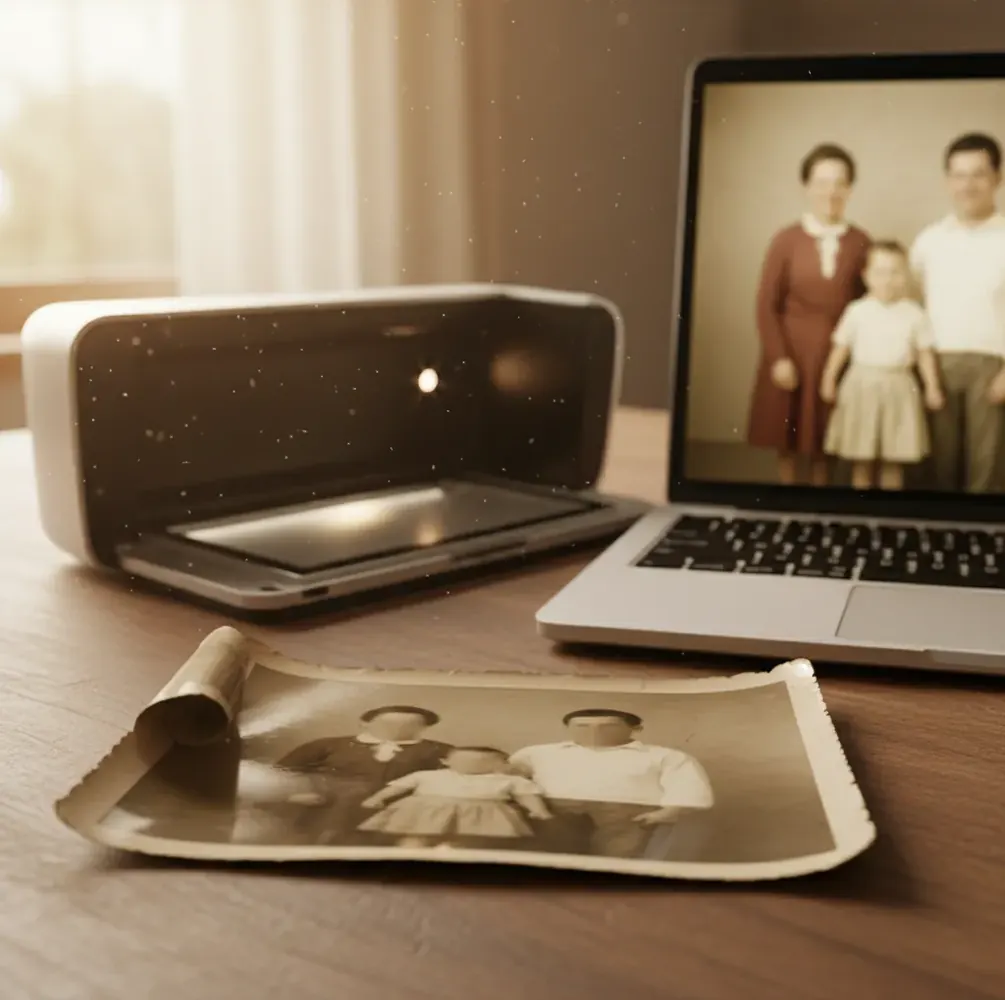
To restore faded family photos with AI, scan the print at 300 to 600 DPI, straighten and crop it, then use an AI photo restoration tool to correct faded contrast, color cast, dust, and mild blur. Always compare the restored image against the original and save two versions: a high-resolution archive copy and a smaller file for sharing or printing.
What Does It Mean to Restore Faded Family Photos With AI?
Restoring faded family photos with AI means using machine learning to improve an aging print or scan by rebuilding contrast, balancing color, reducing haze, and cleaning minor damage. The goal is not to make the image look newly generated; it is to make faces, clothing, backgrounds, and original tones easier to read while preserving the character of the photograph.
Most faded prints suffer from low contrast, yellowed paper, dye loss, dust, scratches, or uneven exposure from storage in albums, frames, basements, and shoeboxes. AI restoration tools estimate missing tonal relationships from the remaining image data, then apply corrections that would take much longer with manual retouching. For heirlooms, memorial boards, photo books, gifts, and family archives, the safest workflow is to restore a duplicate and keep the original scan untouched.
How Does AI Restore Color and Contrast in Old Prints?
AI restores color and contrast by detecting image structures, estimating the original tonal range, and applying learned corrections to faded areas. Modern restoration models use computer vision techniques such as feature extraction, edge detection, face-aware enhancement, denoising, color balancing, and super-resolution to infer what a healthier version of the print may have looked like.
Fading is usually uneven because photographic dyes break down at different rates. Reds may shift orange, whites may turn cream, shadows may become gray, and skin tones may lose separation from the background. AI models compare those signals against patterns learned from large image datasets, then rebuild midtone contrast, lift shadow detail, neutralize color casts, and smooth scanner noise. If the scan has glare, clipped highlights, or missing emulsion, the model has less real information and may invent color or texture.
How Should You Scan a Faded Family Photo Before AI Restoration?
Clean the print gently
Use a soft blower or microfiber cloth to remove loose dust. Do not use water, alcohol, household cleaners, or heavy pressure on fragile, cracked, or matte photo paper.
Scan at 300 to 600 DPI
Use 300 DPI for social sharing and small prints, or 600 DPI for archiving, enlargements, and detailed restoration. Save as TIFF or high-quality PNG when possible; use high-quality JPEG only if file size matters.
Keep the photo flat and square
Align the print with the scanner bed and avoid tilted corners. A straight scan gives AI cleaner geometry and reduces the need for distortion correction later.
Avoid glare if using a phone
Place the photo on a matte dark surface near indirect daylight. Shoot from directly above, turn off flash, and use at least a 12 MP camera capture if you cannot scan.
Save an untouched master file
Name the original scan clearly, such as family-wedding-1978-original.tif. Never overwrite it; every AI edit should happen on a duplicate.
How Do You Restore a Faded Photo Step by Step?
Duplicate the scan
Create a working copy before editing. This protects the archival file and lets you compare the restored version against the original at any time.
Crop and straighten first
Remove scanner borders, rotate the image, and correct perspective before AI enhancement. Clean framing helps the model focus on the photograph instead of the paper edge.
Restore contrast before color
Recover tonal separation in faces, clothing, and backgrounds before pushing saturation. A faded photo usually needs stronger blacks and clearer midtones before it needs vivid color.
Neutralize the color cast
Adjust yellow, orange, green, or magenta shifts until whites look like aged paper rather than bright digital white. Skin tones should look believable, not overly pink or plastic.
Reduce noise and damage lightly
Apply dust removal, scratch repair, and denoising at moderate strength. Zoom to 100% and stop before hair, fabric weave, paper grain, or film texture disappears.
Export archive and share versions
Save a high-resolution restored file for printing and a smaller JPEG for messages, social posts, slideshows, or cloud albums. Include the date, family name, and restore status in the filename.
Which AI Photo Restoration Tools Work Best for Faded Prints?
| Tool | Best For | Strength | Watch Out For |
|---|---|---|---|
| Pict AI | Fast browser or iOS restoration of faded family prints | Simple workflow for color cast correction, contrast recovery, and share-ready exports | Cloud processing may apply; check current export and usage terms for sensitive projects |
| Adobe Photoshop or Lightroom | Manual control, professional retouching, and print preparation | Precise curves, healing, masking, color grading, and non-destructive edits | Requires more skill, subscription cost, and time per image |
| Topaz Photo AI | Sharper scans, denoising, and detail recovery | Strong enhancement for blur, grain, and resolution issues | Can oversharpen faces or create artificial detail if settings are too strong |
| Remini | Quick face enhancement from phone photos | Useful for portraits where facial clarity is the main goal | May change facial texture or make old portraits look too modern |
| MyHeritage Photo Enhancer | Genealogy projects and family-history sharing | Good for organizing and enhancing ancestral portraits | Account requirements, privacy terms, and export limits should be reviewed |
The best tool depends on the source image. Use a simple AI restorer for quick family sharing, a manual editor for museum-quality control, and specialist enhancement software when blur or low resolution is the main problem.
What Settings Make Restored Old Photos Look Natural?
Natural restoration usually means moderate contrast, conservative saturation, and detail that still looks photographic. As a working rule, inspect the image at 100% zoom and reduce enhancement strength if skin becomes waxy, eyes look too sharp, teeth become unnaturally white, or clothing texture turns into smooth paint.
For most faded prints, start with contrast and white balance before denoising. Keep blacks slightly soft if the original was a matte print, and avoid forcing aged paper to pure RGB white. If you plan to print, export at the original scan resolution or higher and test a small proof before ordering a large framed copy. For social posts, a clean 2000 to 3000 pixel JPEG is usually enough.
What Prompt Recipes Help Restore Faded Family Photos?
- Natural color restore: "Restore this faded family photo with natural contrast, neutral white balance, realistic skin tones, and no modern beauty retouching. Preserve original clothing, faces, background, film grain, and photo-era character."
- Yellowed print correction: "Reduce the yellow-orange paper cast in this old photo while keeping it warm and believable. Do not make the whites pure digital white, and preserve the texture of the original print."
- Memorial board cleanup: "Create a respectful restoration suitable for a memorial display. Improve face clarity, remove minor dust and scratches, balance faded color, and avoid changing facial identity or expression."
- Photo book consistency: "Restore this scan to match a family photo book style: soft contrast, realistic color, mild grain, clean edges, and no exaggerated sharpening or saturation."
- Print-ready export check: "Review this restored family photo for print realism. Flag any waxy skin, over-sharpened eyes, clipped highlights, smeared hair, or color shifts before final export."
When Should You Restore a Faded Family Photo?
- Restore faded wedding photos when album pages have yellowed, adhesive has stained the border, or the couple’s faces have lost contrast.
- Restore grandparents’ portraits for memorial tables, anniversary posts, family-history projects, or framed gifts where emotional clarity matters more than perfect technical repair.
- Restore school photos, holiday snapshots, and reunion pictures before building a slideshow or shared cloud album for relatives.
- Restore old prints before making photo books so images from different decades look visually consistent on the same page.
- Restore framed photos before they fade further from sunlight, especially color prints from the 1960s through the 1990s.
- Restore a single favorite print before gifting copies, making canvas prints, or creating a digital backup for multiple family members.
Where Can AI Restoration Fail on Old Family Photos?
- AI cannot recover detail from blown-out highlights, black crushed shadows, or missing emulsion because those pixels no longer contain recoverable image information.
- Strong glare on glossy prints may be interpreted as part of the photograph, causing false streaks, pale patches, or uneven skin correction.
- Severe dye loss can force the model to guess colors, especially in skies, clothing, flowers, wallpaper, and pale skin tones.
- Heavy denoising can erase fine hair, eyelashes, lace, fabric weave, film grain, and paper texture, making the result look plastic.
How Should You Archive and Share Restored Family Photos?
Keep three file versions
Store the untouched scan, the restored master, and a smaller share copy. This makes future edits safer and prevents social platforms from becoming your only archive.
Use clear filenames
Include names, approximate year, location, and status, such as garcia-family-wedding-1978-restored.tif. Consistent filenames help relatives search and identify images later.
Add basic metadata
Record who is in the photo, who scanned it, the source album, and any uncertain details. Restoration is more valuable when family context travels with the image.
Back up in two places
Keep one copy on an external drive and one in a trusted cloud account. For irreplaceable heirlooms, share copies with multiple family members.
Export for the destination
Use TIFF or PNG for long-term storage, high-quality JPEG for online sharing, and a print-ready file at the required size and resolution for labs or photo books.
Related guides for old-photo cleanup and scanning
A Tool-Selection Checklist for Irreplaceable Family Prints
Choosing how to restore old photos with AI starts with identifying what must stay unchanged: a relative’s expression, a wedding dress’s lace, or lettering on a studio backdrop. A convincing preview is not enough. Judge whether the editor preserves those details and lets you reject unwanted reconstruction.
The useful answer to “is there an app that restores old photos” is a feature checklist, not just a product name. Use these checks before committing an irreplaceable image to a restoration workflow.
| Decision | What to check |
|---|---|
| Face enhancement | If you are asking “what app fixes blurry photos,” look for a separate face-enhancement control. Compare eyelids, teeth, and hairlines; added sharpness should not change someone’s identity. |
| Wedding-photo detail | The best app to restore a grandparents wedding photo should allow restrained correction. Check lace, bouquets, rings, and suit buttons against the scan rather than accepting plausible replacements. |
| Noise reduction | Learning how to denoise grainy or noisy photos means distinguishing random speckles from genuine texture. An adjustable strength control helps protect fabric weave and fine hair from smoothing. |
| Enlargement | For “is AI image upscaling real,” distinguish larger pixel dimensions from recovered evidence. Inspect repeated patterns: added pixels can make printing easier without revealing authentic missing detail. |
| Selective editing | Look for masking or a restoration brush when only one corner is faded. Whole-image correction can overprocess areas that already retain good color and contrast. |
| Reversible decisions | Prefer adjustable edits or separate downloadable versions. Keep a brief edit log noting face reconstruction, colorization, or object removal so future relatives can distinguish correction from interpretation. |
Questions About Restoring Faded Family Prints
AI can improve contrast around faint handwriting, but generative restoration may replace unclear strokes with convincing yet incorrect letters. Capture the reverse separately in color, retain the untouched file, and use gentle tonal adjustments before reconstruction. Record uncertain names or dates as uncertain; never treat AI-generated lettering as evidence for identifying a relative or dating a photograph.
Usually, yes. Photographs on one album page can have different fading, exposure, and paper tones, so a single correction may improve one image while distorting another. Preserve a full-page capture to document placement and captions, then make separate working crops for restoration. Do not pull out photographs that are stuck to the page; capture them in place.
Yes, AI can often restore faded family photos by improving contrast, correcting yellow or green color casts, reducing haze, and cleaning minor dust. Results depend on scan quality and how much original detail remains.
Scanning is usually better because it gives even lighting, stable focus, and less glare. A phone photo can work if it is high resolution, shot straight on, and captured in indirect light without reflections.
Use 300 DPI for simple sharing and 600 DPI for archiving, enlargements, or detailed restoration. Save a lossless or high-quality file so compression artifacts do not become part of the restore.
Yes, many AI restoration tools can correct yellowed paper and faded color in one workflow. The best method is to recover contrast first, then adjust color so skin tones and whites stay realistic.
AI can reduce minor dust, small scratches, and light stains, but deep cracks, missing corners, or damage across faces usually need manual retouching. Clean the print before scanning to avoid restoring dirt that could have been removed physically.
Some tools can colorize black-and-white photos, but colorization is an educated guess, not historical proof. For archival accuracy, keep the original black-and-white scan and label the colorized version clearly.
Use moderate enhancement, avoid extreme sharpening, and compare the result against the original at 100% zoom. If skin looks waxy or colors look too modern, reduce denoising, saturation, and face enhancement.
TIFF or PNG is best for long-term storage because it preserves quality, while high-quality JPEG is convenient for texting, email, social posts, and shared albums. Keep the original scan in a separate folder.
It can be safe, but you should review the tool’s privacy policy, storage terms, and deletion options before uploading sensitive images. Avoid cloud tools for private documents, adoption records, or photos involving people who may not want them shared.