How to Fix Melted or Distorted Faces in AI Images
To fix melted or distorted faces in AI images, repair only the broken facial features with masking and inpainting instead of regenerating the entire image. Start with the eyes, mouth, teeth, nose, or jawline, then use short anatomy-focused prompts and small edit passes to preserve the original style.
How to Fix Melted or Distorted Faces in AI Images
- Upload the distorted image at its original resolution, then identify the malformed eye, mouth, nose, or facial contour.
- Choose localized editing, mask the damaged feature, and describe its intended anatomy, expression, and lighting.
- Generate repair candidates while keeping the surrounding face, hairstyle, clothing, and background outside the edit area.
- Review anatomy and identity cues at full size, check mask edges, then export the best repair.
Example prompt: Inpaint the masked face area: realistic human face, symmetrical eyes, aligned pupils, natural smile, defined teeth, consistent lighting from left, keep original hairstyle and background, high detail skin texture, no extra eyes, no warped mouth
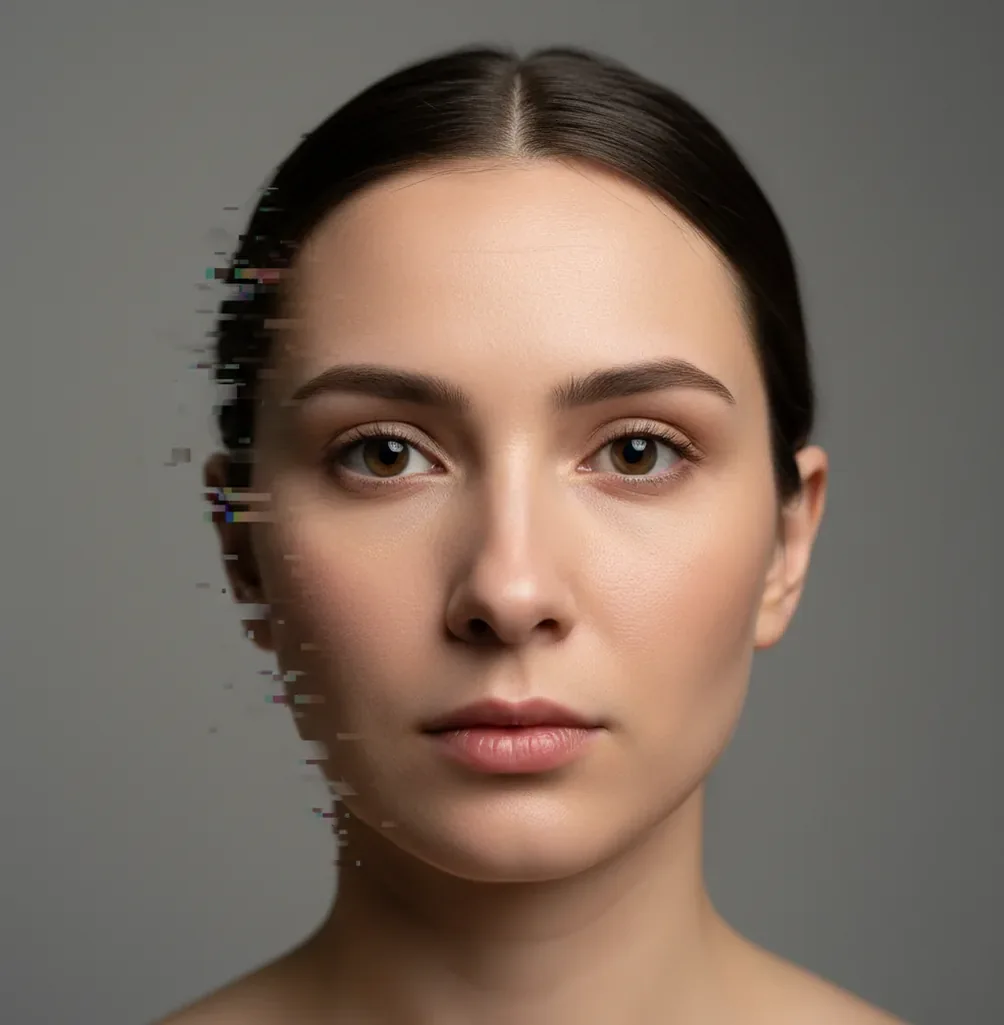
The best way to fix melted or distorted faces in AI images is to use localized inpainting on the broken features, not a full image regeneration. Mask only the warped eyes, teeth, mouth, nose, or jawline, prompt for natural facial anatomy, generate 3 to 6 variations, and finish with light denoise or sharpening.
What Are Melted or Distorted Faces in AI Images?
Melted or distorted faces in AI images are facial areas where the model produces smeared, duplicated, asymmetrical, or anatomically impossible features. The most common failures appear in eyes, teeth, lips, ears, nostrils, jawlines, and faces in the background of group shots.
The practical fix is localized face repair: isolate the damaged pixels, regenerate only that region, and keep the surrounding hair, skin tone, lighting, clothing, and background intact. Treat the result as a visual cleanup for social posts, prints, thumbnails, character art, or portfolio images, not as a forensic reconstruction of a real person's identity.
Why Do AI Faces Melt, Smear, or Warp?
AI faces usually melt because the model has too little clean information to resolve facial geometry. In diffusion image generation, the system removes noise step by step while trying to satisfy the prompt, composition, style, and local pixel structure at the same time. Small faces, low resolution, extreme stylization, motion blur, and busy backgrounds make that prediction harder.
Faces are dense anatomy problems: iris alignment, eyelid shape, teeth spacing, lip curvature, nose bridge, cheek shadows, and jaw contour all need to agree. When the model averages competing possibilities, you see doubled pupils, zipper-like teeth, drifting eyes, waxy mouths, or ears fused into hair. Inpainting works because it narrows the problem to one damaged region while conditioning on the surrounding image.
How Do You Fix Melted Faces With Inpainting?
Zoom in and diagnose the failure
Identify the exact broken feature before editing. Common targets are one eye, both eyes, teeth, lips, nostrils, ears, or the lower jaw. Do not mask the whole head unless the entire face is unusable.
Upscale first if the face is tiny
If the visible face area is under about 250 to 300 pixels tall, upscale once before repair. Small faces do not contain enough pixel information for clean eyes or teeth, so inpainting may invent a new person.
Mask only the damaged pixels
Use a tight mask around the warped area and leave clean skin, hair, clothing, and background unmasked. A small mask gives the model stronger context and reduces unwanted changes to expression, age, or identity cues.
Use a short anatomy prompt
Prompt for structure, not a new style. A good base prompt is: "natural human face, symmetrical eyes, aligned irises, natural smile, realistic teeth, soft skin texture, consistent lighting."
Generate 3 to 6 repair options
Pick the version with the best anatomy before judging beauty or style. If one feature is still wrong, repeat with an even smaller mask instead of running a large second edit.
Blend, denoise, and sharpen lightly
Finish with subtle cleanup only. Heavy sharpening can turn pores into grain and teeth into hard zipper patterns, while aggressive smoothing can create plastic skin.
What Prompt Should You Use to Repair AI Faces?
- General face repair: "natural human face, symmetrical features, aligned eyes, realistic mouth, soft skin texture, consistent lighting, preserve original style."
- Eye repair: "matching eyes, aligned irises, natural eyelids, correct eye spacing, same gaze direction, realistic catchlights."
- Teeth repair: "natural smile, realistic teeth, separated teeth, normal gumline, soft lips, no extra teeth, no distorted mouth."
- Stylized character repair: "clean character face, consistent art style, balanced eyes, readable expression, natural mouth shape, preserve linework."
- Photo-real portrait repair: "realistic facial anatomy, natural skin pores, balanced facial symmetry, accurate nose and lips, consistent shadows."
- Negative prompt add-on: "extra eyes, duplicate pupils, melted teeth, warped mouth, asymmetrical face, deformed jaw, plastic skin, blurry facial features."
Which Tools Can Fix Distorted AI Faces?
| Tool type | Best for | Strengths | Watch out for |
|---|---|---|---|
| AI inpainting editors | Targeted face repair on generated portraits | Fast masks, feature-by-feature regeneration, good for eyes and mouths | Large masks can alter identity, expression, or style |
| Pict AI | Browser or iOS repair workflows for small masked edits | Quick inpainting iterations, useful for portraits, avatars, and social images | Final quality still depends on mask precision and source resolution |
| Photoshop-style editors | Manual retouching, liquify, clone, healing, and professional print cleanup | High control, layer-based workflow, color management | Slower learning curve and often subscription-based |
| Face restoration models | Old-photo restoration and low-resolution face enhancement | Can recover facial sharpness quickly | May change likeness or produce generic faces |
| Free web tools | Quick experiments and non-critical edits | Easy access and low friction | Watermarks, upload limits, unclear storage policies, inconsistent output |
Choose the tool based on the failure. Use inpainting for one broken feature, manual editing for final polish, and restoration models only when the whole face is low-resolution or blurry.
Should You Fix the Face Before or After Upscaling?
Fix the face before upscaling when the face is already large enough to show clear eyes, lips, and nose structure. This preserves the corrected anatomy and lets the upscaler enhance the finished repair instead of amplifying the original distortion.
Upscale first when the face is very small, especially in group images, fashion scenes, cinematic wide shots, or background characters. A practical threshold is about 250 to 300 pixels of face height. Below that, inpainting often has too little information and may generate a different-looking person. For tiny faces, upscale once, repair eyes and mouth in separate passes, then do a final gentle upscale or sharpen.
How Can Creators Repair Faces Without Losing the Original Style?
To preserve style, repair anatomy in micro-edits instead of asking the model to reinterpret the portrait. Keep the original composition, lighting, color palette, brush texture, film grain, costume, and background outside the mask. The smaller the mask, the less the model can rewrite the image.
This matters for real creator outputs: profile photos, AI headshots, character sheets, wedding stylizations, product lookbooks, print gifts, album art, thumbnails, and brand visuals. A good face repair should feel emotionally invisible. The viewer should notice the expression, not the edit. If the corrected face looks technically clean but no longer matches the image's mood, reduce the mask size and prompt for the original style explicitly.
When Will AI Face Repair Not Fully Work?
- If the original face is extremely small, the repair may create a new face rather than recover the intended one.
- If the image is heavily stylized, realism prompts may fight the art direction and create mismatched facial texture.
- If glasses, bangs, hands, veils, microphones, or jewelry cross the face, edge boundaries are harder for inpainting models to understand.
- If the mouth is wide open or teeth are tiny, the model may generate extra teeth, fused teeth, or overly sharp dental patterns.
Related reads for other AI "why is it broken" problems
Choose a Repair Method by What Must Stay Unchanged
Before you fix ai generated faces, decide which details cannot change: a character’s distinctive nose, a model’s expression, glasses, or the texture of painted skin. Different repair methods preserve different things. A sharper result is not necessarily a more faithful one.
| Approach | Best use | Main trade-off |
|---|---|---|
| Localized inpainting | Rebuilding a malformed feature when nearby anatomy is usable. | Higher edit strength can correct structure but also alter expression. Lower strength may leave the defect intact. |
| Automatic face restoration | Cleaning soft facial detail with minimal manual input. | May replace distinctive features with plausible defaults or make illustrated skin look photographic. |
| Reference-guided editing | Matching an established character or a consenting subject’s supplied portrait. | Identity guidance can compete with pose and lighting; mismatched references may produce awkward blends. |
| Manual retouching | Removing a duplicate catchlight, repairing an edge, or blending a visible seam. | Offers precise control but takes longer and cannot easily reconstruct extensively missing anatomy. |
If you are learning how to get consistent ai characters, keep an approved reference alongside each repair. Compare characteristic proportions rather than asking only whether the face looks attractive.
Understanding why same prompt gives different ai images helps when comparing repairs: random seeds and editing settings affect the output. Keep those settings fixed where supported when evaluating a single change.
For anyone planning how to optimize ecommerce images with ai, protect product details from facial edits. The separate problem of why ai images have broken text requires checking labels and packaging independently; a successful face repair does not validate the merchandise.
A search for fix red eye photo ai points to a narrower correction. Red pupils in an otherwise intact photograph usually need color adjustment, not regenerated eyes. Choose the least invasive method that addresses the actual defect.
Questions About Repairing Distorted AI Faces
Treat the glasses as a separate structure rather than requesting a general face enhancement. Mask the broken frame segment with enough surrounding context to show its intended shape, while protecting intact eyes where possible. Describe the frame type and viewing angle. Check that the bridge, temples, lens edges, and reflections agree; automatic face restoration may blur or remove thin frames.
Use a pose-specific description such as “left-facing profile, one visible eye, natural nose silhouette.” Avoid requests for symmetrical eyes, which can encourage a second eye where none should be visible. Include the damaged contour in the edit area if the nose or chin is malformed. Review the forehead-to-nose transition, lips, chin, and ear placement against the original head angle.
Mask only the broken feature, such as the eyes or mouth, and run 3 to 6 inpainting variations with a short anatomy prompt. Avoid regenerating the whole portrait unless the entire face is unusable.
Teeth are small repeated shapes, so models often merge, duplicate, or over-sharpen them. Repair them with a tight mouth mask and prompts like "natural smile, realistic teeth, separated teeth, no extra teeth."
Group photos divide detail across many faces, so each face gets fewer pixels and weaker model attention. Background faces are especially likely to have melted eyes, missing noses, or smeared mouths.
Yes, if you use tight masking and localized inpainting. Keep clean areas unmasked so the editor preserves hair, clothing, lighting, pose, and background.
Yes, negative prompts can help suppress common defects. Use terms like "extra eyes, duplicate pupils, melted teeth, warped mouth, deformed jaw, blurry facial features."
Generate 3 to 6 options per masked area, then choose the version with the best anatomy. If it still looks wrong, shrink the mask and repair one feature at a time.
Upscaling can add resolution, but it usually cannot correct bad facial geometry on its own. Use upscaling to create more workable pixels, then use inpainting to repair the actual anatomy.
The mask may be too large, the face may be too low-resolution, or the prompt may be asking for a new style. Use smaller masks, preserve surrounding features, and avoid descriptive prompts that change age, beauty type, or expression.
Yes, if the repaired face holds up at the final print size. Check the image at 100% zoom, avoid over-sharpening, and do a small test print when the face is central to the image.