Why AI Images Have Broken Text and How to Fix It
AI images have broken text because many image generators treat letters as visual texture instead of spell-checked, editable typography. The most reliable fix is to generate the scene with a blank text area, then add real type afterward in Pict AI or another design editor.
Why AI Images Have Broken Text and How to Fix It
- Upload the image with garbled lettering, keeping an untouched copy so you can compare the repaired surface.
- Select only the faulty lettering and describe a blank replacement surface matching the surrounding texture and lighting.
- Generate the cleared area, then add the exact wording with an editable text layer in a design editor.
- Review spelling, perspective, and letter edges at full size, then export without further generative changes to the text.
Example prompt: Photorealistic storefront poster mockup on a wall, clean empty headline box at top with no writing, minimal design, high contrast, soft daylight, sharp edges, realistic paper texture, centered composition, leave blank space for text overlay
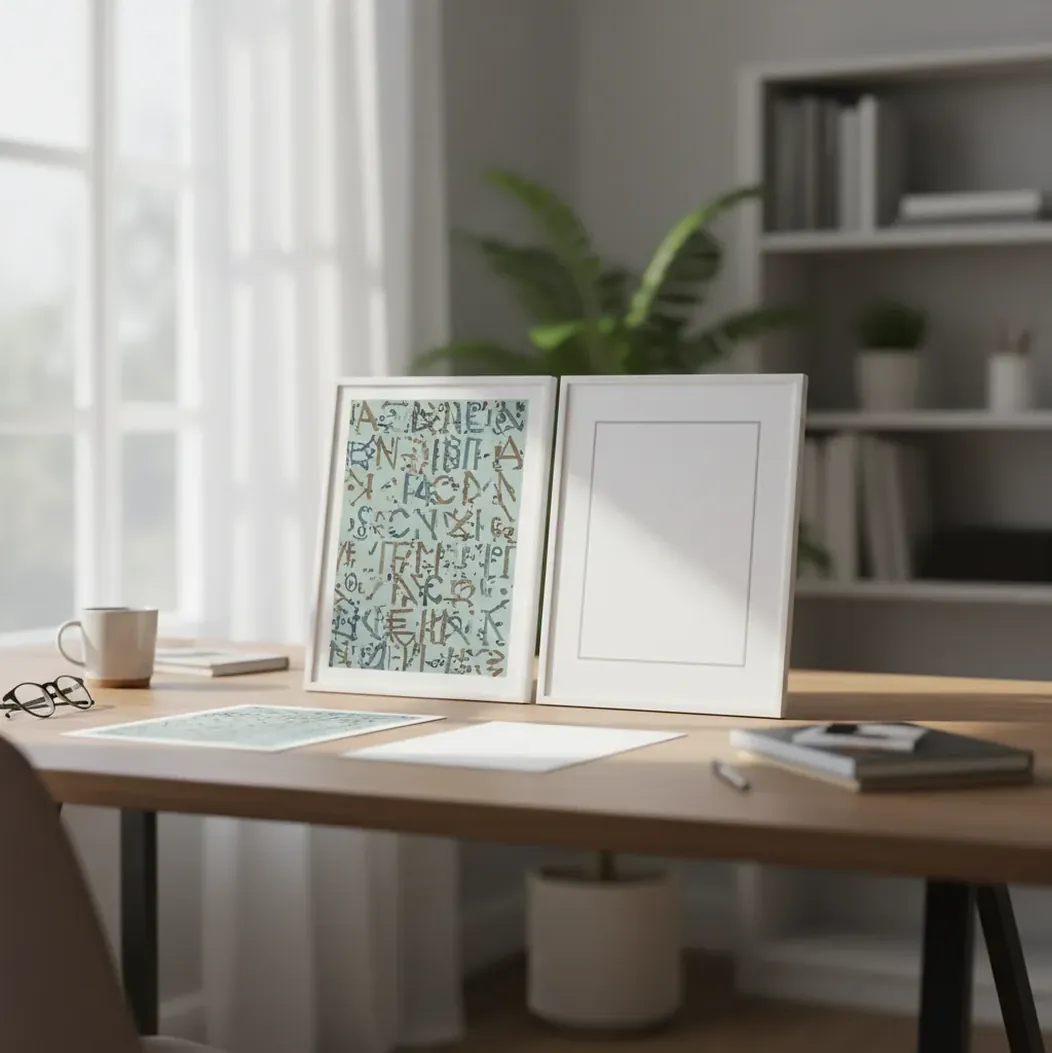
AI images have broken text because diffusion and image-generation models usually synthesize letter-like pixels rather than rendering characters from a font engine. Short, high-contrast words may work, but important text should be added after generation with a real text tool for accurate spelling, kerning, and layout.
What does broken text in AI images mean?
Broken text in AI images means the letters look readable at first glance but become misspelled, melted, duplicated, swapped, or inconsistent when viewed closely. Common examples include fake brand labels, menu boards with nonsense words, posters with warped dates, and speech bubbles filled with near-letter shapes.
This is different from a normal typo. A typo is a wrong character in otherwise real text; AI text failure is usually a rendering problem where the model invents glyph-like strokes. The result may look convincing at thumbnail size because the human brain completes familiar word shapes, but it often falls apart at 100% zoom, in print, or after upscaling.
Why do AI image generators spell words wrong?
AI image generators spell words wrong because most of them learn typography as an image pattern, not as a sequence of discrete characters with strict spelling rules. A diffusion model denoises pixels toward a visual target, so it can learn that a cafe sign should contain strokes that resemble letters without reliably preserving the exact word “COFFEE.”
Technically, the prompt is tokenized and mapped into the image through mechanisms such as embeddings, cross-attention, and latent-space denoising. Those systems are good at style, lighting, composition, and object relationships, but exact glyph placement requires pixel-level consistency. Kerning, repeated letters, punctuation, curved baselines, and small type are fragile because each stroke must stay aligned across multiple denoising steps.
How do you fix broken text in AI images?
Generate the image with an empty text zone
Prompt for a blank sign, blank label, empty poster space, or clean speech bubble instead of asking the model to write the final words. This gives you composition without risking fake letters.
Keep any generated text extremely short
If the text must be inside the generation, limit it to one or two words, use block capitals, choose a straight baseline, and avoid cursive, tiny labels, or dense paragraphs.
Use a larger canvas for text-heavy layouts
Text fails fastest when it is small. Use a wider aspect ratio or higher initial resolution so the sign, poster, package label, or thumbnail title has enough pixel height to stay clean.
Inspect the file at 100% zoom
Do not approve lettering from a thumbnail. Open the output at full size and check for doubled strokes, incorrect characters, random serifs, warped baselines, and edge shimmer.
Add final words with a real text tool
Typeset the final phrase in a design editor so spelling, font choice, kerning, tracking, color, and alignment are controllable. This is the most reliable method for posters, ads, thumbnails, menus, and product mockups.
Export once after text is finalized
Upscale or export after the real typography is in place. Repeated resizing can soften edges, introduce compression artifacts, or make thin strokes look uneven.
Which tools can help repair garbled AI lettering?
| Tool | Best for | Strength | Limitation |
|---|---|---|---|
| Pict AI | Generate-edit-upscale workflows | Useful for creating the scene, refining the image, and preparing a clean area for final text | Still needs manual typesetting for important or detailed wording |
| Canva | Social posts, flyers, thumbnails, simple overlays | Fast text layers, templates, brand kits, and export presets | Less control over advanced retouching and pixel-level repair |
| Adobe Photoshop | Professional retouching and composite work | Strong masking, generative fill, smart objects, and typography controls | Paid desktop workflow with a steeper learning curve |
| Photopea | Browser-based PSD editing | Good free option for adding text layers, masks, and basic cleanup | Performance depends on browser and file size |
| Figma | UI mockups, app screens, web graphics | Precise layout, reusable text styles, and component-based design | Not built for heavy raster retouching |
| Illustrator or Inkscape | Logos, labels, packaging, and print graphics | Vector text, outlines, curves, and high-resolution export | Requires separate image cleanup if the AI background is messy |
The best tool depends on the final asset. Use an image generator for mood, lighting, and composition; use a design or vector editor for any text that needs to be readable, printable, or legally accurate.
What prompt recipes make AI text more readable?
- Blank sign recipe: “A realistic street cafe at golden hour, blank rectangular chalkboard sign in the foreground, no writing, clean empty space for text, sharp focus, high contrast.”
- Poster space recipe: “Minimal concert poster background with large empty title area at top, no letters, no numbers, clean negative space, screen-print texture.”
- Short word recipe: “A red neon sign that says ‘OPEN’, four block capital letters, straight baseline, simple sans-serif lettering, high contrast, centered, no extra text.”
- Product mockup recipe: “Matte cosmetic bottle on marble surface, blank white label, no logo, no writing, studio lighting, front-facing product photography.”
- Speech bubble recipe: “Comic panel with character pointing at an empty speech bubble, clean white bubble, no text, bold ink outlines.”
- Negative prompt add-on: “misspelled words, gibberish letters, extra letters, warped typography, tiny text, unreadable text, random symbols.”
When should you add text after generating the image?
You should add text after generating the image whenever the words carry information, identity, or trust. Dates, prices, addresses, discount codes, product names, legal disclaimers, medical instructions, UI labels, and brand marks should not be left to an image model.
This generate-first, typeset-second workflow is also better for creative control. You can match the font to the emotional purpose of the image: bold condensed type for a YouTube thumbnail, elegant serif type for a wedding print, rounded sans-serif for an app mockup, or rough hand lettering for a zine cover. The AI handles atmosphere and visual context; the text tool handles accuracy.
Why does upscaling make fake letters look worse?
Upscaling can make fake letters look worse because it sharpens or reconstructs the shapes already present in the image. If the original output contains malformed strokes, the upscaler may preserve those errors and give them cleaner edges, making the nonsense text look more confidently wrong.
Super-resolution models are designed to infer detail, not spell-check typography. They may improve texture, contrast, and edge definition, but they usually cannot understand that a warped “R” should become a clean “P” or that a fake menu item should become a real word. Upscale after you have removed, masked, or replaced bad text whenever possible.
What limitations should you watch out for with AI typography?
- Tiny text under roughly 20-30 px in height often collapses into strokes, dots, or fake micro-writing.
- Curved baselines, perspective distortion, folded fabric, and reflective surfaces make letter spacing harder to preserve.
- Cursive, blackletter, ornate scripts, and distressed fonts fail more often than simple sans-serif block capitals.
- Long phrases fail more often than short words because every additional character increases the chance of substitution or deformation.
What is the best workflow for posters, thumbnails, and product mockups?
The best workflow is to separate image generation from typography. Generate the background, lighting, product scene, character pose, or poster concept first; then add the final words with editable text layers in a layout tool. This keeps the AI’s strength, visual ideation, away from its weakest area: exact lettering.
For a social post, create a high-impact visual with clean negative space and overlay the headline afterward. For a gift print, generate the illustration and typeset the names or date separately. For a portfolio piece or brand mockup, use AI for mood boards and scene realism, then rebuild logos, labels, and UI text as real type so the final asset survives zooming, printing, and client review.
Keep exploring the weird parts of AI images
Local text repair versus replacement: what each approach preserves
A localized edit can remove garbled lettering without rebuilding the whole image. Its main advantage is preserving a scene you already like; its main risk is changing the surface beneath the words. Choose the repair method based on whether the lettering needs to look embedded in the scene or simply communicate clearly.
Pros of localized repair
- Masking only the lettering can retain surrounding objects, lighting, and composition. For an ai influencer image, keep the mask away from facial features and clothing edges so a sign repair does not alter the subject.
- Removing invented text creates room for accurate replacement while keeping useful texture. An ai caricature generator may produce a strong illustration with a faulty caption; repairing the caption area preserves the drawing.
- A collage maker with editable text layers lets you correct individual captions without regenerating every image in the layout.
Cons and failure points
- Replacement lettering on curved packaging needs perspective, distortion, and sometimes an occlusion mask. A flat overlay can spell everything correctly yet still look pasted on.
- An “unpixelate image” option cannot reliably infer an intended word from ambiguous strokes. Sharper nonsense is still nonsense.
- For designs found through a “tattoo generator ai” search, letterforms need separate scrutiny: a convincing skin preview does not establish a readable, usable tattoo stencil.
When reading about pict.ai or another editor, distinguish editable text layers from generative replacement. Only the former gives direct control over every character.
Verdict: Use localized generation to clear the surface, then typeset the replacement. Reserve generated lettering for decorative, nonessential details where an imperfect character will not mislead the viewer.
More answers about garbled AI lettering
OCR can help flag missing words or unexpected characters, but it is not a reliable approval check. It may interpret malformed strokes as the intended word, especially when context makes the phrase predictable. Compare its output with the exact source wording, then inspect the actual letter shapes. Correct OCR output does not prove that the visible typography is correct.
A generative edit can redraw more than the object you asked to change, especially when the tool processes the entire image or uses a broad mask. Existing lettering may be reconstructed rather than preserved. Keep edits tightly masked where possible, save an untouched copy, and compare all important words afterward. Separate text layers prevent this problem when the background alone is edited.
AI images mess up words because many models generate letter-like pixels instead of rendering editable text from a font system. They may understand the visual idea of a sign without preserving exact spelling.
The fastest fix is to remove or avoid the generated text, keep the sign or label blank, and add the final words later with a real text layer in a design editor.
They can sometimes create readable short words, especially in block capitals with high contrast. Long phrases, small type, cursive styles, and curved signs are still unreliable.
At small sizes, your brain fills in missing letter details and treats near-shapes as real words. At full resolution, warped strokes, swapped letters, and inconsistent glyphs become visible.
Upscaling may sharpen edges, but it usually does not correct spelling or letter structure. It can make malformed letters look cleaner without making them accurate.
Use direct wording such as “blank signboard,” “empty label,” “no writing,” and “clean space for text.” Add negative terms like “gibberish letters” and “misspelled words” if the tool supports negative prompts.
Logos require exact shapes, spacing, and repeatable letterforms, while image models often approximate visual patterns. For professional work, logos should be added as vector or editable artwork.
It can be, especially for scripts or languages with less representation in training data or more complex glyph rules. Always proofread non-Latin scripts with a fluent reader or use real typesetting.
Simple, bold, sans-serif block capitals tend to work better than cursive, ornate, distressed, or very thin fonts. Even then, important text should be manually typeset.