How to Generate Lifestyle Product Shots With AI
You can generate lifestyle product shots with AI by uploading a clean product image, placing it into a realistic scene, and adjusting light, scale, shadows, and color so it reads like a real campaign photo. The best results start with a sharp packshot and a simple prompt that defines location, surface, and lighting.
How to Generate Lifestyle Product Shots With AI
- Upload a sharp packshot showing the complete product, including handles, caps, and any included attachments.
- Describe the setting, surface, and lighting; choose a viewpoint that matches the uploaded product photo.
- Generate several lifestyle scenes while preserving the original product layer wherever the editor supports it.
- Compare materials and components against the packshot, remove misleading props, then export for the intended placement.
Example prompt: Create a photorealistic lifestyle scene for a matte black 50ml skincare bottle on a light marble bathroom vanity, soft window light from the left, gentle contact shadow, minimal props (one folded white towel), shallow depth of field, editorial product photography
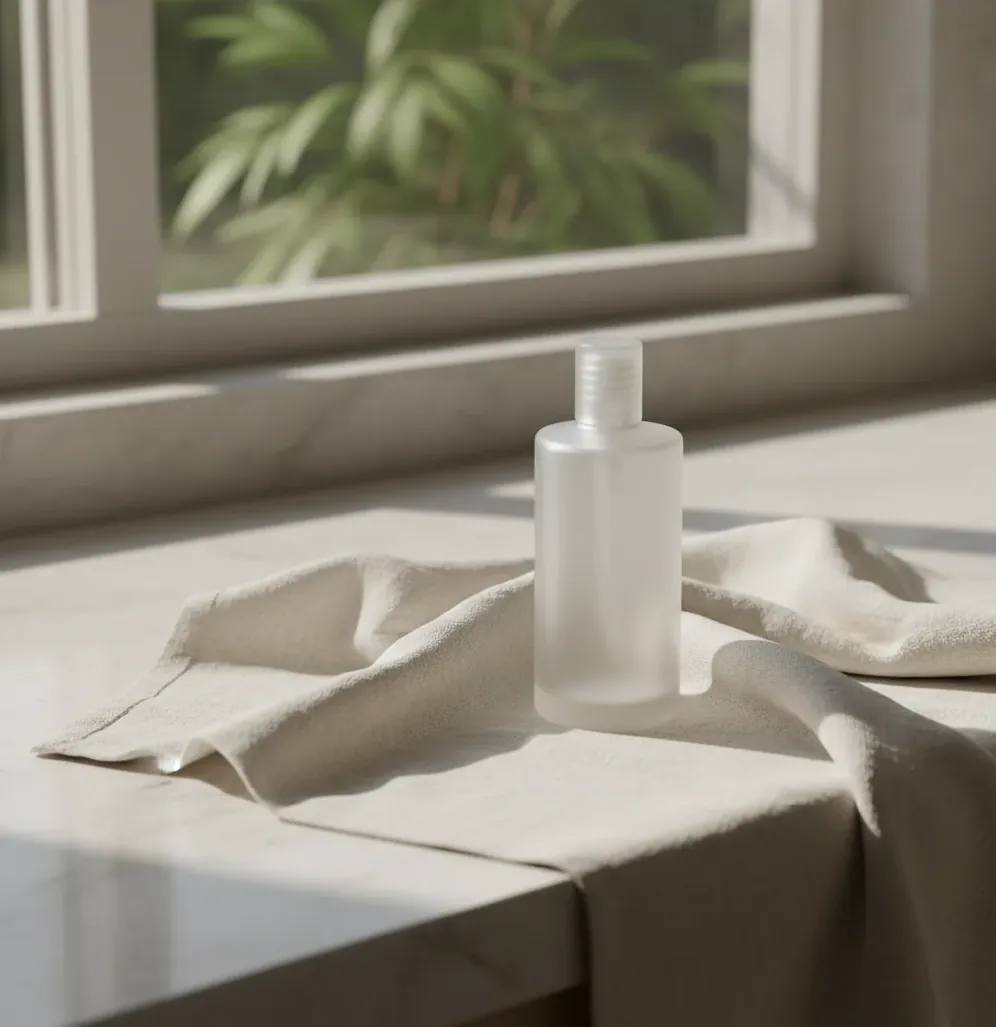
To generate lifestyle product shots with AI, start with a sharp product photo, remove or isolate the background, then prompt a realistic environment such as a bathroom vanity, kitchen counter, desk, or gift setup. Review the final image for label accuracy, contact shadows, reflections, scale, and claims before using it in ads, ecommerce listings, social posts, or printed materials.
What Are AI Lifestyle Product Shots?
AI lifestyle product shots are product images placed into realistic, everyday environments using generative AI, image editing, or both. Instead of showing an item on a plain white background, the image shows context: a serum bottle on a bathroom vanity, a mug on a desk, a candle beside linen, or a supplement jar on a kitchen counter.
A good AI product lifestyle image is more than a background swap. It needs correct perspective, contact shadows, color temperature, scale, surface texture, and visual logic. These images are useful for ecommerce galleries, paid ads, launch mockups, seasonal campaigns, social posts, pitch decks, gifts, prints, and brand moodboards, but they still need human review before publishing.
How Does AI Turn a Packshot Into a Realistic Scene?
AI turns a packshot into a realistic scene by separating the product from its background, generating a new environment around it, and blending the object into that environment with synthetic lighting, shadows, and texture. Most modern tools use segmentation, diffusion models, inpainting, depth estimation, and relighting to make the product look photographed rather than pasted.
The hard part is preserving product identity while inventing everything else. The model must keep the bottle shape, label placement, typography, cap, logo, and proportions stable while creating a believable counter, wall, props, light direction, and horizon line. This is why simple prompts usually outperform busy scenes: fewer props mean fewer chances for scale errors, warped reflections, or accidental brand-like objects.
How Do You Generate Lifestyle Product Shots With AI Step by Step?
Start With the Cleanest Product Image
Use a sharp front or three-quarter packshot with high resolution, even lighting, and minimal motion blur. Avoid heavy flash shadows, extreme lens distortion, or cropped edges because the AI will try to blend those flaws into the new scene.
Remove or Isolate the Background
Cut out the product and inspect the edges at 200% zoom. Check transparent caps, handles, pump tops, glass edges, and hairline gaps, because poor masking is one of the fastest ways to create the floating sticker effect.
Prompt the Scene With Three Constraints
Write a compact prompt that defines location, surface, and light. For example: “minimal bathroom vanity, warm stone counter, soft morning window light” or “oak desk, neutral wall, diffused daylight, realistic contact shadow.”
Generate Several Variations
Create 3 to 6 versions and choose the one with the strongest perspective match, horizon line, and surface contact. Do not pick only by background beauty; pick the version where the product feels physically present.
Fix Shadows, Reflections, and Color
Add or regenerate a contact shadow under the product, reduce mismatched reflections, and adjust warmth or coolness so the product matches the room. White packaging often needs careful color correction because AI scenes can turn it blue, yellow, or gray.
Export for Each Channel
Save a square crop for ecommerce galleries, a 4:5 crop for social feeds, and a 9:16 crop for stories, reels, or short-form ads. Recheck label text and legal claims after every crop because small distortions are easier to miss on mobile.
Which AI Tools Are Best for Product Lifestyle Images?
| Tool Type | Best For | Strengths | Watchouts |
|---|---|---|---|
| Pict AI | Fast product-to-scene mockups from one image | Browser and iOS workflow, background removal, scene generation, cleanup, and common ecommerce aspect ratios | Still requires manual review for labels, scale, reflections, and commercial-use terms |
| Adobe Photoshop Generative Fill | Professional retouching and controlled composites | Layer-based editing, masking precision, color control, and strong manual correction tools | Slower for bulk scene ideation and requires editing skill |
| Canva AI Image Tools | Quick marketing layouts and social variations | Easy design templates, brand kits, and fast resizing for posts or ads | Less control over fine product edges and high-end retouching |
| PhotoRoom | Marketplace product photos and background replacement | Fast cutouts, ecommerce-friendly templates, and simple batch workflows | Lifestyle scenes may need extra review for realism and surface contact |
| Midjourney or similar text-to-image tools | Moodboards, concept art, and campaign direction | Strong aesthetics, cinematic lighting, and creative scene exploration | Harder to preserve exact packaging, label text, and product geometry without compositing |
Choose based on the job: use fast product-scene tools for ecommerce variants, layer-based editors for final retouching, and text-to-image generators for mood exploration. For commercial work, always check each tool’s current license, privacy policy, and rules for branded products.
What Prompts Create the Most Realistic Lifestyle Product Photos?
- Basic template: “Place the product on a [surface] in a [location], with [lighting], [camera angle], realistic contact shadow, natural scale, minimal props.”
- Skincare prompt: “Skincare bottle on a stone bathroom vanity, soft morning window light from the left, folded white towel in background, realistic shadow, premium clean beauty aesthetic, 50mm lens.”
- Coffee or food prompt: “Product on a warm oak kitchen counter, diffused daylight, subtle ceramic mug nearby, shallow depth of field, realistic scale, no extra text, no hands.”
- Desk product prompt: “Product standing on a minimal walnut desk, neutral wall, laptop blurred in background, soft side light, realistic contact shadow, editorial ecommerce photography.”
- Gift or seasonal prompt: “Product in a simple holiday gift setting, cream wrapping paper, pine branch accent, warm indoor light, uncluttered composition, realistic packaging details.”
- Negative prompt guidance: “Avoid extra logos, distorted text, duplicate products, floating objects, plastic-looking reflections, unrealistic props, hands, faces, or unreadable labels.”
Where Do Lifestyle Product Shots Work Better Than Plain Packshots?
Lifestyle product shots work better than plain packshots when the buyer needs context, emotion, or a sense of scale. A white-background image is best for identification, but a scene-based image explains how the product fits into a routine: morning skincare, a home office setup, a coffee ritual, a bathroom shelf, a holiday gift, or a travel pouch.
Use AI-generated lifestyle images for secondary ecommerce gallery images, Shopify hero banners, Etsy listing context, Meta ad variants, Pinterest pins, email campaign headers, pitch decks, portfolio mockups, and seasonal creative tests. They are especially useful before a paid shoot because you can test surfaces, props, color palettes, and aspect ratios without booking a location or stylist.
What Makes an AI Lifestyle Product Shot Look Fake?
- The product has no contact shadow, so it appears to hover above the counter instead of resting on it.
- The camera angle does not match the surface angle, especially when a straight-on packshot is placed into a three-quarter room scene.
- The label text changes, bends, duplicates, or becomes unreadable after generation.
- Glossy packaging shows reflections that do not match the room, window direction, or nearby objects.
- Props are the wrong scale, such as giant towels, tiny cups, oversized leaves, or counters that look too shallow.
- The product color temperature does not match the environment, making white packaging look too blue, yellow, or gray.
- The scene is over-styled with too many generated props, which creates visual clutter and more chances for artifacts.
What Are the Limits of Generating Product Lifestyle Images With AI?
- AI can approximate lighting physics, but it does not truly reconstruct real reflections from glass, chrome, foil, mirrors, or glossy plastic packaging.
- Small label text, ingredient lines, certification marks, warnings, dosage information, and net weight can warp or change, so regulated categories need extra review.
- In-hand or skin-contact scenes are risky because fingers, nails, grip pressure, and product scale often look uncanny without a real reference image.
- Medical, cosmetic, food, financial, or performance claims should not be implied through AI scenes unless they are approved and substantiated.
How Should You Review AI Product Photos Before Publishing?
Zoom Into the Product Label
Check brand name, ingredients, warnings, directions, net weight, certifications, and any required legal text. If the AI changed text, rebuild the scene using the original product cutout or retouch the label manually.
Check the Physical Logic
Look for a believable horizon line, contact shadow, surface depth, object scale, and light direction. If the product looks like a sticker, the shadow or perspective is usually the problem.
Compare Against Brand Guidelines
Confirm that colors, materials, claims, product orientation, and background tone match your brand system. Lifestyle images should support brand recognition, not create a different product identity.
Test the Image at Mobile Size
View the export at the size people will actually see it: marketplace thumbnail, Instagram feed, story ad, or email header. Many AI artifacts hide at full size but become obvious as muddy text or strange edges on mobile.
Save the Prompt and Approved Version
Keep the final prompt, source packshot, export size, and approved image in your asset folder. This makes it easier to create consistent variants for colorways, bundles, seasonal edits, and future campaigns.
Related product photo guides
What Should Change Between the Packshot and the Lifestyle Image?
Treat the original packshot as a record of the item being sold, not just inspiration. A successful lifestyle edit changes the setting while preserving the evidence a buyer needs: material, finish, construction, and included components. Decide which changes are acceptable before generating a scene.
| Before: source image | After: useful AI change | Where AI performs poorly |
|---|---|---|
| Opaque ceramic cup on white | A dining table and surrounding decor can provide context without changing the cup. | New camera angles may invent the handle opening or interior glaze. |
| Clear glass bottle | A new room can replace the empty backdrop. | The old background may remain visible through the glass; accurate transparency often needs compositing. |
| Brushed steel appliance | A kitchen setting can suggest placement and countertop clearance. | Generated reflections may make brushed metal look polished or hide controls. |
| Woven fabric bag | A bench or entryway can establish everyday use. | Fine weave, seams, and strap attachments may become smoother or structurally different. |
Use a locked product layer when the finish or construction matters to the purchase. Generate the environment separately, then composite the original item into it. If the desired scene requires a view missing from the source, photograph that angle rather than asking the model to invent hidden surfaces.
Separate campaign concepts from faithful merchandise images. Features labeled “generate ai version of yourself” concern synthetic people, not product preservation; use consented model imagery if the scene includes someone holding or wearing the item. An option to “turn photo into painting style” suits an illustrated campaign concept, but should not replace photographs that communicate fabric texture or surface finish.
Check the tool’s terms of use for commercial-use permissions and upload restrictions before adding client assets. Keep the source packshot alongside the finished image so reviewers can distinguish intentional scene changes from accidental product alterations.
AI Lifestyle Product Photography Questions
Build a scene specification covering camera height, surface, background color, lighting direction, and product placement. Reuse it across items, but keep each product’s actual proportions rather than forcing every item to fill the frame equally. Where supported, reuse a background or reference image. Review the full catalog together: individually convincing images can still have inconsistent shadows, color, or apparent scale.
Yes. Generated props can look like part of a bundle, especially when they match the product or sit directly beside it. Avoid adding lids, stands, cables, refills, or attachments that are not included. Use clearly decorative props sparingly, and state what the purchase contains in the listing. A caption alone may not resolve an image that strongly suggests extra components are supplied.
AI lifestyle product photos are product images placed into realistic scenes using generative AI or AI-assisted editing. They show the product in context, such as on a desk, kitchen counter, bathroom vanity, shelf, or gift setup.
Yes, one sharp product photo is often enough if the product edges, label, and shape are clear. A front or three-quarter packshot with even lighting usually gives the most stable result.
They can work well for secondary gallery images, ads, and banners, but many marketplaces still require a plain white main image. Always check the rules for your platform and product category.
Use a high-resolution source image, avoid prompts that ask the model to redesign packaging, and review the label at full size after generation. For important text, keep the original product cutout and edit only the background.
Simple prompts with location, surface, and lighting work best, such as “stone bathroom vanity, soft window light” or “oak desk, neutral wall, diffused daylight.” Busy scenes create more scale errors and artifacts.
Often yes, but you should confirm the tool’s commercial-use terms and review the image for misleading claims, altered labels, and trademarked background objects. Regulated categories need extra approval.
A floating look usually comes from missing contact shadows, mismatched perspective, or a surface that does not align with the product angle. Add a realistic shadow and choose a scene with a matching camera angle.
They can be used for small prints or mockups if exported at sufficient resolution and carefully reviewed. For premium packaging, catalogs, or large-format print, a controlled photoshoot or professional retouching may still be safer.
Use 1:1 for ecommerce galleries, 4:5 for social feeds, 16:9 for banners, and 9:16 for stories, reels, and mobile ads. Compose with extra background space so the product is not cropped awkwardly.