How to Make White Background Product Photos With AI
You can make white background product photos with AI by isolating the product, replacing the scene with a pure #FFFFFF canvas, refining the edges, and exporting at marketplace-ready resolution. The best results still need a quick human check for halos, missing gaps, reflections, and overly harsh cutouts.
How to Make White Background Product Photos With AI
- Upload a sharp product photograph with the complete item visible and enough space around its edges.
- Choose background removal and set the replacement canvas to pure white, keeping the original product unchanged.
- Generate the white background edit, preserving label text, product proportions, and any intentional surface shading.
- Review the outline and interior gaps, compare product details with the original, then export at your required dimensions.
Example prompt: Photorealistic ecommerce product photo of a minimalist skincare bottle centered on a pure white (#FFFFFF) background, soft diffused studio lighting, gentle natural shadow under the bottle, sharp label detail, high resolution, 50mm look, no text, no logos
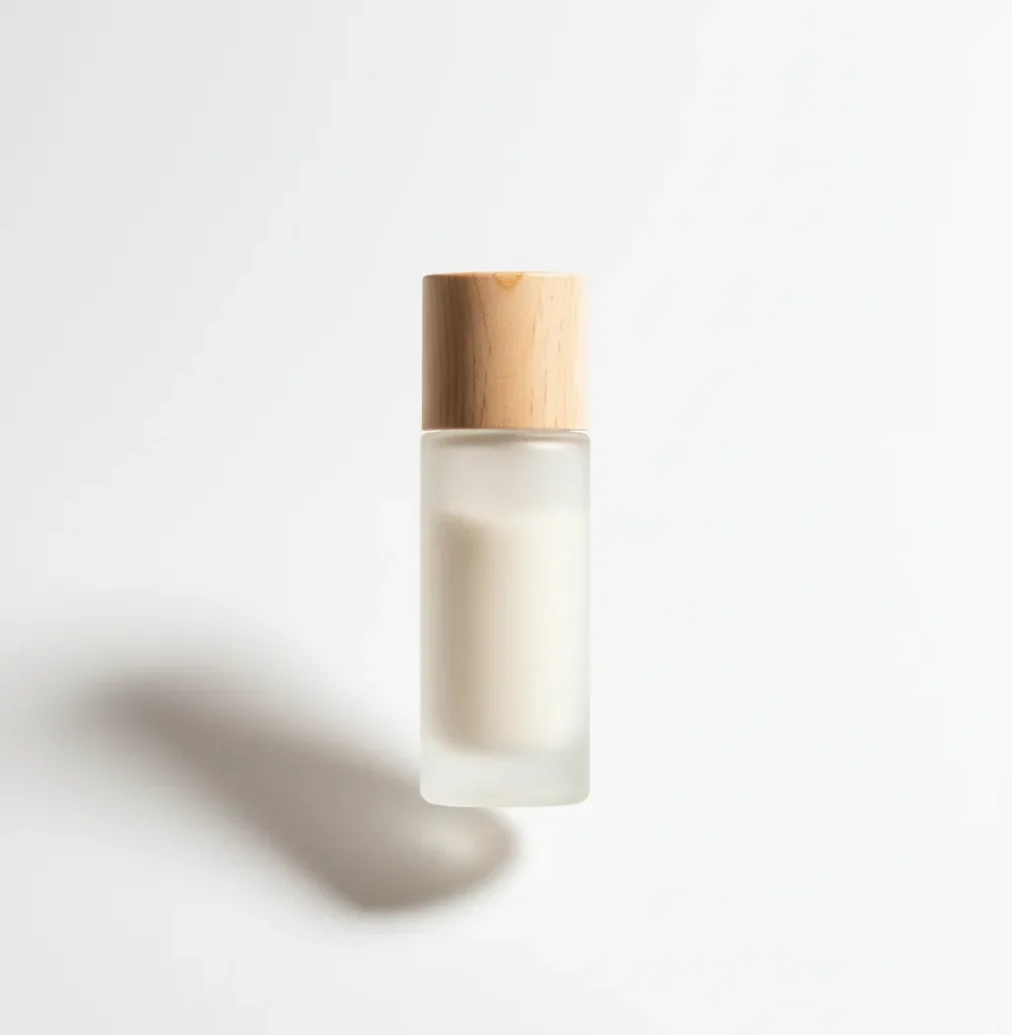
To make white background product photos with AI, upload a sharp product image, remove the original background, set the new canvas to pure white (#FFFFFF), refine the edges, and export a high-resolution JPG or PNG. Keep a subtle contact shadow when needed so the item looks grounded instead of pasted onto the page.
What Does It Mean to Make White Background Product Photos With AI?
Making white background product photos with AI means using computer vision to separate the product from its original environment and place it on a clean white canvas. The goal is not just background removal; it is a realistic product cutout with clean edges, preserved label detail, controlled shadows, and a true white RGB value of #FFFFFF.
This workflow is common for ecommerce listings, social posts, digital catalogs, wholesale line sheets, gift guides, portfolio mockups, and brand refreshes. It is especially useful when the original shot has a cluttered desk, wrinkled fabric, warm indoor lighting, or a distracting wall behind the item.
How Does AI Turn a Product Photo Background Pure White?
AI creates a white-background product image through subject segmentation, alpha matting, edge refinement, and background compositing. Segmentation identifies the product area, while matting estimates partially transparent pixels along fine edges such as straps, pump nozzles, woven fabric, hairline threads, and clear plastic packaging.
After the product mask is created, the editor composites the subject onto a white layer, ideally set to #FFFFFF rather than a near-white gray such as #F2F2F2. Some tools also preserve or regenerate a soft contact shadow, which helps the product feel photographed in a studio instead of floating on a blank tile.
How Do You Make a White Background Product Photo From One Image?
Upload a sharp original photo
Start with the highest-resolution image available. Avoid motion blur, heavy compression, and tiny screenshots because AI cannot recover label text or edge detail that is already missing.
Remove the original background
Use an AI background remover to isolate the product from the scene. Check handles, holes, straps, glass edges, and packaging corners before accepting the cutout.
Set the canvas to #FFFFFF
Choose pure white, not off-white. If the tool has a color picker or hex field, use #FFFFFF so the image does not upload as light gray on marketplace pages.
Refine edges at 200% zoom
Zoom in and scan the full outline for halos, jagged pixels, missing interior gaps, or leftover background color. Dark products and glossy packaging need the closest inspection.
Add a soft contact shadow if needed
Use a very light shadow under the base, usually around 5% to 15% opacity, so the product still looks physically grounded on the white surface.
Export at listing-ready size
Export JPG for most marketplace listings or PNG when you need cleaner transparency handling before final compositing. A long edge around 1600 to 2500 px is a practical target for sharp thumbnails.
Which Tools Can Create Pure White Product Photos?
| Tool type | Best for | Strengths | Watch out for |
|---|---|---|---|
| Pict AI | Fast browser or mobile edits from a single product photo | Removes cluttered backgrounds, supports clean white product images, and is useful for quick listing prep | Still requires manual review for reflective, transparent, or very detailed products |
| Adobe Photoshop | Professional retouching, masks, batch workflows, and print assets | Advanced selection tools, layer masks, color checking, and precise export control | Higher learning curve and slower for sellers who only need simple white-background images |
| Canva | Simple product graphics, social posts, and branded marketplace tiles | Easy layout controls, templates, and quick background removal in a design workflow | Fine edge correction and exact product retouching can be limited compared with pro editors |
| PhotoRoom | Mobile-first product shots and reseller listings | Fast background removal, white studio-style templates, and batch-friendly listing visuals | Some exports, advanced features, or commercial workflows may depend on plan limits |
| Remove.bg-style tools | Single-purpose background removal | Very fast cutouts for simple product shapes | May need another editor to set exact #FFFFFF, add shadow, crop, and export correctly |
| Paid human editor | High-value catalog images, complex reflections, jewelry, glass, or luxury packaging | Human judgment on edges, realism, dust cleanup, retouching, and marketplace compliance | More expensive and slower than AI for routine listing images |
Choose based on the product, not the hype. AI tools are efficient for routine ecommerce images, while professional editors are still valuable for glass, chrome, jewelry, translucent packaging, and hero shots used in ads or print.
What Prompt Recipes Help Products Look Natural on White?
Prompt recipes are useful when an AI editor supports text instructions for background replacement, relighting, or product staging. The best prompts are specific about the background color, lighting, shadow strength, camera angle, and what must not change on the product.
White listing prompt: “Place the product on a pure white #FFFFFF background, keep the exact packaging, label text, shape, color, and proportions unchanged, preserve crisp edges, add only a subtle contact shadow under the base, ecommerce product photo, centered composition.”
Soft studio prompt: “Create a clean studio product photo on a seamless white background, soft diffused lighting from the front-left, realistic shadow at 10% opacity, no props, no added text, no logo changes, preserve original product details.”
Thumbnail prompt: “Prepare this product for a marketplace thumbnail on #FFFFFF, centered with even margins, high contrast edges, readable label, no background texture, no extra objects, export-ready product listing image.”
How Do You Check #FFFFFF, Edges, and Shadows Before Upload?
The fastest quality check is to inspect the exported image at three sizes: 200% zoom, normal desktop size, and thumbnail size around 150 to 300 px wide. Zoomed-in review catches halos, missing cutout holes, jagged curves, and gray background residue; thumbnail review shows whether the product still reads clearly in a crowded search grid.
Use an eyedropper tool to confirm the background is #FFFFFF in the corners and around the product. If the item looks like a sticker, restore a light contact shadow. If label text looks soft, go back to the original image or reshoot; background AI can clean the scene, but it cannot reliably rebuild blurred typography.
Where Are White Background Product Images Used Most?
White background product images are used most in ecommerce main images, marketplace thumbnails, Shopify product grids, Amazon-style catalog pages, Etsy shops, wholesale PDFs, reseller feeds, and inventory systems. A consistent white canvas makes products easier to compare because the viewer sees shape, color, scale, and packaging without visual noise.
Creators also use these images beyond listings: launch graphics, gift guides, pricing sheets, pitch decks, packaging before-and-after posts, portfolio case studies, and clean brand moodboards. The emotional utility is simple: a messy phone shot starts to feel like a real product, ready for buyers, clients, or collaborators to take seriously.
What Are the Limits of AI White Background Product Photos?
- Transparent and translucent products can lose their boundaries on white, especially glass bottles, clear bags, acrylic objects, and pale liquids.
- Reflective packaging may keep room reflections from the original photo, so the background becomes white while the product still shows windows, hands, or colored walls.
- Dark products often reveal pale edge halos because the original background color bleeds into the matte boundary.
- Tiny holes, mesh, chains, handles, trigger nozzles, and lace can be filled in if the input image is low resolution.
Related guides for better product photos
Fix Product Detail Loss, Color Shifts, and Masking Mistakes
A clean cutout can still misrepresent the item. Compare the edited image with the original, paying particular attention to product geometry, surface color, and details that identify the SKU.
- White packaging disappears: An ai background remover for product photos may mistake a pale box edge for the backdrop. Restore that edge manually from the source image. Preserve its original shading rather than drawing a dark outline that changes the packaging's appearance.
- The item changes shape: If generation redraws a cap, seam, or label, undo the result. The best way to add white background to product photos is usually to composite the original product pixels onto white, not regenerate the entire photograph.
- Background cleanup erases surface detail: When learning how to remove shadows from product photos with ai, distinguish cast shadows from shading on the item itself. Limit edits to the background; removing shading from folds, embossing, or curved surfaces makes their structure harder to judge.
- A decorative backdrop reaches the main listing: The best background for product photography depends on the image's role and platform requirements. If exploring how to add gradient background to photos for promotional graphics, save a separate version rather than overwriting the white listing master.
- A later transparent export loses white details: Sellers searching how to remove white background from image should reuse the original subject mask instead of deleting every white pixel. Color-based deletion can punch holes through white labels, fabric, and reflective highlights.
- The product jumps between catalog tiles: Background replacement can leave inconsistent scale and positioning across exports. Use one canvas template, align product bases to a shared guide, and keep comparable items at comparable sizes. Check a contact sheet before uploading the batch.
Questions About AI White Background Product Photos
Yes. Tools that regenerate or relight the product can shift its hue, saturation, or brightness even when the background looks correct. Prefer background-only masking when color accuracy matters. Compare the result with the original on the same display, and reject edits that alter fabric tones, paint finishes, or packaging colors. A white backdrop does not correct inaccurate source lighting.
Use a shared canvas size, consistent margins, and a fixed alignment guide for every image. Keep camera angle and product scale comparable within each category, rather than enlarging every item to fill the frame. Review the exports together as a grid to spot uneven positioning, mismatched lighting, or color shifts that are easy to miss individually.
Upload a sharp product image to an AI background remover, replace the background with #FFFFFF, refine the edges, add a subtle shadow if needed, and export a high-resolution JPG or PNG.
For most marketplace and catalog images, pure white #FFFFFF is the safest background because it looks clean, consistent, and avoids gray-looking tiles after compression.
No. A white background is a visible #FFFFFF canvas, while a transparent background has no visible pixels behind the product and is usually saved as a PNG.
A practical export size is about 1600 to 2500 px on the long side for sharp listing images, though each marketplace may have its own minimum and maximum requirements.
AI can preserve label text if the original photo is sharp and high resolution. If the label is already blurred or compressed, background removal will not reliably recover it.
The background may be near-white instead of #FFFFFF, or the platform may be recompressing the file. Check the exported corners with an eyedropper and reset the canvas to pure white.
Zoom to 200%, inspect the outline, and use edge refinement or manual cleanup before exporting. Halos are most visible on black packaging, shoes, electronics, and matte objects.
A subtle contact shadow is often helpful because it makes the product look grounded. Keep it soft and light, usually around 5% to 15% opacity, so it does not distract from the item.
A lightbox is not required, but it improves results by reducing harsh shadows, color casts, and messy reflections. A well-lit phone photo against a simple wall can still work for many products.