Aesthetic AI Filters on iPhone: Natural Editing Guide
Aesthetic AI filters on iPhone use machine learning to apply looks like film, soft glow, pastel, matte, and editorial color to your photos. The best results come from a sharp, well-lit original, moderate filter strength, and a final 100% zoom check on skin, eyes, hair, and edges.
Aesthetic AI Filters on iPhone: Natural Editing Guide
- Upload an original iPhone photo with visible facial detail, avoiding screenshots or previously filtered copies.
- Choose an aesthetic style or describe its colors, contrast, and texture, specifying which facial details must remain unchanged.
- Generate the filtered version, keeping the original available for a direct comparison of facial features and background details.
- Review the result at full size, reduce unwanted effects where controls allow, and export a separate high-resolution copy.
Example prompt: Apply a soft film aesthetic AI filter to this iPhone portrait: warm highlights, slightly lifted blacks, gentle contrast, subtle grain, natural skin tones, keep eyes sharp, no heavy smoothing, editorial color balance
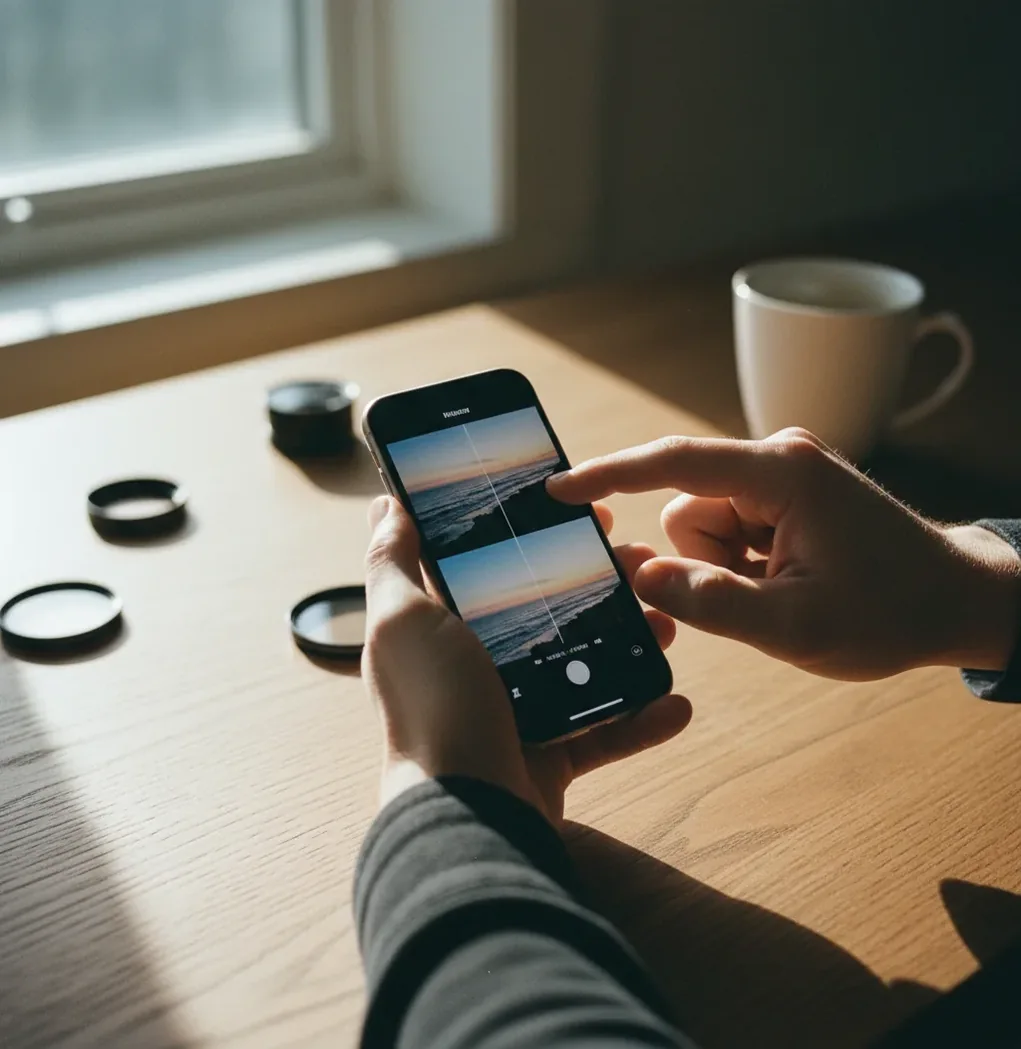
Aesthetic AI filters on iPhone are AI-assisted photo styles that adjust color, contrast, grain, glow, and texture based on what is inside the image. Unlike a flat preset, an AI filter can treat skin, sky, shadows, hair, and backgrounds differently so the edit looks more intentional. For natural results, use a bright original photo, keep intensity around 35% to 60%, and export at high resolution.
What Are Aesthetic AI Filters on iPhone?
Aesthetic AI filters on iPhone are machine-learning photo effects that reshape the mood of an image instead of simply placing one color layer over it. They can create recognizable looks such as film-soft portraits, matte café edits, pastel outfit photos, warm golden-hour tones, glossy editorial contrast, or low-saturation lifestyle images.
The important difference is selectivity. A basic preset usually changes the entire frame with the same color curve, while an AI photo filter analyzes visual regions like faces, hair, sky, clothing, shadows, and background texture. That lets the edit warm skin without making white walls orange, soften highlights without blurring eyes, or add grain without destroying small details.
How Do iPhone AI Photo Filters Actually Work?
AI photo filters work by running the image through a model that detects visual features, estimates regions, and applies a learned style transformation. In practical terms, the system looks for edges, facial landmarks, local contrast, noise, color temperature, highlight rolloff, and texture density before changing the final image.
Many modern tools use a mix of computer vision, segmentation, diffusion-style refinement, and neural color grading. Segmentation helps separate skin from background; feature extraction helps preserve eyelashes, jewelry, text, and hairlines; color grading changes the tonal response; and refinement reduces obvious artifacts. The filter still depends heavily on the source photo. Motion blur, low-light noise, aggressive compression, and screenshots give the model less clean detail to preserve.
How Do You Apply an Aesthetic AI Filter Without Losing Skin Texture?
Start with a clean original
Choose a photo with daylight or soft indoor light, sharp focus on the subject, and no heavy screenshot compression. AI filters perform best when pores, hair, fabric, and background edges are already visible.
Pick the closest style first
Choose a film, matte, pastel, glow, or editorial filter based on the final mood you want. Do not use intensity to force the wrong style; a close base look will need less correction.
Lower intensity before adjusting color
Begin around 35% to 45% strength, then raise slowly. If cheeks, under-eyes, lips, or hairlines start looking waxy, reduce strength before touching warmth, saturation, or grain.
Tune warmth in small moves
On iPhone photos, a 3 to 8 point warmth shift is often enough. Large warmth jumps can push skin orange, make shadows green, or turn white clothing beige.
Add light grain instead of heavy blur
A small amount of grain can hide digital banding and make a photo feel less plastic. Heavy blur usually removes identity cues and makes the edit look synthetic.
Zoom to 100% before export
Check eyes, lashes, teeth, hands, text, jewelry, and clothing edges. If detail looks smeared, back off intensity and export again at the highest available resolution.
Which Apps Are Best for iPhone AI Filter Edits?
| Tool type | Best for | Useful controls | Watch out for |
|---|---|---|---|
| Pict AI | Fast browser or iOS aesthetic filters with simple style selection | Filter style, intensity, color tone, grain, export | Avoid uploading sensitive images and review current usage terms before commercial work |
| Lightroom Mobile | Manual color grading, presets, curves, and professional photo workflows | Curves, HSL, masking, grain, exposure, lens corrections | More control, but slower if you only want a quick AI-style result |
| VSCO | Film-inspired mobile presets and consistent social feed color | Preset strength, exposure, contrast, temperature, fade, grain | Less adaptive than AI tools when the photo has difficult lighting |
| Instagram or TikTok filters | Fast social posting, stories, reels, and casual edits | Filter strength, in-app effects, stickers, beauty controls | Compression and beauty smoothing can reduce texture quickly |
| Canva mobile editor | Brand posts, thumbnails, collages, and creator graphics | Templates, background tools, adjustment sliders, text overlays | Photo realism may matter less than layout, so check final image quality |
| Free web filter sites | One-off experiments without installing another app | Usually basic upload, style, and download controls | Watermarks, unclear storage policies, low-resolution exports, or email gates |
The best choice depends on the job: use an AI filter tool for fast style transfer, a manual editor for precision, and a social app when the image is only meant for a temporary story or reel.
What Filter Recipes Create Popular iPhone Aesthetics?
- Film-soft portrait: Use a sharp daylight selfie or portrait, choose a warm film style, set intensity to 40% to 55%, reduce highlights slightly, add fine grain, and keep skin texture visible.
- Matte café edit: Start with an indoor photo near a window, lower contrast, lift shadows slightly, reduce saturation by 5% to 12%, and add a soft brown or beige warmth shift.
- Pastel outfit photo: Use even outdoor light, select a pastel or soft-color style, reduce clarity only a little, keep whites clean, and avoid pushing skin into pink or orange.
- Editorial product shot: Use a clean flat lay, choose high-contrast editorial color, sharpen edges lightly, keep shadows controlled, and export large enough for web banners or shop listings.
- Nostalgic friend-group photo: Use a 4:3 crop, warm highlights, medium grain, slight fade, and moderate contrast so faces still look like the real people in the image.
- Reusable prompt template: "Apply a natural [film/matte/pastel/editorial] aesthetic to this iPhone photo. Preserve facial identity, skin texture, hair edges, clothing detail, and realistic lighting. Keep intensity moderate and avoid waxy smoothing."
How Can Creators Keep a Consistent iPhone Aesthetic?
Choose one visual lane
Pick a repeatable direction such as warm film, clean editorial, creamy matte, pastel lifestyle, or soft flash photography. A consistent lane makes feeds, portfolios, moodboards, and brand posts feel intentional.
Save three reference images
Keep one portrait, one indoor image, and one outdoor image that represent your target look. Use them as calibration images before editing a full batch.
Build a small settings range
Instead of one rigid preset, write down ranges: intensity 35% to 60%, warmth plus 3 to 8, grain low to medium, saturation minus 5 to plus 5. Ranges survive different lighting better.
Batch similar lighting together
Edit daylight photos as one group, indoor café photos as another, and night shots separately. AI styles behave more consistently when the source lighting is similar.
Export for the final use
Use high resolution for prints, gifts, portfolios, and product pages. For social posts, export cleanly first, then let the platform compress once instead of re-saving the image multiple times.
Where Do AI Aesthetic Filters Help Beyond Selfies?
AI aesthetic filters are useful anywhere the image needs a clear mood quickly. They work well for daylight street photos, café interiors, travel carousels, outfit checks, small-business product shots, social thumbnails, birthday graphics, digital scrapbooks, friend-group edits, and soft prints for gifts.
For creators, the emotional utility is consistency. A brand owner can make product flat lays feel like one campaign; a photographer can test mood directions before manual grading; a student can build a portfolio with coherent color; and a friend group can turn casual iPhone shots into printable memories. The filter should support the image, not overpower the person, object, or story.
What Can Go Wrong With iPhone AI Filters?
- Low-light noise can be mistaken for texture, causing the filter to smooth real skin detail or create blotchy shadows.
- Motion blur gives the model weak edge information, so eyelashes, fingers, jewelry, and hair strands may become soft or warped.
- Screenshots and heavily compressed images have fewer pixels and more artifacts, which can make grain look like mud after export.
- Neon, club, or colored LED lighting can push skin green, red, or orange because the original white balance is already distorted.
If you liked aesthetic filters, read these next
Choose Between Color Grading and Generative Restyling
Not every aesthetic edit needs image generation. For aesthetic pfps, preserving recognizable facial features usually matters more than rebuilding the scene. Choose a method by deciding what may change: color alone, selected regions, or the actual content of the photograph.
| Approach | Best use | Honest trade-off |
|---|---|---|
| Manual color grading | Matching exposure, white balance, and contrast across a photo set. | Keeps image content intact, but mixed lighting may require separate local adjustments. |
| AI-assisted local adjustments | Adjusting a subject separately from the background. | Offers targeted control, but selection errors can leave halos around hair or glasses. |
| Generative restyling | Creating an illustrated, painted, or substantially reimagined portrait. | Can invent details, alter facial proportions, or replace accessories rather than simply recolor them. |
| AI edit followed by manual correction | Establishing a look quickly, then correcting unwanted color shifts. | Requires another editing pass; sliders cannot reliably restore details that generation has replaced. |
Ask what is generative ai in photo editing before choosing a dramatic style. A tool that synthesizes new pixels can change identity cues even when its interface calls the effect a filter. Keep an untouched original and treat the generated result as a separate interpretation.
Two useful ai photo editing questions are is ai editing better than manual and is ai photo editing safe? The first depends on whether speed or precise control matters more. The second requires checking upload processing, retention, deletion options, and whether submitted images may be used for training.
When searching for ai photo editing guides tips reviews, favor comparisons that show the original beside the finished image and identify whether the method changes content. A convincing thumbnail can conceal altered earrings, mismatched eye details, or rewritten lettering.
Aesthetic Filter Questions: Faces, Files, and Color
Some do. Color-only adjustments generally preserve facial structure, while generative filters can redraw eyes, lips, teeth, or the outline of a face. A style name such as film or editorial does not guarantee preservation. Compare the edited portrait with the original at matching magnification, especially around facial contours and distinctive marks, before using it as a profile photo.
Only if the editor preserves an editable history or you still have the original. A flattened JPEG or PNG contains the finished pixels, not separate filter settings, so reversing its colors will not reliably recover lost detail. Apple Photos can revert edits made within Photos, but that does not undo transformations already embedded in an imported AI-generated image.
They are AI-assisted photo styles that adjust tone, color, contrast, grain, glow, and texture based on the content of an iPhone photo. They are commonly used for film, matte, pastel, soft-glow, and editorial looks.
Use an iOS photo editor, browser-based AI filter tool, or social app, then upload or select your photo, choose a style, lower intensity, adjust warmth and grain, and export at high resolution.
AI filters can be better for mixed lighting or portraits because they adapt to image regions like skin, sky, and background. Normal presets are still useful when you want predictable manual control.
Waxy skin usually comes from high filter strength, low-light noise, beauty smoothing, or a blurry original photo. Reduce intensity, use a sharper source image, and check skin at 100% zoom.
A good starting range is 35% to 60% intensity. Raise it only until the mood changes, then stop before pores, hairlines, eyes, and clothing texture disappear.
Yes, but export a clean high-resolution image first so Instagram compression does not flatten shadows or turn grain into noise. Avoid re-saving the same edited image multiple times.
Gray or muddy exports often come from extreme matte settings, low-resolution downloads, or compression that flattens contrast. Use lighter fade, moderate grain, and the highest export size available.
The best source photo is sharp, bright, and evenly lit, with visible detail in the face, hair, clothing, and background. Daylight portraits and window-lit indoor shots usually edit better than dark night photos.
Yes, they can help product photos feel more cohesive for social posts, shop banners, and brand moodboards. Keep colors accurate if customers need to judge the real shade, material, or finish.