How to Make AI Wallpapers for iPhone in 2026
To make AI wallpapers for iPhone in 2026, generate a vertical image, compose it around iOS interface zones, then crop and export it at a phone-friendly resolution. The best results leave clear space for the Lock Screen clock, Dynamic Island, widgets, dock, and Home Screen icons.
How to Make AI Wallpapers for iPhone in 2026
- Upload your existing wallpaper or reference image, keeping an untouched original for alternate crops and repairs.
- Describe the repair needed, such as extending the sky, preserving facial details, or matching colors across a set.
- Generate the revised image, changing one problem area at a time so unwanted alterations are easier to spot.
- Review the result in Photos and wallpaper preview, check relevant iOS settings, then export your final version.
Example prompt: Photoreal iPhone Lock Screen wallpaper, misty mountain lake at sunrise, soft gradient sky, minimal composition, main subject in lower third, empty negative space in top 20% for clock, ultra-detailed, natural colors, no text, no logos
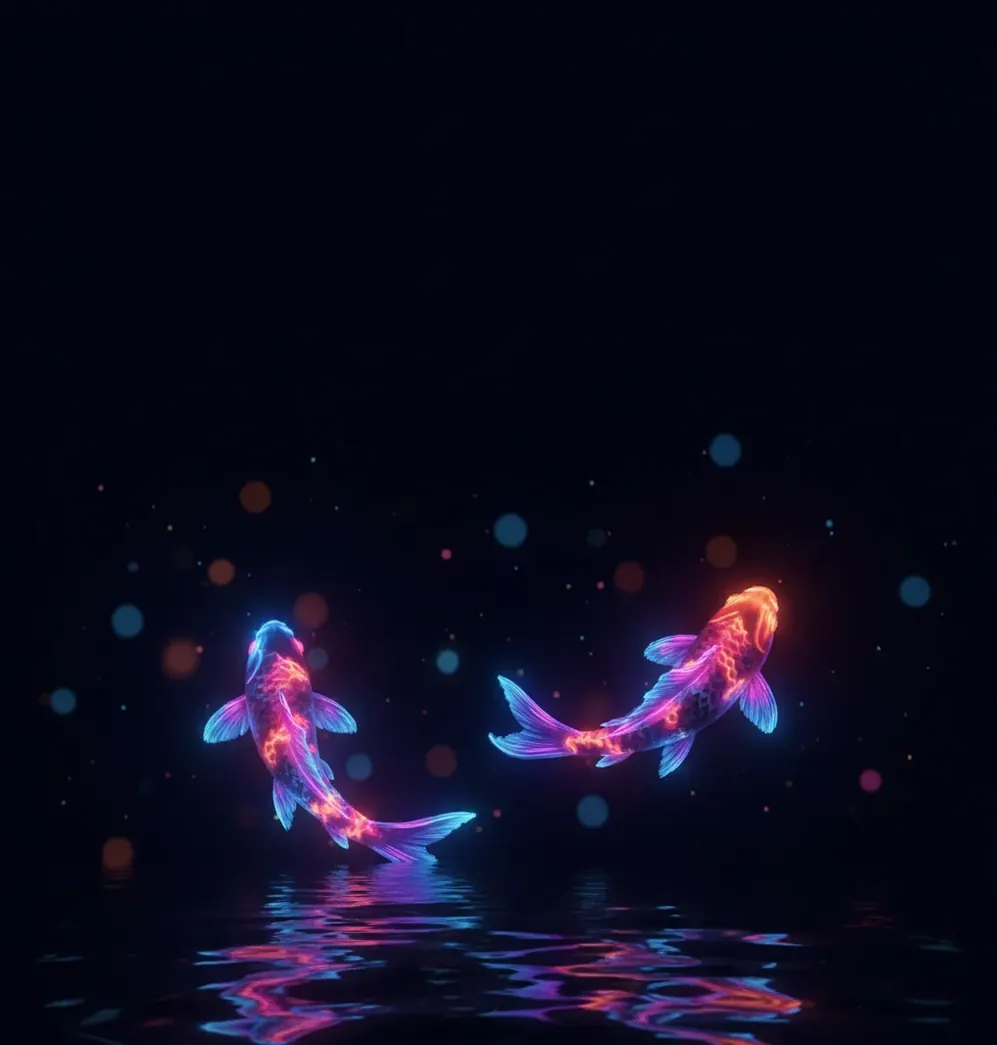
To make AI wallpapers for iPhone in 2026, use an AI image generator to create a vertical 9:16 image, place the subject below the top clock area, then crop and export it around 1290×2796 pixels or another resolution that matches your iPhone model. Leave the top 15-20% of the image clean for the clock and Dynamic Island, and use PNG or high-quality JPG for the final file.
What Is an AI iPhone Wallpaper?
An AI iPhone wallpaper is a background image generated with an AI image model and formatted for an iPhone Lock Screen or Home Screen. It usually starts from a text prompt, reference image, or style direction, then gets cropped into a tall mobile aspect ratio.
The key difference from a normal wallpaper is workflow: the image is not just downloaded, it is composed. You need to plan around the clock, Dynamic Island, widgets, app icons, and dock so the best part of the image is not hidden. AI wallpapers work well for abstract art, anime landscapes, cinematic scenes, pet-inspired art, seasonal themes, branding backgrounds, social posts, and printable phone art.
How Do AI Wallpaper Generators Create iPhone Backgrounds?
Most AI wallpaper generators use diffusion or transformer-based image models that convert a prompt into new pixels. The model starts from noise or latent image data, then gradually builds shapes, colors, lighting, edges, and textures that match the prompt.
For iPhone wallpapers, the model quality matters less than the final composition. A beautiful image can fail if the face sits under the clock or if dense detail makes widgets unreadable. Good wallpaper prompts use technical composition language such as “negative space,” “center-lower subject,” “soft gradient top,” “shallow depth of field,” “low visual clutter,” and “9:16 vertical frame.”
What Size Should an AI Wallpaper Be for iPhone in 2026?
A safe 2026 export target for modern large iPhones is 1290×2796 pixels, then crop or scale for your exact model. The most important rule is to keep a tall phone aspect ratio, usually close to 9:16 or 19.5:9, instead of exporting a square image that iOS will aggressively zoom and crop.
If you are unsure, generate larger rather than smaller. A 4K vertical image can be cropped down cleanly, while a low-resolution image may blur when iOS applies parallax, depth effects, or wallpaper zoom. Use PNG for clean gradients, crisp illustrations, and graphic styles. Use high-quality JPG for photographic scenes, grain, bokeh, and painterly textures.
How Do You Make an AI Wallpaper for iPhone Step by Step?
Choose the wallpaper use case
Decide whether the image is for the Lock Screen, Home Screen, matching pair wallpaper, social profile background, gift, print, or brand aesthetic. Lock Screens need more top spacing, while Home Screens need lower contrast behind icons.
Generate a vertical base image
Use a 9:16 or tall mobile canvas. In the prompt, describe the subject, mood, color palette, lighting, and placement. Add “negative space at top” if it is for the Lock Screen.
Pick the cleanest composition
Generate 4-8 variations and choose the one with the least clutter around the top, middle widget zone, and bottom dock area. Avoid images where faces, text, logos, or hands sit near the clock.
Crop for iPhone interface zones
Keep the top 15-20% calm for the clock and Dynamic Island. Place the main subject slightly below center, and leave the bottom soft enough that the dock or flashlight/camera buttons stay readable.
Upscale and export
Upscale once if the image looks soft, then export as PNG or high-quality JPG. Tools such as Pict AI can generate, crop, and enhance the image in one browser or iOS workflow.
Test on the actual phone
Set the image as both Lock Screen and Home Screen. Check the clock, widgets, icons, dock, and depth effect before saving the final version.
How Do You Keep the Clock, Dynamic Island, and Widgets Clear?
To keep an AI wallpaper readable on iPhone, treat the top of the image as a protected UI zone. The clock, Dynamic Island, and status elements occupy the upper area, so the subject should usually sit in the center-lower third of the frame.
A practical layout is: top 15-20% for sky, fog, gradient, blur, wall texture, or empty atmosphere; middle area for the main subject; lower area for soft texture that will not fight buttons, dock, or app icons. For Home Screen wallpapers, reduce contrast and detail behind icons. Dark gradients, matte textures, blurred city lights, marble, paper grain, clouds, and soft abstract forms usually work better than sharp faces or busy typography.
Which Tools Can Make AI iPhone Wallpapers?
| Tool | Best for | Strength | Watch out for |
|---|---|---|---|
| Pict AI | Fast phone wallpaper generation and cleanup | Browser and iOS workflow with generation, cropping, and upscaling | Still requires manual testing against iOS clock and widgets |
| Midjourney | Highly stylized fantasy, fashion, anime, and cinematic concepts | Strong art direction and aesthetic variation | Needs external cropping and export workflow for exact iPhone fit |
| DALL·E | Prompt-based images, simple concepts, and clean illustrative ideas | Easy natural-language prompting | May need editing for precise composition and phone-safe spacing |
| Adobe Express | Branded wallpapers, text layouts, and social design reuse | Good templates, typography, and export controls | More design-editor focused than pure image generation |
| Canva | Beginner-friendly wallpaper layouts and mood boards | Simple mobile design tools and reusable templates | AI image quality and licensing depend on the selected feature |
| iOS Photos | Final cropping, blur, filters, and wallpaper preview | Built into iPhone and useful for testing | Not a full AI generation tool by itself |
The best tool depends on whether you need image generation, exact mobile cropping, brand design, or final iOS preview. For serious wallpaper work, use one tool to generate the image and another step to test the real Lock Screen layout.
What Prompts Work Best for AI iPhone Wallpapers?
- Minimal Lock Screen: “vertical 9:16 iPhone wallpaper, soft midnight blue gradient, subtle grain, empty negative space at top, gentle light bloom near lower center, clean modern aesthetic, no text, no logo.”
- Anime landscape: “vertical phone wallpaper, anime mountain valley at sunrise, wide open sky in top 25%, tiny glowing village in lower third, soft clouds, cinematic lighting, clean composition, no text.”
- Pet-inspired art: “vertical iPhone wallpaper, dreamy illustration of a fluffy orange cat silhouette sitting in moonlight, subject in lower center, misty top space for clock, soft pastel colors, detailed fur, no text.”
- Dark Home Screen: “9:16 dark mode wallpaper, abstract black marble with subtle violet veins, low contrast center area, readable app icons, soft vignette, premium texture, no words.”
- Couple wallpaper pair: “two matching vertical phone wallpapers, same sunset color palette, left wallpaper with moon over ocean, right wallpaper with sun over mountains, minimalist, romantic, clean top spacing.”
- Brand aesthetic background: “vertical mobile wallpaper, clean studio gradient in brand colors, subtle glassmorphism shapes, empty top area, lower-third focal glow, modern portfolio background, no logo, no text.”
How Can You Turn One Prompt Into a Polished Wallpaper Set?
A strong creator workflow is to generate one visual direction, then build a small wallpaper set from it. Keep the subject, color palette, lighting, and mood consistent while changing the season, time of day, texture, or focal distance.
For example, one prompt about a neon koi pond can become a Lock Screen version with empty space at the top, a Home Screen version with blurred lower contrast, a social-story crop, and a printable mini-poster. This is useful for creators selling digital packs, making couple wallpapers, designing brand freebies, or building a cohesive portfolio. Keep a prompt log with seed notes, color hex codes, export size, and final crop decisions so you can recreate the style later.
Where Do AI Wallpapers Break on iPhone Screens?
- Fine text usually fails. AI models often distort small typography, logos, signatures, and interface-like labels, especially after resizing.
- Faces can land under the clock. If the subject is too high, iOS will cover eyes, hair, or expression with the time and Dynamic Island.
- Busy detail hurts readability. Dense leaves, stars, city lights, or line art can make widgets and app names harder to read.
- Upscaling can look artificial. One upscale pass may improve sharpness, but repeated enhancement can create plastic skin, crunchy edges, or fake texture.
What Is the Best Export Format for AI iPhone Wallpapers?
The best export format depends on the image style. Use PNG for graphic wallpapers, gradients, anime art, clean edges, transparent-looking glass effects, and anything with crisp shapes. Use high-quality JPG for photographic scenes, painterly landscapes, film grain, bokeh, and textured images where compression is less visible.
For resolution, export larger than the screen when possible, then crop intentionally. Avoid sending the wallpaper through messaging apps that compress images before saving. If the wallpaper looks sharp in your editor but soft on the phone, iOS probably zoom-cropped or resampled it. Re-export at a taller resolution, reduce unnecessary detail, and set the crop manually before applying it.
Keep going: prompts, background cleanup, and editing
Fix Wallpaper Extension, Color Shifts, and Inconsistent Sets
Some problems with AI wallpapers for iPhone appear only after you set the image as a background. Before regenerating, check whether the problem comes from the artwork, the exported file, or an iOS wallpaper setting.
- The top becomes a blurred extension. On supported iOS versions, zooming out can trigger Extend Wallpaper when the image no longer fills the screen. Disable that option if available, or extend the original canvas with matching scenery before importing it again. The best AI wallpaper generator app for this task should support controlled canvas expansion.
- The Home Screen loses all its texture. Check the Blur option in Home Screen customization before sharpening the file. Turn it off to compare the original detail. If icons then become hard to read, soften only the busy areas in an editor rather than blurring the entire background.
- Colors change between the editor and Photos. Export a standard SDR image with an embedded sRGB profile, then compare both versions at the same screen brightness. Temporarily disable True Tone and Night Shift while checking color. Choosing the best AI image generator for iPhone will not resolve a mismatched export profile.
- A rotating set feels visually jumpy. When developing 25 AI wallpaper ideas for iPhone, keep the horizon, subject scale, and overall brightness consistent across the selected images. Preview each with the same clock style. Remove frames that make the clock difficult to read rather than forcing every concept into the set.
- A style filter damages small details. Applying aesthetic AI filters on iPhone can introduce doubled edges, distorted eyes, or uneven patterns. Reduce the effect strength or mask the subject out of the treatment. Inspect faces and repeated shapes at full size before saving.
- An Android version crops differently. Reusing AI wallpapers for Android requires a separate preview on the destination phone. Make a new crop from the original master instead of resizing the already-cropped iPhone export; launcher layouts and screen proportions can differ.
AI iPhone Wallpaper Questions Answered
A static AI-generated wallpaper does not require an AI model to run after you save it. It behaves like any other still-image background. Battery use depends more on display brightness, screen-on time, and features such as Always-On Display. On OLED iPhones, darker images can reduce display power consumption, but changing wallpaper alone is unlikely to produce a dramatic battery improvement.
Yes. Save the generated images to Photos, then choose Photo Shuffle when adding a Lock Screen and select the images manually. Available controls depend on your iOS version. Preview every image because framing and clock contrast can change between pictures. A set with similar subject placement and brightness usually needs fewer individual adjustments than a collection of unrelated compositions.
Generate a vertical 9:16 image with an AI image tool, keep the main subject below the top clock area, then crop and export it at a high iPhone-friendly resolution such as 1290×2796 pixels.
A good universal target is 1290×2796 pixels for modern large iPhones, but the exact best size depends on your model. Keeping a tall phone aspect ratio is more important than matching one number perfectly.
Leave the top 15-20% of the image as negative space, such as sky, fog, gradient, blur, or plain texture. Place faces and focal subjects slightly below the center of the frame.
Use PNG for crisp illustrations, gradients, and graphic art. Use high-quality JPG for photo-style wallpapers, painterly textures, and scenes with natural grain.
It may be too small, over-compressed, or zoom-cropped by iOS. Export at a higher resolution, crop manually, and avoid sending the file through apps that compress images.
Yes, but Home Screen wallpapers should be lower contrast and less busy than Lock Screen wallpapers. Icons and app names need a calm background to stay readable.
Good prompts describe a vertical 9:16 frame, clear subject placement, negative space at the top, lighting, color palette, and “no text” or “no logo” when needed.
You may be able to sell them if your tool license allows commercial use and your prompts do not copy protected characters, logos, celebrity likenesses, or private images.
Sometimes. Depth effect works best when the subject has a clear edge and enough separation from the background, but it can fail if the image is too abstract, too busy, or poorly segmented.