How to Make Disney Pixar-Style Portraits With AI
A Disney Pixar-style AI portrait turns a real photo into a soft, 3D animated character look with expressive eyes, smooth shading, and cinematic lighting. The best results come from a sharp front-facing selfie, a short image-to-image prompt, and constraints that protect identity, age, hair, and facial structure.
How to Make Disney Pixar-Style Portraits With AI
- Upload a clear head-and-shoulders photo with visible eyes and enough space around the hair.
- Describe a friendly 3D animated portrait, specifying preserved facial proportions, hairstyle, age, and natural eye size.
- Generate a small batch of portrait variations using the uploaded photo as the identity reference.
- Review eyes, mouth, accessories, and likeness, then export the strongest portrait at the highest available resolution.
Example prompt: Image-to-image portrait stylize: friendly 3D animated character portrait, soft cinematic lighting, smooth skin shading, detailed hair strands, natural eye size, clean pastel background, keep same person, keep face shape, no age change, no extra teeth, high detail
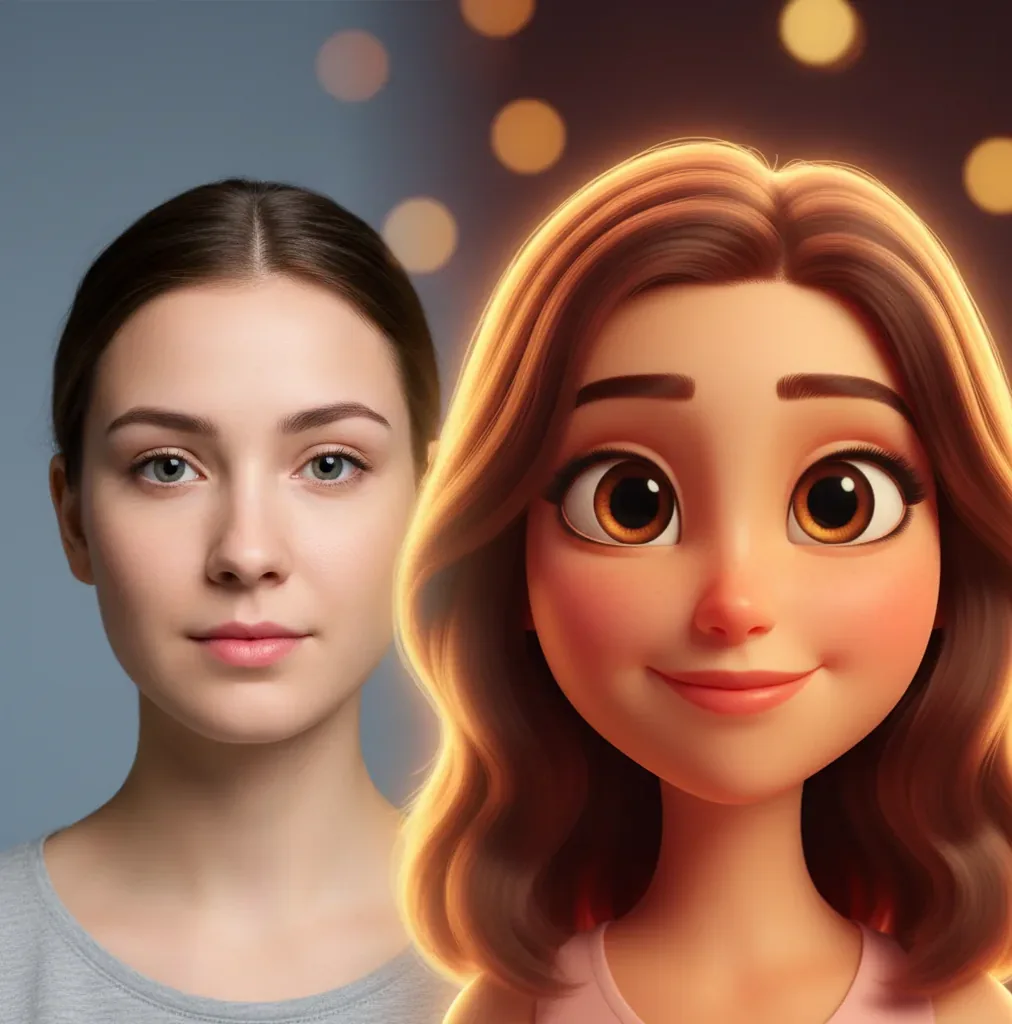
To make Disney Pixar-style portraits with AI, start with a clear, evenly lit selfie and use an image-to-image generator or portrait stylizer. Prompt for a friendly 3D animated character portrait with soft cinematic lighting, detailed hair, smooth skin shading, and a clean background, then add constraints such as keep the same person, keep face shape, natural eye size, and no age change. Generate several variations and choose the one with the best eye symmetry, mouth shape, and recognizable facial structure.
What Does a Disney Pixar-Style AI Portrait Mean?
A Disney Pixar-style AI portrait usually means an animation-inspired 3D character portrait, not an official studio artwork or licensed character. Visually, the style leans on rounded facial forms, large but readable eyes, soft subsurface-like skin shading, detailed hair clumps, warm rim light, and a clean cinematic background.
In practice, the AI is not simply applying a cartoon filter. It generates a new image that references your face while changing the render: materials become smoother, lighting becomes more controlled, and proportions may become slightly more expressive. Use this look for personal avatars, gift portraits, social posts, creator branding, or concept art, but avoid trademarked logos, official characters, or commercial claims that imply affiliation.
How Do AI Portrait Stylizers Keep Your Face Recognizable?
AI portrait stylizers keep you recognizable by conditioning the generation on visible identity cues from the source image. In diffusion-based image generation, the model reconstructs a new image from noise while following both the uploaded photo and the text prompt. Important identity signals include eye spacing, jaw shape, nose bridge, cheek volume, hairline, hairstyle, skin tone, and expression.
The risk is prompt pressure: if the style prompt is too strong, the model may over-enlarge the eyes, narrow the chin, smooth away age markers, or change the smile. A good workflow tells the model what to restyle, such as lighting, surface texture, and animated rendering, while also telling it what to preserve, such as face shape, age, hairstyle, glasses, and natural eye size.
How Do You Make Disney Pixar-Style Portraits With AI From One Selfie?
Choose a clean source photo
Use a sharp, front-facing selfie with visible eyes, no heavy beauty filter, and no motion blur. A head-and-shoulders crop works better than a full-body image because the model has more facial detail to preserve.
Fix the lighting before generating
Use window light or soft indoor light, then brighten deep shadows and reduce harsh highlights. Overhead bathroom lighting often becomes eye bags, bruised shadows, or uneven cheek shading in the stylized output.
Upload the image to an image-to-image tool
Start with a portrait stylize or image-guided generation mode rather than pure text-to-image. Tools such as Pict AI, Midjourney, ChatGPT image generation, Firefly, Canva, and Lensa can all create animation-inspired portrait variations with different levels of control.
Use a short style prompt
Prompt for the visual render instead of only naming a brand. A strong base prompt is: friendly 3D animated family film character portrait, soft cinematic lighting, smooth skin shading, detailed hair, natural smile, clean background, high detail.
Add identity constraints
Add constraints such as: keep the same person, keep face shape, keep hairstyle, natural eye size, symmetrical eyes, no age change, no extra teeth, no new freckles, keep glasses shape. These reduce face drift.
Generate, compare, and lightly retouch
Create 4 to 8 variations and pick the one with the most accurate eyes, mouth, and face outline. Final edits should be subtle: sharpen the eyes, reduce plastic shine, clean hair halos, and simplify the background.
What Is the Best Prompt for a 3D Animated Portrait?
- Base portrait prompt: Friendly 3D animated character portrait of the same person, soft cinematic lighting, smooth but natural skin shading, expressive eyes, detailed hair, natural smile, clean studio background, high detail.
- Identity-safe add-on: Keep the same face shape, same age, same hairstyle, same skin tone, same eye color, natural eye size, symmetrical eyes, no face slimming, no extra teeth, no exaggerated makeup.
- Gift portrait prompt: Warm 3D animated family-film portrait, gentle smile, cozy golden-hour lighting, polished hair detail, soft background bokeh, wholesome mood, print-ready composition.
- Creator avatar prompt: Clean 3D cartoon profile portrait, confident friendly expression, soft key light, simple brand-color background, crisp edges, readable at small social avatar size.
- Negative prompt: Waxy skin, uneven eyes, extra teeth, distorted glasses, melted hair, over-smoothed face, changed identity, older, younger, creepy smile, heavy makeup, text, watermark, logo.
Which AI Tools Can Create 3D Cartoon Portraits?
| Tool | Best For | Input Style | Strength | Watch Out For |
|---|---|---|---|---|
| Pict AI | Fast portrait stylization on web or iOS | Photo upload plus prompt | Quick rerolls, simple edits, avatar-friendly workflow | Check rights and privacy settings before uploading sensitive photos |
| Midjourney | Highly polished stylized portraits and art direction | Image reference plus text prompt | Strong lighting, composition, and cinematic rendering | Identity consistency can vary without careful reference control |
| ChatGPT image generation | Conversational prompt iteration and easy revisions | Photo upload plus natural-language instructions | Good for refining prompts and requesting specific corrections | May simplify fine facial details or refuse certain likeness requests |
| Adobe Firefly | Design-safe creative workflows and brand environments | Text prompt or image-assisted creation | Useful for creators already in Adobe apps | May produce a less specific cartoon likeness depending on settings |
| Canva | Social graphics, thumbnails, and profile layouts | Template plus AI image tools | Easy resizing, backgrounds, and typography | Stylization control is lighter than specialist image generators |
| Lensa or mobile avatar apps | Quick phone-based avatar packs | Selfie upload set | Convenient for casual profile pictures | Less prompt control and variable identity preservation |
Choose the tool based on the output you need. For a social avatar, speed and rerolls matter more than perfect art direction. For a portfolio piece, pick a tool with stronger lighting control, high-resolution export, and better face consistency across variations.
How Can Creators Use This Portrait Style?
Creators use 3D animated portrait styles when they want a face-forward image that feels warmer than a headshot and more polished than a selfie. It works especially well for profile pictures, couple avatars, family gift prints, Discord or Slack icons, YouTube thumbnails, character poster edits, and before-and-after social posts.
The emotional utility is the main reason the style keeps trending. A good cartoon portrait can make someone look approachable, expressive, and storybook-ready without exposing every detail of a real photo. For branding, keep the background simple, use consistent colors, and generate a matching set with the same lighting angle, crop, and facial expression.
What Should You Watch Out for With AI Cartoon Portraits?
- Trademark safety matters. You can ask for an animation-inspired 3D family-film look, but avoid using official logos, named characters, or outputs that imply endorsement by a studio.
- Low-resolution selfies create low-quality stylization. If eyelashes, teeth, or hair edges are blurry in the source image, the model may smear them into waxy skin, melted hair, or uneven eyes.
- Glasses need explicit protection. Add keep glasses shape, clear lenses, symmetrical frames, and no duplicate glasses if the source photo includes eyewear.
- Big smiles are harder than soft smiles. Teeth create many small shapes, so the model may add extra teeth, bend the mouth corners, or make the grin too wide.
How Do You Fix Weird Eyes, Waxy Skin, or a Lopsided Smile?
Fix weird AI portrait artifacts by changing the input photo first, then tightening the prompt. Uneven eyes usually come from shadows, tilted faces, hair crossing the eye area, or an over-cute prompt. Use a straight-on selfie and add natural eye size, symmetrical eyes, and keep gaze direction.
Waxy skin usually means the model over-smoothed texture or the source photo lacked detail. Ask for smooth but natural skin shading, subtle cheek texture, and soft realistic highlights. For lopsided smiles, choose a source image with a smaller closed-mouth or relaxed smile, then add natural smile, correct lip corners, no extra teeth, and balanced expression.
Check and Export a 3D Cartoon Portrait for Its Intended Use
A portrait can look convincing at full size but fail as a tiny avatar or printed gift. Use this finishing workflow after generating your first animation-inspired version, before spending time on additional variations.
- Set the viewing context. Decide whether the image will appear as a profile picture, gift print, or illustrated character. For ai portraits for dating app profiles, use stylized artwork as a clearly recognizable supplement rather than a substitute for current photographs. Tip: preview the actual display size.
- Check the silhouette in a circular crop. If your goal is how to turn photo into cartoon disney style, the finished portrait still needs enough space around the hair, ears, and chin for avatar cropping. Tip: keep important facial details away from the outer edge.
- Compare distinctive accessories. When you convert photo to ai art style, inspect glasses, earrings, hearing aids, and headwear against the original. Frames may merge into eyebrows, while small accessories can disappear or multiply. Tip: correct one accessory at a time rather than requesting a complete redraw.
- Separate incompatible style references. A search for how to make studio ghibli style portraits with ai points toward a different visual treatment: illustrated surfaces rather than dimensional character rendering. Combining both directions can produce inconsistent textures. Tip: choose one rendering approach for the entire portrait.
- Evaluate the cost of corrections. The practical question behind is ai image generator worth it is whether a usable portrait takes two attempts or twenty. Count retries, paid exports, and manual cleanup before purchasing more credits. Tip: set an attempt limit before starting another batch.
- Inspect the exported file. Before you go to print or publish, reopen the download and check its dimensions, transparency, and visible compression. A sharp preview does not guarantee an equally sharp export. Tip: save a full-resolution master separately from the cropped sharing copy.
Answers About Creating 3D Animated Portraits
Use one approved portrait as the visual reference for subsequent images, if the tool supports reference images. Keep the hairstyle, clothing, facial proportions, and rendering description consistent, then change only the pose or setting. A fixed seed can help in some generators but does not guarantee identity consistency. Compare each result for changes to the jaw, eye spacing, and hairline.
For a print viewed up close, aim for about 300 pixels per inch at the intended size. A 5-by-7-inch portrait therefore needs roughly 1500 by 2100 pixels after cropping. Upscaling can increase dimensions, but it may invent hair strands or alter facial details. Inspect the enlarged face before ordering, and follow the printer’s file-format and color-profile requirements.
Upload a clear portrait to an image-to-image AI tool, prompt for a friendly 3D animated character look, and add constraints that preserve face shape, age, hair, and eye size.
Use visual terms like friendly 3D animated character portrait, soft cinematic lighting, smooth natural skin shading, expressive eyes, detailed hair, natural smile, and clean background.
A sharp, front-facing head-and-shoulders selfie with soft lighting, visible eyes, and a simple background works best. Avoid harsh overhead light, heavy filters, sunglasses, and motion blur.
The model may be over-stylizing your face or missing identity cues from the source photo. Add constraints such as keep face shape, same age, same hairstyle, natural eye size, and no face slimming.
Use a prompt that says natural eye size, symmetrical eyes, keep eye spacing, and expressive but realistic proportions. Avoid words like cute, doll-like, chibi, or exaggerated if you want a closer likeness.
It is safer to describe the visual style instead of asking for a real celebrity, copyrighted character, or official studio look. This helps avoid likeness, trademark, and impersonation issues.
Commercial use depends on the generator license, the rights to the source photo, and whether the output includes protected branding or recognizable third-party likenesses. Check the tool terms before using portraits in ads, merchandise, or client work.
Use a clear group photo where every face is visible and evenly lit, then prompt for a matching 3D animated family portrait. Generate multiple versions because group images are more likely to distort eyes, hands, and smiles.
Use 1:1 for profile pictures, 4:5 for Instagram-style portraits, 9:16 for stories and phone wallpapers, and 16:9 for banners or thumbnail compositions.