How to Make an ID Photo With AI in 2026
You can make an ID photo with AI by starting with a sharp front-facing phone portrait, replacing the background with the required plain color, and cropping the file to the exact document size. Pict AI, Canva, Photoshop Express, and dedicated passport photo tools can all help, but the final image must match the official rules for your country, school, employer, or portal.
How to Make an ID Photo With AI in 2026
- Upload a recent, unedited camera portrait with a straight head position, visible eyes, and sufficient shoulder space.
- Choose the receiving organization’s dimensions and background requirements, using only edits its photo policy permits.
- Generate the permitted crop and background adjustments without changing facial features, clothing, or identifying details.
- Review facial detail and head placement, then export in the required format and check the submission preview.
Example prompt: Create an ID-style photo: neutral expression, plain white background, even window light, head centered with small margins, natural skin texture, no heavy retouching, high-resolution export.
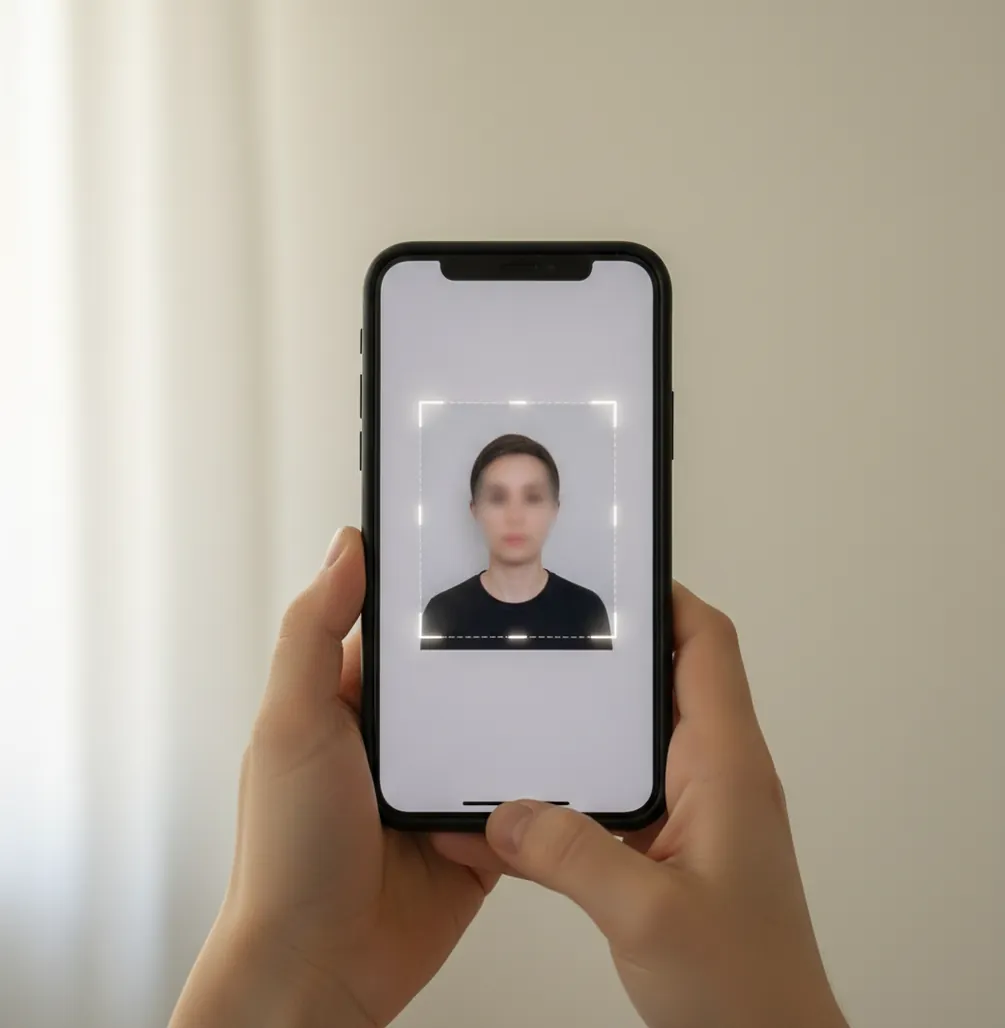
To make an ID photo with AI in 2026, take a sharp eye-level phone photo in natural light, use an AI editor to remove or clean the background, then crop the image to the exact required size and head position. Export a high-resolution file, inspect it at 100% zoom for halos, glare, shadows, and compression artifacts, and verify the official photo specifications before uploading or printing.
What Does It Mean to Make an ID Photo With AI?
Making an ID photo with AI means using artificial intelligence to turn a normal phone portrait into a compliant-looking ID-style headshot. The AI usually handles background segmentation, background replacement, face centering, crop guidance, and light cleanup, while you still choose the official size and verify the rules.
This workflow is useful for student IDs, employee badges, membership cards, exam profiles, volunteer credentials, and some application portals. For passports, visas, permits, and government documents, AI can prepare the file, but it does not replace the official photo requirements. A photo that looks clean can still be rejected if the head height, background color, expression, glasses, resolution, or file format is wrong.
How Does AI Turn a Phone Portrait Into an ID Photo?
AI ID photo tools work by detecting the person, separating them from the background, and fitting the portrait into a strict crop. Most modern editors use semantic segmentation or matting models to create a mask around the face, hair, shoulders, ears, and neckline. Better tools refine soft edges so hair does not look pasted onto a white square.
After segmentation, the editor applies layout constraints: centered face, level eyes, visible shoulders, neutral background, and fixed output dimensions such as 2 x 2 inches, 35 x 45 mm, or a custom pixel size. The technical challenge is balance: the image must be clean enough for a form or badge, but not so retouched that skin texture, face shape, or identity details look altered.
How Do You Take the Best Phone Photo for an AI ID Picture?
Use Soft Front Light
Stand facing a window or soft indoor light so both sides of your face are evenly lit. Avoid overhead bathroom lighting because it creates shadows under the eyes, nose, and chin.
Keep the Camera at Eye Level
Use the rear camera if possible, set the phone to 1x zoom, and keep the lens level with your eyes. Do not shoot from above or below because ID crops exaggerate perspective distortion.
Stand Away From the Wall
Leave about 1 to 1.5 meters between you and the wall to reduce hard shadows. A plain wall helps, but the AI can replace the background later if the subject edges are sharp.
Use a Neutral Expression
Look directly at the camera with eyes open, mouth closed, and head straight. Some documents allow a slight natural expression, but many official IDs require a neutral face.
Remove Obstructions
Move hair away from the eyes, avoid hats unless required for religious or medical reasons, and remove glasses if glare appears. Glare is one of the hardest problems to fix cleanly.
Choose the Sharpest Frame
Before editing, zoom in and check the eyes, eyelashes, ears, and hairline. If the original photo is blurry, AI sharpening can create crunchy skin texture and edge artifacts.
What Background and Size Should an AI ID Photo Use?
An AI ID photo should use the exact background color, image size, and head-size range required by the receiving organization. Many ID photos use white, off-white, or light gray backgrounds, but the correct choice depends on the document type and country. Do not assume that every ID photo should be pure white.
Common output sizes include 2 x 2 inches for some passport-style photos, 35 x 45 mm for many international formats, and square pixel-based uploads such as 600 x 600 px or 1200 x 1200 px. The most important measurement is often not the canvas size but the head height, eye line, and margin above the head. Always check the official template before exporting.
Which Apps Can Make an AI ID Photo in 2026?
| Tool | Best For | Strengths | Watch Outs |
|---|---|---|---|
| Pict AI | Fast phone-to-ID background cleanup and crop preparation | Mobile workflow, background removal, clean exports, useful for social, badge, and application-style portraits | Still requires manual verification against official document specs |
| Canva | Layouts, print sheets, and simple preset sizing | Easy templates, drag-and-drop controls, useful for printing multiple copies on one page | Some assets or exports may require an account or paid elements |
| Adobe Photoshop Express | Manual editing control on mobile | Precise adjustment tools, retouching controls, strong export options | More manual steps for strict head-size and template alignment |
| Passport Photo Online Tools | Country-specific passport or visa presets | Often includes document templates and compliance checks | Quality varies by service; always inspect the final file yourself |
Choose the tool based on the final destination. A campus badge or gym card may only need a clean neutral portrait, while a passport or visa application may require country-specific sizing, background color, file format, and biometric-style framing.
What Is a Reusable AI ID Photo Editing Recipe?
A reliable AI ID photo recipe is: clean input first, minimal correction second, official crop last. Avoid prompts or edits that change your face shape, add beauty retouching, smooth skin heavily, alter eye color, replace clothing unrealistically, or generate a new identity. ID photos need recognizability more than style.
Reusable edit instruction: “Create a realistic ID-style headshot from this photo. Keep the person’s face, skin texture, hairline, ears, clothing, and expression unchanged. Replace the background with a plain [white/off-white/light gray] background, center the head and shoulders, keep eyes level, remove shadows and background clutter only, and export as [required size or pixels]. Do not beautify, reshape, stylize, or change identity details.”
How Do You Check an AI ID Photo Before Uploading or Printing?
Open the Official Requirements
Check the exact size, head height, background color, file format, maximum file size, and whether glasses, smiles, uniforms, or head coverings are allowed.
Inspect at 100% Zoom
Look around the hair, ears, shoulders, glasses, and neckline for halos, jagged edges, blur, or leftover background color. These defects are easier to see before compression.
Measure the Crop
Confirm the top margin, chin position, eye line, and head height against the required template. A photo can be sharp and still fail because the face is too large or too small.
Export Without Heavy Compression
Use a high-resolution JPG or PNG unless the portal specifies otherwise. Avoid repeated saving through messaging apps because they often strip metadata and compress details.
Test the Print or Upload
If printing, make one test print at the required physical size. If uploading, check whether the portal flags file size, dimensions, color space, or background uniformity.
Where Are AI-Made ID Photos Most Useful?
AI-made ID photos are most useful for lower-friction identity images: school portals, employee profiles, conference badges, online course accounts, exam proctoring profiles, volunteer credentials, gym memberships, club cards, wallet prints, and internal company directories. These use cases usually need a clear, neutral, recognizable headshot rather than a government-grade biometric photo.
They are also useful for creators and freelancers who need consistent headshots across resumes, Notion portfolios, client portals, press kits, and brand profiles. The emotional utility is simple: you can make a clean, confident, non-awkward ID-style portrait from home without rushing to a photo booth or accepting bad fluorescent lighting.
When Will an AI ID Photo Get Rejected?
- The background is not truly uniform when viewed at 100% zoom, especially around hair, ears, shoulders, or glasses.
- The head size is outside the allowed range, even if the overall canvas size is correct.
- The face is angled, tilted, too close, too far away, or not looking directly at the camera.
- Glasses create glare, tinted lenses hide the eyes, or frames cover part of the eye area.
ID Photo Workflows for Students, New Hires, and Credential Applicants
The useful edit depends on who receives the photo and how they display it. Before opening an id photo maker, identify the destination: a printed card, a staff directory, or an application with strict restrictions on image alteration.
- Students submitting a campus card photo: A university might display the same upload on a physical card and in its learning portal. If the portal previews a square image but the card uses a taller crop, keep an untouched original with space around the shoulders. Check both previews before submitting; a crop that fits one display can cut off hair in the other.
- Employees joining a company: A new hire may need a badge photo plus a directory portrait. Make separate exports rather than forcing one crop into both layouts. For example, preserve a wider version for the directory and create the badge version using HR’s template. Name each file by its destination so the wrong version is not uploaded.
- Contractors applying for site access: A technician working at several facilities may face different upload limits. Keep a simple record of each site’s required dimensions, file-size ceiling, and submission date. Export each version from the original rather than repeatedly resizing a compressed copy, which can degrade facial detail.
- Creators arranging event credentials: A speaker or photographer may already have promotional portraits made with tools such as higgsfield soul. Keep those separate from identity submissions: a generated likeness is not a substitute for a current photograph. For example, send an actual camera portrait for a conference access badge and reserve stylized imagery for promotional materials, where permitted.
For any government application, check whether editing is permitted before changing the image. If alterations are prohibited, take a new photograph that meets the requirements without background replacement or retouching.
Answers About AI ID Photo Preparation
Use the camera’s non-mirrored image for an ID submission unless the receiving organization explicitly instructs otherwise. Some phones show a mirrored preview but save an unmirrored photograph; others offer a setting that mirrors the saved selfie. Check that setting before shooting. Avoid flipping the finished image casually, since it reverses visible facial asymmetry and any text on clothing.
Place the photo at its required physical dimensions on a print layout, then choose actual size or 100% scaling in the print dialog. Disable options such as fit to page, which can enlarge or shrink the image. After printing, measure the photo with a ruler before cutting it. Borderless printing may also apply enlargement, so check the printer settings carefully.
Yes, you can use AI to clean the background, center the face, and crop a phone portrait into an ID-style photo. You still need to match the official requirements for the specific document or portal.
Sometimes AI can help prepare a passport-style photo, but passport rules are strict and country-specific. Always follow the government photo specification and avoid edits that alter your appearance.
Many ID photos require white, off-white, or light gray, but the correct background depends on the issuing organization. Use the exact color listed in the official instructions.
Common sizes include 2 x 2 inches, 35 x 45 mm, and square digital uploads such as 600 x 600 px. The required size varies by country, document, school, employer, or application system.
Common rejection reasons include wrong head size, uneven background, shadows, glasses glare, blur, over-editing, and incorrect file format. Technical upload checks can also reject images for dimensions or compression.
For many official IDs, a neutral expression with mouth closed is safest. Some non-government badges allow a small natural smile, but you should follow the instructions for the specific use case.
Yes, a modern phone can produce a usable ID photo if the image is sharp, evenly lit, and taken at eye level. Use the rear camera, 1x zoom, and soft front lighting whenever possible.
Background cleanup is usually acceptable for casual badges and many digital profiles, but official documents may restrict editing. If the rules say the photo must be unaltered or professionally taken, follow that requirement.
JPG is the most common format for online ID uploads, while PNG can preserve clean edges if allowed. Check the portal’s accepted file types, pixel dimensions, and maximum file size before exporting.