How to Remove Product Photo Shadows With AI
You can remove product photo shadows with AI by selecting only the dark cast shadow and regenerating the background pixels around it. The best result keeps product edges sharp, preserves surface texture, and leaves a subtle contact shadow so the item still feels grounded.
How to Remove Product Photo Shadows With AI
- Upload the original product photo so the editor has clear edges and background detail to work with.
- Select the unwanted cast shadow and describe the background to restore, excluding the product and its contact shadow.
- Generate the repair, then compare it with the original for changed lettering, glass edges, or backdrop color.
- Review the exported image at full size and listing size before saving it with your product photo set.
Example prompt: Remove the harsh shadow under and to the left of the product. Keep the product edges, label text, and contact point realistic. Rebuild the background to match the existing white paper tone and subtle texture. No added text.
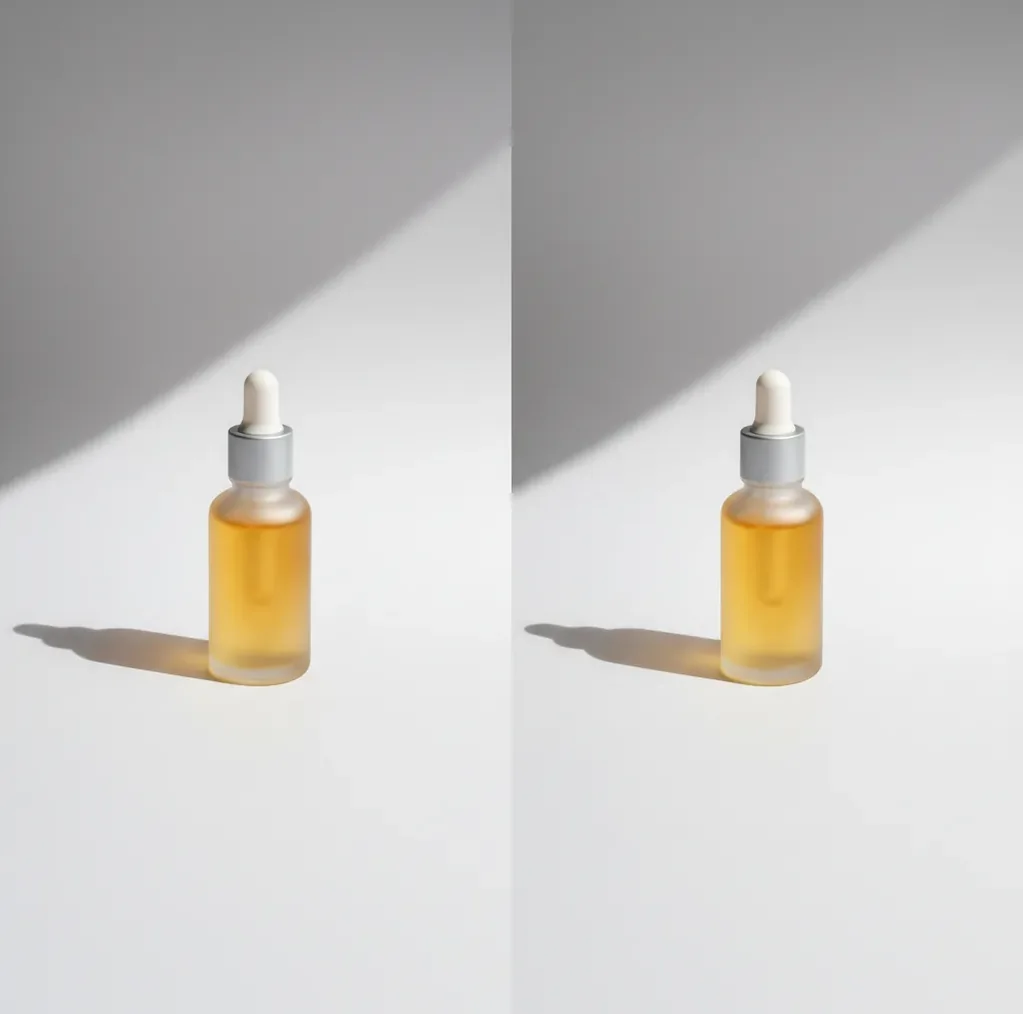
To remove product photo shadows with AI, mask the shadowed area under or beside the product and use an inpainting tool to rebuild the background from nearby texture and tone. Do not erase every shadow; keep a faint contact shadow so the product does not look pasted onto the image.
What Does AI Shadow Removal Mean for Product Photos?
AI shadow removal is the process of selecting a cast shadow in a product image and using image inpainting to replace it with cleaner background pixels. In ecommerce photography, it is most useful for reducing gray shelf shadows, ring-light side casts, uneven tabletop lighting, and backdrop stains that distract from the item.
The goal is not to make the image shadowless. A product usually needs a soft contact shadow under its base to show weight and scale. Good AI cleanup removes harsh, inconsistent darkness while preserving object contours, label edges, surface reflections, and the subtle tonal cues that make a product look real.
How Does AI Rebuild the Background After a Shadow Is Removed?
Most AI shadow tools use mask-guided inpainting: you mark the unwanted shadow, and the model predicts replacement pixels based on the surrounding paper, fabric, sweep, tabletop, or studio backdrop. The system analyzes local color, luminance, grain, and texture direction, then synthesizes a patch that blends into the unmasked background.
The hard part is the product boundary. If the mask touches the object edge, the model may soften corners, create halos, or redraw parts of the product. Brush-based tools, including Pict AI, are useful because they let you control the mask manually instead of trusting a one-click automatic selection on thin handles, glass edges, jewelry chains, or reflective packaging.
How Do You Remove a Product Shadow Without Making It Float?
Upload the highest-resolution image
Start with the largest original file, not a compressed marketplace preview. More pixels give the AI better edge detail, smoother background texture, and cleaner repairs around labels, caps, seams, and corners.
Crop before editing
Crop to the final listing or social format first, such as 1:1 for product grids or 4:5 for social posts. A tighter crop reduces the amount of background the model must rebuild.
Mask only the harsh shadow
Brush over the dark cast shadow while staying a few pixels away from the product edge. Avoid painting over reflections, transparent material, embossed logos, or the natural bottom contour.
Run the inpaint and inspect at 100%
Check the repaired area at actual size. Look for edge halos, smeared paper grain, repeated texture, color shifts, or missing contact shadow under the product.
Redo with smaller passes if needed
If the background looks patched or the product looks cut out, undo and edit in smaller sections. Leave a soft grounding shadow directly beneath the item, then remove only the distracting outer cast.
Compare the full product set
Place images from the same SKU family side by side before export. Consistent shadow softness, background brightness, and white balance matter more than making each file perfectly flat.
Which AI Tools Can Clean Up Ecommerce Shadows?
| Tool | Best for | Strength | Watch out for |
|---|---|---|---|
| Pict AI | Fast brush-based cleanup for product shadows on web or iOS | Manual masking helps protect product edges and preserve background texture | Still requires zoom review on reflective, glass, or transparent products |
| Adobe Photoshop Generative Fill | Professional retouching, layered files, and detailed catalog work | Precise masks, layers, feathering, and manual correction controls | More setup time and a steeper learning curve for quick marketplace edits |
| Canva Magic Edit | Simple social posts, thumbnails, and quick branded layouts | Easy for non-designers and useful when editing inside a design workflow | Less control over edge-level retouching and fine texture repairs |
| PhotoRoom | Marketplace images, background cleanup, and mobile-first product editing | Strong product cutouts and listing-focused templates | Can over-standardize images if you need natural tabletop texture |
| Lightroom masking tools | Reducing shadow intensity without replacing pixels | Good for tonal correction, exposure, and batch consistency | Cannot fully reconstruct missing or stained background detail |
Choose an inpainting tool when the background needs to be rebuilt, and choose a tonal editor when the shadow only needs to be softened. For high-volume catalogs, the best workflow is often lighting correction first, AI cleanup second, and manual quality control last.
When Should You Remove Shadows From Marketplace, Catalog, or Social Images?
Remove harsh shadows when they make a product grid look inconsistent, hide packaging details, or create dirty-looking gray areas on a white or light backdrop. This matters for Amazon-style main images, Shopify collection pages, Etsy handmade listings, cosmetics flat lays, food packaging, shoe photos, bags, jewelry, and product-launch posts.
Keep some shadow when the image needs physical context. Handmade ceramics, candles, bottles, watches, and premium packaging often look more trustworthy with a soft grounding shadow. For ads, gift guides, portfolio pieces, and brand assets, the strongest edit usually looks clean but not sterile: bright background, readable product shape, and enough depth to feel photographed rather than cut out.
What Prompt Recipes Work for AI Shadow Cleanup?
Use short, literal prompts when the editor supports text-guided inpainting. The mask tells the model where to edit; the prompt should describe the replacement background, not the whole product. Avoid asking for a new object, new lighting style, or a perfect white background if the original surface has visible texture.
Template 1: "Replace the masked shadow with the same clean white paper background, preserve natural grain, keep product edges unchanged." Template 2: "Soften the harsh cast shadow into a subtle contact shadow, maintain realistic grounding under the product." Template 3: "Remove the gray side shadow from the backdrop, match surrounding color and texture, no changes to the product." Template 4: "Clean uneven tabletop lighting, preserve the original surface texture and realistic product reflection."
What Settings and Habits Produce Cleaner Shadow Edits?
Cleaner shadow removal starts before the AI edit. Shoot with diffused light, avoid mixed color temperatures, expose for the product label, and use a matte white card or foam board to reduce heavy side casts. AI performs better when the shadow is moderate, the product edge is sharp, and the background has enough clean reference area to sample.
During editing, use a small brush for edges and a larger brush for open background. Feather the mask slightly when possible, repair one shadow zone at a time, and compare exports against the original at 100% zoom. For a full catalog, save a reference image that defines your preferred background brightness and contact-shadow softness.
When Will AI Shadow Removal Look Unnatural?
- Hard-edged shadows on textured linen, wood grain, or concrete can create repeated patterns because the model has to synthesize directional texture.
- Glass, chrome, glossy plastic, and acrylic are difficult because reflections and shadows overlap; removing one may damage the other.
- Underexposed photos often reveal noise after shadow cleanup, especially on phone images shot indoors at high ISO.
- Thin product parts such as straps, handles, cords, jewelry chains, or tripod legs can confuse the mask and produce halos.
Keep building a consistent product photo set
Fix Shadow Edits That Change the Product or Leave Visible Patches
A failed shadow edit is not always a masking problem. Before generating another version, identify whether the unwanted darkness belongs to the background, the lighting, or the product itself. Each needs a different correction.
- A printed detail disappears. Dark packaging artwork, stitching, and recessed lettering can resemble shadows. Compare the edit with the original and restore any altered product pixels. Restrict the next selection to the backdrop; a prompt asking to preserve branding cannot guarantee accurate lettering.
- The background is clean, but the product remains too dark. Removing a cast shadow does not correct an underexposed subject. The relevant workflow is how to fix dark or overexposed photos with ai: adjust exposure separately, checking that pale labels and glossy highlights retain detail. If highlights are clipped in the original, AI may invent rather than recover their texture.
- A transparent bottle develops an opaque patch. Background color seen through glass is part of the product’s appearance. Undo the repair across the transparent area and clean only the exposed backdrop. A background replacement may require separate work on transparency and refraction, not just shadow removal.
- A faint ring appears after export. Smooth backdrop gradients can reveal abrupt transitions or compression artifacts. Inspect the exported file, not only the editor preview. Blend the repaired boundary with a gentle local tonal adjustment, and avoid repeatedly saving intermediate JPEGs.
- The replacement shadow points the wrong way. Compare its direction with highlights and any remaining scene shadows. Learning how to add shadows to product photos with ai is useful here, but adding a generic oval is not enough: its direction, softness, and spread must fit the lighting.
Product Photo Shadow Removal Questions
Yes, but a colored backdrop makes mismatched repairs easier to spot. The replacement area needs to preserve both the background hue and any lighting gradient. Select a small region first, then check the result for shifts in saturation or brightness. Textured and patterned backdrops may need manual blending after generation.
Batch editing works best when photos share the same lighting, camera angle, and background. A fixed mask can fail if products move between frames or have different shapes. Use one image to establish the correction, then review every output for altered labels, missing edges, and inconsistent background tones before exporting the set.
Yes. AI can remove or soften product photo shadows by masking the dark area and inpainting background pixels that match the surrounding surface.
Remove the harsh outer shadow but leave a faint contact shadow directly under the product. That small shadow keeps the item grounded and prevents a cut-out look.
Use a brush-based AI inpainting tool, mask only the shadow, and inspect the product edge at 100% zoom. If the result looks smeared, redo the edit in smaller sections.
AI can help, but reflective products are harder because glare, reflection, and shadow often overlap. Chrome, glass, and glossy plastic usually need smaller masks and manual review.
Not always. A soft contact shadow often makes a product look more realistic, while harsh side shadows or uneven gray casts are usually worth removing.
It can if the mask is too large, the source image is low resolution, or the background has complex texture. Starting with a high-resolution file and editing in small passes reduces quality loss.
Yes, if the edit accurately represents the product and follows the marketplace image rules. Avoid using edits to hide defects, alter materials, or misrepresent condition.
Fix lighting first whenever possible. AI shadow cleanup works best as a finishing step after you reduce extreme contrast, mixed lighting, and underexposure during the shoot.
Use the highest-resolution original image available, ideally at least 2000 pixels on the longest side for ecommerce work. Larger files give the model more edge and texture detail to preserve.