How to Make YouTube Thumbnails With AI
To make YouTube thumbnails with AI, generate several high-contrast concepts from a short prompt, then refine the strongest version with text, cropping, background cleanup, and contrast edits. The best AI thumbnail workflow is not just image generation; it is fast visual testing for one clear idea that still reads at phone size.
How to Make YouTube Thumbnails With AI
- Upload a sharp video frame, product photo, or creator portrait that accurately represents the video’s subject.
- Describe the background change you want, choosing a composition that leaves room for manually added text.
- Generate several background variations while preserving the original subject, then select the clearest match to the video.
- Review product details and facial features, add text separately, and export a 1280 × 720 thumbnail.
Example prompt: YouTube thumbnail style image, high-contrast studio lighting, [YOUR TOPIC] theme, one main subject centered, simple dark-to-color gradient background, sharp edges, cinematic color grading, minimal clutter, 16:9 composition
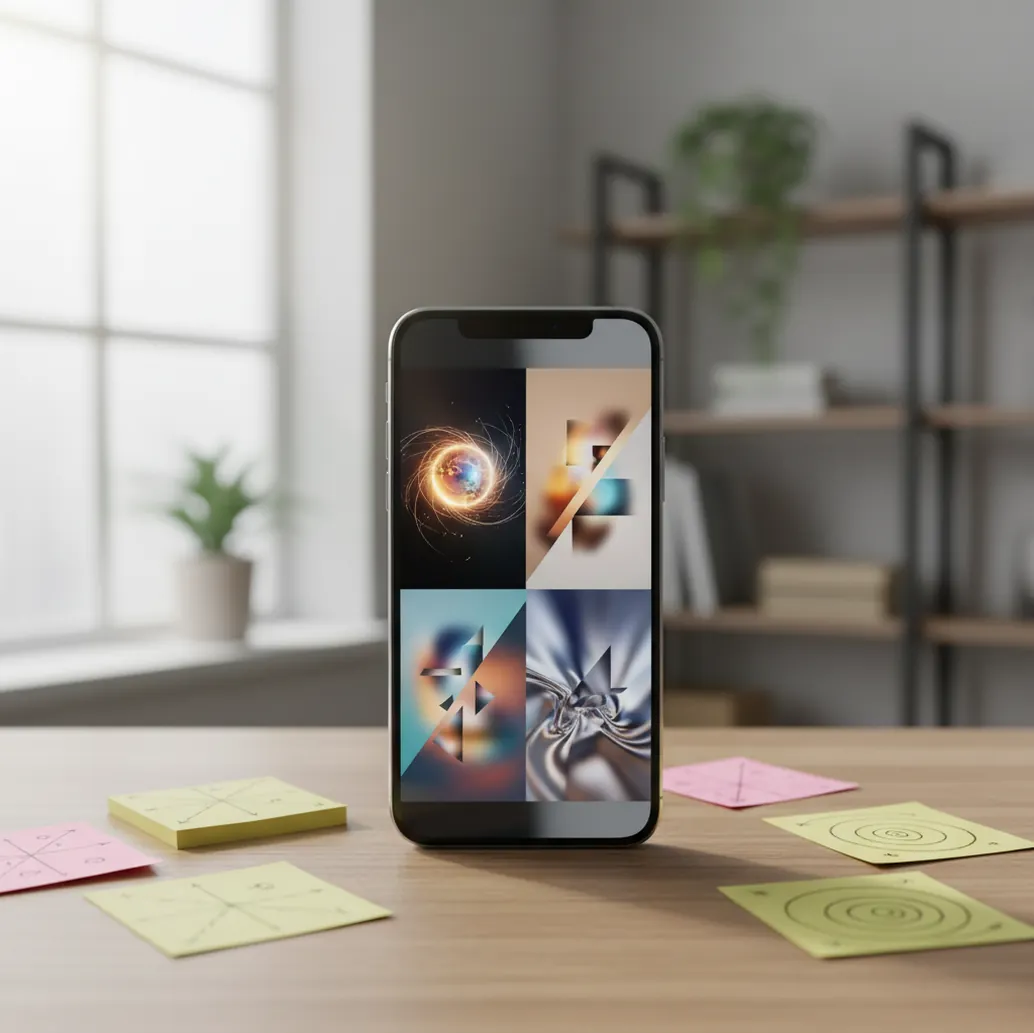
You can make YouTube thumbnails with AI by prompting a generator for a 16:9 image with one focal subject, a simple background, and dramatic lighting, then adding readable text in a design editor. Export at 1280 × 720 pixels, check the thumbnail at small size, and keep key details away from the bottom-right timestamp area.
What Does It Mean to Make YouTube Thumbnails With AI?
Making YouTube thumbnails with AI means using machine learning tools to generate, edit, or remix thumbnail images from text prompts, photos, screenshots, or rough concepts. Instead of designing every background, facial expression, prop, and lighting setup manually, you can create multiple visual directions quickly and then choose the one with the clearest click promise.
AI is best used as a thumbnail draft engine, not as a one-click replacement for design judgment. A strong thumbnail still needs a single focal subject, readable composition, controlled contrast, accurate branding, and safe margins for YouTube’s interface. The final image should communicate the video’s hook in under one second.
How Do AI Thumbnail Generators Work?
Most AI thumbnail generators use diffusion models or similar generative systems that turn noise into an image guided by your prompt. A text encoder converts words like “surprised creator,” “neon background,” or “product review lighting” into embeddings, and the model uses those embeddings to predict pixels that match the requested scene.
This is why AI can create strong lighting, cinematic backgrounds, and dramatic expressions quickly, but may struggle with exact text, hands, logos, product labels, and brand-specific details. For YouTube thumbnails, the practical workflow is to generate the scene and mood with AI, then add typography, screenshots, icons, and final layout adjustments with a dedicated editor.
How Do You Create an AI YouTube Thumbnail Step by Step?
Write the video hook first
Summarize the video’s promise, conflict, or result in one line before opening any image tool. A thumbnail for “I tested a $30 camera against a $3,000 camera” needs a different visual than “how to fix blurry video.”
Choose one main subject
Pick one visual anchor: your face, a product, a screenshot, a single object, or a before-and-after contrast. Thumbnails with too many competing subjects usually collapse at mobile size.
Generate 6 to 12 rough options
Use a short prompt with subject, background, style, and lighting. Aim for bold shapes, clean silhouettes, and high contrast instead of detailed scenery.
Judge the image at thumbnail size
Zoom out until the image is tiny, or view it on your phone beside other videos. If the emotion, object, or result is not obvious in one second, simplify it.
Add text outside the generator
Use a design editor for title text because AI image models often misspell words or distort letters. Keep text to 2 to 5 words, with thick fonts, strong contrast, and minimal effects.
Export and check YouTube-safe margins
Export at 1280 × 720 pixels in a 16:9 ratio as JPG or PNG. Keep important text and faces away from the bottom-right timestamp area and avoid placing tiny details near the edges.
What Should an AI Thumbnail Prompt Include?
A good AI thumbnail prompt should include four parts: subject, action or emotion, background, and visual style. Keep it short enough for the model to prioritize the main idea; 15 to 35 words is often more reliable than a long paragraph full of competing details.
Reusable template: “{main subject} showing {emotion/action}, {one prop or result}, simple {background type}, high-contrast {lighting style}, sharp focus, YouTube thumbnail composition.”
Examples: “shocked creator holding a cracked phone, dark blue gradient background, high-contrast studio lighting, sharp focus, YouTube thumbnail composition” or “tiny laptop beside huge stack of invoices, clean red background, dramatic shadows, bold product review thumbnail.”
Which AI Thumbnail Tools Are Best for YouTube?
| Tool | Best for | Strength | Watch out for |
|---|---|---|---|
| Pict AI | Mobile-first thumbnail concept generation | Fast visual variations, prompt-based image creation, and quick iteration on iOS and Android | Check output rights, export settings, and whether final typography needs another editor |
| Canva | Template-based thumbnail layouts | Strong text tools, brand kits, stock assets, and drag-and-drop editing | AI-generated visuals may still need cleanup; some assets depend on plan or license |
| Adobe Express | Polished layouts and quick resizing | Good presets, typography controls, background removal, and Creative Cloud compatibility | Account sync and asset licensing should be reviewed before commercial use |
| Photoshop | Detailed compositing and professional retouching | Precise masks, color grading, typography, and generative editing controls | More powerful but slower than phone-first workflows for quick thumbnail tests |
| Midjourney or similar image generators | Highly stylized concept art and dramatic scenes | Strong mood, lighting, and cinematic image quality | Text, logos, product accuracy, and licensing terms require careful review |
The best tool depends on the job: use a generator for visual concepts, a layout editor for typography, and a photo editor when product accuracy or face retouching matters. For most creators, the fastest workflow is AI generation plus manual text and final contrast edits.
What Makes an AI Thumbnail Clickable on YouTube?
- Use one dominant focal point, such as a face, object, result, or screenshot. The viewer should not need to decode the image.
- Design for mobile first. A thumbnail that looks impressive full-screen may fail when it is displayed at 168 pixels wide in a feed.
- Use high contrast between subject and background. Dark subject on dark background or bright subject on bright background usually weakens the click signal.
- Limit text to 2 to 5 words and add it after generation. AI-generated lettering is still unreliable for spelling, kerning, and brand consistency.
- Make the emotion or transformation visible. Surprise, tension, scale, before-and-after contrast, or a clear result gives the viewer a reason to care.
- Build repeatable series rules. Reuse the same crop, background color family, font style, and subject placement so subscribers recognize your channel instantly.
- Test variants before committing. Generate multiple concepts for comedy, tutorial, review, documentary, and reaction angles, then choose the version that communicates fastest.
Where Does AI Help Most in a Real Thumbnail Workflow?
AI helps most when the thumbnail problem is visual ideation: finding stronger backgrounds, lighting, mood, props, or compositions before you spend time polishing. It is especially useful for replacing cluttered rooms with clean gradients, turning rough ideas into before-and-after scenes, creating dramatic product review setups, and testing multiple emotional tones for the same video.
For creator workflows, AI is valuable because it compresses the messy early stage. Instead of building one polished thumbnail and hoping it works, you can generate 10 rough directions, reject 8 quickly, refine 2, and export the clearest option. That speed matters for social posts, channel branding, portfolio videos, client previews, and thumbnails for weekly uploads.
What Are the Limitations of AI YouTube Thumbnails?
- AI image models often generate broken text, so final words should be added with a typography tool rather than inside the prompt.
- Hands, teeth, eyes, cables, reflections, and small mechanical details can look warped because the model is predicting plausible pixels, not verifying anatomy or physics.
- Exact products, logos, UI screens, and brand packaging may be inaccurate. Use your own product photos or screenshots when factual accuracy matters.
- Celebrity likenesses, copyrighted characters, and trademarked logos can create legal or platform risk. Use original visual concepts and review commercial-use terms.
What Export Settings Should You Use for YouTube Thumbnails?
Use 1280 × 720 pixels, a 16:9 aspect ratio, and a JPG or PNG file for YouTube thumbnails. Keep the file under YouTube’s current upload limit, avoid tiny text, and place important details away from the bottom-right corner where the video duration appears.
Before uploading, view the thumbnail at roughly feed size on a phone. Check whether the face, object, or result is understandable without reading the video title. Then compare it against nearby thumbnails in the same niche; your image needs enough contrast and visual hierarchy to stand out without becoming misleading.
Related reads if you’re building a consistent channel look
Choose a Thumbnail Workflow That Preserves the Evidence
If your starting query is “create youtube thumbnail with ai,” first decide which parts must remain authentic. A product review needs the actual product; a software tutorial needs a recognizable interface. Generating either from scratch can introduce details that contradict the video.
| Approach | Best fit | Honest trade-off |
|---|---|---|
| Edit a real video frame | Demonstrations, reviews, and documented results | Preserves evidence, but motion blur or awkward expressions may limit the usable frames. |
| Generate only the background | Creator portraits and product cutouts | Keeps the subject accurate, but mismatched lighting can make the composite look pasted together. |
| Generate the whole scene | Concept explainers and clearly illustrative imagery | Offers more visual freedom, but invented objects or results can misrepresent the video. |
| Use a recurring illustrated avatar | Faceless channels with an established character | Supports a recognizable identity, but facial features and clothing may drift between generations. |
An AI image generator for YouTube thumbnails is most useful when the invented elements are decorative rather than factual. For a repair tutorial, retain the real broken component and generate the surrounding backdrop, not a fictional fault that looks more dramatic.
When deciding “what app makes youtube thumbnails,” check whether it supports masks, separate layers, and reusable layouts. Those controls let you replace a background without rebuilding the subject. A “create avatar from photo” feature can supply a recurring character, but save an approved reference rather than recreating it from memory.
Leave thumbnail resize until the composition is settled; repeated resizing can soften an already compressed screenshot. Keep the original assets so factual corrections remain easy. For support, a “contact pict ai” search should lead to the service’s own support information; account help is separate from permission to publish someone else’s image.
AI Thumbnail Creation: Common Questions
Use YouTube Studio’s thumbnail testing feature where available, uploading alternatives that differ in one meaningful way, such as the background or subject placement. Keep the video title unchanged during the comparison. YouTube evaluates thumbnail tests using watch time share, not just clicks, so an attention-grabbing image is not necessarily the strongest option if viewers leave quickly.
An AI-generated likeness does not automatically give you permission to use someone’s identity commercially. Publicity rights, endorsement concerns, and YouTube’s misleading-thumbnail rules may apply. Avoid suggesting that a celebrity appeared in, approved, or participated in a video when they did not. For commentary, make the connection to the actual subject clear and consider jurisdiction-specific legal advice.
A YouTube thumbnail should be 1280 × 720 pixels with a 16:9 aspect ratio. Export as JPG or PNG and keep important text or faces away from the bottom-right timestamp area.
Yes, you can generate thumbnail concepts, remove backgrounds, add text, and export from a phone. The key is checking readability at small size before uploading.
Use a prompt with a main subject, emotion or action, simple background, and lighting style. For example: “surprised creator holding broken laptop, clean red background, dramatic studio lighting, sharp YouTube thumbnail composition.”
Usually no. AI image generators often distort letters, so it is better to generate the visual scene first and add text later with a design tool.
Most thumbnails work best with 2 to 5 words because viewers see them quickly on mobile. Use the video title for nuance and the thumbnail text for the emotional hook.
Often yes, but it depends on the tool, model, assets, and license terms. Review the platform’s commercial-use policy and avoid copyrighted characters, logos, or misleading likenesses.
Generative models predict pixels from patterns, so small details like fingers, text, logos, and product edges can become distorted. Use AI for the draft, then retouch or replace inaccurate details manually.
Reuse the same color palette, subject crop, font family, background type, and lighting style. Save 2 or 3 base prompts and only change the video-specific object, emotion, or result.
AI can help improve click-through rate by making it faster to test clearer concepts, but it does not guarantee better performance. CTR still depends on topic, title, audience fit, timing, and whether the thumbnail accurately represents the video.