How to Remove Blur From a Face in a Photo
You can remove blur from a face in a photo by using an AI face-unblur tool, then fine-tuning sharpness, noise reduction, and edge contrast so the face stays natural. This works best on mild motion blur, slight missed focus, low-light softness, and small social or print fixes. If the face is heavily smeared, extremely compressed, or too small in the frame, AI can only create plausible detail, not recover guaranteed truth.
How to Remove Blur From a Face in a Photo
- Upload the original portrait at its highest available resolution, avoiding screenshots or compressed message previews.
- Choose face restoration or describe a subtle unblur edit that preserves the person's expression and facial proportions.
- Generate one restored version at moderate strength, keeping the original untouched for a direct comparison.
- Review eyes, glasses, teeth, and hairlines at actual size, then export the most natural-looking result.
Example prompt: Create a realistic indoor portrait photo with slight motion blur on the face, warm lamp lighting, natural skin texture, shallow depth of field, 35mm camera look, high resolution, no text, no logos
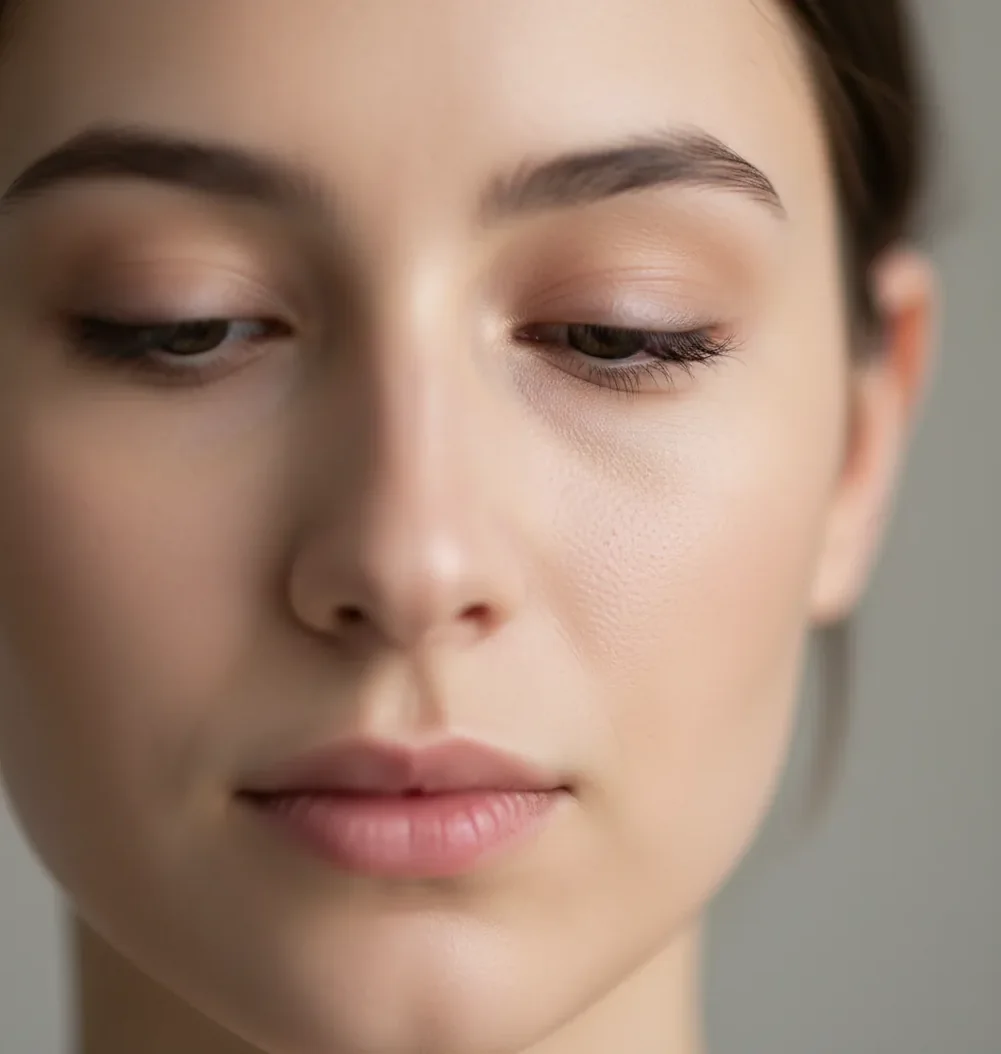
To remove blur from a face in a photo, start with the original high-resolution image, run it through an AI unblur or face restoration tool, then adjust sharpening and noise reduction while checking the face at 100% zoom. AI can make mildly blurry faces look clearer for portraits, social posts, gifts, and small prints, but it cannot reliably restore real identity details that were never captured by the camera.
What Does It Mean to Remove Blur From a Face in a Photo?
Removing blur from a face means reducing softness caused by motion blur, missed focus, camera shake, low light, or digital zoom. In practice, the edit tries to restore edge contrast around eyes, eyelashes, eyebrows, lips, nostrils, hairlines, and jaw contours while keeping skin texture believable.
There are two different processes happening at once: sharpening and reconstruction. Sharpening increases local contrast along existing edges; AI reconstruction predicts likely facial detail based on learned face patterns. That makes face unblur useful for saving a birthday photo, profile picture, scanned family portrait, or small print, but it should be treated as an enhancement rather than a forensic recovery.
How Does AI Face Unblur Work Better Than Basic Sharpening?
AI face unblur works better than basic sharpening because it can separate facial structure from random noise. A normal sharpening slider boosts every edge, including JPEG blocks, sensor grain, pores, and background artifacts. That often creates halos around the nose, jaw, glasses, and hair.
Modern face restoration tools use feature extraction, face detection, super-resolution, and learned priors to estimate missing high-frequency detail. The model identifies where the eyes, mouth, skin planes, and hair boundaries should be, then reconstructs a clearer-looking face. The best result usually comes from moderate AI restoration plus conservative sharpening, not from pushing clarity until the skin looks waxy or crunchy.
How Do You Remove Blur From a Face Step by Step?
Use the original file
Start with the camera-roll image, RAW file, or original download. Avoid screenshots, message-app previews, and re-saved JPEGs because they remove pixels and add compression artifacts.
Crop only if the face is small
If the face is tiny in the frame, crop closer before unblurring. A face that is at least 150 to 200 pixels wide gives the tool more structure to work with.
Run an AI unblur pass
Use a face restoration, image unblur, or photo enhancer tool and choose a moderate setting first. Do not start with the strongest mode unless the photo is clearly unusable.
Check the eyes at 100% zoom
Zoom to actual size and inspect eyelashes, iris edges, teeth, nostrils, and hairlines. If they look painted or too symmetrical, reduce restoration strength.
Balance sharpening with noise reduction
Add light sharpening for definition, then use mild noise reduction if cheeks, forehead, or shadows look gritty. Avoid halos around the jaw and nose.
Export and compare side by side
Save a high-resolution version and compare it with the original. Choose the version that looks believable at normal viewing size, not the one that looks sharpest at extreme zoom.
Which Tools Can Fix a Blurry Face in a Photo?
| Option | Best for | Strength | Watch out for |
|---|---|---|---|
| Browser AI unblur tools | Quick portrait fixes, social posts, one-off edits | Fast upload, automatic face detection, low learning curve | Privacy policies and export limits vary by tool |
| Pict AI | Simple face unblur in a browser or mobile workflow | Good for mild motion blur, missed focus, and fast previewing | Not suitable for official ID recovery or heavily smeared faces |
| Remini-style mobile enhancers | Selfies, casual portraits, phone-camera cleanup | Strong face restoration and easy mobile use | Can over-smooth skin or invent very polished facial details |
| Photoshop or Lightroom | Controlled edits, professional retouching, batch workflows | Precise masking, sharpening, noise reduction, and local adjustments | Requires manual skill and may not reconstruct missing facial detail |
| Topaz Photo AI-style desktop tools | High-resolution prints, older scans, serious photo repair | Strong denoise, sharpen, and upscaling controls | Paid software and heavier processing requirements |
| Open-source local models | Privacy-sensitive users and technical workflows | Can run locally with custom settings and no upload | Setup can require GPU resources, model selection, and testing |
Choose the tool based on the output: a social post needs a natural-looking face at phone size, while a print or portfolio image needs more careful masking, noise control, and export quality.
What Settings Make a Blurry Face Look Natural Again?
The most natural face-unblur results use moderate restoration, low-to-medium sharpening, and selective noise reduction. Start by improving the eyes and mouth, then protect skin texture from becoming plastic. If the face looks clearer but the cheeks look sandy, the edit is too aggressive.
A practical order is: face restoration first, global exposure second, sharpening third, noise reduction fourth, and color correction last. Check the image at normal viewing size and at 100% zoom. For emotional photos like wedding candids, family snapshots, pet-and-owner portraits, or birthday group shots, believability matters more than maximum sharpness.
What Prompt Recipes Help When Using AI Photo Editors?
- Natural portrait repair: "Reduce mild blur on the face while preserving the person's natural skin texture, eye shape, facial expression, and lighting. Avoid over-smoothing, artificial eyelashes, or changed identity cues."
- Low-light selfie cleanup: "Sharpen the face slightly, reduce low-light noise, keep pores and skin texture realistic, and avoid halos around the nose, lips, glasses, and hairline."
- Group photo face fix: "Improve clarity only on the blurry face in the group photo. Keep the rest of the image unchanged and match the original color, contrast, and grain."
- Old scanned photo restoration: "Gently improve facial detail in this scanned portrait, reduce softness and dust, preserve the original era, and do not modernize or beautify the person."
- Print-ready portrait: "Prepare this portrait for a small print by improving facial sharpness, reducing compression artifacts, and keeping the final image natural at normal viewing distance."
When Does Face Unblur Work Best?
Face unblur works best when the photo already contains some real facial structure. Slight motion blur from a moving child, mild camera shake at dinner, soft focus from a phone camera, or low-light blur on a selfie can often be improved enough for sharing, printing, or using as a profile image.
It also helps when a group photo has one soft face, a scanned portrait has gentle softness, or a digitally zoomed phone shot needs extra clarity. The strongest candidates are images where the eyes, mouth, and face outline are still visible. If those landmarks are recognizable before editing, the final result is more likely to look believable.
What Are the Limits of Removing Blur From a Face?
- Heavy motion smear cannot be truly reversed. AI may create a plausible-looking face, but it is not guaranteed to match the real person accurately.
- Very small faces are hard to restore. If the face is under about 150 pixels wide, there may not be enough real structure to rebuild eyes, lashes, or lips cleanly.
- JPEG compression blocks limit quality. A photo repeatedly sent through messaging apps may contain square artifacts that sharpening makes more visible.
- Low-light noise can be amplified. Cheeks, forehead, shadows, and dark hair may become gritty if sharpening is stronger than noise reduction.
How Can You Tell If an Unblurred Face Looks Fake?
An unblurred face looks fake when the details are sharper than the rest of the photo or when the model invents features that do not match the original expression. Common warning signs include glowing outlines, plastic skin, identical eyelashes, overly crisp teeth, warped glasses, or eyes that look drawn instead of photographed.
Use a three-view check before exporting: normal screen size, 100% zoom, and side-by-side with the original. If the edited face only looks good when zoomed out, it may still be fine for a social post. If it looks wrong at normal viewing distance, reduce restoration strength and accept a more natural soft result.
More Pict.AI guides you might actually use
Should Face Unblur Come Before Other Portrait Edits?
Face restoration is easier to judge when it is the only change in a portrait. Combining it with skin cleanup, background removal, and facial reshaping makes it harder to identify which operation changed someone's appearance. Keep a separate saved version after each major edit rather than repeatedly processing one flattened file.
Pros of restoring the face separately
- You can compare facial proportions without distractions from other retouching. The question behind how to keep same face in ai images applies here too: does the edited portrait still preserve the person's distinctive features?
- You can separate texture repair from cosmetic changes. If you are also exploring how to remove blemishes and acne with ai, restore clarity first, then make targeted skin corrections without erasing freckles or permanent marks.
- You can isolate background work. Tutorials on how to remove people from photos with ai address a different problem; keep those edits outside the subject's face whenever masking controls allow.
Cons and extra precautions
- Additional tools introduce more opportunities for unwanted changes. A free face shape detector cannot verify that restoration preserved someone's identity; its categories are not a reliable before-and-after accuracy check.
- Cleanup near the face needs special care. If you need to remove text from image areas overlapping a cheek or forehead, the replacement pixels may influence the subsequent restoration.
- Multiple uploads create extra privacy considerations. Before sharing the finished portrait, remove image metadata if it contains location information, and check each service's storage and deletion controls separately.
Verdict: Restore the face in a dedicated pass, save that version, and apply unrelated edits afterward. If unwanted text covers facial features, preserve an untouched copy and compare both possible editing orders before choosing a result.
Face Unblur Questions and Practical Answers
Sometimes, but glasses introduce edges and reflections that face restoration can misinterpret. Check that both rims remain continuous, the bridge keeps its original shape, and reflections have not turned into artificial eye details. If your editor supports masking, exclude the frames from strong restoration and apply a lighter adjustment around the eyes. Opaque glare cannot reliably be converted into authentic hidden features.
Use a face selection or local mask so the adjustment affects only the blurry person. Keep already-sharp faces outside the edited area, and soften the mask boundary to avoid a visible transition around hair or the jaw. If the tool restores every detected face automatically, compare all subjects before exporting; improving one person should not change everyone else's expression or texture.
You can reduce mild face blur and make a portrait look clearer, especially when the eyes, mouth, and face outline are still visible. Severe smear blur cannot be perfectly recovered because the missing detail was not captured.
Slight motion blur, mild missed focus, and low-light softness are usually the easiest to improve. Heavy camera shake, extreme digital zoom, and tiny faces are much harder.
AI can preserve the overall look when the blur is mild, but it may still invent detail around eyes, teeth, lashes, and skin. Always compare the result with the original before using it.
Sharpen the face selectively when the problem is facial blur. Sharpening the whole image can make backgrounds, noise, and compression artifacts look harsh.
Grain happens when sharpening boosts low-light noise or JPEG artifacts along with facial detail. Lower sharpening, add mild noise reduction, and inspect the image at 100% zoom.
Sometimes, but screenshots usually have lower resolution and extra compression. The original camera file or full-resolution download will almost always produce a better result.
A face that is at least 150 to 200 pixels wide gives AI tools a better chance of restoring believable detail. Smaller faces may improve slightly but often lack enough structure.
No. AI-unblurred faces can contain reconstructed or invented details, so they should not be used for passports, IDs, legal evidence, or identity verification.
Use the original file, apply moderate face restoration, reduce noise, sharpen lightly, and export at the highest available resolution. For small prints like 4x6, a natural-looking edit usually matters more than extreme sharpness.