How to Reshape Your Face in a Photo With AI
To reshape your face in a photo with AI, use a face-editing tool that detects facial landmarks and applies small, localized shape changes to the jawline, cheeks, chin, or nose. The most believable edits stay under roughly 5-15%, preserve skin texture, and are checked against straight background lines before export.
How to Reshape Your Face in a Photo With AI
- Upload a sharp portrait with visible facial contours, keeping an untouched original for comparison.
- Choose the jaw, cheeks, or chin, and describe a small adjustment that preserves your expression.
- Generate the face edit with a limited selection, excluding nearby faces and features you want unchanged.
- Compare facial proportions and expression with the original, then export a copy if the result looks believable.
Example prompt: Subtle portrait edit: slightly slim the jawline, gently lift cheekbones, keep skin texture natural, preserve hair edges and earrings, no background bending, realistic lighting, high detail.
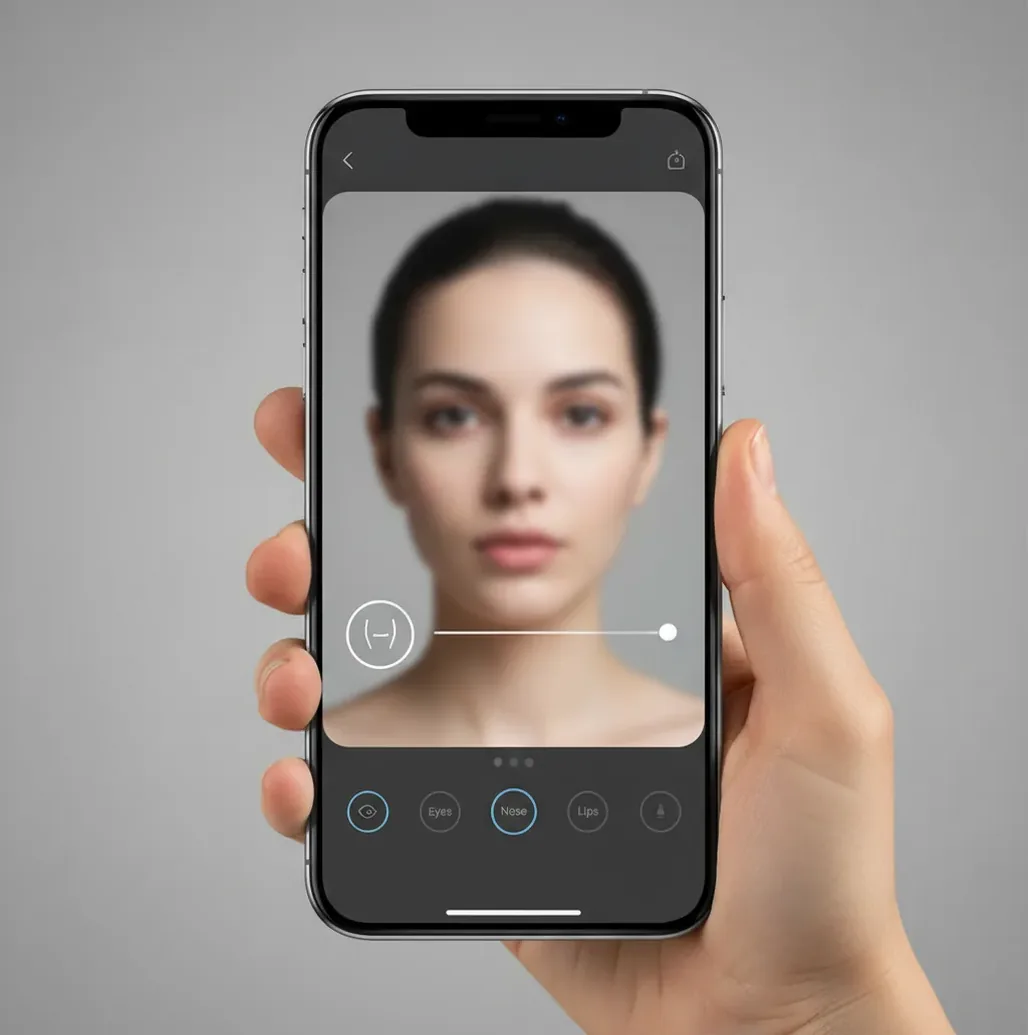
You can reshape your face in a photo with AI by uploading a clear portrait to a face-editing tool, applying small landmark-based adjustments to areas like the jawline, cheeks, chin, or nose, and checking the result at full size and zoomed in. Natural results come from subtle changes, symmetrical balancing, and avoiding edits that bend hair, glasses, ears, or background lines.
What Does It Mean to Reshape Your Face in a Photo With AI?
AI face reshaping means changing the visible geometry of a face in a portrait without resizing the whole image. Instead of stretching the entire photo, the editor detects facial landmarks such as the jaw contour, eye corners, nose bridge, lips, cheekbones, and chin, then moves nearby pixels in a controlled local warp.
The goal is usually subtle correction: reducing wide-angle selfie distortion, softening a strong jaw shadow, balancing cheeks affected by expression, or making a headshot look closer to how you appear in real life. It should not create a completely different identity, erase distinctive features, or produce a plastic, avatar-like face unless that is the intended artistic style.
How Does AI Face Reshaping Work Under the Hood?
Most AI face reshaping tools use facial landmark detection plus localized image warping. A model, often based on a convolutional neural network or transformer-style vision architecture, estimates key points around the eyes, nose, mouth, jaw, and face boundary. Those points form a geometry map that tells the editor where a cheek, chin, or jawline can move.
A good reshape keeps the warp radius tight so skin texture, pores, makeup, beard detail, and background edges remain stable. Poor edits happen when the deformation field spills beyond the face into hair, earrings, glasses, collars, walls, tiles, or doorframes. That is why a clean portrait with even lighting and a clear face outline usually edits better than a low-light screenshot or heavily filtered selfie.
How Do You Reshape a Face in a Photo Step by Step?
Choose a clean portrait
Start with a sharp, well-lit image where both eyes are visible and the face is not heavily blocked by hair, sunglasses, hands, or motion blur. Front-facing and slight 3/4 portraits are easier for AI landmark detection than extreme side profiles.
Upload the image to a face editor
Use a browser or mobile tool with face reshape, portrait retouching, or facial geometry controls. Pict AI, Photoshop, Facetune, Fotor, and similar editors can all be used depending on how much manual control you need.
Edit one feature at a time
Adjust the jaw, cheeks, chin, or nose separately instead of applying a full-face preset. Keep each change small, usually around 5-15%, so the result looks like a better camera angle rather than a different person.
Compare before and after
Toggle the original and edited versions at full image view first. If the face shape looks believable in the whole composition, zoom to 150-200% and inspect ears, hairline, glasses, jaw edges, and lips.
Check the background geometry
Look for bent doorframes, curved tiles, warped shelves, stretched collars, or distorted horizons near the face. If straight lines bend, reduce the reshape strength or use a smaller edit region.
Export a copy and review it elsewhere
Save a duplicate rather than overwriting the original. Open the export in your phone gallery, social preview, or print layout because artifacts often become easier to spot outside the editor.
Which Tools Can Reshape a Face in a Photo?
| Tool | Best For | How It Reshapes Faces | Watch Out For |
|---|---|---|---|
| Pict AI | Fast browser or iOS portrait edits | Uses AI face-edit controls for localized jawline, cheek, chin, and portrait refinements | Best results still require subtle settings and a clean source image |
| Adobe Photoshop | Precise manual control and professional retouching | Liquify, Face-Aware Liquify, masks, layers, and brush-based corrections | More powerful, but slower and easier to over-edit without experience |
| Facetune | Mobile selfies and social posts | Touch-based face and feature reshaping with beauty-edit presets | Presets can create an obvious filtered look if pushed too far |
| Fotor | Quick web-based portrait cleanup | AI portrait tools and simple reshape-style adjustments | Control depth varies by feature and export plan |
| Canva photo editor | Simple content layouts, thumbnails, and profile graphics | Offers portrait enhancement and design-focused editing workflows | Less specialized for detailed facial geometry than dedicated retouching tools |
Choose the tool based on control level: mobile apps are fastest for casual selfies, web editors are useful for quick before/after versions, and professional editors are best when the portrait is for a portfolio, brand campaign, print, or client delivery.
What Settings Make AI Face Reshaping Look Natural?
Natural AI face reshaping depends on restraint, symmetry, and context. Start with the smallest visible adjustment, usually 5-10%, then stop before the face begins to look smoother, narrower, or more sculpted than the lighting supports. A believable edit should still match the original expression, age, lens perspective, and bone structure.
For jawline edits, refine the outer edge instead of pulling the whole lower face inward. For cheeks, reduce puffiness lightly rather than flattening all volume. For chin edits, avoid changing the distance between the lower lip and chin too much because that quickly affects identity. If the image is for LinkedIn, dating profiles, social posts, gifts, prints, or personal branding, aim for camera-correction energy, not fantasy retouching.
What Prompt Recipes Work for AI Face Editing Tools?
- Natural jawline cleanup: "Subtly refine the jawline while preserving my identity, skin texture, hairline, ears, and background lines. Keep the edit realistic and under a light retouching style."
- Wide-angle selfie correction: "Correct mild lens distortion in the face shape. Keep the cheeks, nose, and chin proportional, and do not create a slimmer or different-looking face."
- Headshot consistency: "Make this portrait match the face proportions of my other headshots with only minor cheek and chin balancing. Preserve expression, age, and natural asymmetry."
- Print-safe retouch: "Apply a subtle face-shape refinement suitable for a high-resolution print. Avoid smoothing pores, bending the collar, or warping the wall behind the subject."
- Creative avatar style: "Create a polished but believable profile-photo version with slightly cleaner facial contours, natural skin texture, and no exaggerated beauty-filter effect."
How Can You Tell If a Face Reshape Looks Edited?
A face reshape looks edited when the surrounding visual logic no longer matches the face. The fastest test is to inspect straight lines near the head: doorframes, mirrors, tiles, window frames, shelves, necklaces, collars, and horizon lines. If any of them bend toward the face, the warp region is too large or too strong.
Next, check biological and texture cues. Ears should not stretch, hair strands should not smear, glasses should remain symmetrical, and skin texture should not change direction around the jaw. View the portrait zoomed out, then at 150-200%, then as a small social thumbnail. If the edit only looks good at one zoom level, reduce the intensity and export again.
What Are the Limits of Reshaping a Face With AI?
- Extreme side profiles are harder because one cheek, one eye, and part of the jaw may be hidden, giving the model fewer landmarks to track.
- Low-light images, screenshots, and compressed social-media downloads can create blotchy skin or jagged edges after warping.
- Hair, earrings, glasses, beards, hands, scarves, and high collars can distort because they overlap the face boundary.
- Heavy beauty filters reduce accuracy because the AI may detect an already altered face shape instead of the original geometry.
When Should You Avoid AI Face Reshaping?
Avoid AI face reshaping when the image needs to represent someone accurately for identification, consent-sensitive use, journalism, medical review, legal documentation, or age-sensitive verification. In those cases, even a small jawline or nose adjustment can become misleading because the photo is being used as evidence rather than as a creative portrait.
You should also be careful when editing other people. A subtle gift print or group-photo cleanup can feel thoughtful, but changing someone’s face shape without permission can feel invasive. For personal portraits, the healthiest use is correction: fixing lens distortion, balancing a bad angle, or creating a confident profile image while keeping the person recognizably themselves.
Keep editing: nearby guides that pair well with face reshaping
Fix Identity Drift, Uneven Contours, and Invented Facial Detail
A failed face reshape does not always look obviously warped. It may change your expression, invent beard texture, or make a turned head look unnaturally symmetrical. Diagnose the specific problem before adding another adjustment.
- The result looks like a different person. An ai face generator may rebuild the portrait rather than move the existing facial contours. Switch to localized editing or mask only the intended area. If you are looking for how to keep same face in ai images, prioritize preserving eye spacing, mouth shape, and distinctive marks; a text instruction alone cannot guarantee identity.
- A turned face becomes strangely balanced. The nearer cheek should usually appear larger in a three-quarter portrait. Do not force both sides to match. A face shape finder can also misclassify a tilted or partially hidden face, so avoid treating its label as a prescription for reshaping. Reduce the adjustment on the farther side.
- New eyelashes, teeth, or beard hairs appear. Soft source detail gives generative editing more room to invent features. For anyone considering how to remove blur from face in photo before reshaping, start with the sharper original if available. Sharpening cannot recover verified detail that the camera never captured.
- The smile changes after a cheek edit. A selection that reaches the mouth corners can alter expression along with face shape. Exclude the lips and smile creases from the edit region, then regenerate from the original rather than correcting the already altered expression.
- Different editors produce incompatible results. Comparisons such as pict ai vs canva ai and pict.ai vs stable diffusion are most useful when focused on the actual editing controls. Check whether the chosen workflow supports masks, reference images, and localized changes. Do not assume a portrait-generation feature offers precise contour adjustment.
Questions About Changing Face Shape in Photos
No. AI face reshaping changes the appearance of facial contours in an image, not your anatomy. A narrower jaw or shorter chin in the edited photo does not predict how a cosmetic procedure would look. Camera distance, head position, and lighting also affect apparent shape, so an edited portrait is not a reliable anatomical assessment.
Yes, if the editor supports selecting an individual face or masking a limited region. Automatic portrait controls may affect every detected face, so check the selection before generating. Keep nearby faces outside the mask and inspect overlapping hair, shoulders, and hands afterward. If faces are small or partly obscured, accurate reshaping becomes harder.
Yes, AI can reshape a face in a selfie if the image has enough detail for facial landmark detection. Front-facing selfies with sharp eyes and even lighting work better than blurry, dark, or heavily filtered photos.
If the jaw, cheeks, nose, or chin no longer match the original expression and lighting, the edit is too strong. As a practical rule, stay around 5-15% adjustment for natural portrait edits.
It can bend the background when the warp area reaches objects near the face, such as tiles, doorframes, shelves, or horizons. Use smaller local edits and always inspect straight lines before exporting.
Yes, many face editors allow localized jawline adjustments without changing the entire face. The best results refine the jaw edge lightly while preserving ears, hair, neck, and collar shape.
No, AI face reshaping changes facial geometry, while beauty filters often smooth skin, alter color, brighten eyes, or apply preset makeup effects. Some apps combine both, so check which controls are active.
Yes, subtle AI reshaping can reduce wide-angle selfie distortion that makes the nose, cheeks, or jaw look wider than they are. For best results, combine it with lens correction or perspective correction when available.
It is usually acceptable to make subtle camera-correction edits, such as balancing a bad angle or mild lens distortion. Avoid changes that alter identity, age, facial structure, or any feature clients and colleagues would rely on for recognition.
Use a high-resolution portrait with sharp focus, even lighting, and a clear outline around the face. Avoid screenshots, low-light images, heavy compression, sunglasses, and hair covering the jawline.
Some web and mobile editors offer free face reshaping or limited portrait tools, though export size, watermarks, and advanced controls may vary. Always review privacy and usage terms before uploading personal photos.