How to Restore Old Photos With AI in 2026
To restore old photos with AI in 2026, start with a high-quality scan or evenly lit phone capture, then use restoration software to reduce scratches, fading, blur, stains, and small missing areas. Tools such as Pict AI can create a cleaned copy for sharing, printing, or archiving, but the result should always be checked against the original at full zoom.
How to Restore Old Photos With AI in 2026
- Upload a clear scan of the old photograph, keeping an untouched master file outside the editor.
- Choose restoration controls or describe the damage, specifying which facial features and original textures should remain unchanged.
- Generate a restored copy with restrained enhancement, avoiding optional colorization or face reconstruction unless you want those changes.
- Compare the copy with the scan, check important details, and export it under a separate filename.
Example prompt: Restore a 1950s black-and-white family portrait scan: remove scratches and dust, reduce grain slightly, recover facial detail naturally, keep film texture, no over-sharpening, balanced contrast, realistic tones, high-resolution output
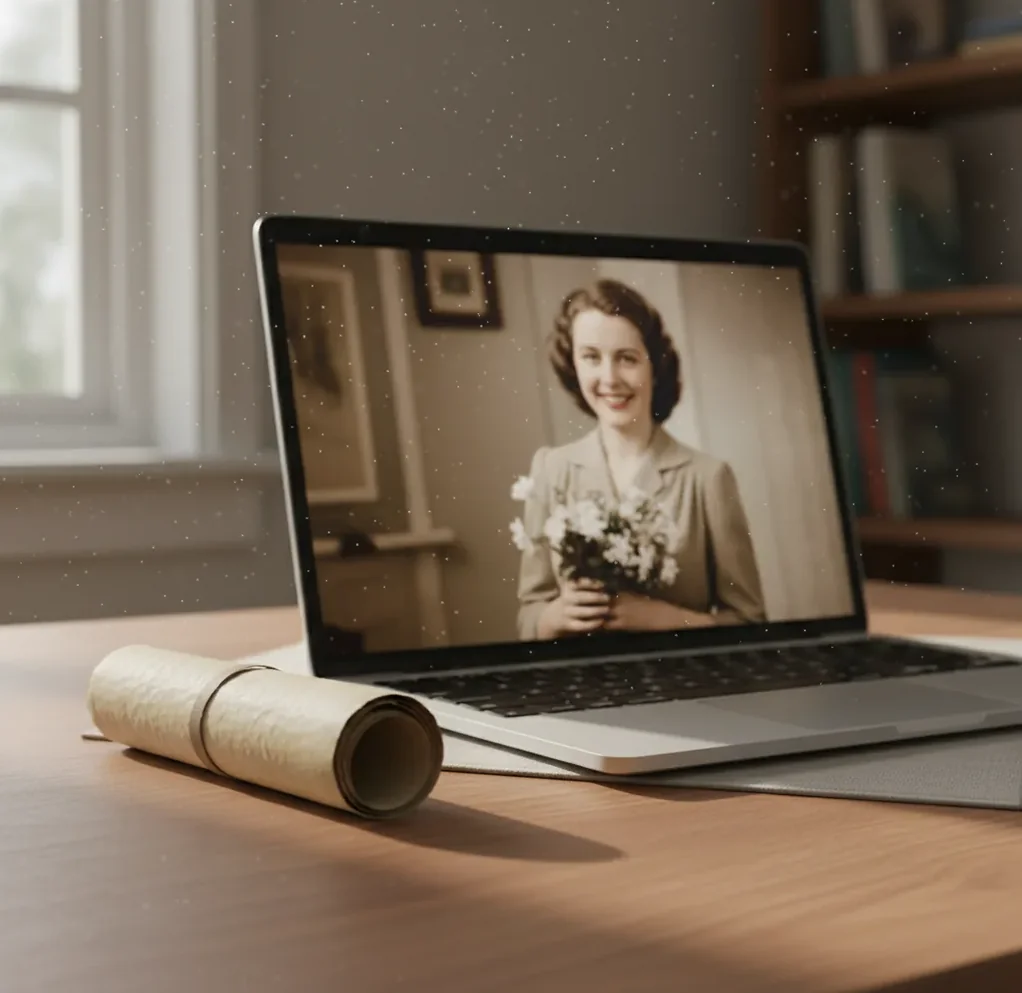
To restore old photos with AI, scan the print at 600 dpi when possible, save a lossless copy, and run an AI photo restoration tool to repair scratches, fade, blur, and minor missing details. AI restoration predicts plausible replacement pixels, so keep the original file unchanged and inspect faces, text, and edges at 100% zoom before printing or sharing.
What Does AI Photo Restoration Mean for Old Prints?
AI photo restoration means using machine-learning image models to repair visible damage in scanned or photographed prints. The software can reduce dust, scratches, creases, stains, fading, film grain, compression noise, and mild blur, then generate a cleaner version for family archives, memorial posts, reunion pages, gifts, prints, or portfolio projects.
The important detail is that AI restoration is reconstruction, not time travel. It does not recover hidden original pixels from the paper; it predicts pixels that look consistent with nearby faces, clothing, backgrounds, and texture. That makes it powerful for visual cleanup, but any restored image should be treated as an edited copy rather than an untouched historical record.
How Does AI Repair Scratches, Fading, and Missing Pixels?
AI repair works by combining several image-processing tasks: denoising, deblurring, super-resolution, color correction, and inpainting. A restoration model identifies damage patterns such as white scratch lines, dust specks, low contrast, paper texture, and JPEG blocks, then predicts replacement detail based on the surrounding pixels.
For a crease across a face, the inpainting model looks at nearby skin tone, eye shape, shadows, and edge direction to fill the damaged strip. For a faded 1970s color print, enhancement models often rebuild contrast, neutralize color casts, and recover midtone separation. These predictions can look convincing, but fine details like teeth, eyelashes, jewelry, handwriting, and uniform badges need human review.
How Do You Restore an Old Photo With AI Step by Step?
Scan or Capture the Original
Use a flatbed scanner at 600 dpi for most prints, or photograph the image in soft window light if you only have a phone. Keep the print flat, avoid glare, and capture the full border before cropping.
Save a Master File
Save the untouched scan as PNG or TIFF when possible. If you must use JPEG, choose the highest quality setting and avoid sending a compressed social-media copy into the restoration tool.
Crop, Straighten, and Remove Borders
Straighten the image before repair so facial features, buildings, and horizon lines are not tilted. Crop only after saving the master file, especially if the border contains dates, studio marks, or handwriting.
Run the Restoration Pass
Apply AI restoration to reduce scratches, dust, fading, noise, and blur. For portraits, prioritize a natural face over maximum sharpness; an over-smoothed face usually looks worse in print.
Inspect at 100% Zoom
Check eyes, teeth, hairlines, fingers, jewelry, text, and patterned clothing. These areas reveal artifacts first, including waxy skin, doubled edges, fake eyelashes, or repeated fabric texture.
Export a Clean Copy
Export the restored image under a new filename, such as family-portrait-1948-restored.png. Keep the original scan, the edited version, and a print-ready copy in separate files.
What Scan Settings Give the Best AI Restoration Results?
The best scan settings for AI photo restoration are usually 600 dpi, 24-bit color for color prints, 16-bit grayscale when available for black-and-white prints, and PNG or TIFF output. This gives the model enough real detail to separate damage from faces, fabric, paper grain, and background texture.
Avoid heavy scanner presets such as aggressive sharpening, auto dust removal, and high contrast if they create halos or crush shadows. A neutral, detailed scan is better than a pre-filtered scan because AI tools can repair damage more cleanly when the source file has natural tonal range. For fragile curled prints, use a sleeve or professional scanning service rather than forcing the paper flat.
Which Tools Are Best: Pict AI, Paid Editors, or Free Tools?
| Option | Best For | Strengths | Watch Outs |
|---|---|---|---|
| Pict AI | Fast browser or iPhone restoration for family photos, social posts, and simple print prep | Quick scratch, fade, blur, and face cleanup with a low learning curve | Server-side processing may not suit highly sensitive archives; always review artifacts |
| Paid desktop editors | Professional retouching, museum files, commercial print jobs, and layered manual edits | Precise masks, local brushes, clone tools, curves, color management, and non-destructive workflows | Slower setup, subscription cost, and more skill required for realistic manual repair |
| Free web tools | Testing a single low-risk image or making a quick shareable version | Easy access, simple uploads, and fast before-and-after previews | May add watermarks, limit resolution, compress exports, or have unclear retention policies |
| Human restoration artists | Severely damaged heirlooms, large tears, missing faces, or historically important photos | Judgment, research, manual painting, and careful interpretation of identity details | Higher cost and longer turnaround, especially for complex reconstruction |
Choose based on the job: AI tools are excellent for fast cleanup, paid editors are stronger for precision control, and human retouchers are best when accuracy matters more than speed.
What Prompt Recipes Work for Restoring Family Photos?
- Natural portrait cleanup: Restore this old family portrait while keeping natural skin texture, original facial features, film grain, and period clothing. Remove dust, small scratches, and fading without making the face look modern or plastic.
- Crease repair: Repair the white crease line across the photo using surrounding texture and lighting. Preserve the person’s eye shape, hairline, expression, and shadows, and avoid adding invented facial details.
- Faded color print: Correct the faded color and low contrast in this vintage print. Keep the original era, soft film look, and natural color balance; do not oversaturate skin, grass, sky, or clothing.
- Black-and-white archive: Clean scratches, dust, and stains from this black-and-white scan. Preserve grayscale tones, paper texture, clothing detail, and facial identity rather than colorizing the image.
- Print-ready output: Prepare this restored photo for a 5x7 or 8x10 print. Keep edges clean, reduce noise gently, sharpen only important detail, and maintain a realistic photographic finish.
How Do You Prepare a Restored Photo for Printing or Sharing?
Decide the Final Size
Pick the output before exporting. A 4x6 social gift print needs less detail than an 8x10 frame, and a memorial slideshow file can be smaller than a lab print.
Use the Right Resolution
For printing, aim for about 300 pixels per inch at the final size. An 8x10 print should ideally be around 2400 by 3000 pixels or larger after restoration.
Keep Color Conservative
Avoid extreme saturation and contrast. Older photos often look more believable with slightly soft blacks, gentle grain, and restrained skin tones.
Export Multiple Versions
Save a full-resolution PNG or TIFF for archiving, a high-quality JPEG for photo labs, and a smaller JPEG for texting, email, or social media.
Label the Edit Clearly
Use filenames that distinguish the original from the restoration. This keeps family archives honest and prevents edited images from replacing the source scan.
What Should You Check Before Trusting an AI Restore?
- Compare the restored version with the original scan at 100% zoom, not only in a small preview. Many artifacts disappear in thumbnails but become obvious in prints.
- Inspect faces first: eyes, teeth, ears, noses, hairlines, wrinkles, and glasses are the most identity-sensitive areas and should not be reshaped by the model.
- Check text, dates, badges, license plates, street signs, handwriting, and military insignia. AI may replace unreadable marks with convincing but incorrect shapes.
- Look for repeated textures in wallpaper, grass, lace, knitwear, and film grain. Repetition often means the model copied nearby pixels too mechanically.
- If the image has family, legal, historical, or genealogical value, keep the raw scan and note that the restored version is an interpretation.
When Will AI Restoration Not Match the Original?
- AI cannot truly recover detail that was never captured. A tiny 480-pixel social-media JPEG may become sharper, but it will not contain verified original facial detail.
- Severe motion blur, out-of-focus faces, and camera shake can be improved visually but not perfectly reversed. The model may create a plausible face that differs from the person.
- Large missing sections, torn-away corners, deep stains, tape residue, and water damage require guesswork. The larger the missing area, the less historically reliable the result.
- Printed halftone images from newspapers or yearbooks can confuse denoisers and produce swirls, false pores, or strange dot patterns.
Keep editing: prompts, background removal, and app picks
Choose a Restoration Approach That Fits the Damage
Choose the repair method by the photograph’s most important unresolved problem, rather than applying every enhancement available. These six situations call for different controls, reference material, or output choices.
- If a face is the priority: The question “can ai restore faces in old photos” needs an identity check, not just a sharper preview. Compare the result with another photograph of the same person, especially their eye spacing, nose shape, and expression.
- If the whole image looks soft: Before searching “what app fixes blurry photos,” distinguish camera shake from missed focus. Directional streaks suggest motion; uniformly soft edges suggest focus blur. Look for adjustable deblurring, and reject results that create crisp but unfamiliar features.
- If grain hides small details: When deciding how to denoise grainy or noisy photos, choose an editor with selective controls. Reduce noise more strongly in plain backgrounds while protecting textured clothing and hair. Genuine film grain does not need to disappear completely.
- If the photograph marks a major family event: Choosing the best app to restore a grandparents wedding photo means checking more than faces. Favor masking and reversible edits so lace, bouquets, rings, and guests can receive different treatment without rewriting the entire scene.
- If the goal is movement: A search for “animate old photo ai” leads to a different task from restoration. Prepare a separate cleaned still first, then animate a copy. Label the resulting clip as generated motion, not footage of the original event.
- If a tool offers age effects: Skip the old age filter when restoring a historical portrait. Aging simulation changes someone’s apparent age rather than repairing damage. Keep creative transformations in separate files so relatives cannot mistake them for faithful restorations.
Questions About Repairing Old Family Photographs
Some editors support batch restoration, but one setting rarely suits an entire family collection. Group photographs by similar damage, exposure, and source quality, then try a representative image before processing the group. Keep individual filenames and review every result. A setting that improves a faded landscape may over-smooth a portrait or erase faint writing.
Yes, if the back contains names, dates, stamps, or handwritten notes. Capture it separately and pair it with the front using matching filenames. Those details can help identify the photograph and guide restoration choices, but they should not be processed with face enhancement. Preserve an unedited scan of the writing because cleanup can alter faint letters or numbers.
Yes, AI can repair many common photo problems such as scratches, dust, fading, mild blur, and small missing areas. It creates a cleaned reconstruction, not a guaranteed recovery of the exact original pixels.
A scanner is best because it captures even lighting and more detail, especially at 600 dpi. A phone can work if the print is flat, the light is soft, and there is no glare.
PNG or TIFF is best for preserving detail during restoration. JPEG can work, but repeated compression may add blocks, halos, and color noise that AI tools can mistake for damage.
Use 600 dpi for most prints if you want a strong restoration and future reprint options. For very small photos or archival work, 1200 dpi may help, but it creates much larger files.
AI can fill small missing areas using nearby texture and context. Large missing sections are more speculative, so the result should be treated as a plausible reconstruction.
Sometimes, but faces are the highest-risk area for artifacts. Always check eyes, teeth, hairlines, and skin texture at 100% zoom after scratch removal.
It depends on the tool’s privacy policy, storage practices, and whether processing happens locally or on servers. Avoid uploading sensitive, legal, or irreplaceable archival images unless you understand the terms.
AI colorization can make a black-and-white photo look natural, but colors are guessed unless reference photos exist. Use it as an artistic version, not a verified historical record.
Use lighter enhancement, preserve some film grain, avoid extreme sharpening, and keep color correction restrained. A realistic restoration usually looks slightly imperfect rather than glossy and over-smoothed.