How to Slim Your Body in a Photo With AI for Free
You can slim your body in a photo with AI by making small, localized shape adjustments to areas like the waist, arms, hips, or clothing edges. The most natural edits use subtle warping, tight selections, and careful checks for bent backgrounds, stretched fabric, or distorted body proportions.
How to Slim Your Body in a Photo With AI for Free
- Upload the original full-resolution photo, keeping an untouched copy so you can compare proportions later.
- Select the waist or arm edge and describe a slight reduction while preserving clothing and pose.
- Generate one localized edit, leaving hands, accessories, and other people outside the selected area.
- Compare against the original, check clothing details and reflections, then export the result as a separate file.
Example prompt: Edit this full-body photo to look slightly slimmer at the waist and upper arms, keep natural proportions, preserve clothing seams, and avoid bending background lines; realistic texture, no plastic skin, subtle change only.
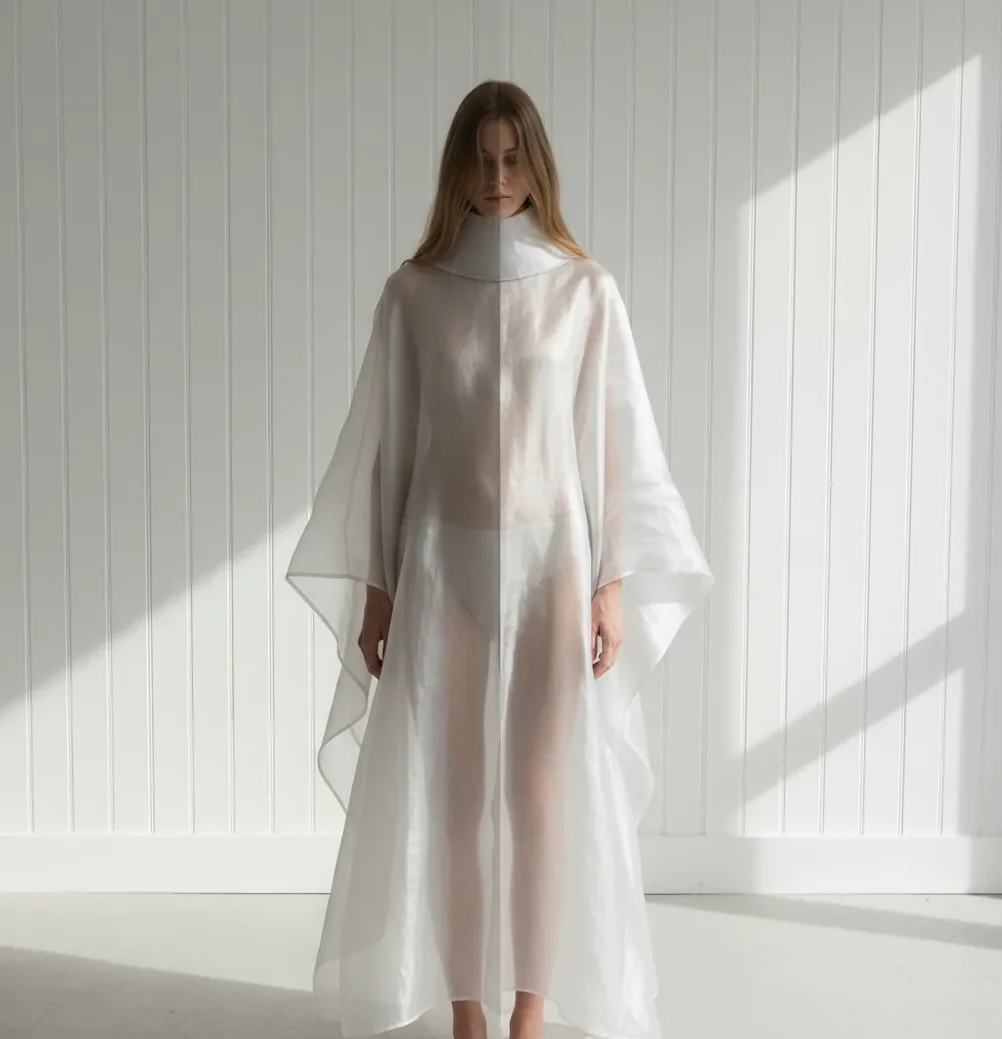
To slim your body in a photo with AI, upload a high-resolution image, apply a small localized adjustment to one area, then inspect nearby background lines at 200% zoom before exporting. The best result is usually a 3% to 8% visual change, not a dramatic reshape, because subtle edits preserve clothing texture, pose balance, and believable proportions.
What Does It Mean to Slim Your Body in a Photo With AI?
Slimming your body in a photo with AI means using an image editor to reshape part of a person's silhouette while rebuilding the surrounding pixels so the photo still looks natural. In practice, that might mean narrowing a waistline, reducing arm width, smoothing a shirt fold, balancing a hip curve, or correcting wide-angle lens distortion.
This is not the same as changing someone's real body. It is a visual retouching technique based on local warping, segmentation, inpainting, and edge reconstruction. The edit looks believable only when the body, clothing, background, and shadows still agree with each other.
How Does AI Body Reshaping Work in a Photo Editor?
AI body reshaping usually combines person segmentation, geometric warping, and pixel synthesis. The editor first estimates where the subject is in the frame, identifies the body edge or clothing boundary, then shifts selected pixels inward or outward while trying to preserve texture, seams, skin edges, and lighting.
The difficult part is the background. When the waist or arm moves inward, the tool must fill the space that used to contain the body. If the surrounding area has plain wall texture, the reconstruction is often clean. If it has blinds, tile grout, railings, text, mirrors, or handbag straps, the edit can bend those lines and become obvious.
How Do You Slim a Waist or Arms Without Warping the Background?
Choose the cleanest photo
Start with the highest-resolution version of the image. A plain wall, soft curtain, outdoor blur, or uncluttered studio backdrop gives AI more room to rebuild pixels without visible bends.
Edit one body area at a time
Work on the waist, upper arm, hip, or clothing fold separately instead of applying one large full-body adjustment. Local edits are easier to control and create fewer proportion problems.
Use the smallest visible adjustment
Aim for a subtle 3% to 8% visual change. If the edit looks dramatic at first glance, fabric seams, elbows, hems, or background lines are more likely to look stretched.
Keep the selection tight
Limit the active edit zone to the body edge and a small amount of nearby background. A loose selection can pull doorframes, tiles, furniture, or other people into the reshape.
Zoom in before exporting
Inspect the edited area at 200% zoom. Check vertical lines, belts, zippers, shirt hems, sleeve openings, hair, shadows, and accessories for bends or smears.
Review the final image on a phone
Export a test version and view it full-screen on mobile. Many body edits are shared on social platforms, and phone viewing makes compression halos, blur, and asymmetry easier to spot.
Which Tools Can Slim a Body in a Photo?
| Tool | Best for | Strengths | Watch-outs |
|---|---|---|---|
| Pict AI | Fast browser or iPhone body retouching | Useful for quick subtle reshaping, small iterations, and checking natural edges | Cloud-based workflows are not ideal for sensitive images |
| Adobe Photoshop Liquify | Manual professional retouching | Precise brush control, freeze masks, layer-based workflow, and high-resolution exports | Requires more skill and can look fake if pushed too far |
| Facetune | Mobile selfie and portrait edits | Fast touch interface for waist, arm, face, and clothing adjustments | Easy to over-edit because changes preview instantly |
| Picsart | Casual social media edits | Accessible web and mobile tools with extra creative effects | Free-tier limits and compression can affect final quality |
| Canva photo editor | Simple content layouts and social graphics | Good for combining light retouching with posts, thumbnails, or branded designs | Less specialized for detailed body reshaping than dedicated retouching tools |
Choose based on control, privacy needs, export quality, and how much manual retouching skill you want to use. For public-facing portraits, product photos, or portfolio images, prioritize tools that let you zoom, undo, compare, and export without heavy compression.
What Photo Settings Make a Slimmer Edit Look Natural?
- Use a high-resolution image instead of a screenshot; 2000 pixels or wider gives the editor more real texture to preserve.
- Avoid editing next to tile, blinds, brick, railings, stair edges, text, and mirrors because straight lines reveal distortion quickly.
- Prefer soft side lighting or even window light; harsh shadows can look disconnected when the silhouette changes.
- Keep posture realistic. Pulling in the waist while leaving shoulders, elbows, or hips unchanged can create an unbalanced pose.
- Check clothing geometry. Belts, zippers, jacket lapels, sleeve cuffs, and shirt hems should still follow a believable path.
- Make matching edits on both sides only when the pose calls for it. Symmetry helps, but perfectly mirrored bodies can look artificial.
What Prompt Recipes Help Create Subtle Body-Slim Edits?
When an AI editor accepts text instructions, describe the exact area, the amount of change, and what must stay untouched. Strong prompts use restraint and preservation language instead of vague commands like "make me skinny."
Template 1: "Slightly slim the waist by a small amount while preserving the natural pose, clothing folds, background lines, shadows, and body proportions. Do not change the face, hands, or outfit."
Template 2: "Reduce the visual width of the upper arms subtly. Keep sleeve texture, shoulder shape, skin tone, and background objects unchanged. Avoid warping straight lines."
Template 3: "Smooth the clothing bulge near the midsection without changing the person's body shape dramatically. Maintain realistic fabric tension, hemline direction, and original lighting."
Template 4: "Correct mild wide-angle distortion so the body looks closer to a normal portrait lens. Keep the edit natural and do not create an exaggerated hourglass shape."
Where Do People Use AI Body-Slim Edits Responsibly?
People usually use AI body-slim edits for small presentation fixes, not full identity changes. Common use cases include outfit photos, dating profile images, creator thumbnails, professional headshots, lookbooks, fitness progress layouts, event photos, and gift prints where posture, lens distortion, or clothing bunching made the body read differently from real life.
Responsible use means the edit should improve the photo without turning it into a false claim. A subtle waist correction for a social post is different from using a manipulated before-and-after image to sell a diet, workout, garment, or health result.
When Do Slim Edits Look Fake?
- Straight-line backgrounds bend near the waist, hips, or arms, especially with tiles, blinds, doors, shelves, and railings.
- Fabric texture stretches or compresses, creating smeared seams, warped logos, or unnatural folds.
- Hands, elbows, shoulders, or knees look mismatched because only one body part was reshaped.
- Low-resolution images show halos around the body after export because compression exaggerates edge reconstruction.
What Ethical Limits Should You Keep in Mind?
Use body-slimming edits as portrait retouching, not as proof of real-world change. Do not use AI reshaping to mislead customers, fake medical or fitness results, harass someone, impersonate a person, or alter another person's body without consent.
For commercial images, check model releases, platform rules, advertising standards, and usage rights for the source photo. For sensitive images, avoid uploading private, medical, nude, or identifying photos to any cloud-based editor unless you understand its storage and deletion policies.
How Should You Check the Edit Before Posting?
Compare before and after at the same size
Toggle the original and edited image quickly. If your eye jumps to the retouched area immediately, reduce the adjustment.
Scan the background grid
Look for curved doorframes, tilted shelves, warped tiles, stretched curtains, or distorted shadows close to the body.
Inspect clothing edges
Zoom in on hems, seams, sleeves, waistbands, belts, zippers, and logos. These details reveal reshaping faster than skin does.
Check body balance
Make sure shoulders, arms, waist, hips, and legs still match the pose and camera angle. Avoid making one side look unnaturally compressed.
Preview at posting size
View the image as a square crop, vertical story, or profile thumbnail before publishing. Cropping can hide or amplify artifacts.
Fix Changed Clothing, Broken Overlaps, and Mismatched Reflections
A slimming edit can leave the silhouette looking plausible while changing details that identify the original photo. Use a body editor with a recoverable original, then diagnose the specific failure rather than regenerating the entire image repeatedly.
- A logo or fabric pattern changes. Generative editing may redraw lettering, stripes, or embroidery instead of moving them intact. Restore that area from the original and restrict the next adjustment to an undecorated edge. When comparing pict.ai vs photoshop ai, look for selection controls and ways to preserve original pixels rather than judging only the finished silhouette.
- A hand, bag, or crossed arm becomes fused with clothing. These overlaps contain separate objects that should not move together. Exclude the foreground object from the selection, or leave that portion of the silhouette untouched. For pict.ai vs canva ai, check whether the available editing workflow lets you isolate the problem area before committing.
- The result looks like a different photograph. A regenerated image can alter pose, garment construction, or identity. Comparisons such as pict.ai vs dall-e and pict ai vs stable diffusion should distinguish editing an existing image from generating a replacement. Return to the source photo and use a smaller edit region; abandon the attempt if unrelated details keep changing.
- A mirror still shows the original outline. Treat the reflection as a separate consistency check. If matching it requires extensive reconstruction, keep the original body shape rather than introducing conflicting geometry.
- The export adds a watermark. The query is there an app that removes watermarks addresses a separate export issue, not a reshaping fault. Check the editor’s export conditions before editing, and use an authorized watermark-free option. Do not erase ownership marks from someone else’s image.
Questions About AI Body Reshaping in Photos
Sometimes, but patterned or tightly fitted clothing makes preservation harder. A shape adjustment must also move fabric, so stripes, printed text, pockets, and seams can shift or be regenerated. Keep decorated areas outside the edit region where possible. If a garment’s design or fit matters, for example, in a product photo, avoid reshaping that changes what the clothing actually looks like.
You can reliably undo the edit only if you retain the original photo or an editable project with the adjustment history intact. A flattened exported image usually does not contain the pixels needed to restore the exact original body shape. Save the edited version as a separate file. Trying to reverse it with another AI prompt creates a new approximation, not a dependable restoration.
Yes. AI photo editors can subtly reshape the body outline, clothing edges, or lens distortion, but natural results depend on using small changes and checking for background warping.
Yes, but keep the change subtle and preserve the shoulder, sleeve opening, elbow shape, and background texture. Arm edits look fake when fabric or hair gets pulled with the outline.
The background bends because the editor is warping pixels near the body edge. Straight patterns like tiles, blinds, railings, and doorframes make this distortion highly visible.
A subtle 3% to 8% visual adjustment usually looks more natural than a large reshape. If the body shape changes before the photo still feels like the same pose, the edit is probably too strong.
Yes, AI can help correct mild wide-angle distortion, especially when a phone camera makes edges of the body look wider. The goal should be lens correction, not exaggerated reshaping.
It can work, but group photos are harder because nearby people, arms, clothing, and shared backgrounds can get distorted. Editing one person with a tight selection usually gives cleaner results.
Small personal retouches are common, but edits should not be used to deceive, shame, impersonate, or make false health, fitness, or product claims.