How to Unblur a Photo With AI on Any Device
You can unblur a photo with AI on a phone, tablet, or computer by uploading the best original file to an AI deblurring tool, applying a restore or sharpen enhancement, and exporting the result at high quality. AI works best on mild focus blur, slight camera shake, old phone photos, and soft scanned images. It can improve a blurry image quickly, but it cannot perfectly recreate detail the camera never captured.
How to Unblur a Photo With AI on Any Device
- Upload the original blurry photo rather than a screenshot, keeping the full image available for restoration.
- Choose deblur or describe the softness, requesting natural texture and unchanged facial features or lettering.
- Generate one restored version at a moderate strength before applying any additional sharpening or enlargement.
- Compare important details with the original, then export the clearest faithful version for your intended use.
Example prompt: Restore a slightly blurry indoor photo: reduce motion blur, keep natural skin texture, avoid halos, preserve fine hair detail, gentle noise reduction, photorealistic, neutral color, high detail
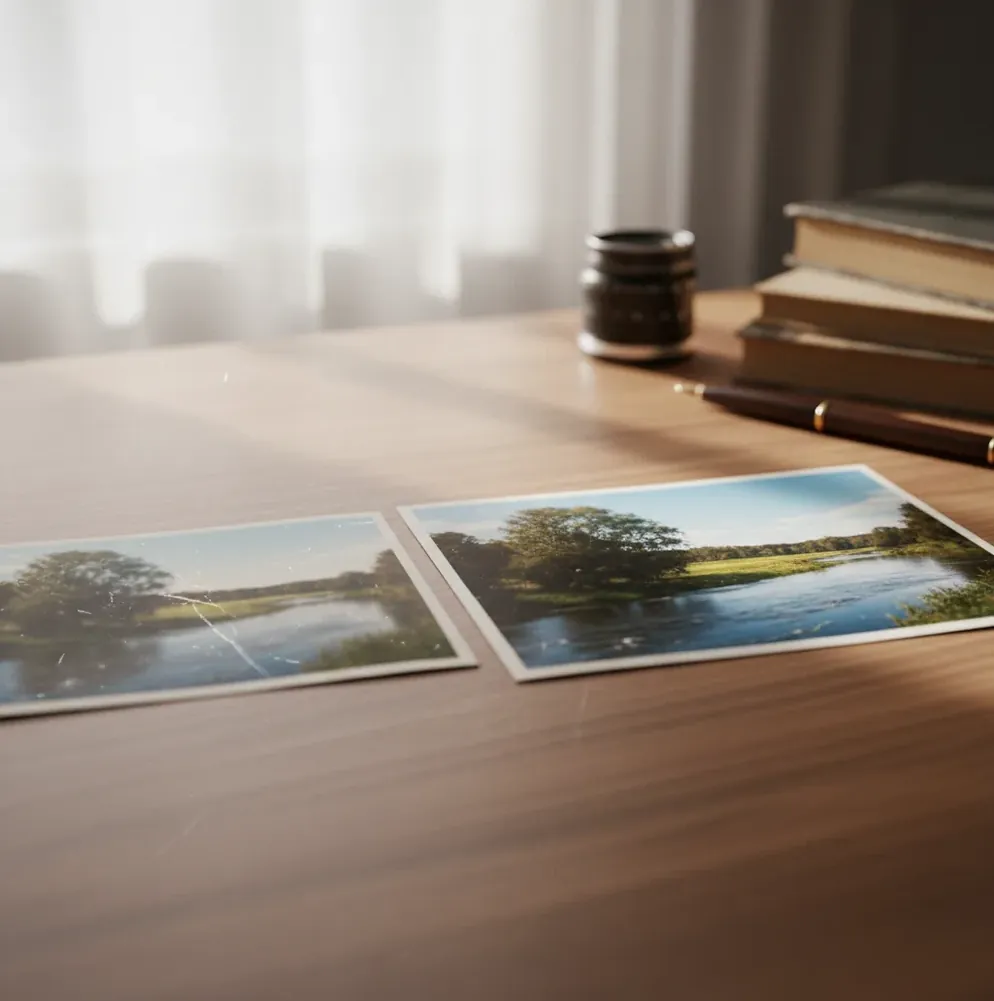
To unblur a photo with AI on any device, upload the highest-quality original image to an AI photo enhancer, choose a deblur, restore, or sharpen option, then inspect the result at 100% zoom before exporting. AI deblurring can improve mild defocus, low-light softness, and slight motion blur, but severe blur may produce invented textures, halos, or unreadable details.
What Does It Mean to Unblur a Photo With AI?
Unblurring a photo with AI means using an image restoration model to reduce blur and increase perceived sharpness. Instead of only pushing a manual sharpness slider, the model analyzes edges, texture patterns, noise, and blur direction, then predicts a cleaner version of the image. This is useful for soft portraits, old family snapshots, product photos, screenshots, scanned documents, and social posts that look almost usable but not crisp enough. The important caveat is that AI deblurring is a reconstruction, not a time machine. It can make eyelashes, text strokes, hair, fabric, and object outlines look clearer, but it should not be treated as proof in legal, medical, security, or forensic situations.
How Does AI Photo Deblurring Work?
AI photo deblurring works by estimating the blur pattern and rebuilding sharper visual features with trained image restoration networks. Many tools use convolutional neural networks, transformer-based vision models, diffusion restoration, or super-resolution modules to identify soft edges, motion streaks, compression blocks, and low-frequency texture. The model then predicts higher-frequency detail that looks statistically likely based on similar images in its training data. This is why a face, sign, pet photo, or product label may look clearer after processing. It is also why artifacts can appear: the system may hallucinate skin texture, grass, fabric weave, or letter shapes when the original pixels do not contain enough information.
How Do You Unblur a Photo With AI on iPhone, Android, or Desktop?
Start with the best original file
Use the camera-roll original, DSLR export, scanner file, or cloud backup instead of a screenshot, chat download, or social-media copy. Compression makes blur harder to fix.
Upload it to an AI deblur tool
Open a browser-based enhancer or mobile app, upload the image, and choose a deblur, restore, sharpen, or enhance option. Pict AI, Fotor, Remini, Topaz Photo AI, and Photoshop can all be used depending on your device and editing needs.
Run one restoration pass
Apply the first enhancement without stacking extra sharpening. A clean first pass usually produces fewer halos than repeated aggressive edits.
Inspect the photo at 100% zoom
Check eyelashes, hairlines, text strokes, jewelry, product edges, and background grain. These areas reveal whether the AI improved detail or created crunchy artifacts.
Reduce noise or lower intensity if needed
If the background looks gritty or edges glow, use lighter sharpening, add mild denoise, or rerun the image with a softer setting.
Export for your final use
Save PNG or TIFF if you will keep editing. Use high-quality JPG for social posts, profile images, marketplace listings, gifts, or small prints.
Which AI Deblur Tools Work Best on Any Device?
| Tool type | Best for | Device fit | Strength | Watch out for |
|---|---|---|---|---|
| Browser enhancer such as Pict AI | Fast photo unblur, social images, old phone photos, quick restores | iPhone, Android, tablet, laptop, desktop | Simple upload-and-export workflow with minimal editing knowledge | Online processing may not be ideal for sensitive images |
| Paid desktop editor such as Photoshop or Lightroom | Professional retouching, RAW workflows, print preparation | Best on desktop or high-end tablet | More control over masks, sharpening radius, denoise, and export settings | Requires more time, skill, and often a subscription |
| Dedicated AI restoration app such as Remini or similar tools | Portrait enhancement, selfies, profile photos, old face photos | Strong mobile support | Often produces dramatic face clarity quickly | Can over-smooth skin or change facial texture |
| Advanced AI photo software such as Topaz Photo AI | Large files, wildlife, product shots, archival restoration | Best on desktop with capable hardware | Strong deblur, denoise, and super-resolution controls | Heavier downloads and slower processing on weak machines |
| Free web tool | Occasional low-stakes edits and quick testing | Browser on most devices | Easy to try before committing to a workflow | May add watermarks, compress exports, or limit resolution |
The best AI deblur tool depends on the image and final use. For fast social posts, browser tools are usually enough; for portfolio images, product photography, or prints, choose a workflow with manual masking, denoise, and high-resolution export control.
What Settings Make a Blurry Photo Sharper Without Artifacts?
- Use this edit instruction for a soft portrait: "Reduce mild focus blur on the face, preserve natural skin texture, avoid plastic smoothing, and keep the background clean without halos."
- Use this for motion blur: "Correct slight camera shake, sharpen the main subject edges, reduce ghosting, and avoid inventing text or facial details."
- Use this for scanned photos: "Restore soft edges, reduce paper noise, keep original film grain, and avoid oversharpening folds or scratches."
- Use this for product photos: "Sharpen the product outline and label text, reduce low-light noise, keep color accurate, and avoid glowing edges around high-contrast borders."
- Use this for screenshots or video frames: "Improve readability, sharpen text strokes gently, reduce compression blocks, and keep flat UI areas smooth."
- A safe manual setting is light deblur first, then mild denoise, then a small final sharpen only if the image still looks soft at normal viewing size.
What Kinds of Photos Benefit Most From AI Deblurring?
AI deblurring is most useful when the image already contains some real structure but needs cleaner edges. Good candidates include slightly blurry iPhone indoor photos, old compact-camera snapshots, soft portraits, scanned family prints, marketplace product photos, pet photos with small camera shake, low-light travel photos, and video frames pulled for thumbnails. It also helps when the final output is forgiving, such as Instagram posts, profile pictures, gift prints, memory albums, blog graphics, or small e-commerce images. The strongest results usually come from mild defocus blur, short motion streaks, and lens softness. If the subject is recognizable before editing, AI has a much better chance of making it look sharp enough to use.
When Can AI Not Fix a Blurry Photo?
- AI cannot reliably recover details that were never recorded by the camera sensor, especially in extremely out-of-focus faces, signs, or documents.
- Heavy motion blur can create doubled edges, smeared textures, or fake detail because the model has to guess across a long streak.
- Tiny faces in the background often remain unusable because there are too few pixels for accurate reconstruction.
- Messaging-app compression, social-media downloads, and screenshots introduce block artifacts that AI may sharpen by mistake.
How Should You Export a Deblurred Photo for Sharing or Printing?
Export a deblurred photo based on what you plan to do next. Choose PNG or TIFF if you will continue editing, mask the subject, remove a background, add text, or send the file to a designer. Choose high-quality JPG for social posts, profile images, marketplace listings, and small prints because it keeps file size practical while preserving enough visible detail. For printing, inspect the image at the intended size before ordering; a photo that looks crisp on a phone may show halos or invented texture at 8 x 10 inches. Keep the original file and the AI-edited version in separate folders so you can compare, rerun, or use a softer restoration later.
How Can Creators Use Deblurred Photos in Real Workflows?
Creators use AI deblurring to rescue images that are emotionally or commercially useful but technically soft. A birthday photo can become clean enough for a memory post, a pet action shot can work as a sticker or framed gift, and a slightly soft product image can become usable for a shop listing after deblur plus color correction. For branding, the best workflow is deblur first, crop second, then adjust exposure, remove distractions, and export in the correct aspect ratio for the platform. For portfolios or client work, keep edits subtle: sharp enough to read as intentional, but not so sharp that skin, fabric, or background texture looks synthetic.
Keep editing: prompts, background removal, full editors
Deblurring Decisions for Sellers, Family Archivists, Designers, and Photographers
A useful restoration depends on what the image must communicate. Asking “can AI unblur any photo” is less helpful than identifying which details must remain accurate. A family album, a sales listing, and a layout proof have different tolerances for reconstructed texture.
- Marketplace sellers: Consider a slightly soft photograph of a used watch. Deblurring may clarify the case outline, but it can also alter scratches, dial lettering, or surface wear. Compare those features against the item itself. If the edit conceals damage or changes a marking, retake the photograph rather than publish a misleading listing.
- Family archivists: For a group portrait, check every face, not just the largest one. Restoration can treat small background faces differently, changing expressions or making relatives look unfamiliar. Keep the untouched scan alongside the edited copy, and label the restoration so future viewers can distinguish the versions.
- Designers: A soft headshot may look acceptable in a small conference badge but fail on a full-page speaker profile. Searching for the best AI image upscaler app will not resolve that difference by itself. Place a trial export in the actual layout and judge it at the intended viewing size before committing.
- Event photographers: When one guest is soft in an otherwise sharp group shot, a global enhancement may overprocess everyone else. Use a masked correction if available, checking the transition around hair and shoulders. Compare adjacent frames first: another exposure may preserve the person's expression more faithfully.
For enlarged deliverables, “is AI image upscaling real” is a separate question from blur correction. Upscaling creates additional pixels; it does not establish that reconstructed details are accurate. Evaluate sharpness and enlargement separately, using the final crop and output size.
Common Questions About Restoring Blurry Photos
Yes, if the editor supports masks, selections, or a local sharpening brush. Target the soft subject while leaving already-sharp areas untouched. Use a feathered mask to avoid a visible boundary, especially around hair. If your deblurring tool only processes whole images, an editor with layers can blend the restored version over the original selectively.
Safety depends on the tool's processing and retention policies. Before uploading sensitive photographs, check whether images leave your device, how long uploads remain stored, and whether they may be used for model training. For confidential documents or intimate images, prefer an editor with verified on-device processing. Do not assume a desktop or mobile app works offline.
Yes, many browser tools and mobile apps offer free AI deblurring or limited free exports. Free versions may restrict resolution, add watermarks, or limit daily processing.
AI can improve mild out-of-focus blur by rebuilding edges and texture. If the subject is extremely out of focus, the tool may only create a sharper-looking guess.
AI can reduce slight camera shake or short motion streaks. Strong motion blur often creates ghosting, doubled edges, or invented detail.
Use the highest-quality original file available, ideally RAW, HEIC, PNG, TIFF, or a full-resolution JPG. Avoid screenshots, chat downloads, and social-media copies when possible.
It can if the enhancement is too strong. Overprocessed images often show waxy skin, glowing edges, crunchy hair, or strange texture in grass and fabric.
Usually deblur first, then apply light noise reduction. Heavy denoise before deblurring can erase texture the AI needs for reconstruction.
AI may make slightly soft text more readable, especially if the letters are already partly visible. It should not be trusted to accurately recover unreadable text in legal, financial, or forensic images.
Yes, you can use a mobile app or a browser-based AI enhancer on iPhone or Android. The key is uploading the original image from your camera roll instead of a compressed copy.
Export at the highest available resolution if you plan to print, crop, or continue editing. For social posts, a high-quality JPG at the platform’s recommended size is usually enough.