Is There an AI Art From Text App?
Yes. An AI art from text app turns a written prompt into an image using a text-to-image model, usually with style, aspect ratio, and download options. The best results come from a repeatable prompt structure: subject, scene, lighting, style, format, and constraints.
Is There an AI Art From Text App?
- Upload an optional reference image if supported, or start with a blank text prompt for original artwork.
- Describe the subject, setting, lighting, and composition, then choose an aspect ratio suited to your intended placement.
- Generate a small batch of images, then revise one prompt detail if the strongest result misses your intent.
- Review faces, edges, and background details at full size, then export the selected artwork in your required format.
Example prompt: Photorealistic editorial photo of a cozy reading nook with a rainy window, warm lamp light, a mug of tea on a wooden table, 50mm lens look, shallow depth of field, muted color palette, no text, no logos
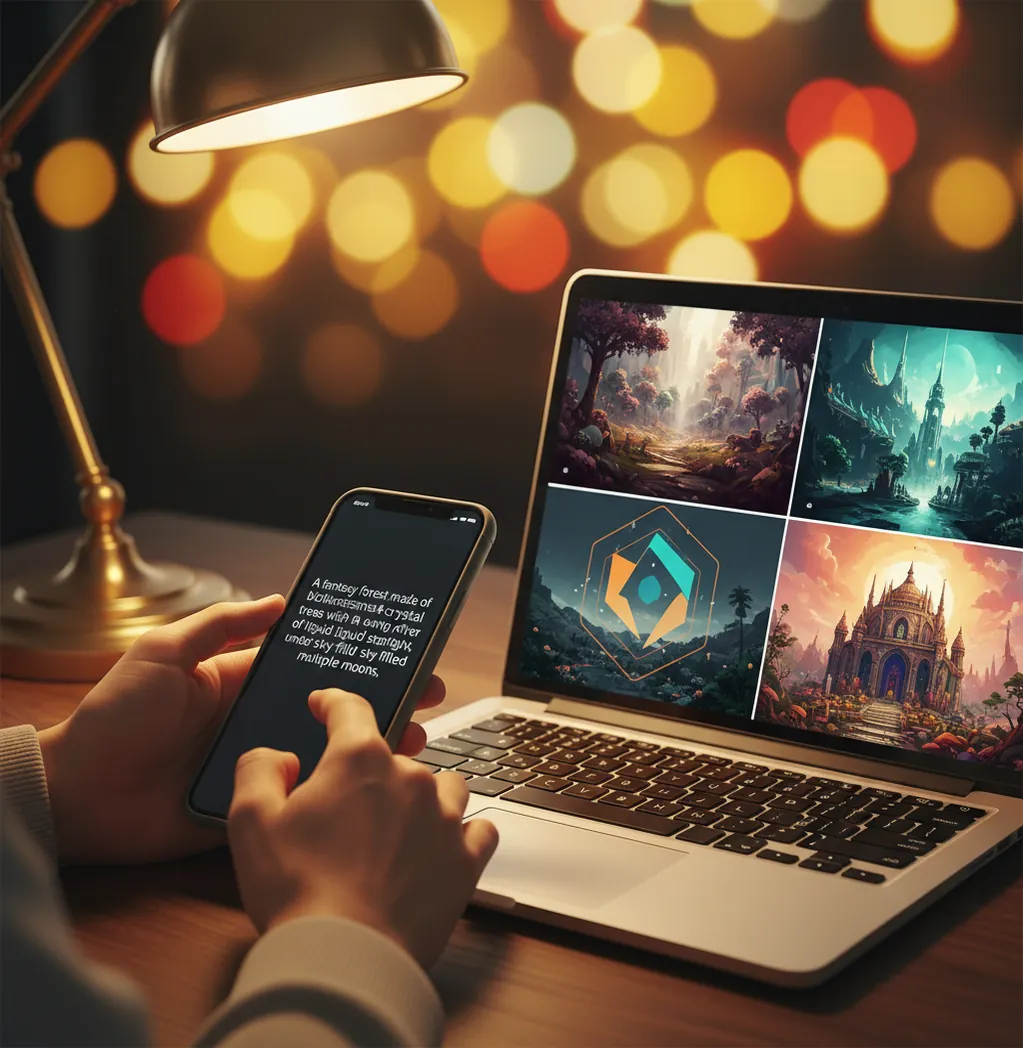
Yes, there are AI art from text apps for web browsers, iPhone, Android, and desktop workflows. These apps generate images from written prompts, then often let you choose an aspect ratio, refine the style, upscale the result, or edit small flaws. For consistent images, use structured prompts instead of one-line descriptions.
What Is an AI Art From Text App?
An AI art from text app is a tool that converts a written prompt into an image using a generative text-to-image model. You describe the subject, setting, style, lighting, and format, then the app renders one or more image variations you can save, edit, or regenerate.
Most tools fall into two workflow types: fast drafting apps and control-focused generators. Drafting apps are useful for social posts, profile images, stickers, moodboards, and quick gift ideas. Control-focused tools add features like negative prompts, seed values, aspect ratios, image references, inpainting, upscaling, and prompt history. If you need a polished print, portfolio piece, or branded visual, those control features matter more than raw speed.
How Does a Text-to-Image App Turn Prompts Into Art?
A text-to-image app translates your prompt into visual features, then generates pixels that match those features through a generative model. Modern systems often use diffusion or transformer-based architecture, where the model starts from noise or latent data and iteratively resolves shapes, colors, textures, and composition.
Your words influence the output through tokens, which are small language units the model associates with visual patterns. Phrases like "soft window light," "35mm film still," "flat vector icon," or "ceramic texture" act as visual steering signals. Settings such as aspect ratio, guidance strength, seed, style preset, and negative prompt also affect the result. This is why the same idea can look cinematic, editorial, anime, watercolor, or product-ready depending on the prompt and controls.
How Do You Make AI Art From Text?
Write the core subject
Start with the main thing in the image: a person, object, animal, room, logo concept, landscape, or product. Keep it specific, such as "a red ceramic coffee mug on a linen table" instead of "nice coffee image."
Add the scene and composition
Describe where the subject is and how it is framed. Use terms like close-up, centered subject, wide shot, overhead view, symmetrical composition, shallow depth of field, or clean background.
Choose lighting and style
Add one lighting direction and one visual style. Examples include soft morning light, neon rim light, studio flash, watercolor illustration, editorial photography, 3D clay render, or vintage poster.
Set the format
Pick an aspect ratio that matches the final use: 1:1 for profile images, 4:5 for Instagram posts, 9:16 for stories and reels, 16:9 for banners, or 3:4 for portrait prints.
Regenerate with one change at a time
If the first image is close but not right, change only one part of the prompt per attempt. This makes it easier to see whether the lighting, subject wording, style phrase, or constraint caused the improvement.
What Features Should You Look For in a Text-to-Art App?
The best text-to-art app is not always the one with the most styles; it is the one that fits your output workflow. Look for aspect ratio presets, prompt history, variations, negative prompts, image reference support, reliable downloads, and a basic edit step for removing artifacts or improving sharpness.
For casual posts, a simple generator with 1:1 and 9:16 exports may be enough. For client concepts, product mockups, thumbnails, or print art, prioritize higher resolution, PNG export, upscaling, seed reuse, and editing tools. Pict AI, for example, fits a browser-based workflow where you want to generate from text and then make light edits before export. The practical test is simple: generate one image, download it, view it full-screen, and check hands, eyes, edges, backgrounds, and compression.
Which AI Art From Text Apps Should You Compare?
| Tool | Best For | Text-to-Image Controls | Editing and Export Notes |
|---|---|---|---|
| Pict AI | Fast browser-based text-to-image drafts with simple editing | Prompt entry, style direction, aspect ratio choices, regeneration | Useful when you want to generate and clean up an image in one lightweight workflow |
| Adobe Firefly | Commercial design workflows and brand-safe creative assets | Style presets, generative fill, reference options in Adobe ecosystem | Strong for creators already using Photoshop, Express, or Illustrator |
| Canva | Social graphics, templates, presentations, and marketing layouts | Text-to-image inside a broader design editor | Good for placing generated art directly into posts, flyers, and decks |
| Microsoft Designer | Quick social visuals, posters, and AI-assisted layouts | Prompt-based image creation with design suggestions | Useful for fast design variations rather than fine image control |
| Midjourney | Highly stylized art direction and cinematic image concepts | Prompt weights, style parameters, aspect ratios, variations | Strong aesthetic results, but workflow depends on its interface and subscription model |
| Stable Diffusion interfaces | Advanced control, local workflows, custom models, and repeatable characters | Seeds, ControlNet, LoRAs, inpainting, model selection, negative prompts | Most flexible option, but requires more setup and technical comfort |
Choose based on the job: fast concepting, social design, commercial asset creation, advanced control, or editing depth. No single app is best for every creator workflow.
How Do You Write Prompts That Generate Consistent Images?
Consistent AI art prompts use a stable structure instead of a long stream of adjectives. A reliable formula is: subject + scene + composition + lighting + style + technical details + constraints. This gives the model a clear visual target and reduces random clutter.
Use this template: "[subject] in [scene], [composition], [lighting], [style], [camera or medium details], [aspect ratio], no text, no watermark, clean background." For example: "A black cat sitting on a velvet chair in a moonlit room, centered portrait composition, soft blue rim light, gothic oil painting style, fine brush texture, 4:5 aspect ratio, no text, no watermark." If you like a result, save the full prompt before changing anything.
What Prompt Recipes Work for Social Posts, Gifts, and Prints?
- Social post recipe: "[subject] for a modern social media post, bold centered composition, clean negative space, bright brand color palette, crisp digital illustration, 4:5 aspect ratio, no text." Use this for announcements, profile content, and carousel covers.
- Gift portrait recipe: "[person or pet description] as a warm illustrated portrait, cozy indoor background, soft window light, gentle expression, painterly texture, 3:4 aspect ratio, no text, no distorted face." Keep descriptions respectful and avoid private details.
- Poster recipe: "[main subject] in a dramatic cinematic scene, strong silhouette, atmospheric lighting, high contrast, vintage poster composition, grain texture, 2:3 aspect ratio, no readable text." Add text later in a design editor for cleaner typography.
- Product concept recipe: "[product] on a minimal studio surface, three-quarter view, soft shadow, premium commercial photography, neutral background, 16:9 aspect ratio, sharp edges, no logos, no text." This is useful for moodboards, not final product photography.
- Sticker recipe: "[cute subject] as a die-cut sticker, thick white outline, simple shapes, flat vector style, cheerful expression, isolated on transparent-looking background, 1:1 aspect ratio, no text." Check edges before printing.
Can You Use a Free AI Art Generator With No Login?
Yes, some AI art generators let you create images without logging in, but the tradeoffs are usually limits on resolution, daily generations, queue speed, download formats, or prompt history. No-login tools are best for testing an idea quickly, not for managing a repeatable creative workflow.
If you use a free no-account generator, copy your prompt into a notes app before generating. Many tools clear prompts after refresh, session timeout, or mobile browser issues. Also avoid entering personal names, client information, private slogans, or unreleased campaign details. No-login does not automatically mean prompts are never stored; services may still log data for moderation, abuse prevention, analytics, or model improvement.
Should You Use a Web App or a Mobile App?
Use a web app when you want better file handling, larger previews, easier prompt editing, and a smoother path into design or photo-editing tools. Browser workflows are usually better for checking artifacts, downloading organized files, comparing variations, and preparing images for portfolios, thumbnails, or prints.
Use a mobile app when speed and camera-roll access matter more than precision. Mobile workflows are great for story graphics, reaction images, wallpapers, moodboards, and quick social posts. The main risk is that small screens hide flaws: extra fingers, warped eyes, noisy gradients, broken jewelry, or strange background details may only appear once the image is posted or viewed on a laptop.
What Limitations Should You Expect From Text-to-Image Apps?
- Anatomy can still fail. Hands, teeth, eyes, ears, and overlapping limbs are common weak points, especially in full-body scenes or group images.
- Text inside images is unreliable. If you need a poster, label, invitation, or ad, generate the artwork without text and add typography later in a design editor.
- Consistency is difficult without controls. Recreating the same character, product, or room across multiple images usually needs seeds, reference images, character tools, or a custom workflow.
- Resolution may not be print-ready. A 1024px image can work for social posts but may look soft on posters, canvases, or high-DPI prints unless it is upscaled carefully.
Related Pict.AI guides for better prompts and better outputs
Six AI Art App Terms That Affect Your Final Image
Choosing the best ai art generator app means understanding what its controls actually change. These six terms help you judge a text to image workflow beyond its style presets, especially when editing references or preparing artwork for publication.
- Reference strength
This setting controls how closely generation follows an uploaded image. Higher strength usually preserves more of its layout; lower strength allows greater departures. In an ai landscape generator, distinguish a composition reference from a style reference: one guides placement, while the other guides appearance.
- Inpainting mask
A mask marks the area you want regenerated while leaving surrounding pixels largely unchanged. A tool that removes text from images may use this approach to rebuild the background. Mask slightly beyond the lettering to include shadows and outlines, then inspect nearby textures for mismatches.
- Outpainting
Outpainting generates new content beyond an image’s existing edges. When using an ai image generator for pinterest, it can turn a square concept into a taller composition without stretching the subject. Check the joins for repeated objects, broken perspective, or abrupt lighting changes.
- Safe area
The safe area is the portion of a composition less likely to be covered by interface controls or cropped during display. With an ai image generator for tiktok, keep important faces and details away from the edges and preview the artwork in its intended placement.
- Generation credits
Credits are usage units, not necessarily image counts. A batch, upscale, or edit may consume different amounts. Check the cost shown before each operation, whether unsuccessful generations are charged, and whether unused credits expire.
- Content credentials
These are provenance records that may identify an image’s creation or editing history. They do not establish copyright ownership or prove that depicted events happened. Some exports retain credentials; screenshots and subsequent editing can remove them.
AI Art From Text: Practical Questions Answered
Privacy depends on the service and account settings. Check whether generations appear in a public gallery, how long uploads are retained, and whether prompts or images may be used for model improvement. Avoid uploading confidential client material or identifiable personal photos without permission. A private gallery setting does not necessarily mean the service immediately deletes your files.
Some AI art apps support transparent output, while others only generate a background that looks blank. Asking for “transparent background” can produce a checkerboard pattern baked into the image rather than actual transparency. Look for an alpha-channel export option or remove the background afterward. Save as a transparency-capable format such as PNG, and check the edges against both light and dark backgrounds.
Yes. Many iPhone apps and mobile-friendly web tools generate AI art from text prompts and let you save results to your camera roll.
Yes, some tools allow limited no-login generation. Expect caps on image count, resolution, speed, watermark removal, or prompt history.
Include the subject, scene, composition, lighting, style, format, and constraints. A strong prompt is specific but not overloaded with conflicting styles.
Generative models can struggle with small anatomical structures and overlapping forms. Prompts like "hands out of frame" or closer portrait crops can reduce the issue.
Use 1:1 for profile images, 4:5 for feed posts, 9:16 for stories and short video covers, 16:9 for banners, and 3:4 or 2:3 for portrait prints.
Sometimes, but it depends on the tool’s license, the prompt content, and your jurisdiction. Check the terms before using outputs for ads, merchandise, or client work.
Use a consistent prompt template, change one variable per generation, save successful prompts, and use tools with seed, reference image, or variation controls.
Text-to-image models generate letter-like shapes as visual patterns, not true editable typography. Add titles, labels, and captions later in a design editor for clean results.