App That Makes AI Stickers for WhatsApp & Telegram
Yes, you can use an AI sticker app to generate sticker-style art, turn photos into cutouts, and prepare images for WhatsApp or Telegram packs. The best workflow is to create transparent PNG artwork first, then use each messaging app’s sticker import process to package the final set.
App That Makes AI Stickers for WhatsApp & Telegram
- Upload a reference photo or character image you have permission to use as the sticker's starting point.
- Describe the desired expression and pose, then choose a square composition with a bold sticker outline.
- Generate the artwork, keeping the same character description when creating additional reactions for your pack.
- Review expressions and background transparency, then export individual images and import them through your messaging app's sticker tools.
Example prompt: Create a cute sleepy raccoon holding boba, thick white outline, simple shading, sticker style, transparent background, centered composition on a square canvas
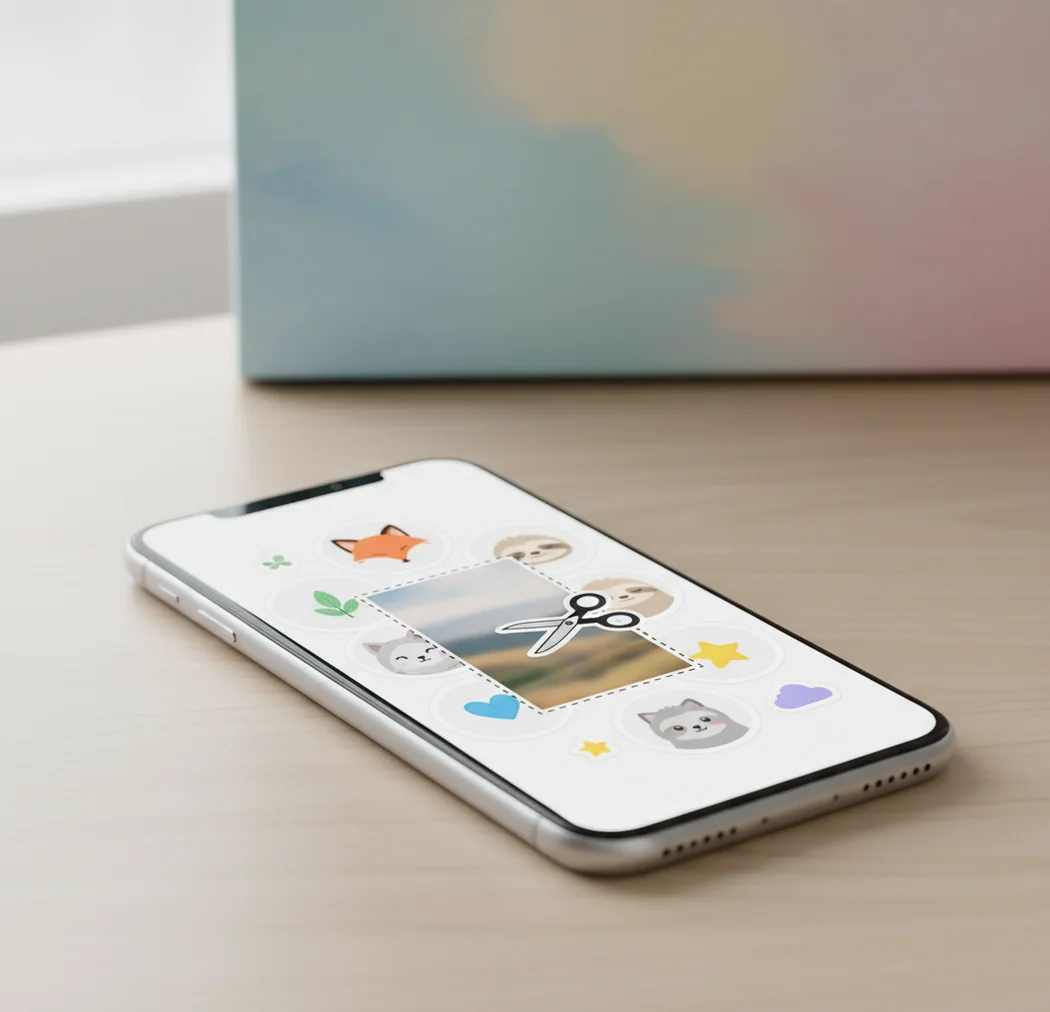
An app that makes AI stickers for WhatsApp and Telegram should generate sticker-style images, remove backgrounds, and export clean square files such as PNG or WebP. For best results, create the sticker art with consistent prompts, use a 512 × 512 px canvas, then import the finished files through a WhatsApp pack maker or Telegram sticker tool.
What app makes AI stickers for WhatsApp and Telegram?
An AI sticker app for WhatsApp and Telegram is a tool that turns text prompts or photos into sticker-ready images, usually with a transparent background, bold outline, and square export. Pict AI, Canva, Adobe Express, sticker pack makers, and Telegram’s own sticker tools can all be part of the workflow, depending on whether you need generation, editing, conversion, or pack publishing.
The simplest setup is a two-step workflow: generate the sticker artwork first, then package it for the chat app. WhatsApp usually expects small square sticker files, commonly prepared around 512 × 512 px and converted to WebP by a pack maker. Telegram supports sticker sets through its sticker tools, with static sticker images commonly prepared as transparent PNG or WebP files that follow Telegram’s size rules.
How do AI sticker apps work?
AI sticker apps work by combining image generation, background removal, and export formatting. A text-to-image model creates the character, object, emoji reaction, or mascot from your prompt; an editor or segmentation model isolates the subject; then the app exports a sticker-style image with transparency, padding, and a clean edge.
The technical details matter because chat stickers are viewed at tiny sizes. Strong sticker artwork usually has a simple silhouette, high contrast, a thick outer stroke, minimal shading, and no tiny text. If the AI output has fuzzy halos, extra fingers, low-contrast edges, or thin line art, it may look acceptable in a gallery but become unreadable inside a busy WhatsApp group or Telegram thread.
How do you make AI stickers for WhatsApp?
Choose one pack theme
Pick a focused use case such as office reactions, pet emotions, gamer phrases, family jokes, brand mascots, or birthday replies. A narrow theme makes the pack feel intentional instead of random.
Generate square sticker art
Use a 1:1 canvas and prompt for a bold sticker look: thick white outline, simple shading, transparent background, centered subject, readable expression.
Export transparent PNG files
Download the cleanest versions as PNG if available. Transparent PNG gives you more control before WhatsApp conversion and avoids ugly solid backgrounds.
Resize to 512 × 512 px
Place each sticker on a square canvas with enough padding around the subject. Avoid filling the full edge-to-edge frame, because the sticker may feel cramped in chat.
Convert through a pack maker
Use a WhatsApp sticker pack app or web importer to convert the images, often to WebP, and bundle them into a sticker pack.
Test inside a real chat
Send the stickers to yourself or a small group first. Check whether faces, text, outlines, and colors still read clearly at actual message size.
How do you make AI stickers for Telegram?
Create a consistent sticker set
Generate multiple expressions in the same style, such as happy, shocked, crying, laughing, side-eye, angry, and sleepy. Telegram packs work best when the set has a recognizable visual identity.
Prepare transparent artwork
Use transparent backgrounds and clean cutouts. Static Telegram stickers are usually prepared as image files that meet Telegram’s current sticker size and format requirements.
Keep details bold
Avoid tiny captions, fine hair strands, ultra-thin outlines, or low-contrast colors. Telegram stickers are often browsed quickly, so the emotional read should be instant.
Upload through Telegram’s sticker tools
Use Telegram’s official sticker bot or sticker set creation flow to upload files, assign emojis, name the pack, and publish the set.
Review on mobile and desktop
Check the pack in both Telegram mobile and desktop if possible. Stickers can feel different depending on screen density, dark mode, and chat background color.
Can you turn photos into custom chat stickers?
Yes, you can turn selfies, pet photos, product shots, team photos, or drawings into custom stickers if the subject is easy to cut out. The best photo stickers start with clear lighting, a sharp face or object, and separation between the subject and background. Blurry screenshots and cluttered group photos usually create messy edges.
For personal packs, photo stickers are great for birthday chats, family groups, inside jokes, creator communities, and reaction memes. For public or branded packs, get permission before using someone’s face, avoid copyrighted characters, and make sure the cutout still looks good at small size. A clean crop with a thick outline often feels more polished than a realistic unedited photo.
Which tools are best for AI sticker packs?
| Tool | Best for | Strength | Watch out for |
|---|---|---|---|
| Pict AI | Generating sticker-style images from prompts or photos | Fast browser and iPhone workflow for creating sticker-ready art | You may still need a separate importer for final WhatsApp or Telegram pack publishing |
| Canva | Layout, text, simple edits, and social-style sticker sheets | Easy design controls and templates | AI cutouts and exports may need cleanup for transparent sticker packs |
| Adobe Express | Polished edits, background removal, and branded sticker graphics | Strong design tooling for creators and small businesses | Can feel heavier than needed for quick chat reactions |
| Sticker Maker Studio | Packaging stickers for WhatsApp | Practical import flow for turning images into WhatsApp packs | Generation features are limited compared with dedicated AI image tools |
| Telegram sticker tools | Publishing Telegram sticker sets | Official path for naming packs, assigning emojis, and sharing sets | You need to prepare compliant artwork before uploading |
Most creators get the cleanest results by separating generation from publishing: use an AI image tool for the artwork, then use the official or dedicated sticker pack tool for the messaging app.
What prompts create consistent AI sticker packs?
- Cute reaction pack: "[animal or character] feeling [emotion], cute sticker style, thick white outline, simple cel shading, centered, transparent background, 1:1 square"
- Photo-to-sticker style: "turn this photo into a clean chat sticker, preserve facial expression, remove background, add thick white outline, high contrast, minimal detail"
- Brand mascot pack: "friendly [mascot type] doing [action], modern vector sticker, consistent line weight, brand colors [color 1] and [color 2], transparent background"
- Meme reaction pack: "dramatic [subject] saying [short phrase], bold readable text, comic sticker style, thick outline, expressive face, transparent background"
- Pet sticker pack: "[pet breed] with [emotion], adorable sticker illustration, oversized eyes, clean silhouette, white border, soft shadow, transparent background"
- House prompt template: "[same character], [new expression/action], same style, same outfit, thick white outline, simple shading, transparent background, centered on 512x512 canvas"
What export settings should you use for chat stickers?
Use a square canvas, transparent background, and bold composition for most chat sticker exports. A practical starting point is 512 × 512 px with the subject centered and padded, because many WhatsApp workflows are built around that size and Telegram sticker art also benefits from square, predictable framing.
Export PNG when you still need to edit, cut out, resize, or archive the sticker master file. Export or convert to WebP when the messaging app or sticker pack maker requires it. Keep the file visually simple: large facial features, strong outline, limited colors, and no tiny typography. If you need text, use two or three words maximum with heavy lettering.
What are the limits of AI sticker apps?
- AI models can generate inconsistent characters across a pack unless you reuse a strict house prompt, reference image, or same visual style every time.
- Transparent backgrounds are not always perfect; fuzzy halos, leftover pixels, and jagged cutout edges often need manual cleanup.
- WhatsApp and Telegram have different sticker upload rules, so one exported image may not import cleanly into both apps without resizing or conversion.
- Small text often becomes unreadable after compression, especially when converted to WebP or viewed in a fast-moving group chat.
How do you make a sticker pack people actually use?
A useful sticker pack is built around repeatable emotions, not just pretty images. Include reactions people send every day: yes, no, laughing, crying, shocked, angry, tired, love, thanks, and side-eye. For group chats, inside jokes and exaggerated expressions usually perform better than polished generic art.
Think like a creator shipping a tiny visual language. Keep the same character, line weight, border color, and color palette across the whole set. Test each sticker at thumbnail size before importing. If the emotion is not readable in one second, simplify the pose, enlarge the face, remove background clutter, or increase the outline thickness.
Related Pict.AI guides for WhatsApp and Telegram sticker packs
Check pack contents and source assets before publishing
Before publishing an AI sticker pack, audit the actual export folder, not just the images displayed in the editor. These checks catch packaging mistakes, unsuitable source material, and accidental disclosures that a visual review can miss.
- Separate stickers from promotional assets. If you also use an ai image generator for blogs, keep article illustrations outside the import folder. A finished cover image can otherwise slip into the pack alongside individual reactions.
- Remove layout leftovers. Artwork adapted from an ai image generator for pinterest may include tall compositions or several panels. Export one isolated reaction per file, not an entire collage.
- Check what a still frame communicates. If an ai image generator for tiktok supplied the original artwork, make sure the selected expression works without movement, music, or the surrounding clip. Reject poses whose meaning depends on that context.
- Strip promotional language. Images from an ai image generator for youtube thumbnails may contain arrows, headline fragments, or exaggerated claims. Remove anything that makes a conversational reply look like an advertisement.
- Inspect portrait permissions. For portraits created with ai美女メーカー 画像生成, check whether the result resembles an identifiable person. Obtain permission before distributing recognizable private individuals, and avoid presenting generated portraits as someone's genuine endorsement.
- Exclude scenery-only exports. An ai landscape generator can supply a setting, but keep that background in the source project unless it is essential to the reaction. Publish the intended sticker, not the full scene.
- Audit the pack listing. Check the title, author field, cover, and emoji associations where supported. Remove personal contact details, duplicate files, and near-identical reactions. Open the final import preview to confirm that every intended sticker appears once and no working drafts remain.
AI sticker creation and export questions
A checkerboard can be either an editor's transparency preview or a pattern baked into the generated image. Place the exported file over a solid color in an editor: genuine transparent areas reveal that color; a baked-in grid stays visible. If the grid remains, remove the background and export in a format that supports transparency. Prompting for transparency alone does not guarantee it.
Some AI tools generate motion, but a moving image is not automatically a compatible animated sticker. WhatsApp and Telegram have different requirements for animation formats, dimensions, duration, and file size. You need a tool that exports the destination app's supported format or a separate conversion step. Start with a short, clearly looping action, then check the imported sticker for playback errors and unwanted background frames.
A common WhatsApp sticker preparation size is 512 × 512 px on a square canvas. Many sticker pack apps resize and convert files automatically, but starting square prevents awkward cropping.
WhatsApp sticker packs commonly use WebP files, often created by a pack maker from PNG artwork. Keep a PNG master file so you can edit or re-export if the conversion looks blurry.
Telegram supports sticker sets through its sticker creation tools, with static stickers commonly prepared as transparent image files such as PNG or WebP depending on the current upload flow. Always check Telegram’s latest size and format rules before publishing.
Yes, selfies can become stickers if the face is sharp, well lit, and easy to cut out. Get permission before using or sharing stickers that include other people.
Blurry stickers usually come from too much detail, poor resizing, or compression during conversion. Use bold shapes, thick outlines, high contrast, and a clean 512 × 512 px square canvas.
A small pack can start with a few stickers, but 8 to 12 stickers usually feels more useful for real conversations. Include common reactions before adding niche jokes.
Yes, AI stickers work well for creator communities, launches, Discord groups, Telegram channels, and customer chats. Use original characters, approved brand colors, and avoid copyrighted or unlicensed imagery.
Often, yes. You can start from the same transparent PNG artwork, but each app may require different upload steps, file formats, size limits, or pack publishing tools.