How to Make AI Stickers for WhatsApp in 2026
AI stickers for WhatsApp are custom images created or edited with AI, prepared at 512×512 pixels, and imported into WhatsApp as stickers. The cleanest workflow is to generate sticker-style art, remove the background, export a transparent PNG, then use a sticker pack app or WhatsApp sticker tool to add it to chats.
How to Make AI Stickers for WhatsApp in 2026
- Upload a clear pet photo, selfie, or character reference with the subject fully visible and unobstructed.
- Describe the reaction you want, choosing a bold cartoon style and keeping the character’s identifying features consistent.
- Generate several sticker variations, then select the version with the clearest expression and fewest distracting details.
- Review the cutout edges, export a transparent 512×512 PNG, and import it through a WhatsApp-compatible sticker maker.
Example prompt: Cute flat cartoon sticker of a sleepy orange tabby cat wearing a tiny hoodie, thick black outline, minimal shading, centered composition with wide padding, transparent background, 512x512, clean edges, no text
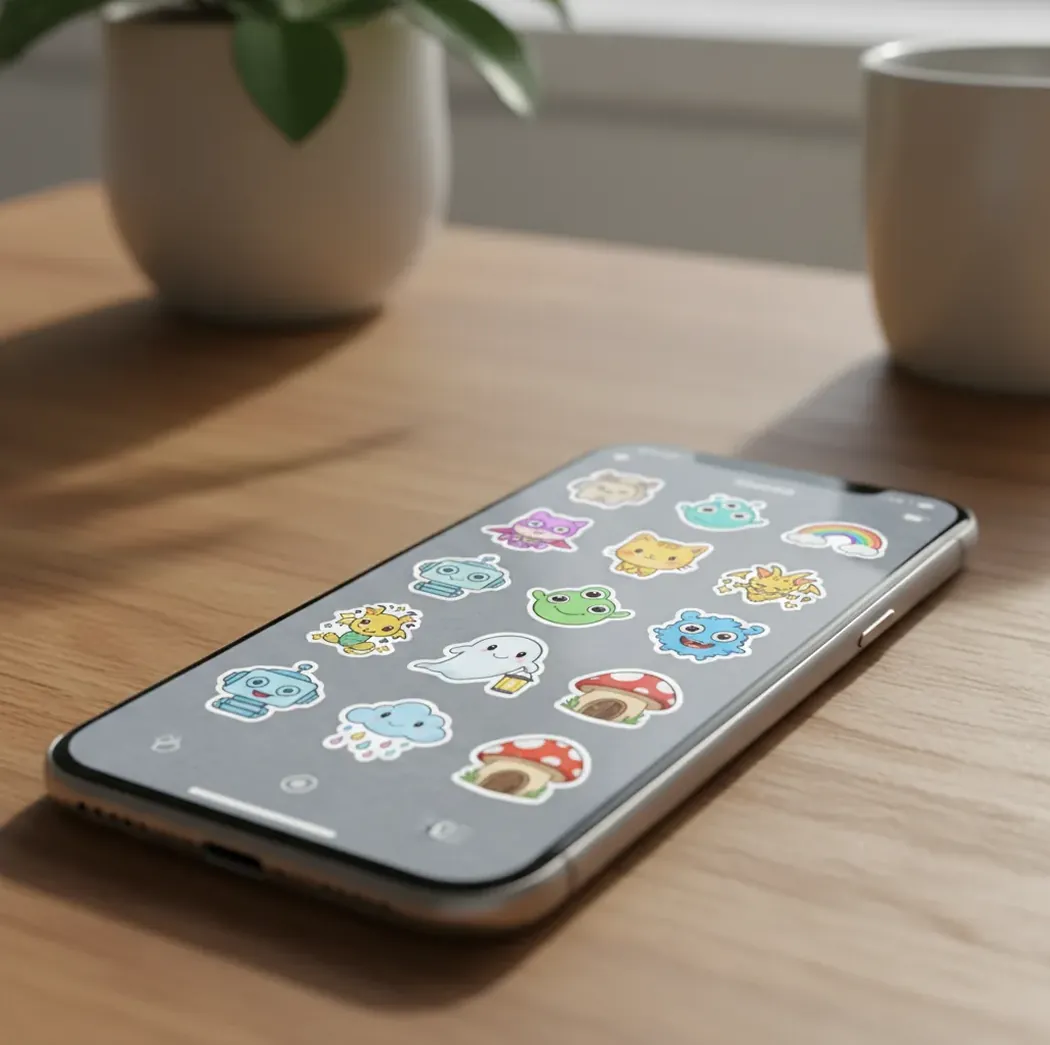
To make AI stickers for WhatsApp in 2026, generate a square sticker image, remove the background, export it as a transparent 512×512 PNG, and import it through WhatsApp or a sticker pack maker. Keep the subject centered, leave 8% to 15% padding, and use bold outlines so the sticker stays readable in small chat previews.
What Are AI Stickers for WhatsApp?
AI stickers for WhatsApp are sticker images created with generative AI, AI photo editing, background removal, or style transfer, then prepared for use inside WhatsApp chats. They behave like normal stickers once imported, but the artwork usually starts from a text prompt, selfie, pet photo, illustration reference, or brand character concept.
A good WhatsApp sticker is not just a small image. It needs a transparent background, a strong silhouette, readable expression, and enough padding to avoid feeling cropped in the sticker tray. The best packs are built around a repeatable chat use case: reactions, group jokes, pets, work replies, creator emotes, holidays, or personal gifts.
What Size and Format Do WhatsApp Stickers Need in 2026?
WhatsApp stickers should be designed as square 512×512 pixel assets, with the main subject centered and surrounded by a little empty space. Many sticker maker apps accept transparent PNGs and convert them into the sticker format WhatsApp uses, while official sticker files are commonly handled as WebP during import or packaging.
For practical creation, export a transparent PNG first because it preserves clean alpha transparency and is easy to inspect before import. Avoid JPG because it removes transparency and creates a visible rectangle behind the sticker. If the importer compresses the file, use thicker outlines, flat colors, and fewer tiny details so the sticker still looks sharp after conversion.
How Do You Make an AI Sticker Pack for WhatsApp Step by Step?
Choose one pack theme
Start with 8 to 16 stickers around one use case, such as reaction faces, pet moods, work chat replies, birthday messages, or streamer-style emotes. A focused pack gets used more than a random collection.
Write a reusable base prompt
Describe the character, style, outline, colors, and emotion. Keep the same style words across the pack so every sticker feels like part of the same set.
Generate square sticker art
Create images in a 1:1 ratio and target 512×512 or larger before resizing. Ask for a centered subject, transparent-background style, thick outline, flat colors, and extra padding.
Remove the background
Use an AI background remover or image editor to create a transparent cutout. Zoom to 200% and check the edges for halos, leftover pixels, chopped hair, or soft outlines.
Export as transparent PNG
Save each sticker as a PNG with alpha transparency. Keep text short, use high contrast, and avoid ultra-thin lines that disappear in the chat interface.
Import into WhatsApp
Add the images through WhatsApp’s sticker tools or a sticker pack maker, assign a tray icon if required, and test the pack in both light mode and dark mode before sharing it.
How Does AI Turn a Prompt Into Sticker Art?
AI sticker generators usually start with a diffusion model or image-generation model that turns a text prompt into pixels through iterative denoising. Prompt terms such as “thick outline,” “flat vector colors,” “kawaii reaction sticker,” “centered character,” and “transparent background style” guide the model toward shapes that remain readable at small sizes.
The cutout stage often uses segmentation and alpha matting. Segmentation identifies the subject, while alpha matting refines the semi-transparent edge around hair, fur, fingers, and curved outlines. This edge quality matters because WhatsApp stickers sit on light backgrounds, dark backgrounds, chat bubbles, wallpapers, and previews. A one-pixel white fringe can look invisible in your editor and obvious once sent.
Which AI Sticker Tools Work Best for WhatsApp?
| Tool type | Best for | WhatsApp workflow | Trade-offs |
|---|---|---|---|
| Pict AI | Fast prompt-to-sticker generation and transparent cutouts | Generate square sticker art, export PNG, then import with a sticker pack tool | Check usage terms for commercial packs and test edge quality before sharing |
| Mobile sticker maker apps | Importing PNGs into WhatsApp quickly | Upload images, create a tray icon, and add the pack directly to WhatsApp | Some apps compress images, add ads, or limit pack customization |
| Professional image editors | Manual cleanup, typography, and precise alpha masks | Design at 512×512, export PNG or WebP, then package separately | More control but slower for casual reaction packs |
| General AI image generators | High-quality characters, pets, and themed illustrations | Generate artwork first, then use a separate background remover and importer | May struggle with consistent characters, clean text, and transparent exports |
| Browser background removers | Cleaning photos or AI art into sticker cutouts | Remove background, refine edges, download PNG, then import | Fine hair, fur, and low-contrast edges may need manual repair |
The best setup is usually a hybrid workflow: one tool for generation, one for edge cleanup, and one for WhatsApp import. Choose based on whether you care more about speed, visual consistency, typography control, or pack publishing.
What Prompts Work Best for WhatsApp Stickers?
- Reaction sticker template: “A cute [character] making a [specific emotion] face, WhatsApp sticker style, thick dark outline, flat colors, centered composition, transparent background, no scenery, high contrast, 512×512.”
- Pet sticker template: “A playful sticker of my [pet type] looking [emotion], rounded cartoon style, expressive eyes, bold outline, soft shadow under subject, transparent background, clean cutout, minimal detail.”
- Work chat template: “Minimal sticker text saying ‘[short phrase]’ with a small [character/object], bold readable lettering, high contrast, flat vector style, thick outline, transparent background.”
- Creator emote template: “Streamer emote of [character] doing [reaction], exaggerated expression, crisp silhouette, limited color palette, bold outline, centered, transparent background, readable at small size.”
- Pack consistency template: “Same character as previous stickers, same outfit, same color palette, same thick outline style, new pose: [pose], emotion: [emotion], transparent sticker background.”
- Negative prompt add-on: “No realistic background, no tiny text, no extra limbs, no watermark, no blurry edges, no complex scenery, no cropped head.”
What Sticker Ideas Actually Get Used in Chats?
- Reaction faces: laughing, crying, shocked, suspicious, proud, tired, and confused.
- Group chat inside jokes: recurring phrases, nicknames, memes, or shared moments turned into visual shorthand.
- Pet packs: one dog, cat, rabbit, or bird turned into moods like hungry, sleepy, angry, fancy, and chaotic.
- Work replies: “On it,” “Done,” “BRB,” “Approved,” “Need coffee,” and “Circle back” in bold readable text.
- Holiday and event stickers: birthdays, New Year, weddings, graduations, trips, and family celebrations.
- Creator branding: mascot reactions, channel emotes, community catchphrases, and merch-style visual identity.
- Gift packs: custom stickers made from a friend’s hobbies, pet, favorite color palette, or birthday theme.
- Portfolio pieces: polished sticker packs that show character consistency, icon design, and small-format illustration skill.
How Do You Turn One Good Sticker Into a Full Pack?
Lock the visual identity
Keep the same character, outline thickness, color palette, shading style, and face proportions. This makes the pack feel designed instead of randomly generated.
Build around chat emotions
Create a matrix of common reactions: yes, no, laughing, panic, love, tired, angry, confused, celebration, and embarrassment.
Reuse the same prompt skeleton
Change only the pose, expression, object, or short text. Reusing structure improves consistency across AI outputs.
Create a tray icon early
Design one simple icon that represents the pack in WhatsApp’s sticker picker. It should be even simpler than the stickers themselves.
Test before publishing
Send every sticker in a private chat, check light and dark mode, remove weak designs, then keep the strongest 8 to 16.
Where Do AI WhatsApp Stickers Break Down?
- Hair and fur can become crunchy after background removal, especially when resized to 512×512.
- Small text often becomes unreadable, and AI-generated lettering may warp, duplicate, or invent strange characters.
- Transparent exports can still contain a faint matte or white halo that becomes obvious in dark mode.
- Character consistency is difficult unless you reuse prompt structure, references, seed controls, or manual edits.
Related Pict.AI reads for better prompts and cleaner cutouts
Six Sticker-Pack Terms That Matter at Export
Export menus mix image-editing terms with sticker-pack settings. These six definitions help you prepare ai stickers for whatsapp and understand which settings may need changing when you reuse the artwork elsewhere.
- Alpha fringe
A pale or dark rim caused by edge pixels retaining color from a removed background. Place the cutout over contrasting colors to spot it. Fix the edge mask rather than repeatedly removing the background, which can erode whiskers and fingers.
- Lossless compression
Compression that reduces file size without discarding image detail. It differs from lossy compression, which can introduce artifacts around lettering. A lossless export is not automatically small enough for an importer; simplify texture if the file is rejected.
- Pack identifier
An internal value a packaging tool uses to distinguish one collection from another. It is separate from the visible pack name. When distributing updated packs, follow the tool’s identifier rules so updates do not become unintended duplicate collections.
- Tray icon
The small image representing a collection in the sticker picker. Choose one recognizable face or symbol rather than a miniature collage. It helps people go straight to the right pack without reading its name.
- Emoji association
An emoji linked to a sticker’s meaning, such as laughter or surprise. Tools for ai stickers for telegram may expose this setting. Treat it as searchable reaction metadata, not text that must appear in the artwork.
- Import compatibility
The destination’s ability to accept your artwork or packaged collection. Artwork prepared as ai stickers for discord or ai stickers for imessage is not necessarily a WhatsApp-ready pack. If you search “is there an app that makes ai stickers,” check for WhatsApp export support, not just image generation.
Questions About Creating and Sharing WhatsApp Stickers
Yes, but generating a moving image is only the first step. You need an exporter that supports WhatsApp-compatible animated stickers; a GIF or video file is not automatically a sticker. Keep the motion brief and the silhouette stable, then check the loop for flickering edges. File-size and animation requirements can differ from those for static sticker imports.
Recipients can generally save stickers they receive and send them in other conversations. Treat a sticker as shareable content, not a private image that stays inside one chat. Before creating stickers from someone’s face, get their permission and avoid sensitive details such as addresses, school badges, or workplace IDs. Deleting your original pack does not recall copies already shared.
Generate square sticker art with AI, remove the background, export a transparent 512×512 PNG, and import it through WhatsApp or a sticker pack maker. Test the sticker in a chat before sharing the pack.
Design WhatsApp stickers at 512×512 pixels. Keep the subject centered with about 8% to 15% padding so it does not look cramped or clipped.
Transparent backgrounds are strongly recommended because they let the sticker blend into any chat wallpaper or bubble color. PNG is the easiest working format before import.
Yes, you can turn selfies, pet photos, objects, or drawings into stickers by removing the background and exporting the cutout. Photos usually need extra edge cleanup around hair, fur, and shadows.
Blurry stickers usually come from low-resolution source images, heavy compression, soft outlines, or tiny details. Start at 512×512 or larger, use bold shapes, and avoid thin lines.
Yes, but keep text very short and high contrast. Words like “BRB,” “Done,” or “Nope” work better than long captions because stickers appear small in chats.
Use transparent PNG while editing and importing through most sticker maker workflows. Many tools convert the final sticker into WebP for WhatsApp compatibility.
A practical pack usually has 8 to 16 strong stickers around one theme. Smaller focused packs are easier to use than large packs full of similar or weak reactions.
You may be able to sell sticker packs, but check the terms of the AI tool, font license, source images, and marketplace rules. Avoid copyrighted characters, celebrity likenesses, and private photos without permission.