Is There an App to Restore Old Photos in 2026?
Yes, there are apps that restore old photos in 2026. Modern AI restoration tools can reduce scratches, remove dust, sharpen soft faces, improve contrast, and optionally colorize black-and-white prints from a scan or phone capture. Pict AI works in a browser and on iPhone, but the best result still starts with a clean, glare-free image of the original print.
Is There an App to Restore Old Photos in 2026?
- Upload a clear scan of the old print, retaining an untouched copy before making any changes.
- Choose gentle restoration or describe the scratches and fading to repair, asking to preserve facial features.
- Generate the restored image, then compare faces, clothing, and handwritten details against the original scan.
- Export at full resolution in a suitable format, checking pixel dimensions before ordering a replacement print.
Example prompt: Restore this scanned 1960s family portrait: remove dust and scratches, reduce grain, keep natural skin texture, correct faded contrast, and keep the original framing. If colorizing, use muted, era-plausible colors and avoid neon greens.
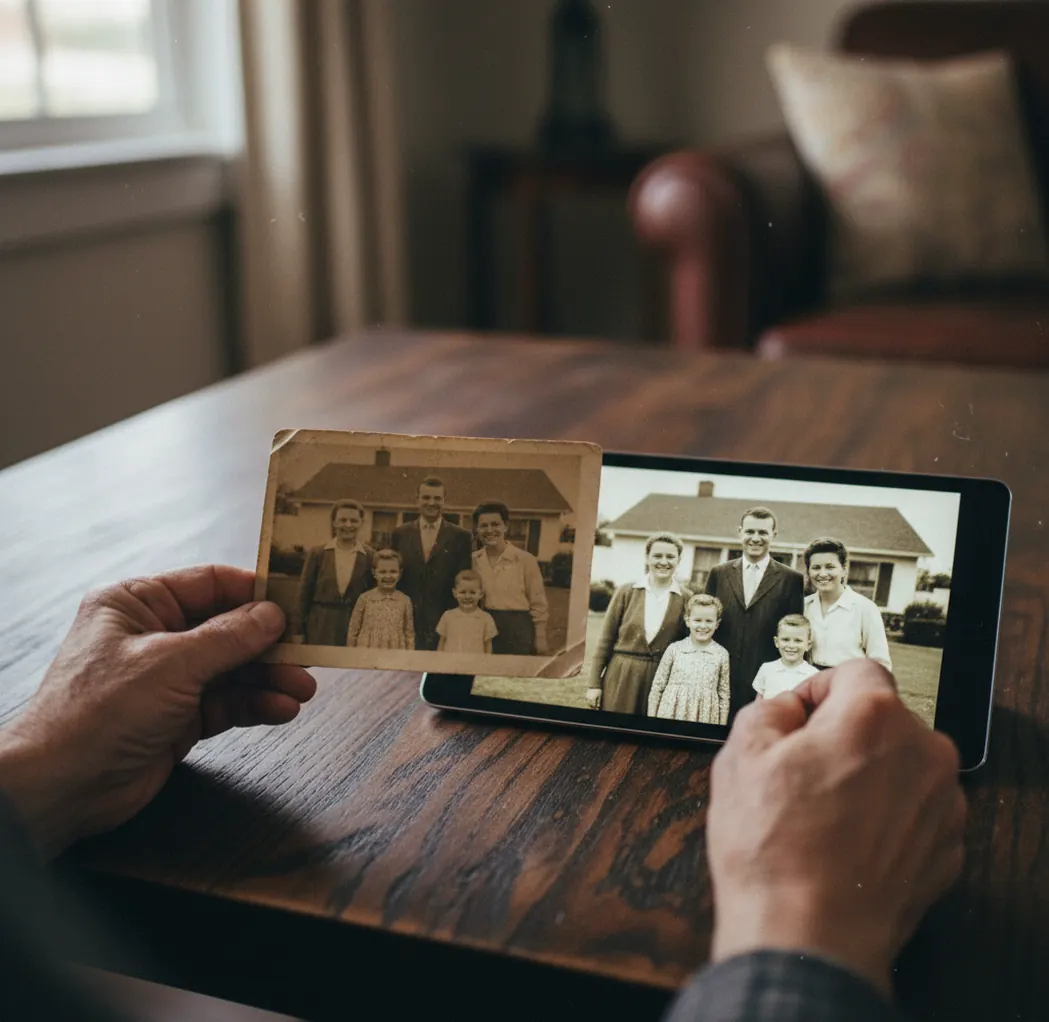
Yes, there is an app to restore old photos in 2026. AI photo restoration apps can repair light scratches, reduce grain, sharpen faces, improve faded contrast, and colorize black-and-white images, but they work best from a 300-600 DPI scan or a sharp, glare-free phone photo. Heavy tears, missing faces, deep creases, and motion blur may still need manual retouching.
Is there an app that can restore old photos in 2026?
Yes. In 2026, an old photo restoration app typically uses AI to detect dust, scratches, faded contrast, film grain, soft faces, and minor surface damage, then creates a cleaner version for sharing, printing, or archiving. The strongest results usually come from family snapshots with light scuffs, mild blur, yellowing, or faded blacks.
The important caveat is that restoration is not the same as historical conservation. If part of a face, hand, uniform, handwritten border, or background is physically missing, the model has to infer what should be there. That can look impressive on social posts and gifts, but it may not be accurate enough for genealogy records, museum scans, or legal archives.
How do old photo restoration apps work?
Old photo restoration apps work by combining image enhancement, defect detection, denoising, super-resolution, and generative inpainting. The system identifies patterns that look like scratches, dust, stains, grain, low contrast, and compression artifacts, then rebuilds cleaner pixels around edges, skin texture, clothing, and background areas.
Most tools use a pipeline rather than one single filter: first they normalize exposure and contrast, then reduce noise, then sharpen or upscale details, and finally fill small damaged regions. Face enhancement is usually handled separately because eyes, mouths, hairlines, and skin texture need different treatment than wallpaper, fabric, or sky. This is why faces may improve dramatically while handwritten dates or fine lace can sometimes become too smooth.
How do you restore an old photo with an app?
Capture the original cleanly
Scan the print at 300-600 DPI if possible. If using a phone, place the photo on a plain dark surface, use soft window light, avoid glare, clean the lens, and keep the camera parallel to the print.
Crop before restoring
Straighten the image and crop close to the photo edges while leaving a small border. This helps the model focus on the print instead of the table, scanner bed, or background texture.
Run a gentle restoration first
Start with the least aggressive enhancement setting if the app offers controls. Light restoration usually preserves pores, hairlines, fabric, and handwritten notes better than maximum cleanup.
Compare against the original
Check the eyes, teeth, ears, collars, jewelry, and photo borders. If the result looks waxy or the face changes identity, export a milder version or try a second tool.
Save both versions
Keep the untouched scan and the restored export in the same folder. Use filenames such as family-wedding-1974-original.jpg and family-wedding-1974-restored.jpg so the source remains traceable.
Should you scan or photograph old prints before restoring them?
A flatbed scan is usually better than a phone photo for old photo restoration because it gives the AI more stable detail, flatter lighting, and less lens distortion. For most family prints, 300 DPI is enough for social sharing, while 600 DPI is better for keepsakes, enlargements, and prints where faces or handwriting matter.
A phone capture can still work well if the print is sharp, evenly lit, and glare-free. Avoid ceiling lights because they make tiny scratches look like white cracks. Do not use portrait mode, beauty filters, or automatic color filters before restoration; those effects can destroy the original texture and confuse the AI model. For glossy prints, move the light source to the side and take two captures from slightly different angles.
What are the best apps to restore old photos?
| Tool | Best for | Strengths | Watch out for |
|---|---|---|---|
| Pict AI | Quick browser or iPhone restoration | Simple workflow for scratch cleanup, face enhancement, and optional colorization | Very damaged areas may need manual edits after AI restoration |
| Adobe Photoshop | Manual retouching and professional control | Neural Filters, healing tools, clone stamp, layers, masks, and precise exports | Higher learning curve and slower for large family batches |
| MyHeritage Photo Enhancer | Genealogy and family history photos | Face enhancement and colorization for old portraits | Can over-enhance faces or produce historically uncertain colors |
| Remini | Fast face sharpening on mobile | Strong perceived detail on portraits and social-ready results | May smooth skin heavily or alter facial identity on low-quality inputs |
| VanceAI or similar web restorers | Batch-style web enhancement | Denoising, sharpening, upscaling, and scratch cleanup in a browser | Export quality and free limits vary by plan |
The best app depends on the job: use a fast AI app for family sharing and gifts, Photoshop-style tools for controlled repairs, and genealogy-focused tools when identifying relatives matters more than stylized output.
Can an app colorize black-and-white photos?
Yes, many old photo apps can colorize black-and-white photos, but AI colorization should be treated as an interpretation, not a guaranteed historical record. The model predicts plausible skin tones, skies, grass, wood, fabric, and backgrounds based on training patterns, not family memory or archival evidence.
Colorization works best on clear portraits, outdoor scenes, uniforms with known references, and prints with good tonal separation. It is less reliable for specific military insignia, flags, wedding dresses, regional clothing, school colors, or objects that could have had many possible colors. For gifts, memorial slideshows, and social posts, colorization can make a photo feel emotionally immediate. For archives, keep the black-and-white original and label the colorized version as AI-generated.
What settings or prompts produce natural restorations?
Natural old photo restoration comes from asking for preservation, not perfection. If your tool has strength controls, start around low to medium restoration, then increase only if scratches or haze remain. The goal is to keep recognizable identity, paper texture, clothing detail, and the original photographic mood.
Use this restoration prompt when a tool accepts text instructions: Restore this old family photo gently. Remove dust, small scratches, stains, and faded contrast while preserving the original face shape, age, skin texture, clothing, background, handwritten borders, and film grain. Do not beautify, modernize, change the expression, or invent missing details.
Use this colorization prompt for black-and-white prints: Add natural, historically plausible color to this black-and-white photograph. Keep skin tones subtle, avoid oversaturation, preserve shadows and original lighting, and do not change clothing style, facial features, or background objects.
What can old photo AI restoration not fix reliably?
- Missing facial features: If an eye, mouth, or half of a face is torn away, AI must invent detail and may change the person’s identity.
- Severe motion blur: AI can improve perceived sharpness, but it cannot recover information that was never captured by the camera.
- Deep creases through faces: Thin scratches are easier than cracks that cross eyes, noses, or mouths because identity details sit in those areas.
- Historical color accuracy: Colorization predicts plausible colors but cannot know the real color of uniforms, cars, flowers, wallpaper, or school clothing without references.
When should you use an app instead of a professional restorer?
Use an app when the goal is a cleaner family photo for a text thread, memorial slideshow, framed gift, social post, family tree, or small print. AI apps are especially useful for restoring many medium-damaged images quickly: faded holiday snapshots, school portraits, old wedding prints, passport photos, and scanned albums.
Use a professional restorer when the image is rare, badly torn, stuck to glass, water-damaged, historically important, or needed as a large wall print. Human retouchers can rebuild missing areas with source references, protect identity, repair backgrounds with masks and layers, and make judgment calls that an automated model cannot. A practical workflow is to try an AI pass first, then send the original scan and the AI version to a retoucher as a visual reference.
Related Pict.AI guides for restoration and color
Export settings that preserve a restored photo’s detail
To bring old photos to life without losing useful detail, check the export controls before processing an entire album. The best ai photo enhancer app for a keepsake should let you save a full-resolution file, not just a preview. Subscription labels alone do not tell you the exported dimensions.
| Setting | What to choose or check | Why it matters |
|---|---|---|
| Pixel dimensions | For 300-PPI printing, use 1800 × 1200 pixels for a 6 × 4-inch print, or 2400 × 3000 for 8 × 10 inches. | Changing resolution metadata alone does not add printable detail. |
| File format | Choose PNG or TIFF for a lossless edited master when available; use high-quality JPEG for convenient sharing. | Repeated JPEG saves can introduce artifacts around faces and lettering. |
| Aspect ratio | Keep the original proportions unless a specific print size requires cropping. | An 8 × 10 crop can cut people from the edges of a wider group portrait. |
| Color profile | Use sRGB for ordinary sharing and most consumer print workflows, unless the lab specifies otherwise. | A predictable color workflow reduces unexpected shifts between screens and prints. |
| Processing limits | Check upload megabytes, maximum megapixels, output dimensions, and batch limits. | A tool may accept a large scan but export a smaller restored image. |
If you are comparing the best ai image upscaler app or searching for “what app fixes blurry photos,” separate enlargement from repair: more pixels do not establish that recovered detail is genuine.
Choosing the best app to restore a grandparents wedding photo also means protecting veils, bouquets, and guests at the edges. The question “can ai restore faces in old photos” is only part of the decision; inspect the exported file, not just its on-screen preview.
Old photo restoration questions answered
Restoration apps can enhance digital scans of negatives and slides, but they do not replace digitization. Negatives need inversion and, for color film, correction of the orange mask before ordinary restoration. A film scanner or suitable camera-scanning setup captures a better starting file than photographing film against a window. Keep the unedited scan alongside any enhanced version.
Check whether the service processes images on your device or uploads them to a server. Review its retention period, deletion controls, training-use policy, and sharing defaults before submitting private family pictures. Avoid uploading sensitive documents visible in the frame. For especially personal photographs, choose a workflow with explicit local processing rather than assuming an installed app works offline.
Yes, AI can remove light scratches, dust specks, stains, and small surface marks very well. Deep cracks, torn areas, and damage across eyes or mouths are harder because the app must reconstruct missing detail.
An app can improve mild blur and make faces look sharper, especially around eyes, hair, and mouth edges. Severe motion blur or very low-resolution faces may produce unnatural or inaccurate features.
AI can create plausible color, but it cannot guarantee exact historical accuracy. Keep the original black-and-white file and use references if uniforms, flags, cars, or clothing colors matter.
Scan most old prints at 300 DPI for basic sharing and 600 DPI for better restoration, archiving, or reprinting. Very small photos may benefit from 600 DPI or higher if the scanner produces clean detail.
It can, especially when the face is blurry, damaged, or very small in the frame. Always compare the restored version with the original and avoid overly aggressive face enhancement for family or archival images.
Yes, you can print an AI-restored photo if the export resolution is high enough and the result still looks natural at print size. For framed gifts, inspect the file at 100% zoom before ordering.