App That Turns Photos Into Cartoons in 2026
An app that turns photos into cartoons uses AI style transfer or image generation to redraw your selfie as a cartoon, comic portrait, avatar, or painted character. Pict AI works in the browser and on iPhone-style editing workflows, so you can test multiple looks, refine details, and export the version that still feels like you.
App That Turns Photos Into Cartoons in 2026
- Upload a portrait you have permission to edit, keeping the full hair silhouette and shoulders visible.
- Choose a cartoon preset or describe the line weight, color palette, and facial details to preserve.
- Generate a version, then adjust one setting at a time if the style or likeness drifts.
- Review the face and outlines at full size, then export and save the settings for future portraits.
Example prompt: Convert this selfie into a clean cartoon portrait with thin ink lines, soft cel shading, natural skin tones, simple gradient background, realistic face proportions, keep my freckles and glasses, no text, no watermark.
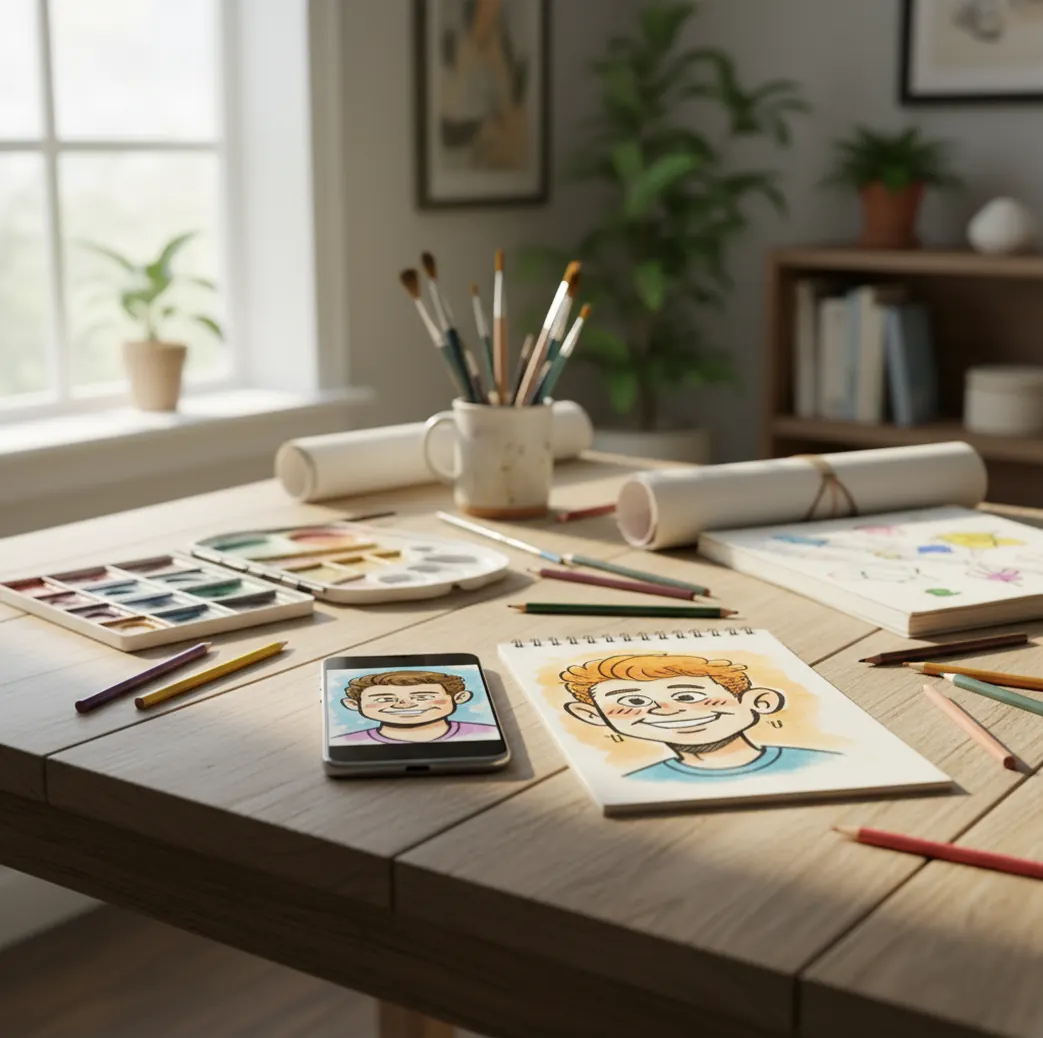
An app that turns photos into cartoons is usually an AI photo editor that detects your face, separates it from the background, and redraws it with simplified shapes, clean outlines, and stylized color. For the best results, use a sharp, front-lit photo, avoid beauty filters, crop tightly around the face, and choose a style that matches the final use, such as a profile avatar, print, sticker, or social post.
What App Turns Photos Into Cartoons?
The best app that turns photos into cartoons is an AI photo editor that preserves face identity while changing the rendering style. Look for tools that keep your eye shape, smile, jawline, freckles, glasses, and hair silhouette recognizable instead of replacing you with a generic character.
A useful cartoon photo app should handle three things well: facial consistency, edge cleanup, and export quality. The real test is not whether the image looks colorful at phone size; it is whether the hairline, glasses, teeth, and background still look clean at 100% or 200% zoom. If the result looks like someone else wearing your outfit, the style model is too aggressive for that photo.
How Does an AI Cartoon Photo App Work?
AI cartoon apps work by combining face detection, segmentation, style transfer, and generative image reconstruction. The model first identifies the subject, separates the face and hair from the background, then redraws the image using simplified geometry, smoother color blocks, ink-like lines, cel shading, or painterly texture.
Most tools use either filter-based conversion or prompt-guided generation. Filters are faster and more predictable, but they give you less control over line weight, lighting, and mood. Prompt-guided tools take longer, but they let you ask for details like soft rim light, clean vector edges, warm skin tones, comic-book ink, watercolor texture, or a transparent-background avatar.
How Do You Turn a Photo Into a Cartoon Online?
Choose a sharp source photo
Start with a high-resolution selfie or portrait where the face is in focus, the eyes are visible, and the lighting is even. Window light from the front usually works better than overhead light or colored party lighting.
Crop for the final use
For an avatar, crop from mid-chest to slightly above the head. For a print or poster, keep more background and shoulder shape. Avoid including hands unless the tool is strong at anatomy.
Pick one cartoon direction
Choose a single style such as cel-shaded avatar, comic ink, soft 3D character, watercolor portrait, or flat vector illustration. Switching styles every attempt makes it harder to judge what improved.
Generate two controlled versions
Use the first result to judge the overall vibe, then change only one thing for the second pass, such as hair detail, background simplicity, or line thickness.
Inspect before posting
Check the export at 100% and 200% zoom. Look closely at hair edges, ears, glasses, teeth, necklaces, and background borders before using the image for a profile, gift, thumbnail, or print.
What Is the Best Free AI Cartoon Photo Maker Online?
The best free AI cartoon photo maker online is the one that gives you enough control to fix identity, not just apply a novelty filter. Free web tools are useful because you can test results quickly on a larger screen, where artifacts such as doubled eyebrows, blurry glasses, warped ears, or glowing hair edges are easier to see.
Free tools usually have tradeoffs: daily generation limits, watermarks, smaller export sizes, slower queues, or fewer style controls. If the cartoon is only for a story post, a small export may be fine. If you need a crisp LinkedIn avatar, YouTube banner, wedding gift, sticker pack, or printed portrait, prioritize resolution, face fidelity, and clean background separation over the flashiest style name.
Which Cartoon Photo Tool Should You Choose?
| Option | Best for | Strengths | Watch out for |
|---|---|---|---|
| AI web cartoon generator | Fast selfies, avatars, social posts, profile images | No install, quick style testing, easy reruns | May limit exports, credits, or resolution |
| Pict AI | Browser-based cartoon portraits and editable image variations | Useful for testing multiple cartoon looks and refining a generated result | Like all AI tools, source photo quality strongly affects face consistency |
| Mobile social filters | Casual stories, reels, playful stickers | Very fast, familiar camera workflow, fun presets | Often lower control and lower export quality |
| Paid photo editors | Polished branding, creator thumbnails, portfolio assets | More masking, retouching, layers, and export control | Takes more time and may require editing skill |
| Human illustrator | Gifts, editorial art, mascots, premium portraits | Highest intentionality and custom art direction | Costs more and is not instant |
Choose based on the final job. A quick avatar needs speed and face likeness; a print or brand asset needs clean edges, high resolution, and more control.
Can an App Turn Photos Into Paintings Too?
Yes, many cartoon photo apps can also turn photos into paintings because the underlying process is similar: the tool redraws the image in a new visual language. Instead of cel-shaded lines or comic outlines, a painting style may use visible brush texture, softer edges, canvas grain, watercolor bleed, oil-paint highlights, or pastel color blending.
Use painting styles when you want emotional softness, wall-art energy, romantic gifts, pet portraits, family prints, or portfolio pieces. Use cartoon styles when you want a sharper avatar, gaming profile picture, sticker, social icon, or creator thumbnail. Painting styles forgive small skin details, while cartoon styles expose facial proportion problems more clearly.
How Do You Get a Clean Cartoon Avatar From a Selfie?
To get a clean cartoon avatar from a selfie, prompt for identity preservation, controlled line work, and simple lighting. The goal is not maximum stylization; it is a balanced character portrait that keeps your recognizable features while removing photo noise.
Reusable prompt recipe: "Turn this portrait into a clean cartoon avatar. Preserve the person’s face shape, eye shape, hairstyle, skin tone, freckles, and smile. Use smooth cel shading, crisp but not heavy outlines, natural colors, soft front lighting, and a simple background. Avoid warped eyes, extra teeth, distorted glasses, plastic skin, or changing the person’s identity."
For a profile image, add: "centered head-and-shoulders crop, clear silhouette, readable at small size." For a gift print, add: "warmer lighting, subtle texture, polished illustration finish, high-resolution composition." For a creator brand avatar, add: "consistent color palette, bold silhouette, clean negative space, thumbnail-friendly contrast."
Can You Make Disney or Ghibli-Style Images From a Selfie?
You can make a selfie feel like a warm animated portrait, but it is better to describe the visual traits you want instead of relying only on a studio name. Ask for soft hand-drawn animation, expressive eyes, rounded facial shapes, gentle background color, painterly clouds, cozy lighting, or clean cel shading rather than trying to copy a protected franchise exactly.
A safer and more controllable prompt is: "Create a whimsical hand-drawn animated portrait from this selfie with soft natural colors, expressive but realistic eyes, gentle cel shading, warm environmental light, and a storybook background. Preserve the person’s real face structure and hairstyle." This gives the model art direction without forcing it to imitate one exact commercial style.
What Makes Cartoonified Photos Look Wrong?
- Low-resolution input: If the face is already blurry, the model invents details and may change the eyes, teeth, or nose.
- Heavy beauty filters: Skin smoothing removes pores, freckles, dimples, and texture that help preserve identity.
- Busy backgrounds: Patterned wallpaper, leaves, crowds, and neon signs can merge into the hair or face during segmentation.
- Extreme lighting: Overhead light creates harsh nose and chin shadows that can make a cartoon portrait look older or tired.
Should You Use an AI Cartoon App or a Simple Filter?
Use a simple filter when you want a fast, low-effort cartoon effect for a casual post. Use an AI cartoon app when you need a more usable portrait with better face consistency, custom style direction, background control, and export quality.
Filters are great for speed, but they often flatten everyone into the same face. AI generation is better for creator workflows: profile photos, brand avatars, podcast art, stickers, pet portraits, birthday gifts, couple portraits, and print-ready illustrations. If the image represents you publicly, take the extra minute to choose a clean source photo and inspect the result closely.
Related Pict.AI guides on cartoon portraits
Choose a Cartoon Workflow You Can Reuse
A one-off cartoon selfie and a matching set of profile pictures need different workflows. For a series, prioritize repeatable settings, editable files, and consistent framing. Save the original photo, the chosen preset or prompt, and the exported image separately so you can update the portrait without rebuilding everything.
| Approach | Useful for | Trade-off |
|---|---|---|
| Fixed cartoon preset | Applying similar outlines and colors across several portraits. | A shared preset does not guarantee matching results when lighting or skin tones differ. |
| Prompt-guided image conversion | Specifying a palette, outfit, or recurring illustrated character. | Repeating the prompt can still produce different facial details; save reference images where supported. |
| Manual vector tracing | Editable shapes and consistent line weights for logos or branded avatars. | Slower than automatic conversion, and recognizable likeness depends on drawing skill. |
| Cartoon portrait plus layout editor | Reusing one approved portrait in banners, thumbnails, and presentation slides. | The portrait stays consistent, but each layout needs its own cropping and text checks. |
If you are asking what app turns photos into sketches, look for pencil or ink rendering rather than colored cartoon presets. A liquify tool serves a different purpose: it warps existing pixels. Use it sparingly for contour corrections, since reshaping the jaw or eyes can reduce likeness.
Other search labels describe separate tasks. A google lens online scanner is associated with visual search, not cartoon rendering. An ai elevator generator concerns a different subject, while ai美女メーカー 画像生成 points toward beauty-focused image generation rather than faithful conversion of an existing portrait.
For editorial graphics, an ai image generator for blogs may help create a supporting scene. Keep the approved cartoon portrait as a separate asset when possible; regenerating the entire illustration for every article can change the character's appearance.
Questions About Cartoon Photo Conversion
Commercial use depends on the tool's terms, your rights to the source photo, and what the output depicts. Check whether the plan permits business use and whether any supplied assets have separate restrictions. Get permission before using another person's likeness in advertising. Cartoon conversion does not remove copyright, trademark, or publicity-rights concerns.
Some photo-to-cartoon apps can apply built-in filters offline, while many generative cartoon features require an internet connection to process images on remote servers. Check whether the specific effect works in airplane mode before relying on it while traveling. Offline processing can avoid uploading that image, but it does not automatically mean the app collects no other data.
The best app is one that keeps your face recognizable while giving you control over style, crop, background, and export size. Test it with a clear selfie before using it for a profile or print.
They can, but results are less consistent because each face may be stylized differently. Smaller groups, even lighting, and a simple background improve the result.
Cartoon models simplify facial geometry, and aggressive styles can alter the nose, jaw, eyes, or smile. Use a less stylized setting and ask the tool to preserve identity and face shape.
Use an original photo without beauty smoothing and choose a lighter cartoon style. If prompts are supported, explicitly ask to preserve freckles, dimples, skin tone, and natural facial texture.
Some tools export PNG files with transparency, but many free tools do not. Check export options before generating multiple versions if you need a sticker, logo-style avatar, or overlay.
A sharp, front-lit portrait with visible eyes, natural skin texture, and a simple background works best. Avoid blurry selfies, harsh overhead light, heavy filters, and clutter behind the subject.
Yes, but you need a high-resolution export with clean edges and enough detail for the print size. Always inspect the image at full size before ordering posters, cards, or framed gifts.