Is There an App That Upscales Images?
Yes, there are apps that upscale images by increasing pixel dimensions and reconstructing detail with AI. They are useful for sharper prints, cleaner crops, portfolio images, product shots, restored family photos, and social posts. Results depend on the original file size, compression, noise, and how far you enlarge the image.
Is There an App That Upscales Images?
- Upload the original image, then check its pixel dimensions before choosing your target output size.
- Choose an enlargement factor and describe any constraints, such as preserving lettering or avoiding face retouching.
- Generate the enlarged image with restrained enhancement settings, keeping the source file unchanged for comparison.
- Review text, faces, and fine patterns at full size, then export at your required pixel dimensions.
Example prompt: Upscale this photo 2x for printing, reduce noise gently, keep natural skin texture, avoid halos on edges, and preserve original colors.
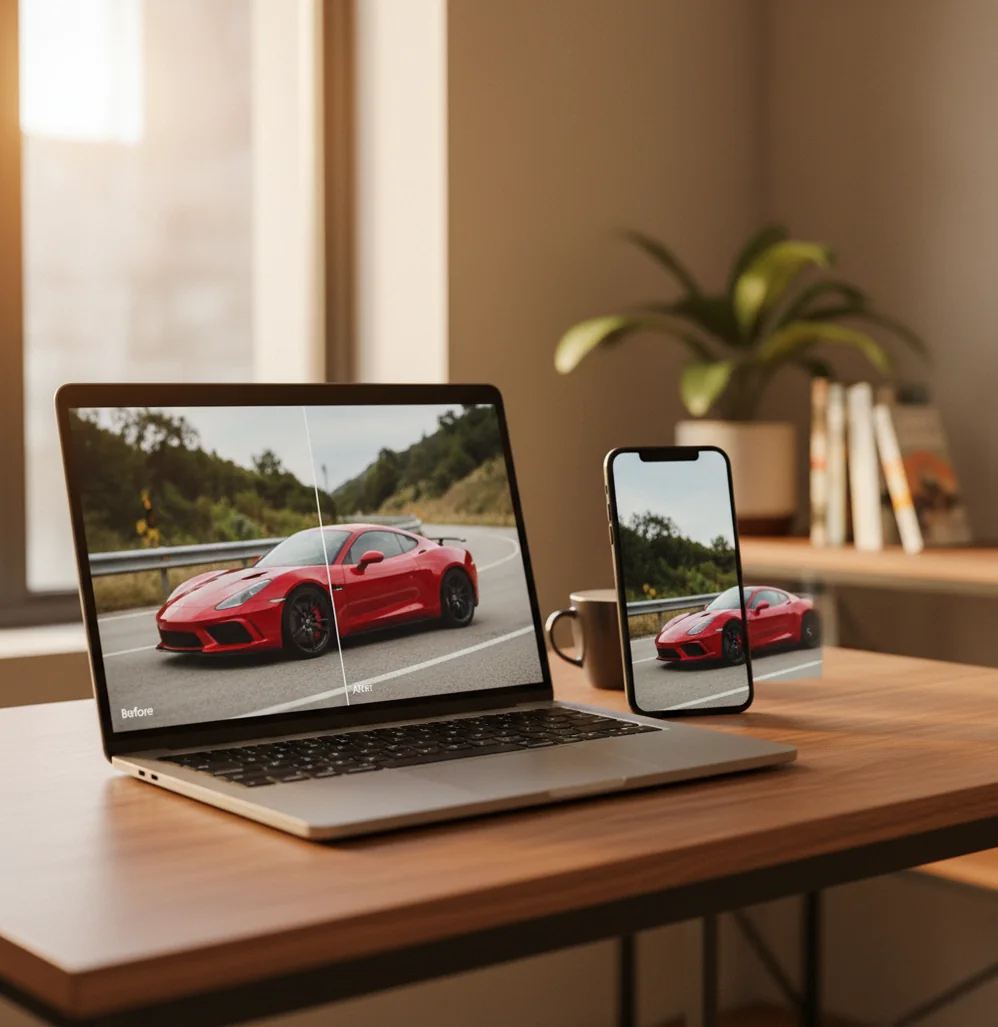
Yes, there are apps that upscale images on iPhone, Android, desktop, and in a web browser. AI image upscalers use super-resolution models to increase pixel dimensions and rebuild edges, textures, and fine detail, but they work best when the source photo is not heavily compressed or blurry.
Is there an app that upscales images?
Yes. An image upscaling app can enlarge a low-resolution photo by 2x, 4x, or more while using AI to make edges, faces, text, and textures look cleaner than basic resizing. You can use a browser-based upscaler for quick edits, a mobile app for phone photos, or a desktop tool for print and portfolio work.
The important caveat is that upscaling does not create guaranteed truth; it predicts plausible detail from the pixels already present. A 1600 × 1200 phone photo can often become a cleaner 3200 × 2400 file, but a tiny 40 KB thumbnail may still look artificial. For best results, start with the original file rather than a screenshot, social-media download, or compressed messaging-app copy.
How do image upscaling apps work?
Image upscaling apps work by combining resolution enlargement with AI super-resolution. Traditional resizing methods such as bicubic interpolation only stretch existing pixels, while modern neural models estimate missing texture, sharpen boundaries, reduce noise, and reconstruct small visual patterns such as hair, fabric weave, text edges, and skin detail.
Most tools use a pipeline that detects the image type, enlarges the pixel grid, removes compression artifacts, and applies enhancement or sharpening. Some models are optimized for portraits, some for anime or illustration, and some for general photography. The technical tradeoff is artifact control: too little enhancement leaves the image soft, while too much can create waxy faces, fake eyelashes, crunchy halos, or distorted repeating patterns.
How do you upscale an image without losing quality?
Start with the largest original file
Use the camera original, cloud backup, RAW file, or full-resolution download whenever possible. Avoid screenshots, thumbnails, and images saved from social feeds because compression blocks become harder to remove after enlargement.
Choose a sensible scale first
Try 2x before 4x, especially for faces, old phone photos, and images with text. A moderate upscale usually keeps detail more believable than forcing a dramatic enlargement in one pass.
Upscale before heavy sharpening
Resize first, then apply light sharpening or clarity. Sharpening before upscaling can magnify halos, JPEG noise, skin texture artifacts, and jagged edges.
Inspect the export at 100% zoom
Check eyelashes, hands, logos, street signs, product edges, and background patterns. Fit-to-screen previews hide problems that become obvious in prints or close crops.
Export in the right format
Use PNG for graphics, screenshots, UI images, and text-heavy designs. Use high-quality JPG or TIFF for photos, prints, and portfolio images where file size and color handling matter.
What are the best apps and tools for image upscaling?
| Tool | Best for | Runs on | Notes |
|---|---|---|---|
| Pict AI | Quick AI upscaling, photo enhancement, browser and mobile workflows | Web, iPhone | Useful for creators who want a fast upscale without opening a full desktop editor. |
| Topaz Gigapixel | High-control photo enlargement for prints and professional archives | Desktop | Strong for batch processing and large exports, but heavier than simple web tools. |
| Adobe Photoshop Super Resolution | Photographers already using Adobe workflows | Desktop | Works well with RAW and high-quality files inside Camera Raw. |
| Lightroom Enhance | RAW photo enlargement and catalog-based editing | Desktop, mobile | Best when the image is already part of a Lightroom library. |
| Upscayl | Open-source local upscaling | Desktop | Good for privacy-conscious users, but model choice and hardware affect results. |
| Remini | Face-focused restoration and old portrait cleanup | Mobile, web | Can improve portraits quickly, but may over-smooth skin or alter facial details. |
Choose based on workflow, not just output size. Browser tools are fastest for one-off social posts and gifts, desktop tools give more control for print production, and face-specific apps can help portraits but may change identity-sensitive details.
Can you upscale photos for printing?
Yes, you can upscale photos for printing if the final file has enough pixels for the intended print size. DPI is a print instruction, but pixel dimensions determine how much real image information is available. For sharp prints, a common target is 300 pixels per inch, though posters viewed from farther away can often look acceptable at 150-200 PPI.
Useful print targets are about 1200 × 1800 px for 4×6 inches, 1500 × 2100 px for 5×7 inches, 2400 × 3000 px for 8×10 inches, and 3300 × 4200 px for 11×14 inches at 300 PPI. Upscaling is especially helpful for wedding snapshots, family archives, pet portraits, product mockups, wall art, and gift prints where the emotional value of the image matters as much as technical perfection.
Can a free AI image upscaler online work with no watermark?
Yes, some free AI image upscalers online can enlarge photos without adding a visible watermark, but you should test the actual downloaded file. A clean preview does not always mean the final export is clean, full-resolution, or free from compression damage.
Before trusting any free online upscaler, upload a small test image and check three things: the exported pixel dimensions, the file format, and whether the download includes a logo, frame, or forced downscale. If a 1500 × 1000 image is upscaled at 2x, the output should be close to 3000 × 2000. If the result is smaller, heavily compressed, or locked behind a preview, it is not a practical no-watermark workflow.
What settings make upscaled images look natural?
- Portrait recipe: use 2x upscale, low-to-medium face enhancement, light noise reduction, and minimal sharpening. Check eyes, teeth, hairlines, fingers, and skin texture before exporting.
- Print recipe: upscale to the target pixel dimensions, export as high-quality JPG, PNG, or TIFF, then view at the approximate print size. Do not judge print readiness only from a phone screen.
- Product photo recipe: preserve straight edges and labels first, then remove noise. If text or logos warp, reduce the upscale strength or use a sharper source image.
- Social crop recipe: upscale before cropping, then crop for 1:1, 4:5, 9:16, or 16:9. This keeps more usable pixels for Instagram posts, TikTok covers, thumbnails, and profile graphics.
- Restoration recipe: remove dust and scratches lightly, upscale at 2x, then apply contrast and color correction. Aggressive restoration can make old photos look plastic instead of preserved.
What can image upscaling not fix?
- Severe blur: if the subject is out of focus or motion-blurred, AI can sharpen edges but cannot reliably recover the original face, license plate, or text.
- Tiny thumbnails: images under a few hundred pixels wide often lack enough structure for realistic reconstruction, especially for portraits and printed text.
- Heavy JPEG compression: block artifacts, mosquito noise, and smeared gradients may be enlarged along with the image if the source file is already damaged.
- Identity-sensitive details: face enhancement can subtly change eyes, teeth, age, skin texture, or expression, so review portraits carefully before using them for memorials, documents, or professional profiles.
When an upscaling app is worth the extra processing
An ai image upscaler app is most useful when you need a larger deliverable, not simply a more attractive preview. Before committing to a tool, check its export limits, processing location, and controls for disabling face restoration. Those differences affect whether it fits a product catalog, a private family archive, or a single poster.
Pros
- Batch processing can apply one enlargement setting across a folder, reducing repetitive work. Check whether the app preserves filenames so you can match exports to originals.
- Local processing avoids uploading sensitive photos to a remote service. Offline capability matters for confidential client images, although desktop tools may require substantial memory and compatible graphics hardware.
- Separate enlargement and enhancement controls let you choose between more pixels and stronger retouching. An ai photo enhancer app may focus on appearance rather than the output dimensions your project requires.
Cons
- Large exports consume storage quickly: a 4x enlargement produces 16 times as many pixels. Compressed file size varies, but editing and saving the result can strain an older device.
- Cloud tools may impose upload caps, queues, or export restrictions. Check retention and deletion policies before sending private images.
- One preset rarely suits mixed sources. Learning how to upscale images with ai includes separating photographs from diagrams and generated artwork rather than processing everything identically.
Short verdict: Choose a tool for its workflow controls, not its largest advertised multiplier. Asking “how do ai upscalers actually work” helps distinguish ordinary resizing from generated detail. Guides on how to fix blurry ai-generated images address synthetic artwork; advice on how to unblur a photo with ai addresses camera images. Neither guarantees faithful recovery, so keep the original alongside every export.
Image enlargement questions answered
Some desktop upscalers process images locally and can work offline after installation and any required model downloads. Others need an internet connection for processing, account verification, or both. Check whether the tool explicitly supports offline use; an installed app can still send images to a server. Local processing is useful for private photos, but performance depends on available memory and graphics hardware.
AI upscalers can make lettering look sharper without preserving every character correctly. Small labels, serial numbers, receipts, and signs are especially vulnerable to plausible-looking substitutions. Compare the enlarged text against the original character by character. For documents, use a higher-resolution scan when possible; for editable graphics, replace raster text with the original font instead of relying on predicted letter shapes.
Yes. iPhone upscaling apps can enlarge photos, reduce pixelation, and enhance detail, especially when you start with the original image from Photos or iCloud.
Yes. Android users can use mobile apps or browser-based AI upscalers to increase resolution, clean edges, and prepare images for social posts or small prints.
Upscaling increases pixel dimensions, while enhancement improves visual quality through sharpening, denoising, contrast correction, face cleanup, or artifact removal.
A 2x upscale is usually safer than 4x for compressed phone photos. Check faces, hands, hair, text, and background textures at 100% zoom before using the result.
Yes, if the upscaled file reaches the pixel dimensions needed for the print size. For example, an 8×10 print at 300 PPI needs about 2400 × 3000 pixels.
Some free upscalers add watermarks, limit export size, or show a clean preview but restrict the final download. Always test the downloaded file, not just the preview.
AI upscaling can make a mildly soft photo look clearer, but it cannot reliably recover detail that was never captured, such as a badly blurred face or unreadable text.
PNG is best for graphics, screenshots, and text-heavy images. High-quality JPG or TIFF is usually better for photographs, prints, and portfolio exports.
Upscale before cropping if you need maximum flexibility for social formats or prints. Crop first only when you want the AI to focus on a specific subject area.