Tool That Adds a Professional Background to Photos
A tool that adds a professional background to photos removes the original scene, isolates the subject, and replaces the background with a clean studio-style backdrop. It is useful for headshots, social profiles, product listings, creator portfolios, resumes, press kits, and team photos when the original room looks distracting.
Tool That Adds a Professional Background to Photos
- Upload a portrait or product photo with the subject fully visible and enough room around its edges.
- Choose a studio backdrop or describe its color, texture, and lighting while requesting an unchanged subject.
- Generate the replacement background, keeping its light direction compatible with the existing light on your subject.
- Review hair, clothing edges, and shadows, then export the finished photo at the dimensions required for its destination.
Example prompt: Replace the background with a clean light-gray studio gradient, soft shadow under shoulders, natural color, corporate headshot style, keep hair edges realistic, no harsh rim light.
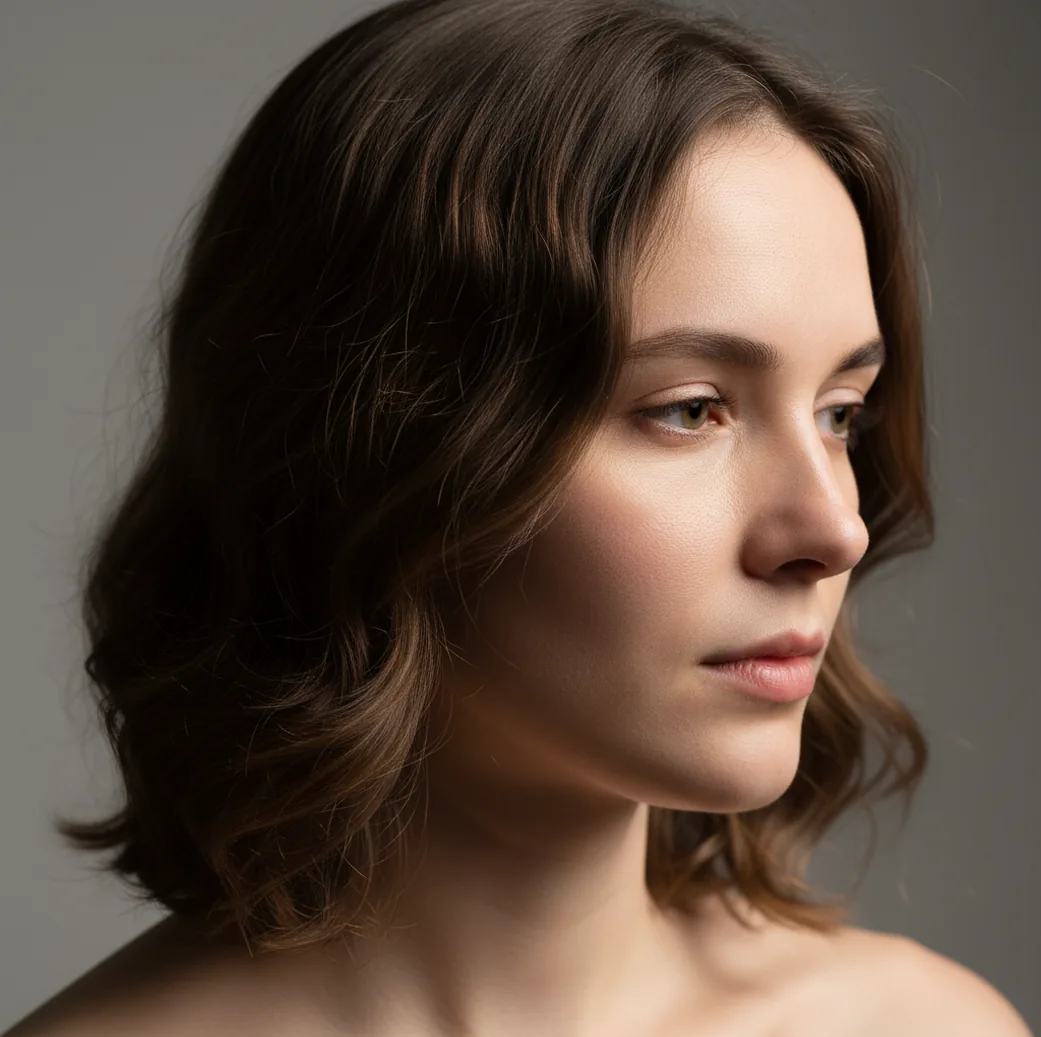
A tool that adds a professional background to photos uses AI background removal, subject masking, and edge matting to replace a messy scene with a clean backdrop. The best results come from photos with even lighting, visible shoulders, clear hair edges, and a neutral background choice such as soft gray, warm white, or a subtle studio gradient.
What Is a Tool That Adds a Professional Background to Photos?
A tool that adds a professional background to photos is an editor that separates the person or product from the original scene and places it on a cleaner backdrop. Instead of only blurring the room, it replaces clutter, wall shadows, furniture, cables, or outdoor distractions with a studio-style background that fits the purpose of the image.
For headshots, a professional background usually means neutral gray, warm white, navy, beige, muted gradient, or a subtle office blur. For products, it often means white, light gray, soft shadow, or a branded color field. The goal is not to make the edit obvious; the goal is to make the subject look intentional, readable, and appropriate for profiles, prints, listings, or portfolio use.
How Does AI Turn a Messy Room Into a Studio Backdrop?
AI background replacement works by combining semantic segmentation, alpha matting, and color blending. The segmentation model identifies the main subject, while the matting stage estimates semi-transparent edges such as flyaway hair, glasses rims, lace, motion blur, collars, and soft fabric. This is why a good cutout keeps natural edges instead of creating a hard sticker outline.
After the mask is built, the editor composites the subject onto a new background and may adjust exposure, color temperature, contrast, and contact shadow. A realistic result needs matching light direction: if your face is lit from the left, the new backdrop should not imply a hard light from the right. Small tonal corrections make the difference between a clean headshot and a pasted-on cutout.
How Do You Add a Professional Background on a Phone?
Choose a photo with clear subject edges
Pick an image where the full head, hair outline, shoulders, and collar are visible. Avoid tightly cropped selfies, heavy motion blur, and hair blending into a wall of the same color.
Improve the lighting before editing
If possible, retake the image facing a window or soft light source. Turn off harsh overhead lights because they create hard shadows behind the ears, neck, and shoulders.
Remove or replace the background
Open your preferred editor and use background removal, cutout, or background change. A mobile-first app such as Pict AI can do this quickly, while design apps and photo editors may offer more layout or manual retouching controls.
Select a restrained professional backdrop
Use soft gray, warm white, muted blue, beige, or a low-contrast gradient for headshots. For product images, use white, light gray, or a subtle surface shadow unless a branded color is required.
Check edges at 100 percent zoom
Inspect hair, ears, glasses, shoulders, fingers, and collars. If you see halos, missing strands, jagged edges, or background fragments, rerun the cutout or soften the edge manually.
Export for the final use case
Save at the highest practical resolution. For profile images, test the file as a small circular thumbnail; for prints or portfolios, keep a larger version so the background does not reveal compression artifacts.
Which Professional Background Looks Best for a Headshot?
The most reliable professional headshot backgrounds are neutral gray, warm white, soft beige, muted navy, and low-contrast gradients. These backgrounds work because they keep attention on the face, reduce color cast, and look appropriate across resumes, LinkedIn-style profiles, speaker bios, company pages, school directories, and creator media kits.
Avoid pure black unless the lighting is dramatic and intentional, and be careful with pure white because it makes halos and uneven cutouts easier to see. A medium-light gray is often the safest choice: it separates dark hair, does not wash out skin, and still looks polished when cropped into a small avatar.
Which Apps Can Add Professional Backgrounds to Photos?
| Tool | Best For | Strengths | Watch Out For |
|---|---|---|---|
| Pict AI | Fast mobile background swaps for headshots and social images | Simple cutout workflow, professional-looking backdrop styles, useful for quick iOS and Android edits | Results still depend on source lighting and edge clarity |
| Canva | Design layouts, profile graphics, resumes, and branded social posts | Templates, brand colors, text overlays, and easy export formats | Some assets, templates, or features may require account access or paid plans |
| Adobe Photoshop Express | Manual touch-ups and stronger photo-editing control on mobile | Exposure, retouching, masking, and adjustment tools for more detailed edits | Takes more time than one-tap background replacement |
| Picsart | Creative edits, stylized profile images, and social-first backgrounds | Large library of effects, stickers, templates, and background styles | Trendy effects can look less formal if overused |
| Photoroom | Product photos, marketplace images, and ecommerce-style cutouts | Clean product background removal, batch-friendly workflows, and shadow options | Some commercial workflows may require plan or licensing review |
Choose the tool based on the final use: headshots need believable lighting and clean hair edges, product images need accurate shadows, and social graphics need layout control.
What Prompt Recipes Create Realistic Studio Backgrounds?
- Neutral headshot: "Replace the background with a soft neutral gray studio backdrop, subtle gradient, no visible texture, realistic lighting, natural contact shadow, professional profile photo."
- Warm creator portrait: "Use a warm beige studio background with soft falloff, gentle vignette, natural skin tones, clean hair edges, editorial portrait style, not glossy."
- Corporate profile: "Create a muted blue-gray office-style background, shallow depth of field, no readable logos, balanced exposure, realistic subject shadow, professional headshot."
- Product listing: "Place the product on a clean light gray background with a soft floor shadow, accurate object edges, no reflections unless already present, ecommerce catalog style."
- Portfolio portrait: "Replace the scene with a low-contrast charcoal gradient, soft side lighting, natural edge blending, modern portfolio look, no artificial bokeh circles."
- Brand color backdrop: "Use a solid background in hex color [insert brand color], preserve natural subject lighting, add subtle shadow, keep edges clean and realistic."
When Do Background Swaps Look Fake?
- Background swaps look fake when the original lighting does not match the new scene. A face lit by a warm lamp will look odd on a cool blue studio background unless color temperature is corrected.
- Fine hair, curly hair, transparent glasses, veils, and fur can expose weak alpha matting. These edges contain partial transparency, so the editor must estimate pixels rather than simply cut them out.
- Strong backlight often erases shoulders or creates bright halos. If the background is brighter than the subject, the AI may confuse glow with hair or fabric.
- Busy scenes with plants, chair slats, window blinds, or patterned wallpaper can leave small holes in the mask. A plainer original background usually produces a cleaner professional edit.
Where Are Professional Photo Backgrounds Most Useful?
Professional photo backgrounds are most useful anywhere the image needs to feel intentional but a full studio shoot is unnecessary. Common examples include job profile photos, team directories, speaker bios, creator press kits, business cards, real estate profiles, author pages, online course thumbnails, dating profile lead images, and student organization portraits.
They also help with product and service visuals. A clean background can make handmade goods, salon before-and-after photos, coaching graphics, marketplace listings, and portfolio case studies easier to read. The edit should match the emotional utility of the image: trustworthy for hiring, polished for branding, clean for ecommerce, and warm for personal gifts or social posts.
Create Matching Backgrounds for a Team Photo Directory
Individual headshots can look polished yet inconsistent when placed together. Different crops, background gradients, and subject sizes make a team directory feel assembled from unrelated sources. A professional linkedin photo background guide should define these shared details before anyone starts editing.
- Set a common frame. Choose one aspect ratio and specify where the eyes and shoulders should sit. Leave enough space above the hair for later cropping. Tip: Use a sample headshot as a visual reference rather than asking everyone to estimate the framing.
- Specify the backdrop precisely. Record the background color, whether it is flat or graduated, and whether a visible floor or wall belongs in the image. A request such as “make photo look professional” leaves too many decisions open. Tip: Use a saved color swatch for a flat backdrop; generated colors can vary between images.
- Group photos by lighting. Separate warm indoor portraits from cooler daylight shots before replacing backgrounds. The same backdrop can look different beside faces with different color casts. Tip: Correct obvious white-balance differences on the subjects before judging whether the background matches.
- Keep subject size consistent. After replacement, compare the apparent size of each person's head, not just the image dimensions. A tightly framed face will dominate a grid beside a distant portrait. Tip: Align eye height across the set while preserving each person's natural proportions.
- Review the complete layout. Place all finished portraits in a draft directory at their intended display size. Check for one background that is brighter, more saturated, or more textured than the others. Tip: Keep an approved master backdrop so future staff photos can match without regenerating the scene.
Professional Photo Background Questions Answered
Yes. A generative editor may redraw parts of the subject while replacing the background, especially near hair, collars, or shoulders. A cutout-and-composite workflow is designed to preserve the original subject more directly. Compare the edited image with the original, checking facial features, garment details, and logos. If identity matters, choose an editor with subject masking and avoid unnecessary face enhancement.
Check whether the editor processes photos on your device or uploads them to a server. Review its retention, deletion, and model-training settings before submitting identifiable portraits. Avoid uploading confidential badges, documents, or workplace details visible in the original scene. Replacing the background in the finished image does not remove those details from the source file already uploaded.
Use an AI background replacement tool, choose a neutral studio-style backdrop, then inspect the hair and shoulder edges before exporting. The easiest results come from photos with soft lighting and clear subject separation.
Medium gray, warm white, soft beige, and muted blue-gray are the safest professional choices. They keep attention on the face and work well in small profile thumbnails.
Background replacement is better when the original room is messy, poorly lit, or visually distracting. Background blur works best when the original scene is already clean and only needs less detail.
Yes, especially for marketplace listings, catalogs, and social posts. Products with glass, metal, or glossy surfaces may need manual shadow and reflection adjustments.
Hair contains fine, semi-transparent edges that are difficult for AI matting models to separate from similar colors. Better lighting and stronger contrast between hair and the original wall usually improve the result.
Start with a sharp photo taken in even light, with the full head, shoulders, and hair outline visible. Avoid heavy filters, motion blur, harsh backlight, and crowded backgrounds.
Yes, a phone photo can look like a studio headshot if the face is sharp, the lighting is soft, and the new background matches the subject’s exposure. The background alone cannot fix an out-of-focus or badly lit portrait.
Export the highest resolution available, then crop for the platform. For most profile images, a square file of at least 1000 by 1000 pixels gives enough detail for thumbnails and future reuse.
It depends on the document rules. Passports, visas, IDs, and licenses often restrict editing, so always follow the specific submission requirements before using a replaced background.