Tool That Removes Text From Images: Best Apps and Steps
A tool that removes text from images lets you erase captions, timestamps, stickers, labels, or burned-in text and rebuild the covered background. The cleanest results come from tight masking, AI inpainting, and checking the repair at full size before exporting. Pict AI is one mobile option for quick text cleanup on iPhone and Android.
A tool that removes text from images uses a brush selection and background repair to erase captions, timestamps, or unwanted lettering. Choose an editor with local inpainting or healing controls, rather than one that regenerates the whole image. First check for an editable text layer: deleting that layer preserves the original background and avoids an AI repair entirely.
Tool That Removes Text From Images: Best Apps and Steps
- Upload the original photo, or reopen its source project to check whether the text is editable.
- Select the unwanted lettering, including its shadow and edge fringe, without covering nearby details.
- Generate a local background repair, or delete the text layer if the original background remains underneath.
- Review the repaired area and untouched details, then export at the source dimensions in an appropriate format.
Example prompt: Remove all text overlays and rebuild the background naturally. Keep the original lighting and texture consistent, avoid blur patches, and preserve edges and details around the removed text.
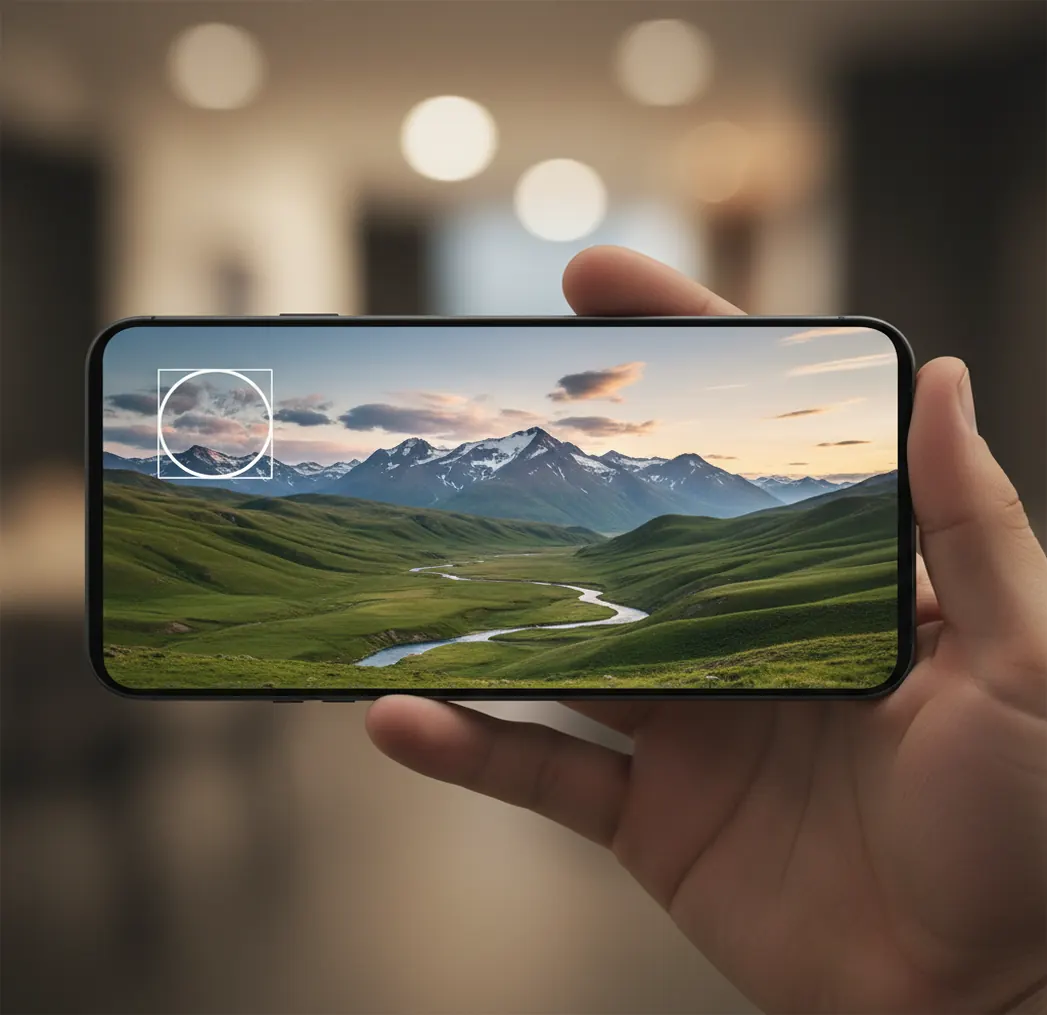
A tool that removes text from images deletes visible lettering and fills the missing area with new pixels that match the surrounding background. Most modern tools use AI inpainting or content-aware fill, so they work best on simple textures like sky, walls, fabric, grass, and flat product backgrounds. Results are less reliable when text covers faces, logos, fine patterns, shadows, or important scene details.
What Is a Tool That Removes Text From Images?
A tool that removes text from images is a photo-editing feature that masks visible words, numbers, stickers, captions, or date stamps and replaces them with background-looking pixels. Instead of simply blurring the area, good text removers try to continue the texture, color gradient, edges, and lighting around the removed text.
This type of editor is useful when you want a clean photo for social posts, prints, resale listings, portfolio images, thumbnails, or personal archives. It can remove an accidental camera timestamp, a caption across the sky, a label overlay on a product shot, or sticker text from a screenshot. It is not a magic recovery tool: if the original background was fully hidden, the app is generating a plausible replacement rather than restoring the exact pixels.
How Does AI Text Removal Work in Photo Editors?
AI text removal works by creating a mask over the letters, then using inpainting to synthesize replacement pixels inside that mask. Older content-aware fill systems copy nearby patches of texture; newer tools often combine neural networks, edge detection, patch matching, and diffusion-style inpainting to predict what should continue behind the text.
The editor looks at surrounding signals such as color, local contrast, texture frequency, shadows, straight lines, perspective, and repeated patterns. A small timestamp on a flat wall is easy because the model has enough nearby texture to copy or infer. A subtitle across hair, a face, product typography, or plaid fabric is harder because the hidden area contains high-detail structure that the model must invent.
How Do You Remove Text From an Image on Your Phone?
Open the image
Import the photo or screenshot into a cleanup, object-removal, or text-removal editor. Use the highest-resolution version you have, not a compressed repost.
Zoom to the letters
Zoom to 200-400% until the text edges are easy to trace. If the letters look fuzzy before editing, the final repair will also have limited detail.
Brush only over the text
Mask the ink, digits, or sticker text as tightly as possible. Avoid painting far beyond the letter edges unless the background is very simple.
Run the removal
Apply the cleanup or inpainting tool. For long captions, remove one word or short phrase at a time instead of masking the whole line.
Inspect at 100% zoom
Check for blur, repeating texture, bent edges, banding, or shadow jumps. These artifacts are often invisible while zoomed out.
Redo small areas if needed
Undo and retry with smaller masks, then finish with light grain, sharpening, or color matching if the filled patch looks too smooth.
Which Apps Are Best for Removing Text From Photos in 2026?
| Tool | Best for | Strength | Watch for |
|---|---|---|---|
| Pict AI | Fast mobile cleanup of captions, timestamps, and sticker-style overlays | Simple brush workflow with AI background fill on iOS and Android | Complex patterns or faces may need several small passes |
| TouchRetouch | Manual object and text removal on mobile | Strong brush controls and practical repair tools for small distractions | Best results require careful selection and zoomed-in checking |
| Canva | Social posts, thumbnails, and simple graphic cleanup | Convenient when the image is already part of a design layout | Some features, exports, or assets may depend on plan and account settings |
| Adobe Photoshop | Professional retouching, large files, and print work | Advanced selection, generative fill, clone stamp, healing, and layer control | More learning time and subscription cost than lightweight mobile apps |
| Snapseed | Free mobile healing for very small text or spots | Quick local edits with simple touch controls | Less reliable for long captions, complex backgrounds, or large overlays |
Use mobile cleanup apps for quick social and personal edits, and use desktop tools when the image is high-value, print-sized, or needs layer-based retouching.
What Masking Recipes Give the Cleanest Text Removal?
- Corner timestamp recipe: zoom to 300%, mask only the digits, remove the timestamp in two or three chunks, then check the corner at 100% for repeated pixels.
- Caption over sky recipe: mask one short word at a time, leave a thin border around clouds or horizon lines, and rerun only the words that create visible smudges.
- Sticker text on screenshot recipe: duplicate the image first, remove the sticker text, then compare UI lines and icons against the original so buttons do not warp.
- Text over fabric recipe: follow the direction of the weave, use narrow strokes along each line of text, and add light grain if the repaired area becomes too plastic.
- Sign or label recipe: remove letters separately from the sign edge, preserve straight borders, and use a clone/heal tool afterward if perspective lines bend.
- Print-ready recipe: export at original resolution, inspect at 100%, then view again at intended print size because small digital repairs can become obvious on paper.
When Should You Remove Text in Sections Instead of One Pass?
Remove text in sections when the lettering is long, thick, shadowed, or placed over a detailed background. One large mask forces the inpainting model to invent a big rectangle of new image data, which often creates blur, repeating texture, warped edges, or a visible patch.
Small passes are better for subtitles, captions across faces, product labels, screenshots, and patterned surfaces. Start with the easiest part of the text, inspect the result, then continue with the next word or cluster of letters. This gives you more control and makes it easier to undo one bad repair without losing the whole edit.
Where Is Text Removal Useful Beyond Memes?
Text removal is useful whenever the photo is good but an overlay makes it feel unfinished, dated, or hard to reuse. Creators use it to clean travel photos for prints, remove timestamps from family archives, erase sticker captions from screenshots, tidy product photos for resale listings, and prepare neutral backgrounds for thumbnails or portfolio pages.
It also helps with emotional and practical reuse: turning an old camera photo into a gift, cleaning a whiteboard image before sharing it with a team, removing burned-in subtitles from a still frame, or restoring a brand image before adding new typography. The goal is not to make an edit look impressive; the goal is to make the image feel like the text was never there.
What Are the Limits of Removing Text From Images?
- Faces and skin: text over eyes, mouths, hair, or hands can produce waxy skin, odd symmetry, or changed facial details.
- Fine patterns: plaid, lace, mesh, grass, brick, and small typography can create repeating echo artifacts after inpainting.
- Large text blocks: a big caption across the center of a photo is much harder than a small timestamp in a corner.
- Low-resolution files: compressed screenshots and reposted images may not contain enough detail for a sharp repair.
How Can You Tell If the Edited Area Looks Natural?
A natural edit survives three checks: zoomed-out viewing, 100% inspection, and context comparison. First, look at the full image to see whether your eye is pulled toward the repair. Then inspect at 100% zoom for blur, repeated texture, broken lines, color shifts, or overly smooth patches.
Finally, compare the edited area with nearby untouched background. If the grain, sharpness, shadow direction, and texture scale match, the edit is usually safe for social posts and small prints. For portfolio, client, or product work, export a test file and review it on the destination surface: phone screen, marketplace listing, thumbnail size, or print proof.
More Pict.AI tools people use right after text removal
Check Whether the Text Is Editable Before Erasing It
Before applying a text remover, check whether the lettering is actually part of the photograph. A caption in a design project may still be an editable text layer; deleting that layer preserves the untouched image beneath it. Once the design has been exported as a flattened JPEG or PNG, that option disappears. Reopening the source project can save an unnecessary repair.
- Editable text layer
- Delete or hide the layer in the original design editor. No background reconstruction is needed.
- Burned-in lettering
- Use local removal, cloning, or inpainting because the letters occupy image pixels.
- Separate subtitle track
- Disable the track before exporting a video frame, rather than erasing subtitles from the still.
- Text on transparent artwork
- Check whether the editor preserves transparency; a generated fill may introduce an opaque background.
A search for “download ai image generator app” may lead to tools that redraw the whole picture rather than repair a selected area. Look for local selection controls and an undo function when the surrounding image must remain unchanged.
When considering what changed in ai image generation, distinguish a model's ability to produce convincing scenery from an editor's ability to preserve existing pixels. For a product photograph or diagram, a believable replacement is not enough if dimensions, markings, or neighboring details change.
Fix Letter Fringes, Transparent Patches, and Altered Details
Some failed repairs have causes that another full removal pass will not solve. Identify the defect first, then change the selection or editing method. Keep the original available so you can distinguish an existing flaw from a newly generated one.
- A pale or colored outline remains: Anti-aliased letters blend into surrounding pixels, and drop shadows extend beyond the visible strokes. Expand the selection just enough to include that fringe. If the edge is difficult to see, inspect it against both light and dark surroundings before retrying.
- A transparent area becomes white or black: The fill may have flattened the image or replaced transparency with solid pixels. Return to the source, remove the lettering on a layer that supports transparency, and export with the alpha channel intact. Inpainting is unnecessary if the intended replacement is simply empty space.
- Nearby numbers, logos, or icons change: Some generative editors reinterpret more than the selected region. Compare untouched details with the original. If they differ, use a layer-based workflow that composites only the repaired patch, or switch to a clone tool for controlled copying.
- A colored stain remains after the letters disappear: Compression can spread lettering color into neighboring pixels. Include the stained boundary in the repair, or use a small color correction after removing the text rather than repeatedly regenerating the entire area.
For images styled around viral ai photo trends 2026, remove only the added caption, not the visual effect you intend to keep. Similarly, a flower name filter may place an identifying label beside a bloom: preserve the petals, and retain a separate record of the identification if it matters.
Choose Export Settings That Preserve the Repaired Image
Export settings cannot rescue a poor fill, but they can prevent a good repair from degrading. Treat pixel dimensions, compression, and transparency as separate decisions. The appropriate output depends on whether you are saving a photograph, a screenshot, or artwork for further layout work.
| Setting or format | Practical choice |
|---|---|
| Pixel dimensions | Keep the source dimensions for the working master. Check whether the editor reduces them during export. |
| JPEG | Suitable for opaque photographs. Use a high-quality setting and avoid repeated save-and-reopen cycles. |
| PNG | Useful for screenshots, sharp graphic edges, and transparency. It will not restore detail already lost to JPEG compression. |
| HEIC input | Confirm import support. If conversion is necessary, retain the original and check orientation and color afterward. |
| Print resolution | Required pixels equal print inches multiplied by target pixels per inch: 6 × 4 inches at 300 ppi needs 1800 × 1200 pixels. |
| Color profile | For ordinary web sharing, sRGB is a practical choice. Compare the export with the editor preview for color shifts. |
If your next task is learning how to create poster with ai, save the cleaned photograph separately and add new wording as editable text. This keeps spelling, alignment, and future revisions independent of generated pixels.
Choosing the best ai image generator app for that next stage is a different decision from choosing a text remover. For poster assembly, prioritize suitable canvas dimensions and editable typography; for cleanup, prioritize controlled repairs and an export that retains the source detail.
Text Removal: Accuracy, Cost, and Permissions
Yes, if the editor supports transparency throughout editing and export. Remove the text without filling the cleared area when empty space is the intended result. Export as PNG with transparency enabled; JPEG cannot retain it. Some AI removal tools insert an opaque fill, so inspect the exported file over a contrasting background rather than trusting the preview alone.
Not necessarily. Erasing visible lettering changes image pixels, while metadata such as capture time, camera information, or GPS coordinates is stored separately. An editor may preserve, modify, or discard those fields during export. If privacy is the goal, inspect the exported file's metadata and remove sensitive fields separately. Removing a visible date stamp does not guarantee that the capture date is gone.
The best tool is one that supports precise masking, AI inpainting, zoomed-in editing, and full-resolution export. Mobile cleanup apps are fastest for timestamps and captions, while desktop editors are better for complex or print-critical repairs.
Yes, some apps offer free healing, cleanup, or limited AI removal features. Free tools may have export limits, watermarks, file-size caps, or fewer controls than paid editors.
AI can often remove text without obvious blur when the background is simple and the mask is tight. It is more likely to blur or smear areas with faces, fine patterns, shadows, or low-resolution detail.
A blurry patch usually means the mask was too large or the background did not contain enough clear texture for the tool to rebuild. Try smaller strokes, remove one word at a time, and avoid masking untouched background.
Yes, text can be removed from screenshots, especially sticker text or captions over plain areas. UI elements, buttons, and thin lines may warp, so compare the edited screenshot against the original.
Yes, many online editors include cleanup, object removal, or inpainting tools. For private images, check whether processing happens locally or through cloud upload before editing.
Removing watermarks, credits, or copyright notices from images you do not own or have permission to edit can violate rights and platform rules. Only remove text from images you created, licensed, or are authorized to modify.
Flat or repeating backgrounds are easiest, such as sky, walls, fabric, sand, grass, and simple product backdrops. Faces, hair, logos, patterned clothing, and architecture are much harder.