Tool to Blur Photo Backgrounds on Phone
A mobile background blur tool keeps the person, pet, product, or object sharp while softening the scene behind it. It is useful when a good photo has a distracting kitchen, crowd, bedroom, table, or street background. The best phone workflow is simple: detect the subject, adjust blur strength, check hair and edges, then export at full resolution.
Tool to Blur Photo Backgrounds on Phone
- Upload the original photo, choosing an image with a clearly visible subject and enough background to soften.
- Choose background blur or describe the effect: keep the subject sharp and soften only the scene behind it.
- Generate the edit, then adjust blur strength so nearby surfaces retain believable detail around the subject.
- Review hair, glasses, and subject edges; check the saved image and export a full-resolution copy.
Example prompt: Blur the background with a natural 50mm-style bokeh look, keep the subject sharp, preserve hair edges, avoid halos, and keep lighting realistic.
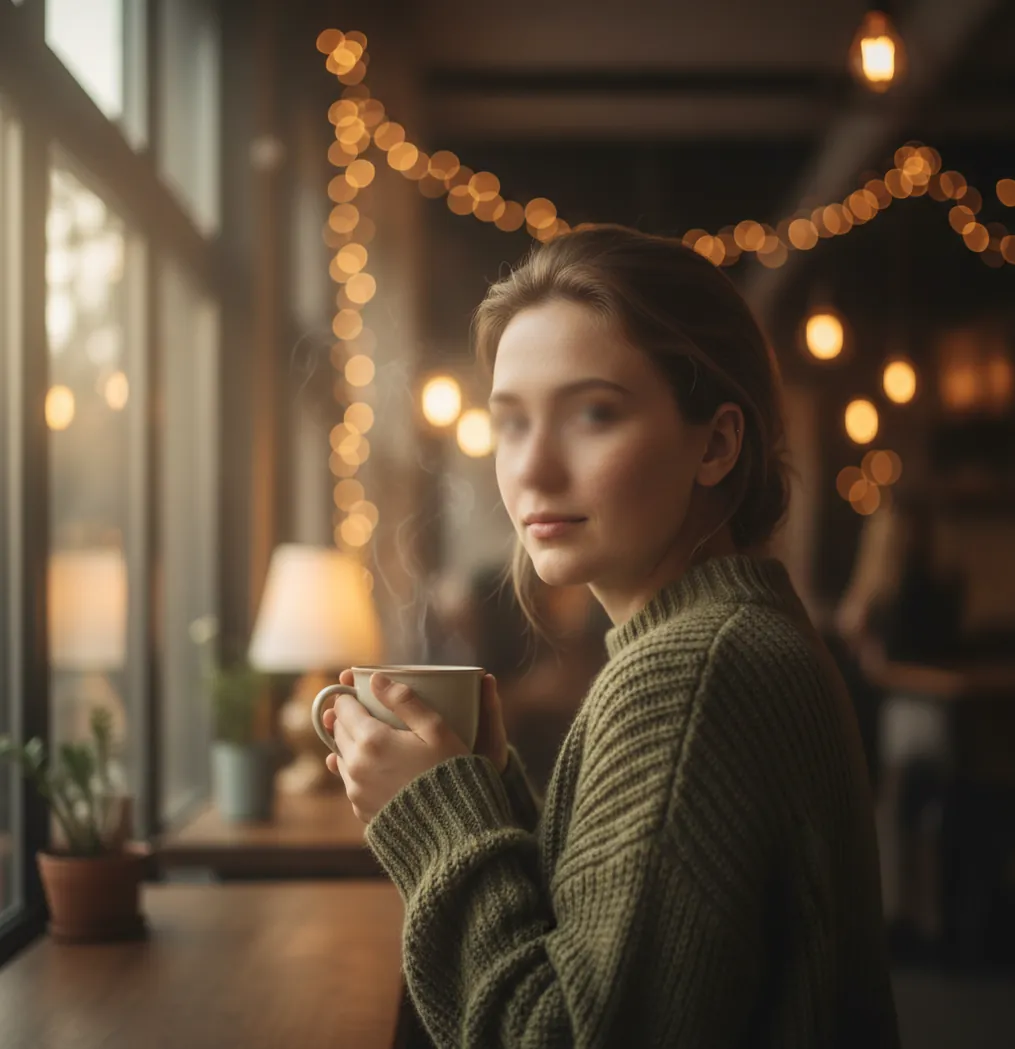
A tool to blur photo backgrounds on phone uses AI subject detection to separate the foreground from the background, then applies a blur effect behind the subject. The best results come from high-resolution photos, moderate blur strength, and careful edge checks around hair, hands, glasses, and shoulders. Mobile blur is ideal for portraits, social posts, resale listings, pet photos, food shots, and quick profile images.
What Is a Tool to Blur Photo Backgrounds on Phone?
A tool to blur photo backgrounds on phone is a mobile editor that keeps the main subject sharp and softens the background to reduce visual clutter. It mimics shallow depth of field, the camera look created by wide-aperture lenses, but it does it after the photo is taken.
Most mobile blur tools work by detecting a person, pet, product, or object, creating a subject mask, and applying Gaussian blur, lens blur, or depth-style blur to the pixels behind that subject. This is useful when the face is good but the background has laundry, traffic, crowds, messy shelves, or distracting colors. The goal is not to replace the scene; it is to make the original photo feel cleaner, calmer, and more intentional.
How Does Background Blur Work on Mobile Photos?
Mobile background blur works by combining AI segmentation, mask generation, edge refinement, and a blur filter. The segmentation model labels pixels as foreground or background based on visual cues such as faces, hair, clothing boundaries, object shape, contrast, and scene depth.
Once the app has a subject mask, it applies blur only to the background area. Better tools refine soft edges around hair strands, fingers, glasses, fur, and fabric because those details are where cutout errors become visible. Some editors use simple background blur, while others estimate a depth map so objects farther away can receive stronger blur than objects near the subject. That depth-aware look usually feels more natural than flattening the entire background into one soft layer.
How Do You Blur a Photo Background on iPhone or Android?
Start With the Original Photo
Use the highest-resolution image available, not a screenshot or compressed social media download. More pixels give the app better information around hair, skin, fabric, and object edges.
Crop Before You Blur
Crop out unnecessary space and place the subject clearly in frame. A centered or intentionally off-center subject is easier for AI detection than a tiny person in a crowded scene.
Apply Automatic Subject Blur
Choose a background blur or portrait blur effect and let the app detect the subject. If the app offers a mask preview, inspect it before exporting.
Refine Hair, Hands, and Shoulders
Zoom in to 150-200% and check wispy hair, ears, collars, fingers, glasses, and pet fur. Use manual brush refinement if the background leaks into the subject.
Lower the Blur Until It Looks Photographic
A realistic mobile edit usually uses moderate blur, not maximum blur. Keep faint shapes in the background so the subject does not look pasted onto a smooth wall.
Export Once at Full Size
Save a full-resolution copy after the final edit. Re-exporting multiple times can add compression artifacts and make blurred areas look smeared.
Which Apps Can Blur Photo Backgrounds on a Phone?
| Tool | Best For | Strengths | Watch For |
|---|---|---|---|
| Pict AI | Fast mobile background blur | Automatic subject cutout, adjustable blur strength, phone-first editing flow | Edge quality still depends on photo resolution, lighting, and subject contrast |
| iOS Photos | Portrait photos shot on iPhone | Simple depth adjustment for compatible Portrait mode images | Limited when the photo was not captured with usable depth data |
| Google Photos | Quick Android and cloud-based edits | Easy portrait blur options on many supported images | Features can vary by device, account, and region |
| Canva | Social graphics and branded posts | Design canvas, templates, text overlays, background effects | Design interface may add extra steps for a single-photo blur edit |
| Lightroom Mobile | Photographers who want full image control | Masking, selective edits, grain, sharpening, color correction | More manual and slower for casual one-tap edits |
| Snapseed | Free manual editing | Lens blur controls and general mobile photo tools | Less automatic subject-aware masking than newer AI editors |
Choose a simple AI blur app for speed, a built-in phone editor for compatible portrait photos, and a professional editor when you also need color grading, sharpening, grain, or selective exposure control.
When Does Blur Look Better Than Replacing the Background?
Blur usually looks better than background replacement when the original scene is believable but visually busy. If the lighting, shadows, and perspective already match the subject, softening the background preserves authenticity while removing distractions.
This works especially well for LinkedIn-style headshots from casual photos, pet portraits with toys behind them, food images on cluttered tables, product photos for resale listings, baby photos in unstaged rooms, couple photos in cramped interiors, and travel shots with crowds behind the subject. A new background can feel artificial if the lighting direction or camera height does not match. Blur is often the safer edit for social posts, gifts, small prints, portfolio contact sheets, profile photos, and personal branding images.
What Blur Settings Make a Phone Photo Look Natural?
- Use moderate blur strength; if the background becomes a textureless soup, the edit will look artificial.
- Match blur to the original camera perspective. Wide-angle phone selfies should usually have less blur than telephoto portraits.
- Check edge transitions at 150-200% zoom, especially around hair, fur, glasses, earrings, fingers, collars, and shoulders.
- Preserve some background shape so viewers can still sense the environment, such as a cafe, office, street, or living room.
- Add light grain only if the subject looks too smooth compared with the blurred background.
- Avoid heavy sharpening on the subject edge because it can create a bright outline or halo.
- For product photos, keep the contact shadow or table edge readable so the object does not appear to float.
Can You Use Prompt Recipes for Better Background Blur Edits?
Yes. If your editor supports text-guided image editing, prompt recipes can describe the blur style, subject priority, and edge behavior you want. The strongest prompts are specific about what must stay sharp and what should become softer.
Use this reusable template: "Keep [subject] sharp and natural. Blur only the background with a realistic shallow depth-of-field effect. Preserve hair, skin texture, glasses, hands, shadows, and object edges. Keep lighting and colors unchanged. Avoid halos, cutout edges, warped details, and artificial bokeh."
Compact examples: "Keep the dog sharp, softly blur the messy living room, preserve fur edges and floor shadow." "Keep the coffee cup and label sharp, blur the kitchen counter behind it, preserve steam and rim detail." "Keep the face, hair, and blazer sharp, blur the office background slightly for a professional profile photo."
What Should You Watch Out for When Blurring Backgrounds?
- Fine hair against a similar-colored wall can merge into the background because the mask has little contrast to read.
- Transparent or semi-transparent objects such as veils, glasses, smoke, plastic, and glassware may be blurred incorrectly.
- Busy patterns like chain-link fences, leaves, railings, and striped fabric can create jagged or jittery mask edges.
- Low-light phone noise can confuse segmentation and produce speckled blur zones around the subject.
How Do You Choose the Right Background Blur Workflow?
Choose the workflow based on the photo’s purpose. For a quick social post, profile image, or marketplace listing, an automatic phone blur tool is usually enough. For a portfolio, print, client image, or brand asset, use a tool that lets you inspect and refine the subject mask.
A practical rule is to spend 80% of the edit on the mask and only 20% on blur intensity. A clean edge with subtle blur looks more professional than an aggressive blur with a broken hairline. If the subject is small, the lighting is muddy, or the background has a similar color to the subject, consider cropping tighter, using a different photo, or applying lighter blur instead of forcing a dramatic portrait effect.
Match Background Blur to the Photo’s Final Use
Before applying blur, decide what the finished image needs to do: fit a vertical Story, keep a product identifiable, or conceal private information. These jobs need different edits. A softer background can reduce distraction, but it does not change the canvas size, remove objects, or reliably hide sensitive details.
| Final use | Editing requirement |
|---|---|
| Instagram Story | Use a 9:16 canvas. A blurred duplicate can fill the space behind a smaller, sharp photo without cropping it. |
| Product listing | Keep included accessories visible. Blur should not obscure wear, labels, or details a buyer needs. |
| Privacy protection | Crop out sensitive details or cover them with a solid, opaque shape. Soft blur may leave them recognizable. |
| Text-heavy graphic | Blur the photo layer first, then add text so lettering stays crisp. |
| Reusable subject cutout | Remove the background and export with transparency; blurring keeps the background pixels in place. |
If you are searching for how to make instagram story backgrounds with ai, distinguish canvas filling from portrait blur. Canvas filling creates space around the original image; portrait blur softens the scene already behind the subject. A blurred duplicate layer is useful when the whole photo must remain visible inside a taller layout.
The searches what app changes photo backgrounds and what app removes photo backgrounds describe different operations. Replacement puts a new scene behind the subject; removal creates a cutout. Choose blur when retaining the original setting matters.
For a blur image free workflow, check export restrictions before spending time on the edit. Confirm that the tool saves the dimensions you need without a watermark. Inspect the saved file, not just the editor preview: small text or identifying shapes may remain visible despite appearing soft on screen.
Questions About Blurring Photo Backgrounds
Yes, if the text remains on a separate layer. Apply background blur to the photo first, then add captions, labels, or other lettering. If text is already flattened into the image, the editor treats it as photo pixels and may blur it. Keep an editable copy with separate layers when you expect to revise the design.
Background blur softens the scene behind a sharp subject to imitate shallow depth of field. Motion blur creates directional streaks associated with camera movement or a moving subject during exposure. They are not interchangeable: applying motion blur behind a stationary portrait can suggest movement rather than distance. Choose lens-style or depth-aware blur for a conventional portrait effect.
Many mobile photo editors can blur a background by detecting the subject and softening the area behind it. Look for subject masking, adjustable blur strength, and edge refinement controls.
Open the photo in a mobile editor with background blur, let it detect the subject, adjust blur strength, refine the mask, and export the final image. This works even if the original photo was not taken in Portrait mode.
Yes. You can use built-in Portrait controls for compatible images or a third-party mobile editor for normal photos that need AI subject detection.
Yes. Android users can use Google Photos on supported images or a dedicated background blur app for automatic subject masking and adjustable blur.
Hair has thin strands, soft transparency, and uneven edges, which are difficult for AI masks to separate. Lowering blur strength and refining the edge usually makes the result look more natural.
Background blur is better when the original lighting and scene already look believable but distracting. Background replacement is better when the scene is unusable or does not fit the purpose of the image.
The blur effect itself does not have to reduce quality, but low-resolution imports and repeated exports can. Use the original file and export once at full resolution.
Yes, but group photos are harder because people overlap and sit at different depths. Check hands, hair, shoulders, and gaps between people before exporting.
Moderate blur usually looks most natural on phone photos. If the background loses all shape or the subject edge looks pasted on, reduce the blur amount.