What App Removes Photo Backgrounds in 2026?
An app that removes photo backgrounds uses AI segmentation to separate the subject from the scene, then exports a transparent PNG or places the subject on a new backdrop. The best choice depends on whether you need fast social edits, clean product cutouts, portrait edges, batch exports, or manual mask controls.
What App Removes Photo Backgrounds in 2026?
- Upload the original photo, keeping the full subject visible rather than cropping tightly around hair or accessories.
- Choose background removal, then select a transparent canvas or describe a replacement backdrop that suits the photograph.
- Generate the cutout or replacement, keeping the subject separate from the new background when layer controls are available.
- Review missing details and leftover edges, then export a transparent PNG or a finished image with its backdrop.
Example prompt: Create a clean studio backdrop behind the cutout: soft gray gradient, subtle floor shadow, 50mm look, natural light from upper left, realistic texture, no text, high detail
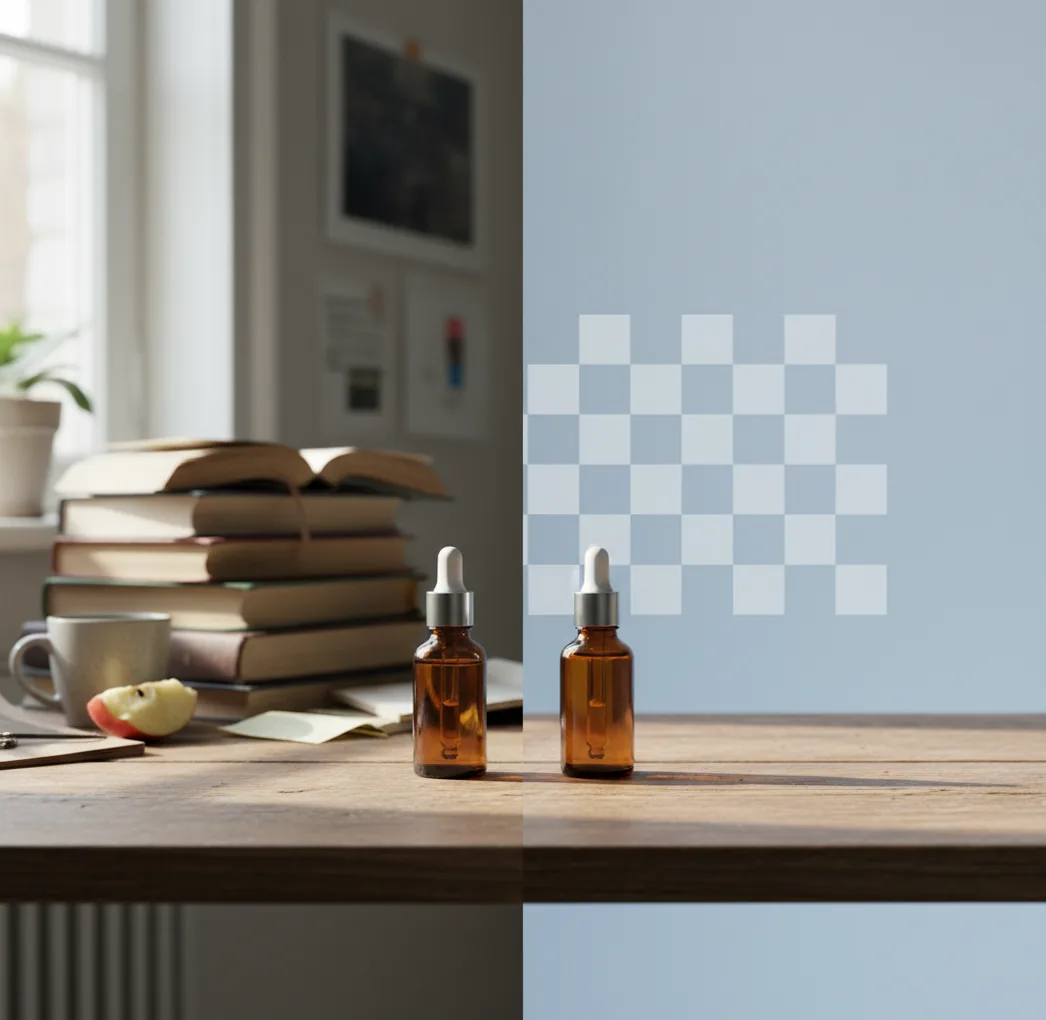
Apps that remove photo backgrounds include browser tools, iPhone editors, creator suites, and ecommerce cutout tools. The best app is the one that gives you a clean subject mask, transparent PNG export, high enough resolution, and manual edge refinement for hair, hands, glass, fur, and shadows.
Is There an App That Removes Photo Backgrounds?
Yes, many apps remove photo backgrounds by using AI subject segmentation to identify the foreground, create a mask, and delete or replace the original scene. A good background remover should let you export a transparent PNG, refine the cutout manually, and preview the result on light and dark backgrounds. This matters because a cutout that looks clean on a white canvas may show halos, missing hair, or jagged fingers when placed on a poster, product page, profile image, sticker sheet, or portfolio graphic.
Most tools fall into three groups: one-tap removers for quick edits, full editors with brush controls, and creator suites that combine background removal with templates, AI background generation, and social export sizes. If you care about quality, test the same real photo in two or three tools and inspect the edge at 200% zoom.
How Does a Background Remover App Work?
A background remover app works by predicting which pixels belong to the subject and which pixels belong to the surrounding scene. Modern tools use semantic segmentation, alpha matting, edge detection, and subject-aware masking to separate faces, hair, clothing, products, pets, hands, and objects from the background. The app then creates an alpha channel: opaque pixels stay visible, transparent pixels disappear, and semi-transparent pixels preserve soft details like hair strands, fabric edges, smoke, glass, or motion blur.
The hard part is not the first cutout; it is the transition zone around the subject. Similar colors, backlighting, reflections, low resolution, and compression artifacts can confuse the mask. That is why the strongest apps include erase/restore brushes, feathering, defringe controls, shadow handling, and high-resolution export instead of only a one-click preview.
How Do You Remove a Background From a Photo?
Upload the sharpest original image
Use the original camera file when possible, ideally at least 1500 to 3000 pixels on the long edge. Avoid screenshots, heavily compressed social downloads, and blurry images because they create jagged masks.
Run the automatic background removal
Let the app detect the main subject and remove the background. For portraits, product photos, pets, and food shots, the first AI mask is usually close enough to evaluate within seconds.
Zoom in and inspect the edge
Check hair, fingers, glasses, jewelry, fur, handles, transparent packaging, and the bottom contact shadow. These areas reveal whether the cutout is actually usable.
Refine the mask manually
Use restore and erase brushes to fix missing areas or leftover background. If the app has feather, smooth, or defringe controls, apply them lightly rather than over-softening the whole subject.
Export for the final use
Choose PNG if you need transparency, JPEG if you want a flat background, and the highest available resolution for print, ecommerce, thumbnails, portfolio images, or brand assets.
What App Removes Backgrounds From Photos Best?
| Tool | Best For | Strength | Watch For |
|---|---|---|---|
| Pict AI | Web and iPhone background removal plus AI backdrop changes | Fast cutouts, transparent exports, and creator-friendly background replacement | Still requires edge checks on hair, glass, and low-light photos |
| Adobe Express | Creators who want background removal inside a broader design workflow | Good template ecosystem and export options | Some advanced edits may depend on account access or paid features |
| Canva | Social posts, presentations, thumbnails, and branded layouts | Easy design workflow after the background is removed | Background remover access may vary by plan |
| remove.bg | Fast single-purpose cutouts | Simple upload-and-download workflow | High-resolution downloads and batch use may be limited |
| PhotoRoom | Product photos, marketplace listings, and studio-style backdrops | Strong ecommerce workflow and background templates | May feel more product-focused than general creative editing |
| Pixelcut | Mobile product photography and social commerce | Useful for quick catalog-style visuals | Complex edge repair may need extra manual checking |
| iPhone Photos | Quick subject lift on supported iPhones | No extra install for simple copy-and-paste cutouts | Limited refinement controls and export flexibility |
The best background remover is not always the fastest preview. Choose based on edge quality, manual mask repair, export resolution, transparency support, batch workflow, and what you plan to do after the cutout.
What Is the Best Free Online Background Remover With No Signup?
The best free online background remover with no signup is the one that lets you upload a photo, preview the mask, and download a transparent PNG without forcing an account before you can judge quality. No-signup tools are useful for quick tests, shared computers, one-off profile images, school projects, marketplace drafts, and social posts. They are also a low-friction way to compare how different AI models handle the same messy image.
The tradeoff is usually export control. Some free tools reduce resolution, limit batch processing, add watermarks, hide high-resolution downloads, or provide fewer brush tools. If the cutout is for print, paid ads, client work, packaging, or ecommerce, test the free version first but confirm the final export size, transparency, and license terms before relying on it.
How Do You Remove a Photo Background on iPhone?
Start with a clean, bright photo
Shoot in even light and tap to focus on the subject. A sharp edge gives the AI more information than a dark, blurry, or backlit subject.
Use built-in subject lifting for quick copies
On supported iPhones, press and hold the subject in Photos to lift it, then copy or share it into another app. This is fast for stickers, messages, notes, and casual edits.
Use a dedicated editor for transparent exports
If you need a PNG, a new background, brush repair, or a specific canvas size, use a background remover app instead of only copying the subject.
Check the cutout on a contrasting background
Place the subject on black, white, and one bright color. Halos and missing edge pixels are easier to see when the backdrop changes.
Save the right format
Export PNG for transparency, JPEG for a flat background, and high resolution for posters, prints, product pages, or profile branding.
How Can You Change or Extend a Background After Removing It?
After removing a photo background, you can replace it with a solid color, a studio backdrop, a lifestyle scene, a brand gradient, or an AI-generated environment. The cutout should match the new background in lighting direction, shadow softness, color temperature, camera angle, and scale. If the original subject is lit from the left, a new background with strong light from the right can make the image feel pasted together even if the mask is technically clean.
For social posts, clean gradients and soft shadows usually work better than busy scenes. For ecommerce, keep the product readable and avoid backgrounds that obscure shape or color. For gifts, posters, and portfolio pieces, a more cinematic backdrop can work if you preserve contact shadows and add a slight color grade to unify the subject with the environment.
What Prompts Help Replace Photo Backgrounds Cleanly?
- Product studio: "Place the subject on a clean matte white studio background with a soft natural contact shadow, realistic scale, neutral lighting, no extra objects."
- Social profile: "Create a simple pastel gradient background behind the subject, soft depth, flattering light, clean negative space around the head and shoulders."
- Ecommerce lifestyle: "Put the product on a modern kitchen counter near a window, soft morning light, realistic shadow, uncluttered background, product remains sharp."
- Pet portrait: "Place the pet in a cozy indoor setting with warm soft lighting, shallow depth of field, realistic fur edge detail, no changes to the pet."
- Poster style: "Create a cinematic colored backdrop with subtle texture, rim light that matches the subject edge, high contrast, clean composition for a vertical poster."
- Brand asset: "Use a minimal background in [brand color], add a soft floor shadow, keep the subject centered, preserve original shape, no text or logo."
What Matters Most in Real Background Remover Exports?
The most important export factors are transparency, resolution, edge quality, shadow behavior, and file format. PNG is the standard choice when you need a transparent background because it preserves the alpha channel. JPEG does not support transparency, so it will replace empty areas with a flat color. WebP can support transparency too, but PNG is still the safest format for design tools, print workflows, and ecommerce uploads.
Resolution matters because a clean mask at 800 pixels wide may look rough when enlarged for a banner, poster, or store hero image. For product listings and creator assets, keep the original file, export the largest usable cutout, and inspect it at 100% and 200% zoom. If the subject floats unnaturally, add or preserve a subtle contact shadow instead of removing every trace of the original scene.
What Are the Limits of Apps That Remove Photo Backgrounds?
- Hair and fur can lose fine strands when the original image is blurry, backlit, low resolution, or compressed by social platforms.
- Transparent objects such as glass, veils, bottles, and plastic packaging are difficult because the background is partially visible through the subject.
- White subjects on white walls, black clothing on dark rooms, and beige hair on beige backgrounds can confuse the segmentation boundary.
- Motion blur cannot be fully repaired by background removal because the true edge detail is missing from the image.
Which Background Remover Should You Use in 2026?
Use a simple one-tap remover if you only need a fast profile image, sticker, or transparent PNG. Use a design editor if the cutout will become a thumbnail, ad, presentation slide, social post, or branded graphic. Use an ecommerce-focused tool if you need consistent product images, shadows, batch processing, and marketplace-ready backgrounds. Use a full creative workflow if you want to remove, replace, extend, and art-direct the background in one place.
The practical rule is to choose based on the final destination, not the upload screen. A clean marketplace product image, a family gift print, a creator thumbnail, and a professional headshot all need different levels of edge control. Before committing, run one hard test photo through the app and check hair, hands, reflective objects, and shadows at 200% zoom.
Related background-removal guides on Pict.AI
When a Full Cutout Helps - and When Another Edit Works Better
Background removal is most useful when the subject needs to become a reusable asset, not simply when the scene looks busy. A cutout can move between layouts, but deleting the setting also removes visual clues about scale, location, and how the subject rests on a surface.
Pros: more control over the final composition
- Reusable assets: One isolated subject can serve a catalog card, presentation, and promotional graphic without repeating the selection work. Keep an untouched original alongside the cutout so future edits do not depend on a flattened design.
- Flexible layouts: If you are learning how to make instagram story backgrounds with ai, separating the subject lets you position it around captions and interface overlays rather than forcing text into the original scene.
- Independent backdrop editing: When deciding what app changes photo backgrounds, look for separate subject and background controls. That separation makes it easier to resize the backdrop without stretching the person or product.
Cons: removal can solve more than you intended
- Lost context: For an environmental portrait, a tool that can blur photo backgrounds may preserve the setting while reducing distractions. Full removal can make a documentary-style image feel staged.
- Unnecessary reconstruction: If only a bin or passerby spoils the frame, deciding what app removes objects from photos is more relevant than cutting out the entire subject. Local removal preserves most of the existing scene.
- Different repair needs: Choosing what app removes text from photos involves reconstructing the surface beneath lettering. A subject cutout will not repair text printed across clothing or packaging.
Short verdict: Remove the whole background for reusable cutouts and layout changes. Choose a targeted edit when the setting still contributes to the photograph.
Photo Background Removal Questions Answered
Yes, but automatic selection may retain only the most prominent person or merge overlapping people into one cutout. Check that every face, arm, and leg remains included, especially near the frame edges. If the editor supports manual selection, mark each person you want to keep. Separating overlapping people into independent layers usually requires additional masking.
Some background removers offer batch processing, which applies automatic cutouts to several files in one operation. Check file-count limits, output dimensions, and whether individual masks remain editable before starting a large job. Batch removal does not guarantee consistent framing: products may still need alignment, matching canvas sizes, and individual corrections before they form a coherent catalog.
Yes. Export the image as a PNG to preserve transparency; JPEG files do not support transparent backgrounds.
Free options include browser-based background removers, mobile editors, and some built-in phone features. Check whether the free version limits resolution, adds a watermark, or blocks transparent PNG downloads.
A white outline usually comes from leftover background pixels or color fringing around the mask edge. Use defringe, contract, erase, or edge refinement controls to reduce the halo.
They work well on many portraits, but flyaway hair, curls, backlighting, and low-resolution images are still difficult. Always zoom in and check the hairline before exporting.
Use PNG for the most reliable transparent background. WebP can also support transparency, but PNG is more widely accepted across design, print, and ecommerce tools.
Yes, background removers are commonly used for product photos. For realistic results, preserve or recreate a soft contact shadow so the object does not look like it is floating.
Use the highest-quality original image available, ideally at least 1500 to 3000 pixels on the long edge. Small or compressed photos often create jagged edges and missing details.
It depends on the tool’s privacy policy, retention rules, and training-data practices. Avoid uploading sensitive, private, or client-owned images unless you have permission and understand the terms.