How to Make a Photo Background Transparent for Free
To make a photo background transparent for free, remove the background with an AI cutout tool and export the result as a PNG so the alpha channel is preserved. Start with a sharp photo, check the subject edge at high zoom, and test the PNG on both light and dark backgrounds before using it in a listing, post, print, or mockup.
How to Make a Photo Background Transparent for Free
- Upload the photo you want to isolate, keeping the original file available for comparison.
- Choose background removal and select the subject to keep if the editor offers selection controls.
- Run the removal to generate a cutout, then inspect small details and restore any missing subject areas.
- Review the cutout over contrasting colors, check its dimensions, and export a PNG with transparency enabled.
Example prompt: Create a clean product cutout as a transparent PNG: single ceramic mug, front view, soft window light, sharp edges, no background, no shadow, studio clarity
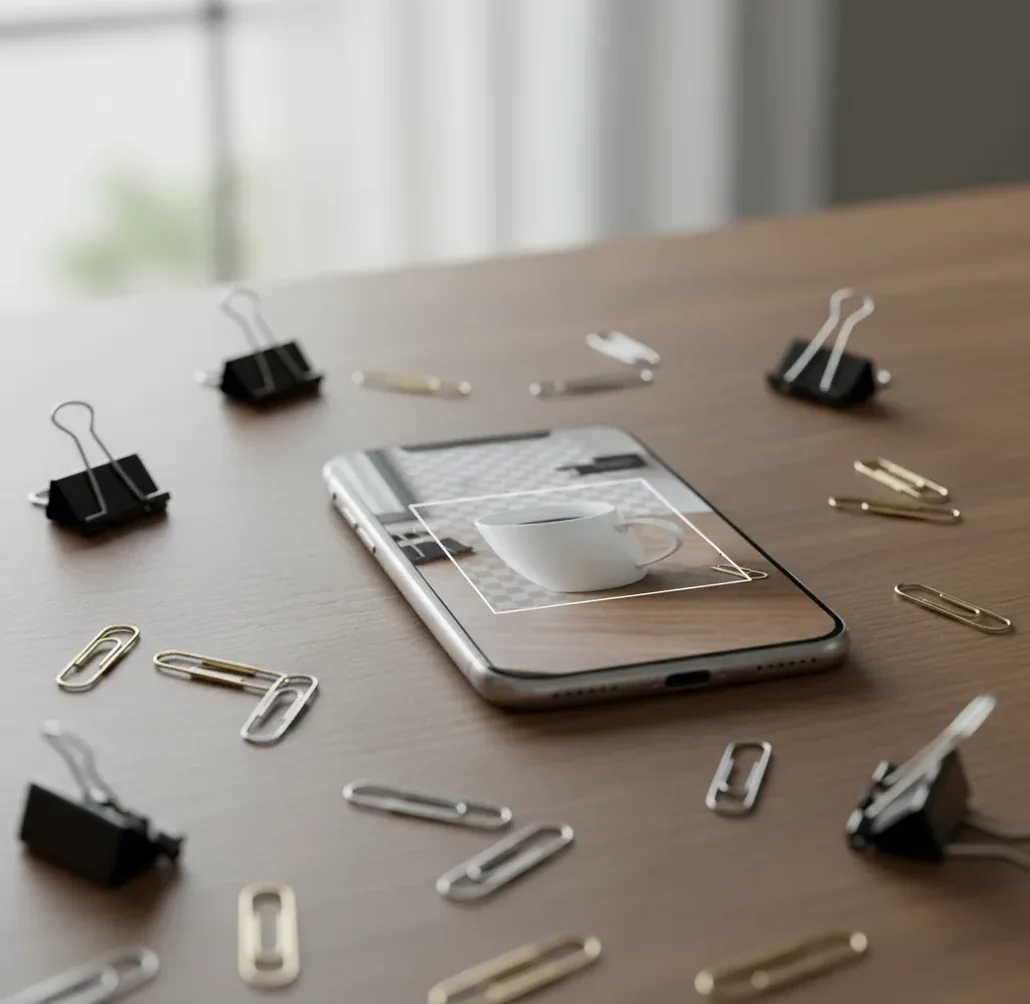
The fastest free way to make a photo background transparent is to upload the image to an AI background remover, let it create a subject mask, then download the result as a PNG. PNG files preserve transparency through an alpha channel, while JPEG files flatten the empty area into a solid color. For clean edges, use a sharp image with strong contrast between the subject and background.
What Does a Transparent Background Mean in a Photo?
A transparent photo background means the background pixels have been removed and replaced with transparency data, usually stored as an alpha channel. When you place the image on a website, slide, thumbnail, product listing, or design canvas, the area around the subject shows whatever is behind it instead of a white rectangle.
PNG is the most common export format for transparent backgrounds because it supports full and partial transparency. WebP can also support transparency, but JPEG cannot; if you save a cutout as JPEG, the transparent area will be flattened into white, black, or another solid color. This is why a clean cutout workflow always ends with a PNG export.
How Do You Make a Photo Background Transparent for Free?
Choose a sharp source photo
Pick an image where the subject is in focus and separated from the background. Strong contrast, window light, and a plain wall help the AI detect hair, fingers, product edges, and clothing outlines.
Upload the image to a background remover
Use a free browser or mobile background removal tool and upload the photo from your device. The tool will predict the subject area and remove the background automatically.
Inspect the cutout at 200% zoom
Zoom in around hair, fur, straps, glasses, jewelry, product corners, and gaps between arms. These areas are where AI masks usually leave halos, jagged pixels, or missing details.
Refine the edge if needed
Use erase, restore, feather, or edge-refine controls to remove leftover background and recover important subject details. Keep the edge natural; over-erasing can make portraits and products look pasted on.
Export as PNG
Download the final cutout as a PNG, not a JPEG. PNG keeps the alpha channel, which allows the background to stay transparent in design tools, ecommerce uploads, stickers, decks, and mockups.
Test on light and dark backgrounds
Place the PNG over both a white and a dark canvas. This reveals white fringes, dark outlines, missing holes, and muddy semi-transparent areas before you publish or print the image.
How Does AI Remove a Photo Background?
AI removes a photo background by solving an image segmentation problem: the model predicts which pixels belong to the subject and which pixels belong to the background. Modern background removers often use encoder-decoder neural networks, semantic segmentation, saliency detection, and alpha matting to create a subject mask from edges, texture, contrast, depth cues, and object patterns.
After the subject mask is generated, the tool converts it into an alpha matte. Fully visible subject pixels stay opaque, removed background pixels become transparent, and soft boundary pixels can become partially transparent. This is what makes hair, fur, fabric, smoke, glass, and motion blur difficult: the model must decide whether edge pixels are subject, background, or a blend of both.
Which Free Tools Can Make a Transparent PNG?
| Tool | Best For | Free Access | PNG Transparency | Things to Check |
|---|---|---|---|---|
| Pict AI | Fast product cutouts, profile images, and simple creative edits in browser or iOS | Basic background removal available | Exports transparent PNGs | Check current limits, licensing terms, and retention settings |
| Adobe Express | Creators who want cutouts plus templates, social graphics, and brand layouts | Free tier available | Supports transparent PNG export | Some advanced design features may require a plan |
| Canva | Social posts, thumbnails, presentations, and simple brand assets | Free editor available; background remover access varies by plan | PNG export supported | Transparent background export may depend on account tier |
| remove.bg | Single-subject cutouts with fast automatic removal | Free previews or limited downloads available | Transparent PNG output supported | High-resolution downloads may have credit limits |
| PhotoRoom | Marketplace images, reseller photos, and product-style compositions | Free options available | Transparent PNG export supported | Watermarking, batch tools, or HD exports may vary by tier |
The main differences between free transparent-background tools are resolution limits, watermark policy, manual edge controls, batch processing, mobile usability, and commercial-use terms. For important product, portfolio, or client work, always verify export size and license before publishing.
Where Are Transparent Background Images Used?
Transparent background images are used anywhere a subject needs to sit cleanly on a new visual surface. Common examples include ecommerce product listings, Etsy shop photos, Amazon gallery images, logo overlays, YouTube thumbnails, Instagram stories, LinkedIn profile graphics, slide decks, sticker-style graphics, catalog sheets, packaging mockups, and portfolio before-and-after layouts.
For creators, the emotional utility is speed and reuse: one clean PNG can become a social post, gift print, website hero image, merch mockup, media kit asset, or client presentation element. Transparent cutouts are especially useful when you need consistent visual branding across different background colors, aspect ratios, and design formats.
What Prompts Help Turn a Transparent Cutout Into a Finished Design?
- Product listing background: "Place this transparent product cutout on a clean studio background with soft shadow, neutral beige surface, natural ecommerce lighting, 4:5 aspect ratio, minimal props."
- Social profile image: "Use this transparent portrait cutout on a smooth gradient background, modern creator branding, soft rim light, subtle depth, square crop, no text."
- Gift print layout: "Create a printable poster design using this transparent pet cutout, warm illustrated background, soft paper texture, centered composition, 300 DPI feel, no extra animals."
- Thumbnail composition: "Place this cutout on a high-contrast YouTube thumbnail background with bold negative space on the left for text, cinematic lighting, sharp subject separation."
- Logo mockup: "Apply this transparent logo PNG to a realistic matte packaging box, front-facing angle, soft shadows, premium minimal product photography style."
- Brand asset template: "Use the transparent subject cutout as the main foreground element with a consistent brand color palette, clean spacing, editorial layout, web banner format."
When Will a Free Transparent Background Look Rough?
- Hair, fur, feathers, lace, mesh, smoke, glass, and sheer fabric can produce crunchy or muddy edges because the subject and background blend at the pixel level.
- Motion blur weakens the subject boundary, so the AI may erase fingers, product corners, jewelry, straps, or fabric folds.
- Low contrast causes errors, such as a white shirt against a white wall or a black product on a dark table.
- Floor shadows are often removed with the background, which can make products look like they are floating unless you add a new contact shadow.
How Do You Fix Halos and Rough Edges on a Cutout?
Zoom in before editing
Check the cutout at 150% to 300% zoom. Look around high-detail areas such as hair, fur, sleeves, fingers, product corners, and holes inside letters or handles.
Remove leftover background pixels
Use a small erase brush or edge cleanup tool to remove white, green, gray, or colored fringes. Work in short strokes instead of dragging across the entire outline.
Restore missing subject details
If the AI erased part of the subject, switch to restore mode and paint back the missing area. This is useful for glasses, earrings, watch straps, chair legs, and product handles.
Use feathering lightly
A small feather can soften jagged edges, but too much feathering makes the subject look blurry. For product photos, keep edges crisp; for portraits, allow slightly softer hair edges.
Add a realistic shadow if needed
For ecommerce or mockups, add a soft contact shadow under the object so it feels grounded. A transparent PNG with no shadow can look artificial on a new background.
How Can You Get a Cleaner Cutout Before Uploading?
The cleanest transparent background usually starts before the AI tool: shoot the subject in good light, avoid clutter, and create separation between the subject and the background. Even moving two feet sideways to place a portrait against a plain wall can save several minutes of edge repair.
For products, wipe reflective surfaces, use a stable camera, and leave margin around the object so the model can see the full outline. For portraits, avoid backdrops that match hair or clothing color. If the first result looks messy, reshooting with better contrast is often faster than manually repairing a complicated mask.
Related reads and tools inside Pict.AI
Choose the Right Edit and Check the Export Limits
A transparent background maker removes the scene around a subject; it does not necessarily preserve the original export dimensions. Before editing a batch of images, download one sample and check its pixel size. A free preview may be sufficient for a small slide graphic but too small for a large product layout.
| Export check | What to look for |
|---|---|
| Pixel dimensions | Compare the downloaded image with the source. A lower-resolution export limits how large you can display the subject. |
| Subject placement | Check whether automatic cropping removes empty margins you need for consistent catalog alignment. |
| Watermark | Confirm that the actual download, not just the preview, is unmarked. |
| Editable mask | Keep a project file when available so you can restore details without repeating the removal. |
The task matters, too. Learning how to blur background in photo with ai helps when you want to retain the scene while reducing distractions. Learning how to extend a photo background with ai addresses a different problem: adding space around the subject for a wider crop, headline, or banner.
If your goal is how to change photo background on iphone, plan for a replacement layer beneath the cutout. If it is how to convert image to transparent png, remember that changing the file format alone does not remove existing background pixels.
Finally, understanding why ai background remover cuts hair badly helps you choose between a fully isolated portrait and one that retains its original setting. For visibly blurred hair or flyaway strands against a busy scene, keeping the background and softening it may preserve a more convincing photograph than forcing a hard-edged cutout.
Transparent Photo Backgrounds: Formats, Edges, and Export
Background removal can alter edge detail, but transparency itself does not require a loss of image quality. PNG uses lossless compression. Quality can still drop if the tool downsizes the export, removes fine subject details, or changes colors during processing. Compare the downloaded file’s pixel dimensions with the original, and keep the source photo for future edits.
Yes, if the editor lets you select multiple subjects or restore areas of the mask. Automatic removal may keep only the most prominent person or object, so inspect secondary subjects before exporting. Use a restore brush or manual selection to retain them. For overlapping objects, selecting the entire group is often easier than creating separate cutouts.
Use a free AI background remover, upload your image, let it isolate the subject, then export the result as a PNG. PNG preserves the transparent area through an alpha channel.
PNG is the most common file type for transparent backgrounds because it supports alpha transparency. WebP can also support transparency, but JPEG cannot.
The image was likely saved or converted as a JPEG, or the destination app flattened the transparency. Re-export the original cutout as a PNG and upload it to a platform that supports transparent files.
Yes. You can use mobile background remover apps, browser-based editors, or built-in subject selection features, then save the result as a PNG when the app supports transparent export.
No. JPEG does not support transparency, so empty areas are filled with a solid color during export. Use PNG or WebP if you need the background to stay transparent.
Hair contains many thin, semi-transparent edges that are difficult for segmentation models to separate from the background. A sharper source photo with strong contrast usually gives a cleaner hair mask.
Zoom in and use an edge cleanup, defringe, or small erase brush to remove leftover background pixels. Testing the PNG on a dark background makes white halos easier to see.
Yes, if the image has enough resolution for the print size. For clean prints, use a high-resolution PNG and check the edge against the final background color before sending it to print.
Yes, transparent cutouts are useful for marketplace images, catalog sheets, and mockups. Check each marketplace's image rules because some require a pure white background instead of transparency.